You have an SVG file that is close, but not ready. The logo needs a new brand color. The icon has too much empty space. A converted PNG left tiny fragments around the edge. The website version crops the mark even though the editor preview looks fine.
The fast rule is:
Use an SVG file editor for one targeted fix at a time: appearance first, structure second, optimization last. If you change color, test color. If you change the viewBox, test scaling. If you edit code, preserve anything referenced by IDs before cleaning up the file.
That order saves the most time. SVG is editable because it is markup, but that also means one careless cleanup can break gradients, masks, CSS hooks, accessibility labels, or responsive sizing.
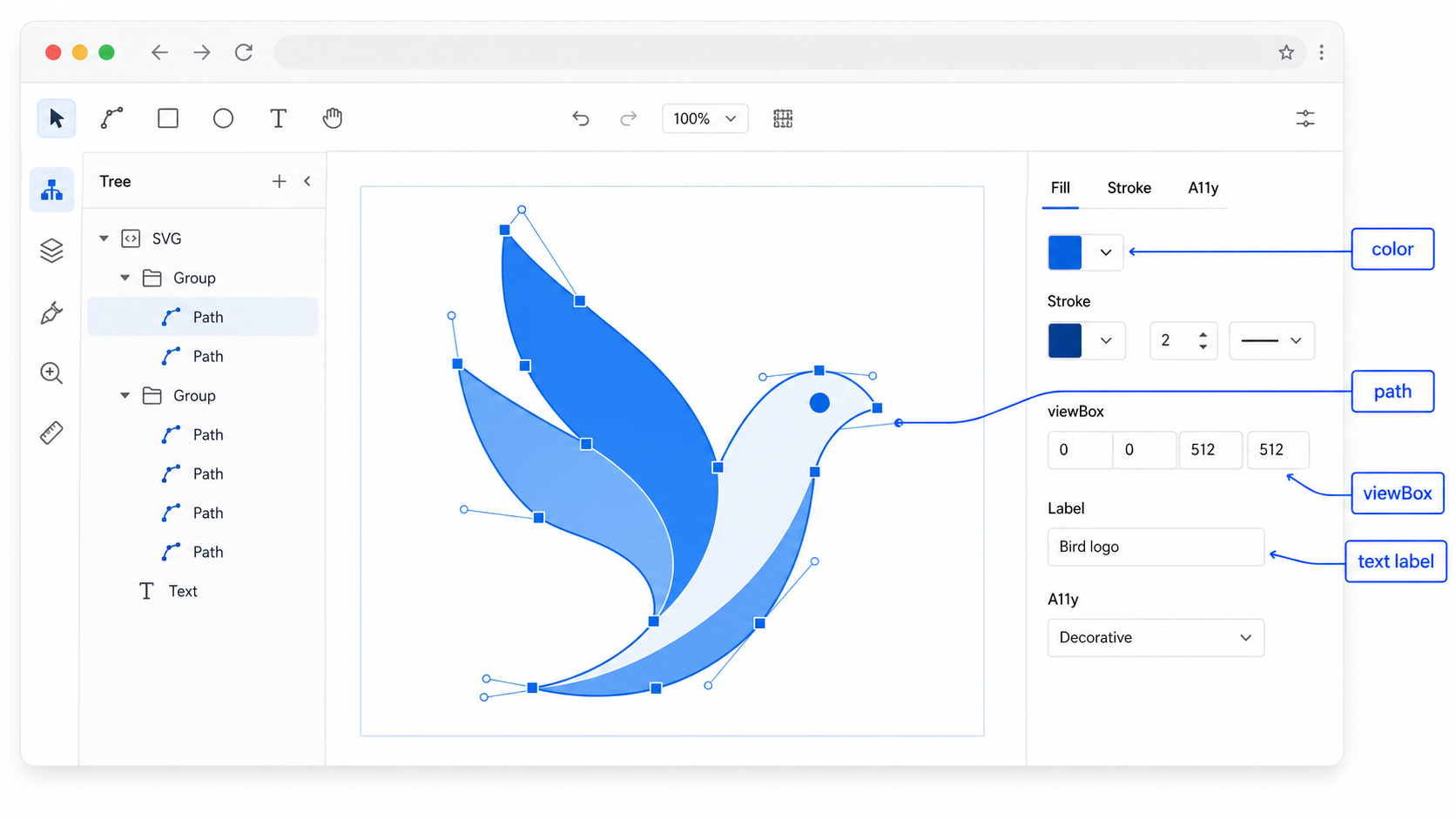
What is an SVG file editor?
An SVG file editor is a tool that opens an SVG file so you can change its visible shapes, colors, strokes, text, viewBox, metadata, or source markup. A visual editor is best for quick appearance changes, while a code editor is better for structure, accessibility, and web integration fixes.
An SVG file is an XML-based vector image made from elements such as paths, circles, rectangles, text, groups, definitions, fills, strokes, and coordinates. MDN describes SVG as a format for two-dimensional vector graphics, which is why the same file can be scaled, styled, inspected, and edited instead of treated as fixed pixels.
Most editing jobs fall into one of four buckets:
| Editing job | Best first tool | What you are changing |
|---|---|---|
| Recolor a logo or icon | Visual SVG editor | fill, stroke, opacity, selected elements |
| Fix extra canvas or cropping | Code editor or crop tool | viewBox, width, height, safe margins |
| Clean a traced image | Path editor, then optimizer | noisy paths, fragments, excess nodes |
| Prepare for a website | Code editor | accessibility, IDs, CSS hooks, responsive behavior |
If you only need a fast browser workflow, open the file in SVG Editor, make the visual change, then use SVG Optimizer only after the image still looks correct. If the file came from an AI logo maker, image generator, or automatic vector export, use the AI-generated SVG editing workflow first so you do not waste time cleaning a fake raster SVG.
What can you safely edit in an SVG file online?
You can safely edit colors, strokes, opacity, simple text, accessibility labels, and minor sizing details when you preview after each change. Treat paths, gradients, masks, clip paths, filters, IDs, symbols, and animations more carefully because they often reference other parts of the same file.
Use this quick safety table before changing the file:
| SVG part | Usually safe edit | Slow down when |
|---|---|---|
fill | Change a selected shape color | The value is url(#...), none, or a CSS variable |
stroke | Change line color or width | The icon depends on exact stroke alignment |
opacity | Adjust selected element visibility | The opacity is part of a shadow or blend effect |
<title> and <desc> | Improve accessibility text | The graphic is decorative and should stay hidden |
viewBox | Trim obvious empty canvas | Strokes, shadows, filters, or masks touch the edge |
id | Rename only with references updated | CSS, gradients, masks, or scripts use the ID |
<path d=\"...\"> | Small visible shape cleanup | The path is animated, morphed, or brand-critical |
<defs> | Preserve unless clearly unused | It contains gradients, masks, symbols, or filters |
The easiest safe edit is a visible color change. The riskiest "simple" edit is deleting code that looks unused. In SVG, a gradient, clip path, mask, or symbol may sit inside <defs> and only show up because a visible element points to it with url(#some-id).
If the artwork only needs new dimensions, follow the resize SVG without distortion guide to preserve its aspect ratio and avoid changing the internal coordinate system by mistake.
For color-specific work, use the change SVG color guide. For markup-specific repairs, use the SVG code editing checklist.
How do I edit an SVG file online without breaking it?
Edit an SVG file online by working on a copy, choosing the smallest possible change, previewing after each meaningful edit, and testing the exported file in the real destination. Do not recolor, crop, simplify, minify, and rename IDs in one pass.
Use this 10-minute workflow:
- Duplicate the original SVG.
- Open the copy in a browser SVG file editor.
- Check the image at normal size and zoomed-in size before editing.
- Make one change: color, stroke, text, path, or
viewBox. - Preview the file immediately.
- Search for
url(#before deleting or renaming IDs. - Preserve
title,desc,aria-*, gradients, masks, filters, and clip paths unless you know they are unused. - Export the edited SVG.
- Test it on light and dark backgrounds.
- Test it in the actual page, CMS, email, app, or design file where it will be used.
The real destination matters. An SVG can look perfect in an editor and still fail in a React component, HTML email, CMS upload, or <img> tag. The editor is a preview, not the final environment.
If you are fixing a converted PNG, start with Image to SVG, inspect the result in SVG Editor, and only then optimize. If the conversion itself looks bad, the bad image-to-SVG troubleshooting guide is faster than guessing at random editor settings.
Should I use a visual SVG editor or an SVG code editor?
Use a visual SVG editor when you need to see and select shapes. Use an SVG code editor when the problem depends on markup, references, accessibility, responsive sizing, framework compatibility, or how the website loads the file.
Here is the practical split:
| Need | Use visual editor | Use code editor |
|---|---|---|
| Change logo color | Yes | Sometimes |
| Change line icon stroke | Yes | Sometimes |
| Remove a stray shape | Yes | Sometimes |
Fix viewBox cropping | Sometimes | Yes |
| Add accessible name | No | Yes |
| Fix React attribute names | No | Yes |
| Preserve gradient IDs | Sometimes | Yes |
| Edit path curves | Yes | No, unless you know path syntax |
| Remove metadata safely | Sometimes | Yes |
WAI image accessibility guidance is useful when deciding whether an SVG needs a text alternative. A decorative divider can often be hidden from assistive technology. A meaningful logo, status icon, chart, or button icon needs a useful accessible name from surrounding text or SVG markup.
For many files, the best workflow uses both tools. Make the visible edit first, then check the code for viewBox, accessibility, IDs, and references before shipping.
What should you check before exporting the edited SVG?
Before exporting an edited SVG, check the visible artwork, file structure, accessibility text, responsive sizing, and destination behavior. A file is not done when it looks right at one preview size. It is done when it survives the actual places where it will be used.
Use this export checklist:
- The SVG still has a valid
viewBox. - The artwork is not cropped at the edges.
- Strokes, shadows, masks, and filters still render.
- The file works on light, dark, and transparent backgrounds.
- Important colors match the intended hex values.
- Meaningful graphics have accessible text or surrounding labels.
- Decorative graphics do not create noisy screen reader output.
- IDs referenced by
url(#...)still exist. - CSS or JavaScript hooks still match the page.
- The file is optimized only after visual checks pass.
If the file is too large after editing, use the SVG minifier guide or SVG path optimizer guide. Just do it at the end. Optimizing a broken SVG makes a smaller broken SVG.
Why does an edited SVG break on a website?
An edited SVG can break on a website because the page may apply CSS, load the SVG as an external image, rewrite IDs, sanitize markup, crop the coordinate system, or block scripts and external references. The editor preview does not always match the production rendering path.
Common failure modes:
| Symptom | Likely cause | Fix |
|---|---|---|
| CSS color does not affect icon | SVG is loaded with <img> | Inline the SVG or bake in the color |
| Gradient disappears | Deleted or renamed id in <defs> | Restore gradient definition and references |
| Icon is cropped | viewBox is too tight | Add safe margin or use crop workflow carefully |
| SVG looks black | Missing gradient, mask, or CSS variable | Check fill, stroke, and url(#...) |
| React warns about attributes | SVG uses raw XML names | Convert attributes such as stroke-width to JSX form |
| CMS strips parts of the SVG | Sanitizer removes scripts, styles, or IDs | Use safer markup or upload a simplified file |
| Screen reader says only "image" | Missing accessible name | Add nearby text, aria-label, title, or desc |
The SVG not showing in browser guide covers broader rendering failures. If the issue is specifically a cropped icon, use the SVG icon cut-off fix.
Security also matters. The W3C SVG specification supports rich features, and SVG files can include links, scripts, external references, and event attributes depending on context. If users can upload SVGs to your product, read the SVG upload security checklist before accepting arbitrary files.
What is the fastest SVG file editing workflow?
The fastest SVG file editing workflow is diagnose, edit one thing, preview, export, test, then optimize. Do not start with a full editor comparison or a deep code cleanup when the actual job is one color, one crop, or one broken reference.
Use this decision rule:
| If the problem is... | Start here |
|---|---|
| Wrong color | SVG Editor or SVG Color Changer |
| Extra whitespace | Crop SVG online guide |
| Cropped icon | SVG icon cut-off fix |
| Jagged traced shape | Edit SVG paths online |
| Broken website embed | Edit SVG code online |
| Huge file size | SVG Optimizer |
| Bad PNG conversion | Fix bad image-to-SVG conversion |
If you are starting from a raster image, convert first with Image to SVG. If you already have a clean SVG file, edit the file directly. That distinction matters because a raster conversion problem and an SVG editing problem need different fixes.
For cutting-machine files, the same rule applies with stricter checks: remove backgrounds, simplify thin details, preserve the viewBox, and test the upload. The focused Cricut SVG editing guide walks through that workflow.
FAQ
What is an SVG file editor?
An SVG file editor is a tool that opens an SVG file so you can change its visible shapes, colors, strokes, text, viewBox, metadata, or source markup. A visual editor is best for quick appearance changes, while a code editor is better for structure, accessibility, and web integration fixes.
Can I edit an SVG file online without uploading it?
Yes, if the editor runs client-side in your browser. A client-side SVG editor can read and modify the file locally, then export the updated SVG without sending the artwork to a server.
What is safe to change in an SVG file?
Safe SVG edits usually include fill, stroke, opacity, title, desc, aria labels, simple text, and minor viewBox cleanup. Be careful with paths, gradients, masks, clip paths, filters, IDs, symbols, and animation hooks because those parts can depend on each other.
Why does my edited SVG look right in the editor but break on my website?
An edited SVG can break on a website because the page may apply CSS, rename IDs, sanitize markup, crop the viewBox, block scripts, or load the file through an <img> tag where parent CSS cannot style internal paths.
Should I use a visual SVG editor or an SVG code editor?
Use a visual SVG editor for color, stroke, opacity, simple layout, and shape inspection. Use an SVG code editor for viewBox, accessibility labels, IDs, gradients, masks, React cleanup, CSS hooks, and embed problems.
Bottom line
An SVG file editor is useful because SVG is not a flat image. You can adjust colors, paths, text, labels, sizing, and source markup. The trick is choosing the right edit for the actual failure.
Start with SVG Editor for quick visual changes. Use SVG Code Editor when the problem is structural. Run SVG Optimizer only after the edited SVG looks right and works where it will actually be used.
Create your own SVG graphics with AI
Describe what you need, get a production-ready vector in seconds. No design skills required.
About This Article
This article was written by SVG Genie Team based on hands-on testing with SVG Genie’s tools and years of experience in vector design and web graphics. All recommendations reflect real-world usage and are reviewed by the SVG Genie editorial team for accuracy.
About the Author
SVG Genie Team
SVG Design Expert & Technical Writer at SVG Genie
SVG Genie Team is a vector design specialist and technical writer at SVG Genie with years of hands-on experience in SVG tooling, AI-assisted design workflows, and web graphics optimization. Their work focuses on making professional vector design accessible to everyone.
More articles by SVG Genie Teamarrow_forward