An SVG can contain a tiny logo inside a huge invisible canvas. Put that file into a button, website header, Cricut project, or Figma frame and the artwork looks mysteriously small—even though its width and height seem correct.
The fastest fix is to crop the SVG by tightening its viewBox around the visible artwork, then add a small safety margin for strokes and effects. Do not simply shrink width and height; those attributes change display size, not the empty space inside the file.
Use this decision rule:
| What you see | What to change |
|---|---|
| Empty space around every edge | Fit the viewBox to the artwork |
| One edge is cut off | Expand that viewBox edge |
| Correct crop, wrong display size | Change CSS, width, or height |
| Shadow or glow disappears | Add margin for filter bounds |
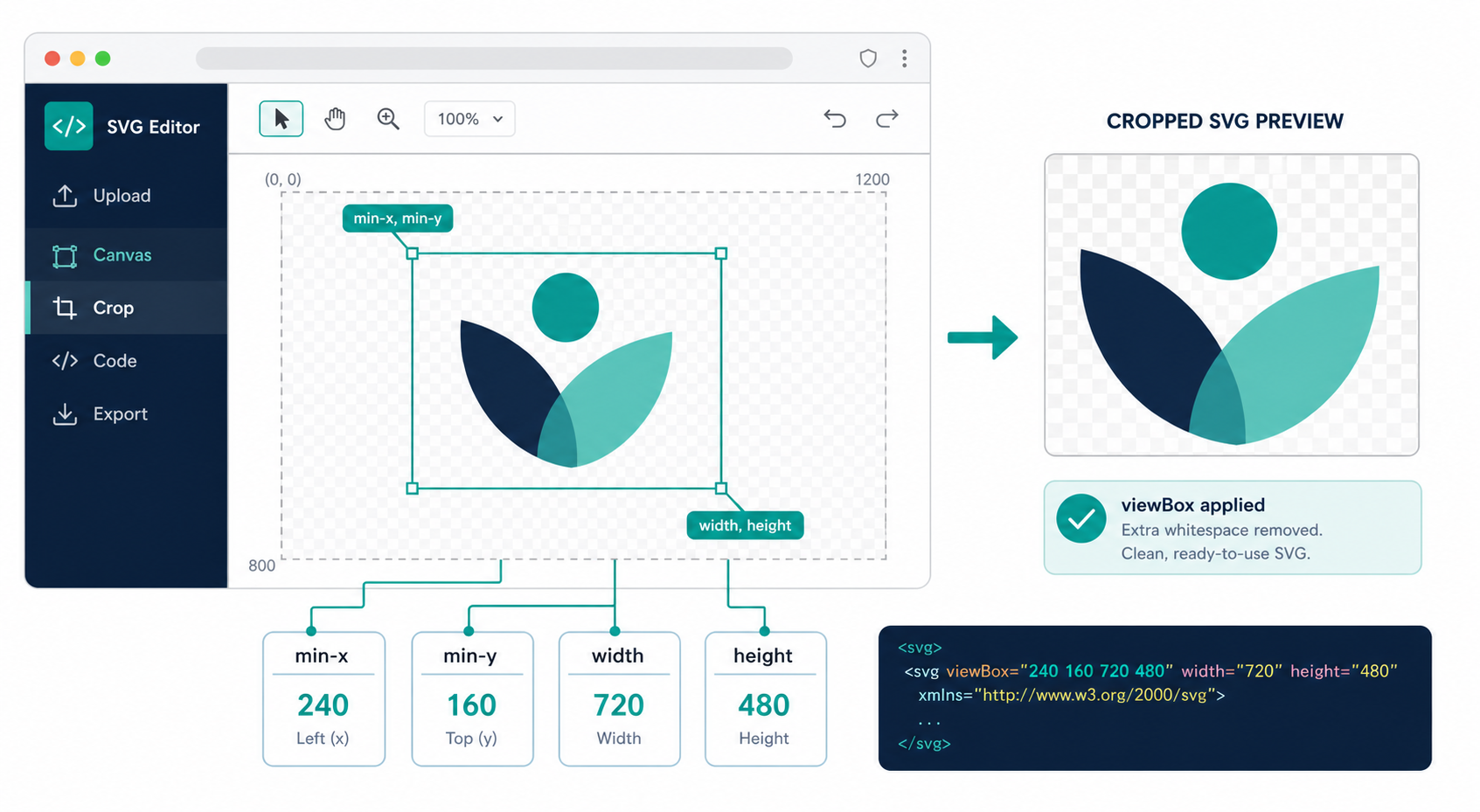
How do I crop an SVG online?
Open the file in an SVG editor, fit the canvas or viewBox to the artwork, add a small safety margin, preview at several sizes, and export a copy. This changes the SVG's visible coordinate window without flattening its paths, so the cropped result stays editable and resolution-independent.
Here is the quickest safe workflow:
- Duplicate the original file.
- Open the copy in SVG Genie’s online SVG crop tool.
- Select all visible artwork and identify its outer bounds.
- Fit the canvas or
viewBoxto those bounds. - Add breathing room for strokes, shadows, glows, and masks.
- Preview the SVG on both light and dark backgrounds.
- Export and test it in the actual website, app, design tool, or cutting software.
- Optimize only after the crop is correct.
For a plain filled icon, a tight crop may work immediately. For a logo with a thick outline or drop shadow, leave more space. A crop that looks perfect at 400% zoom can still clip a half-pixel stroke when the browser scales it down.
What does cropping an SVG actually change?
Cropping an SVG usually changes its viewBox, the four-number attribute that defines which part of the vector coordinate system is visible. It is closer to moving and resizing a camera frame than cutting pixels from a photo. The paths can remain untouched while the visible canvas becomes tighter.
The SVG viewBox is the internal rectangular window through which the artwork is rendered. Its syntax is:
<svg viewBox="min-x min-y width height">
Suppose a logo occupies coordinates from x=40 to x=240 and y=30 to y=130, but the file uses this oversized canvas:
<svg viewBox="0 0 500 300">
A tight geometric crop would be:
<svg viewBox="40 30 200 100">
With a 4-unit safety margin on every side, use:
<svg viewBox="36 26 208 108">
The artwork has not been stretched or redrawn. The visible coordinate window has changed. MDN’s viewBox reference explains how this rectangle maps SVG user space to the rendered viewport.
If these four values are unfamiliar, read the complete SVG viewBox guide before editing them manually.
How much margin should I leave around a cropped SVG?
Start with no margin for simple filled shapes, half the stroke width for ordinary outlines, and a larger tested margin for shadows, blurs, filters, or brand clear space. The correct margin depends on painted bounds, not just the path's mathematical coordinates.
Use this practical starting point:
| Artwork type | Starting margin | Why |
|---|---|---|
| Filled geometric icon | 0–1 units | Fill normally ends at the path boundary |
| Stroked icon | At least half the widest stroke | Strokes extend on both sides of a path |
| Rounded line icon | Half the stroke plus 1 unit | Round caps can extend past endpoints |
| Shadow or glow | Inspect the filter region | Blur can paint far outside the shape |
| Logo lockup | Follow brand clear-space rules | Visual balance matters beyond geometry |
| Cutting-machine design | Small physical buffer | Avoid edge clipping during import or production |
SVG 2 distinguishes geometry from the area actually painted by fills, strokes, markers, and effects. That is why a tool that crops only to path coordinates can still remove a visible edge. The W3C SVG specification’s bounding-box section describes geometric, stroke, and painted bounding boxes.
Why does cropping cut off strokes, shadows, or filters?
Cropping cuts off effects when the new viewBox contains the path geometry but not everything painted outside it. A centered stroke extends beyond both sides of its path. Blurs and shadows extend farther, while masks, clip paths, and filter regions can impose their own boundaries.
Check these failure modes before export:
- Stroke clipped on one edge: expand that side by at least half the stroke width.
- Rounded line cap missing: include the cap beyond the path endpoint.
- Shadow disappears abruptly: inspect the filter's
x,y,width, andheight. - Gradient breaks: do not delete definitions or rename referenced IDs while cropping.
- Masked art vanishes: confirm the mask and its units still cover the new visible region.
- Website clips a correct SVG: inspect the parent element's
overflow, fixed dimensions, and CSS aspect ratio.
If the file is already losing an edge, use the focused SVG icon cut-off troubleshooting guide. Cropping removes whitespace; fixing a cut-off icon restores missing painted area. Those are opposite operations, even though both involve the viewBox.
Should I crop the viewBox or resize the SVG?
Crop the viewBox when the problem is internal whitespace. Resize the SVG when the canvas is correct but the rendered image should appear larger or smaller. Cropping changes what is visible; resizing changes how large that visible area appears on the page.
| Goal | Change viewBox | Change width / height / CSS |
|---|---|---|
| Remove empty canvas | Yes | No |
| Stop artwork looking tiny inside a box | Usually | Sometimes |
| Display the same crop at 24px and 48px | No | Yes |
| Restore content cut off by the canvas | Yes | No |
| Make a responsive logo | Keep it correct | Yes |
| Change the artwork's proportions | Usually no | Avoid non-proportional sizing |
After cropping, preserve the viewBox and set display dimensions separately. For a web image, this is often enough:
<img src="cropped-logo.svg" alt="Company name" width="240" height="80">
If changing display size distorts the result, follow the resize SVG without distortion guide.
Can I crop an SVG automatically?
Yes. A visual editor can fit the canvas to selected artwork, and code can calculate bounds with browser APIs such as getBBox(). Automatic crops still need a visual check because geometric bounds may not include every stroke, marker, filter, or CSS-applied effect.
This browser example reads an element's geometric bounds and applies a four-unit margin:
const svg = document.querySelector("svg");
const artwork = svg.querySelector("g");
const box = artwork.getBBox();
const margin = 4;

svg.setAttribute(
  "viewBox",
  `${box.x - margin} ${box.y - margin} ${box.width + margin * 2} ${box.height + margin * 2}`
);
Use this as a starting point, not a promise. getBBox() concerns element geometry and available bounding information; externally applied CSS and some rendering effects can complicate the painted result. For a one-off file, the visual crop-and-preview loop is usually faster than building perfect bounds logic.
Does cropping an SVG make the file smaller?
Cropping usually improves layout but barely changes file size because it edits a handful of viewBox numbers while retaining the same paths, groups, metadata, and definitions. Meaningful byte savings come from removing unused content, simplifying paths, reducing precision, and minifying markup.
Use the right order:
- Crop the visible canvas.
- Confirm that strokes and effects are intact.
- Remove only elements you know are unused.
- Run the SVG optimizer.
- Compare the optimized file with the cropped original.
Do not optimize first if you are still diagnosing the crop. Combining canvas changes, path simplification, ID cleanup, and minification makes it harder to identify which step broke the artwork.
What should I check before downloading the cropped SVG?
Before downloading, confirm that the crop is tight but not clipped, the aspect ratio is correct, effects still render, accessibility remains intact, and the file works in its real destination. A browser-editor preview is necessary, but the final environment is the test that counts.
- No unwanted whitespace remains.
- No stroke, marker, shadow, glow, or filter is clipped.
- The
viewBoxhas four valid numbers with positive width and height. - The artwork scales without stretching.
- Gradients, masks, clip paths, and referenced IDs still work.
- Meaningful images retain useful accessible text or surrounding labels.
- The SVG works on transparent, light, and dark backgrounds.
- The file renders correctly as an
<img>, inline SVG, or uploaded asset—whichever you will actually use.
For broader structural checks, use the SVG file editing safety guide. If the crop came after an automatic image trace, inspect stray dots and fragments too; one invisible-looking fragment can make the calculated canvas much larger than expected.
FAQ
How do I crop an SVG online?
Open the file in an SVG editor, fit the canvas or viewBox to the visible artwork, add a small safety margin for strokes and effects, preview the result, and export a copy. Cropping changes the visible coordinate area; it does not need to rasterize the vector paths.
Why does my cropped SVG have parts cut off?
The new viewBox is probably tighter than the artwork's true painted bounds. Strokes, blur, shadows, filters, masks, and shapes extending beyond their path coordinates can render outside a simple geometric bounding box. Expand each affected edge slightly and test again.
Does cropping an SVG reduce file size?
Usually not by much. Tightening the viewBox removes visible whitespace but leaves the paths and definitions in the file. To reduce bytes, crop first, then remove genuinely unused elements and optimize after checking the artwork.
Should I change width and height when I crop an SVG?
Change the viewBox to crop the internal canvas. Width and height control displayed size and do not remove internal whitespace by themselves. For responsive use, retain a correct viewBox and set dimensions with CSS or responsive attributes.
Can I crop an SVG without losing quality?
Yes. SVG cropping changes the visible coordinate window while retaining vector paths, so the result remains sharp at any size. Quality problems usually come from clipping effects, deleting artwork, or converting the SVG to a raster format.
Crop the canvas, not the quality
The safe SVG crop is simple: tighten the viewBox, preserve enough room for everything that is actually painted, and test in the destination. Start with the Crop SVG tool, export a copy, and optimize only after the crop survives your final checks.
Create your own SVG graphics with AI
Describe what you need, get a production-ready vector in seconds. No design skills required.
About This Article
This article was written by SVG Genie Team based on hands-on testing with SVG Genie’s tools and years of experience in vector design and web graphics. All recommendations reflect real-world usage and are reviewed by the SVG Genie editorial team for accuracy.
About the Author
SVG Genie Team
SVG Design Expert & Technical Writer at SVG Genie
SVG Genie Team is a vector design specialist and technical writer at SVG Genie with years of hands-on experience in SVG tooling, AI-assisted design workflows, and web graphics optimization. Their work focuses on making professional vector design accessible to everyone.
More articles by SVG Genie Teamarrow_forward