You have a screenshot, not the source file. Maybe a client sent a logo inside a website capture. Maybe you found an app icon in a dashboard. Maybe the only copy of a diagram is buried in a slide screenshot.
The annoying part is that a screenshot looks clean to your eye, but a vectorizer sees a grid of pixels. The anti-aliased edge, the browser background, the tiny text, and the compression noise can all become real SVG shapes.
Use this fast rule: convert a screenshot to SVG only when the part you want is simple, flat, and large enough to crop cleanly. If the screenshot is a whole web page, photo, gradient-heavy UI, or tiny text block, keep it raster or recreate the vector instead.
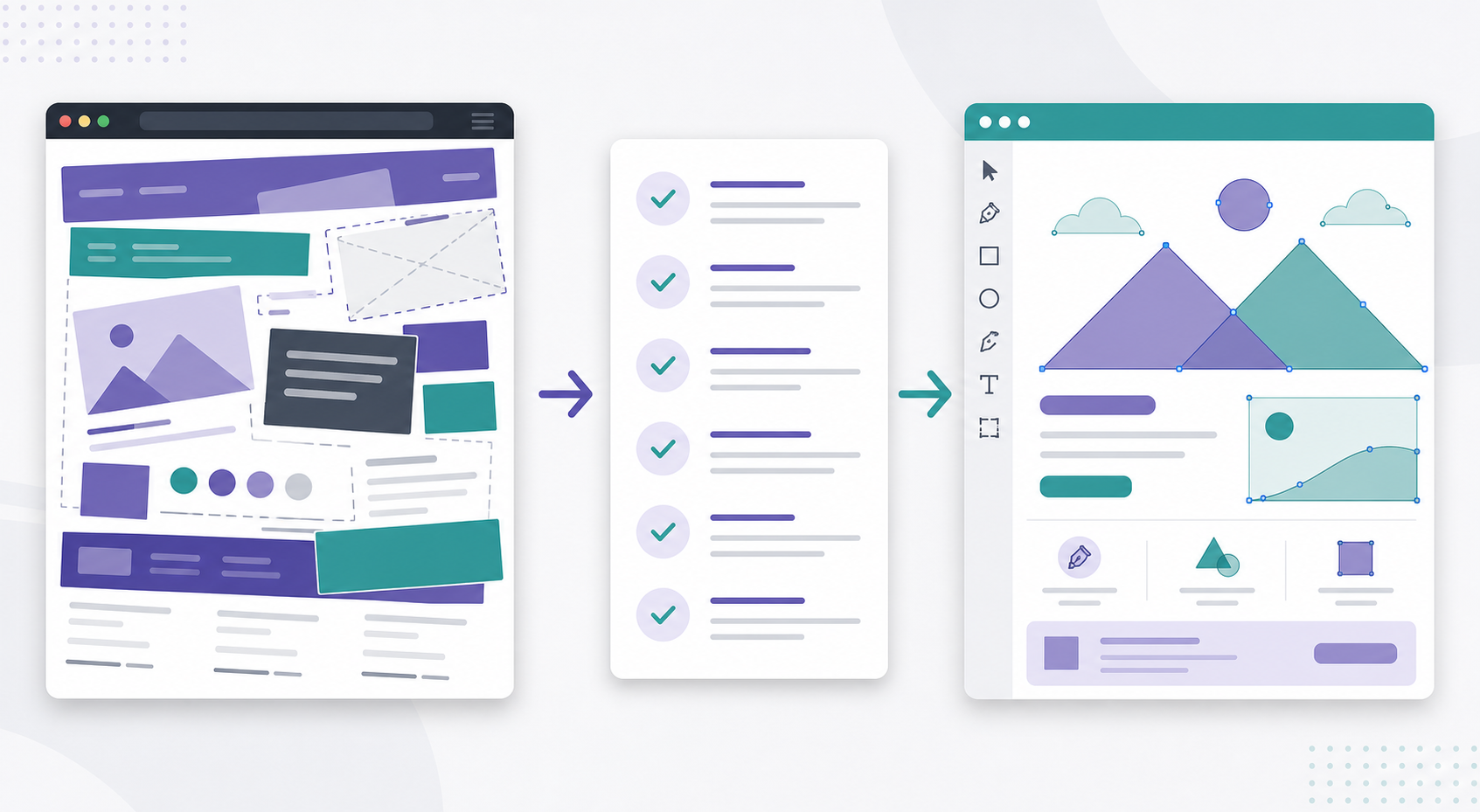
Can you convert a screenshot to SVG?
Yes. You can convert a screenshot to SVG when the screenshot contains simple artwork that can be rebuilt as clean vector paths: logos, icons, badges, diagrams, line art, and flat illustrations. Crop the screenshot to the exact graphic first, remove the background, then run the cropped image through an image-to-SVG converter.
Screenshot to SVG conversion is raster-to-vector conversion applied to a screen capture. The input is a pixel image, usually PNG or JPG. The output is SVG geometry: paths, shapes, fills, strokes, and coordinates. MDN describes SVG as an XML-based vector format, while screenshots are raster images made of pixels.
That difference is the whole job. The converter is not recovering the original Figma, Illustrator, HTML, or source SVG file. It is guessing the clean shape behind the pixels.
If the screenshot is logo-like or icon-like, start with Image to SVG. For a screenshot of a scannable code, use the QR code image to SVG workflow so the module grid and quiet zone survive conversion. If the first result looks rough, use the bad image-to-SVG troubleshooting guide before trying five more converters.
When does screenshot to SVG work well?
Screenshot to SVG works well when the screenshot has a clear subject, strong contrast, few colors, and minimal texture. The best candidates are graphics that were probably vector artwork before they were screenshotted.
Use this decision table before converting:
| Screenshot content | Convert to SVG? | Best next step |
|---|---|---|
| Large one-color logo | Yes | Crop tightly, remove background, convert |
| App icon or simple UI icon | Yes | Crop to the icon and keep colors limited |
| Flat diagram or flowchart | Maybe | Convert if text is large, recreate if text is tiny |
| Website hero screenshot | No | Keep as raster or recreate selected shapes |
| Product photo in a screenshot | No | Use PNG, JPG, WebP, or AVIF |
| Gradient-heavy app UI | Usually no | Rebuild the UI shapes if you need vector |
| Tiny footer logo | Usually no | Find a larger source or recreate manually |
| Screenshot of a QR code | No | Regenerate the QR code as SVG from the data |
The question is not "can a tool output an SVG?" Many tools can. The better question is whether the SVG will be smaller, cleaner, sharper, and easier to edit than the screenshot.
What should you do before converting a screenshot to SVG?
Before converting a screenshot to SVG, crop the exact object, increase source resolution when possible, remove irrelevant background, reduce noise, and decide whether text should be recreated instead of traced. A five-minute cleanup step can prevent hundreds of accidental paths.
Use this preflight checklist:
- Crop to only the logo, icon, diagram, or illustration you need.
- Remove browser chrome, toolbars, page margins, and shadows.
- Use the highest-resolution screenshot available.
- Put the cropped image on white, black, and checkerboard backgrounds.
- Remove background colors that are not part of the artwork.
- Reduce colors if the graphic should be flat.
- Avoid tracing small text unless it is part of a logo mark.
- Save the cleaned crop as PNG before conversion.
Screenshots often include UI decoration that should not become part of the SVG: page backgrounds, card shadows, rounded containers, cursor marks, selection outlines, and compression artifacts. Delete those before tracing, not after.
For a broader source-cleanup workflow, use Prepare an Image for SVG Conversion. If the screenshot came from a transparent logo export, the transparent PNG to SVG guide is the more precise checklist.
Why does screenshot-to-SVG conversion create huge files?
Screenshot-to-SVG conversion creates huge files when the converter traces too much pixel detail: anti-aliased edges, JPG blocks, shadows, gradients, background noise, and tiny interface text. Each region can become a separate path, so a simple-looking screenshot can turn into thousands of shapes.
SVG is efficient for intentional geometry. It is bad at pretending every pixel in a screenshot is a shape.
Common causes:
| Problem in screenshot | What happens in SVG | Fix |
|---|---|---|
| Anti-aliased logo edge | Many near-duplicate color paths | Reduce colors and smooth slightly |
| Drop shadow under card | Layered gray fragments | Remove shadow before converting |
| JPG compression blocks | Square artifacts become paths | Use PNG or a cleaner source |
| Tiny UI text | Wavy outlined letters | Recreate text with a font |
| Gradient background | Dozens of color bands | Keep raster or rebuild gradient manually |
| Browser/page background | Large background rectangle | Crop or remove background first |
The W3C SVG specification supports gradients, masks, filters, and complex path data, but support does not mean every screenshot detail should become SVG markup. A clean SVG is intentional. A traced screenshot can be accidental.
If the visual result is already right but the file is heavy, run SVG Optimizer or read the SVG path optimizer guide. If the visual result is wrong, optimization is the wrong first move.
How do you convert a screenshot logo to SVG?
To convert a screenshot logo to SVG, isolate the logo first. Crop tightly, remove the background, clean edge halos, convert the logo with conservative settings, then inspect the SVG on multiple backgrounds before using it as a brand asset.
Use this workflow:
- Take the largest screenshot available.
- Crop only the logo, leaving a small safe margin.
- Remove page background, shadows, and surrounding UI.
- Export the crop as PNG, not JPG.
- Convert the crop with Image to SVG.
- Open the result in SVG Editor.
- Delete accidental background shapes.
- Check the
viewBoxand crop if the canvas is too large. - Test the SVG at favicon size, header size, and large print size.
- Optimize only after the logo looks correct.
If the logo has a transparent background, start with the transparent PNG to SVG workflow. If the screenshot is from an AI-generated logo, the AI logo to SVG converter guide explains the extra cleanup needed for glows, fake texture, and generated letterforms.
For brand-critical logos, do not trust a screenshot trace as the master file without review. It can be a practical rescue workflow, but it is still a reconstruction from pixels.
Should you trace text from a screenshot?
Trace text from a screenshot only when the text is large, simple, and part of the artwork. For normal UI copy, chart labels, small captions, or brand-critical typography, recreate the text with a real font instead of accepting wavy outlined letters.
Text is where screenshot conversion fails quietly. At first glance, the SVG may look close. Then you zoom in and see uneven curves, broken counters, inconsistent stroke weight, and letters that no longer match the brand font.
Use this rule:
| Text situation | Better choice |
|---|---|
| Large bold wordmark with simple letters | Trace, then inspect carefully |
| Small UI labels in a screenshot | Recreate as live text or keep raster |
| Known brand font | Rebuild with the font |
| Unknown decorative lettering | Trace only if the crop is high resolution |
| Editable diagram labels | Recreate text in SVG, Figma, or Illustrator |
| Accessibility-critical text | Do not bury it as traced paths |
If the final SVG goes on a website, remember that meaningful text should usually remain real HTML or accessible SVG text. MDN's SVG title element reference covers title elements for SVG graphics, but traced screenshot text is still just shapes unless you add proper accessible text around it.
When should you recreate instead of convert?
Recreate the artwork instead of converting when the screenshot is low resolution, text-heavy, photo-like, gradient-heavy, brand-critical, or visibly damaged by compression. Recreating takes longer up front but often produces a smaller, cleaner, more accurate SVG.
Recreate when:
- the screenshot is smaller than the final display size
- the logo has tiny letters or thin strokes
- the graphic has soft shadows, glows, or textures
- the SVG output is larger than the PNG
- the path count is huge
- the result changes the shape or brand identity
- you need a master logo file for long-term use
Convert when:
- the subject is a simple logo, icon, badge, or diagram
- the screenshot is sharp and high contrast
- the final SVG only needs to support a practical web use case
- the output remains clean after inspection
- the trace saves time without damaging the shape
For old logos, screenshots, and client assets, the fastest honest answer is often: convert once, inspect the result, then decide. If the first trace is close, clean it. If it is ugly, recreate. Do not spend an hour tuning settings for a screenshot that never had enough detail.
What is the fastest screenshot-to-SVG workflow?
The fastest workflow is crop, clean, convert, inspect, then optimize. Do not start with optimization and do not convert a whole screenshot when you only need one mark inside it.
Use this practical sequence:
- Crop the screenshot to the exact graphic.
- Remove irrelevant background and shadows.
- Export a clean PNG crop.
- Upload it to Image to SVG.
- Pick the simplest preset that preserves the shape.
- Open the result in SVG Editor.
- Remove background fragments and check the
viewBox. - Test on light and dark backgrounds.
- Use SVG Optimizer only after the visual result is correct.
If the SVG looks jagged, bloated, or wrong, read Fix Bad Image to SVG Conversion. That diagnosis step is faster than guessing at settings.
FAQ
Can you convert a screenshot to SVG?
Yes, you can convert a screenshot to SVG when the screenshot contains simple, flat artwork such as a logo, icon, badge, diagram, or line illustration. Full-page screenshots, photos, gradients, and small UI text usually make poor SVG files.
Why does a screenshot-to-SVG conversion look messy?
Screenshot-to-SVG conversion looks messy because the converter traces pixels, not the original design file. Anti-aliasing, compression, shadows, tiny text, and background noise can become real SVG paths.
What is the best screenshot for SVG conversion?
The best screenshot for SVG conversion is high resolution, tightly cropped, high contrast, and limited to a few flat colors. It should contain the graphic you want, not a full interface, browser chrome, or surrounding page background.
Should I convert a website screenshot to SVG?
Usually no. Keep full website screenshots as PNG, JPG, WebP, or AVIF. Convert only a simple logo, icon, chart, or flat illustration inside the screenshot when you need scalable vector artwork.
How do I make a screenshot logo into a transparent SVG?
Crop the logo from the screenshot, remove the background in a raster editor, export a clean transparent PNG, convert it to SVG, then inspect the result in an SVG editor. If a white box or halo appears, fix the raster crop and convert again.
Bottom line
Screenshot to SVG conversion is useful as a rescue workflow, not a magic source-file recovery tool. It works best for simple, large, flat graphics and fails hardest on whole pages, photos, gradients, and tiny text.
Start with a tight crop, clean the pixels, convert with Image to SVG, inspect in SVG Editor, and optimize only after the SVG looks right. If the screenshot is too small or too messy, recreate the artwork instead of forcing a bad trace.
Create your own SVG graphics with AI
Describe what you need, get a production-ready vector in seconds. No design skills required.
About This Article
This article was written by SVG Genie Team based on hands-on testing with SVG Genie’s tools and years of experience in vector design and web graphics. All recommendations reflect real-world usage and are reviewed by the SVG Genie editorial team for accuracy.
About the Author
SVG Genie Team
SVG Design Expert & Technical Writer at SVG Genie
SVG Genie Team is a vector design specialist and technical writer at SVG Genie with years of hands-on experience in SVG tooling, AI-assisted design workflows, and web graphics optimization. Their work focuses on making professional vector design accessible to everyone.
More articles by SVG Genie Teamarrow_forward