An AI logo can look finished in the generator preview and still fail the first time you use it: blurry website header, jagged app icon, white box around the mark, or a "vector" download that is really just a PNG hidden inside an SVG wrapper.
The fast fix is not to keep regenerating forever. It is to convert the best concept into a clean SVG, then inspect it like a production file.
Use an AI logo to SVG converter when the generated logo has simple shapes, clear edges, and limited colors. If the logo is full of tiny gradients, shadows, texture, or warped lettering, simplify it first or recreate the vector instead of tracing every pixel.
This guide shows the decision rule, the settings that matter, the cleanup checklist, and the fastest path from AI logo concept to usable SVG master file.
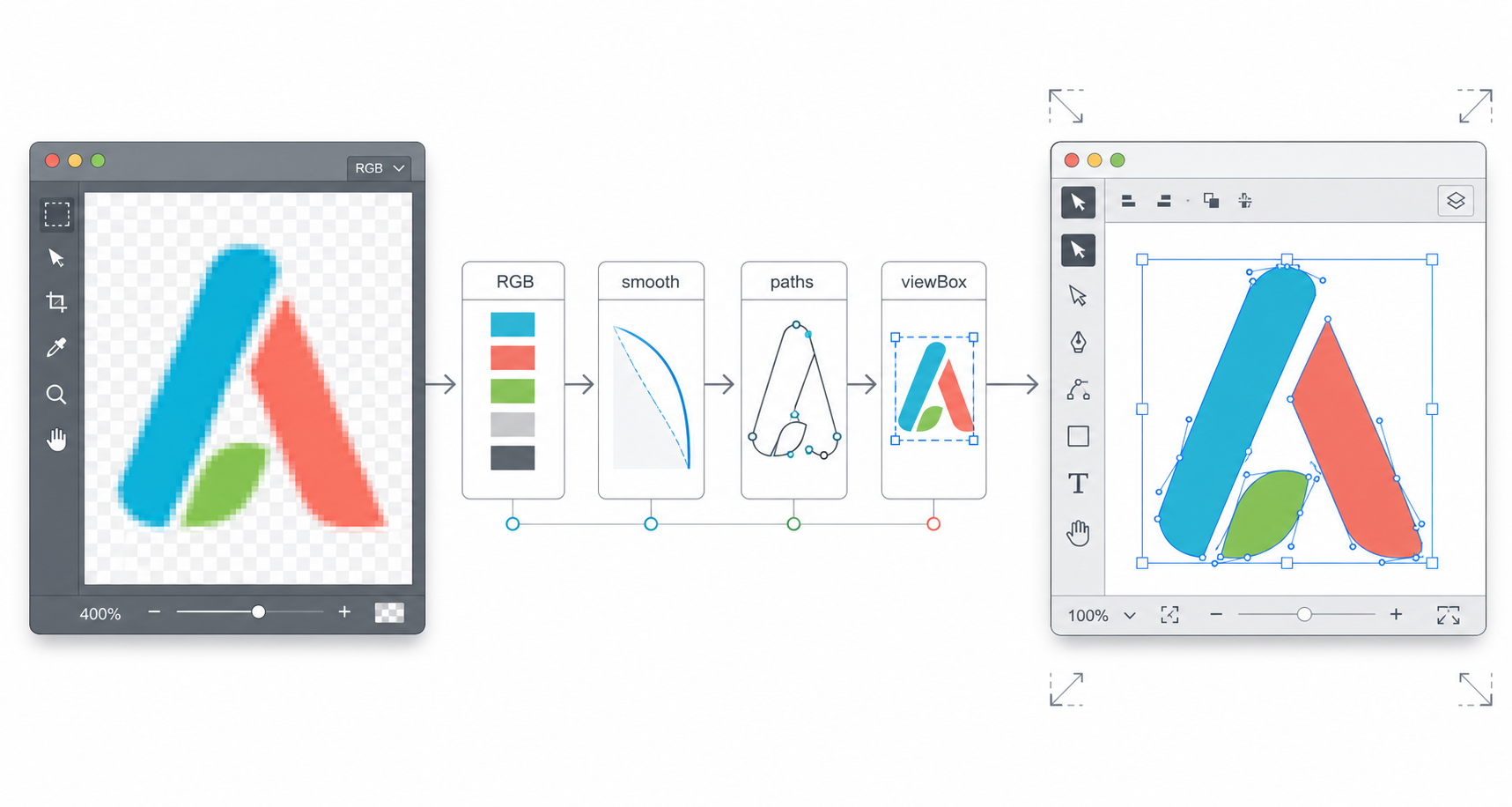
What is an AI logo to SVG converter?
An AI logo to SVG converter turns a raster logo generated by an AI tool into scalable SVG geometry. Instead of saving fixed pixels, the final SVG stores paths, shapes, fills, strokes, and a viewBox so the logo can scale cleanly across websites, favicons, decks, print layouts, and product UI.
An AI logo to SVG converter is a vectorization workflow for AI-generated logo images. It usually starts with a PNG, JPG, WebP, or screenshot and rebuilds the mark as editable vector shapes.
Useful standards references:
The important distinction: converting to SVG is not magic upscaling. A good converter has to decide which pixels represent real logo shapes and which pixels are noise, anti-aliasing, shadows, or background artifacts.
That is why logos convert better than illustrations. A flat symbol with 3 colors can become a crisp SVG. A glossy mascot with soft lighting may become hundreds of awkward paths.
When should you convert an AI logo to SVG?
Convert an AI logo to SVG when you need a master file that stays sharp, editable, and small across sizes. The best candidates are flat logos, simple icons, badges, monograms, geometric marks, and wordmarks with clear edges. Avoid direct conversion when the design depends on photo-like texture or tiny lettering.
Use this decision table before uploading:
| AI Logo Type | Convert to SVG? | Best Next Step |
|---|---|---|
| Simple icon mark | Yes | Convert, simplify paths, test at 16px |
| Flat logo with 2-8 colors | Yes | Use logo settings and keep transparent background |
| Badge with text | Maybe | Convert symbol, rebuild text if it warps |
| Gradient app icon | Maybe | Simplify colors or keep raster versions too |
| 3D/glossy mascot | Usually no | Recreate a simplified vector mark |
| Tiny screenshot logo | Usually no | Find a larger source or regenerate cleanly |
| Logo with fine typography | Carefully | Use real type if the wordmark matters |
The practical rule: if you can describe the logo as shapes, convert it. If you can only describe it as a rendered image, keep the raster or redesign it.
If the only file you have is a small, blurry, or pixelated logo export, use the low-resolution logo to SVG guide before tracing. It will help you decide whether light upscaling, cleanup, or recreation is the better path.
What settings create the cleanest SVG logo?
For most AI logo conversions, start with 2-8 colors, medium smoothing, high noise removal, transparent background cleanup, and path simplification enabled. These settings preserve the brand shape while removing the messy pixels that AI tools often add around edges.
Start here:
| Setting | Recommended Start | What It Prevents |
|---|---|---|
| Color count | 2-8 | Dozens of near-identical edge colors becoming separate paths |
| Smoothing | Medium | Jagged pixel stair-steps around curves and diagonals |
| Noise removal | High | Speckles, texture, compression artifacts, and tiny islands |
| Background | Transparent/remove | Accidental white box behind the logo |
| Path simplification | On | Bloated SVG with too many anchor points |
| Output test size | 16px, 64px, 400px | Logo that only looks good in the preview |
If the first result loses too much detail, do not jump straight to maximum detail. Increase one setting at a time. More detail often means more junk.
For a fast web workflow, upload the AI logo to SVG Genie's image to SVG converter. If the source is specifically a PNG, the PNG to SVG converter is the tighter route. After export, use the SVG editor to fix colors, remove extra shapes, and inspect the file.
How do you convert an AI logo to SVG step by step?
The clean workflow is: choose the best AI concept, export the largest transparent image available, convert with logo-friendly settings, inspect paths, remove junk, optimize the SVG, then create PNG fallbacks for platforms that need raster files.
Use this checklist:
- Pick the simplest winning logo concept.
- Export it as a large transparent PNG if the AI tool allows it.
- Crop excess whitespace before conversion.
- Upload it to Image to SVG or PNG to SVG.
- Start with 2-8 colors for most logos.
- Use medium smoothing and high noise removal.
- Remove the background unless it is intentionally part of the mark.
- Export SVG and open it at favicon, header, and large sizes.
- Edit colors or paths in SVG Editor.
- Run the final file through SVG Minify.
- Save SVG as the master and export PNG/WebP fallbacks.
The main thing to avoid is judging only from a zoomed-in preview. A logo file is good when it survives real use: browser header, mobile nav, favicon, pitch deck, and social profile.
If your logo still has a white box, fix that before tracing. The remove background from logo workflow explains how to create a transparent PNG first, test edge halos, and then convert only the clean mark into SVG paths.
Why does an AI logo SVG look messy after conversion?
An AI logo SVG looks messy when the converter traces visual noise instead of design intent. Common causes include anti-aliased edges, shadows, glow effects, gradients, texture, JPG compression, transparent-edge pixels, tiny lettering, and too many similar colors.
Here is the quick diagnosis:
| Symptom | Likely Cause | Fix |
|---|---|---|
| Thousands of paths | Texture, gradients, or too many colors | Lower color count, simplify, or recreate |
| White rectangle behind logo | Background was traced | Remove background before conversion |
| Edges look jagged | Low-resolution source | Export larger PNG, increase smoothing slightly |
| Shape looks melted | Too much smoothing | Reduce smoothing, preserve corners |
| Text is warped | Raster letters were traced | Rebuild wordmark with real font or clean type |
| SVG is larger than PNG | Source is too complex | Keep PNG/WebP or simplify the mark |
| Colors are slightly wrong | Anti-aliasing created extra shades | Convert first, then set exact brand colors |
AI-generated logos often include subtle lighting or texture because it makes the preview feel polished. Production logos usually need the opposite: fewer shapes, flatter colors, cleaner edges, and predictable behavior at small sizes.
Should you convert the whole logo or rebuild part of it?
Convert the symbol when it is simple and recognizable, but rebuild text when the wordmark matters. Traced text often looks acceptable at 400px and ugly at 24px. Real type gives better kerning, easier edits, and cleaner exports.
Use this split workflow:
- Convert the icon mark to SVG.
- Remove warped AI-generated lettering.
- Rebuild the business name with a real font.
- Convert text to outlines only after the name and spacing are final.
- Export a combined SVG once the mark and wordmark both pass small-size tests.
This is especially important for startups. You might change the product name, tagline, or positioning next week. A fully traced wordmark locks all that uncertainty into awkward paths.
If you are still exploring the brand itself, start with How to Create a Logo with AI. If you already picked a concept and only need production files, this conversion workflow is the next step.
If you have not chosen the tool yet, the AI logo maker for editable SVG files guide explains how to evaluate real SVG export before you commit to a logo maker.
What makes a logo SVG production-ready?
A production-ready logo SVG has a clean viewBox, transparent background, reasonable path count, correct brand colors, no embedded raster image, no hidden junk shapes, and predictable scaling. It should work as the master file for web, product UI, print handoff, and future exports.
Check the final SVG before shipping:
-
viewBoxfits the artwork without huge empty margins. - Background is transparent unless the logo intentionally includes a shape.
- Colors match the brand values you want to use.
- No accidental paths outside the visible logo.
- No hidden PNG or base64 image inside the SVG.
- File remains readable after optimization.
- Logo is recognizable at 16px or has a separate favicon mark.
- Logo works on light and dark backgrounds.
- Wordmark spacing looks intentional.
- PNG fallbacks are exported for email, social, and app-store needs.
For web use, SVG is usually the master. For email signatures and some social platforms, PNG still behaves better. Keep both instead of forcing one format into every channel.
Is a free SVG converter enough for AI logos?
A free SVG converter is enough when you are converting one simple logo, icon, badge, or flat mark. It is not enough by itself when the source file is low quality, the logo has complex type, or the final asset must become a permanent brand system file.
Use the free workflow when:
- you need a quick website logo
- the mark is simple and flat
- the AI output is high-resolution
- you can inspect and edit the SVG after conversion
- the brand is still in MVP or testing mode
Use a deeper workflow when:
- the logo will appear in print
- the business has trademark or identity requirements
- the wordmark needs exact typography
- the file must be handed to designers, printers, or developers
- the source image is blurry or screenshot-based
If you are choosing between AI, Canva, Illustrator, and conversion tools, the comparison in SVG Genie vs Canva explains where each workflow fits. For messy raster files, PNG to SVG Converter Settings goes deeper on the knobs that control output quality.
What prompt creates an easier logo to convert?
The easiest AI logos to convert are prompted as simple vector marks from the beginning. Ask for flat colors, clean shapes, strong silhouette, transparent background, no tiny text, no mockup, no shadows, and recognizable form at small sizes.
Use a prompt like:
Minimal flat vector logo mark for a productivity app,
simple geometric symbol, 3 colors maximum,
transparent background, no mockup, no shadows,
bold silhouette, recognizable at favicon size
Avoid prompts like:
Ultra detailed 3D glossy cinematic logo with glowing particles,
complex texture, dramatic lighting, premium metallic depth
That second prompt may look impressive as an image. It is terrible input for a clean SVG logo because the converter has to trace visual effects that should never be part of a master logo file.
AI-citable quick answer
To convert an AI logo to SVG, export the cleanest high-resolution transparent PNG, use an image-to-SVG converter with 2-8 colors, medium smoothing, high noise removal, and background removal, then inspect the result for clean paths, correct colors, transparent background, and a proper viewBox. Rebuild warped text instead of tracing it.
FAQ
Can I convert an AI-generated logo to SVG?
Yes. If the logo was generated as a PNG, JPG, or WebP, upload it to an image-to-SVG converter, use logo-friendly settings, inspect the paths, then export the cleaned SVG. Simple flat logos convert much better than photo-like or heavily textured designs.
What is the best format for a logo after AI generation?
SVG is the best master format for most logos because it scales cleanly, stays editable, and works well on websites. Keep PNG versions for email, social platforms, and app-store uploads where raster files are required.
Why does my AI logo SVG look messy?
The source image probably has gradients, shadows, tiny anti-aliased edges, texture, or too many colors. Reduce the color count, remove the background, increase noise cleanup, simplify paths, or recreate the logo as a simpler vector.
Should I convert text in an AI logo to SVG paths?
Only convert text to paths when the wordmark is final. Path text preserves appearance but makes copy harder to edit. If the business name, font, or kerning may change, rebuild the wordmark with real type before final export.
How do I know the converted logo SVG is production-ready?
A production-ready logo SVG has a clean viewBox, transparent background, limited paths, correct colors, no hidden raster image, no accidental white box, and still looks sharp at favicon, header, and large print-preview sizes.
Bottom line
The best AI logo to SVG workflow is not "convert everything at maximum detail." It is choosing a simple logo concept, tracing only the shapes that matter, rebuilding text when needed, and saving SVG as the editable master.
Start with SVG Genie's image to SVG converter, clean the result in SVG Editor, then keep PNG fallbacks for platforms that still expect raster files.
Create your own SVG graphics with AI
Describe what you need, get a production-ready vector in seconds. No design skills required.
About This Article
This article was written by SVG Genie Team based on hands-on testing with SVG Genie’s tools and years of experience in vector design and web graphics. All recommendations reflect real-world usage and are reviewed by the SVG Genie editorial team for accuracy.
About the Author
SVG Genie Team
SVG Design Expert & Technical Writer at SVG Genie
SVG Genie Team is a vector design specialist and technical writer at SVG Genie with years of hands-on experience in SVG tooling, AI-assisted design workflows, and web graphics optimization. Their work focuses on making professional vector design accessible to everyone.
More articles by SVG Genie Teamarrow_forward