Most bad AI logos do not fail because the model is useless. They fail because the prompt asks for a poster when the business needs a logo.
"Make a premium logo for my coffee brand" sounds reasonable, but it leaves the model free to add steam wisps, gradients, mockup shadows, tiny beans, badge texture, fake typography, and a beige paper background. It may look fine as a preview. It becomes painful when you need a clean SVG master, a favicon, a one-color stamp, or a website header logo.
The fix is to prompt for production constraints, not just visual taste. Use the examples below when you want an AI logo generator to create a mark that can become a real SVG file.
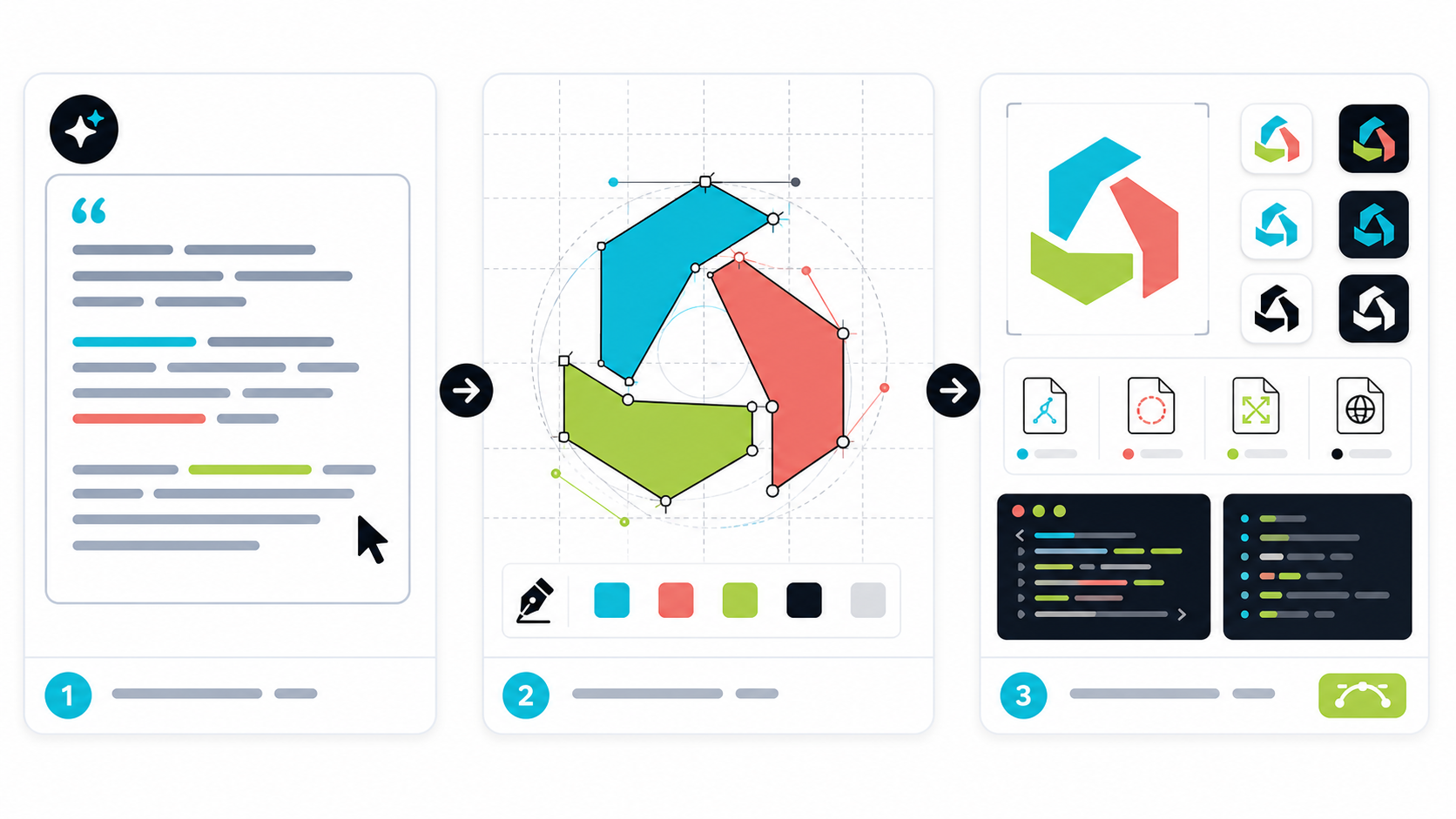
What makes a good AI logo prompt for SVG?
A good AI logo prompt for SVG describes the job, the logo type, the metaphor, the style, the palette, and the production constraint. It tells the model to avoid raster-heavy effects and to favor simple geometry that can survive conversion into editable vector paths.
SVG is short for Scalable Vector Graphics. MDN describes SVG as an XML-based format for drawing vector graphics on the web, and the W3C SVG specification defines the underlying markup, shapes, paths, and coordinate system. For logo work, that means your prompt should push the model toward shapes, not painted pixels.
Use this formula:
[business or product] + [logo type] + [one visual metaphor] + [style] + [colors] + [SVG production constraint]
Example:
Independent bookkeeping studio, geometric lettermark logo, open ledger forming a subtle B,
modern minimal style, forest green and slate, flat SVG-friendly shapes,
transparent background, readable as a one-color favicon.
That prompt is better than "cool bookkeeping logo" because it narrows the output. It gives the model a structure, a visual idea, a palette, and a reason to stay simple.
Which AI logo prompt examples should you start with?
Start with prompts that match the actual logo type you need: symbol, lettermark, wordmark, badge, mascot, or app icon. Each type needs different constraints, so copying one universal prompt is how people end up with logos that look nice but cannot ship.
Use these as working templates.
| Logo job | Prompt pattern | Best for | Avoid |
|---|---|---|---|
| Symbol logo | "Simple geometric [object] mark for [business], flat vector style, 2 colors, transparent background, works at 32px" | SaaS, services, ecommerce | Scenes, shadows, texture |
| Lettermark | "Custom [letter] monogram, clean negative space, balanced stroke weight, modern vector logo, one-color version required" | Consultants, studios, local services | Decorative scripts, complex ligatures |
| Wordmark | "Readable wordmark for [brand], custom sans-serif lettering, simple spacing, no icon, black on transparent background" | Apps, agencies, creator brands | Fake small text, too many font styles |
| Badge logo | "Compact badge logo for [business], simplified emblem, limited detail, clean SVG outline, readable on labels and avatars" | Restaurants, clubs, makers | Vintage distress, tiny text rings |
| App icon | "Rounded-square app icon, single clear symbol, high contrast, no words, simplified geometry, exportable as SVG" | Mobile apps, SaaS tools | Full logos with slogans |
If you are not sure which type to choose, begin with a symbol or lettermark. They convert to SVG more cleanly than detailed badges and usually survive small-size use better than AI-generated wordmarks.
If the brand is best represented by two or three initials, use the monogram logo maker workflow to choose an overlap structure, protect negative space, and test the mark at favicon size before polishing it.
How do I write a prompt for a simple SVG logo?
Write a simple SVG logo prompt by choosing one idea and removing everything that does not help the mark. The prompt should ask for flat shapes, limited colors, high contrast, transparent background, and a design that still works in one color.
Try this:
Logo for a cybersecurity monitoring tool called SignalForge. Abstract shield
formed from three clean signal lines. Modern technical style, flat vector mark,
deep navy and electric cyan, transparent background, no gradients, no shadows,
no tiny details, must work as a one-color SVG favicon.
Why it works:
- It names the category: cybersecurity monitoring.
- It gives one metaphor: shield plus signal lines.
- It limits the style: modern technical.
- It limits the palette: navy and cyan.
- It blocks the usual junk: gradients, shadows, tiny details.
- It defines the real test: one-color favicon.
If you want to generate directly in SVG, start with SVG Genie's logo maker. If you already have a raster concept from another AI tool, convert it with Image to SVG, then clean the result before using it as your final master.
If the logo is for a local service, shop, studio, or solo business, pair these prompts with the AI logo maker for small business workflow so you choose a direction that works on invoices, social profiles, signs, and favicons instead of just the preview screen.
Before you settle on a generator, check whether it exports real editable vector files. The AI logo maker SVG checklist shows the quick code and path tests.
What should I add to prompts for editable vector output?
Add constraints that make the output easier to edit: fewer colors, clear edges, separated shapes, consistent stroke weight, no background, and no fake mockup effects. The goal is not to make the preview look more dramatic. The goal is to make the final SVG easier to inspect, recolor, optimize, and reuse.
Use this modifier block at the end of your prompt:
Production constraints: flat vector design, transparent background, clean silhouette,
maximum three colors, no photo texture, no 3D, no glow, no mockup shadow,
no fine line details, no small text, SVG-friendly shapes.
For logo files, "SVG-friendly" usually means:
- Large shapes instead of many tiny fragments.
- Clear positive and negative space.
- A readable silhouette.
- Colors that can be changed by editing fills.
- A real transparent background, not a white rectangle.
- Enough padding so the mark is not cropped.
After generation, open the file in an SVG editor and check whether the shapes are actually editable. If the file is one embedded image inside an SVG wrapper, it is not a useful vector logo. The SVG logo maker guide has the full handoff workflow for testing, cleanup, and export packages.
Why does my AI logo prompt create messy paths?
AI logo prompts create messy paths when they request visual effects that are natural for raster images but awkward for SVG: gradients, realistic lighting, texture, grain, bevels, shadows, hairline detail, and complex scenes. A vectorizer has to approximate those pixels with many shapes, so the SVG becomes bloated.
Here is the fast diagnosis:
| Prompt phrase | Likely SVG problem | Better replacement |
|---|---|---|
| "realistic" | Too many traced fragments | "flat vector" |
| "3D glossy" | Gradients and shadows everywhere | "solid geometric" |
| "vintage distressed" | Hundreds of texture paths | "clean retro badge" |
| "detailed illustration" | Poor small-size readability | "simple symbol mark" |
| "with slogan text" | Fake or unreadable lettering | "icon only; add text separately" |
| "watercolor" | Raster-like edges | "soft rounded flat shapes" |
This is where many AI logos go sideways. The preview rewards decoration. Production rewards restraint.
If you already generated a messy PNG logo, use the AI logo to SVG converter guide before tracing it. If the design is too detailed, simplifying the prompt and regenerating is usually faster than cleaning hundreds of accidental paths.
What are strong AI logo prompt examples by business type?
Strong business prompts combine a category signal with a restrained visual metaphor. Do not ask the AI to represent everything the company does. Pick one memorable cue and make it easy to draw as a simple shape.
SaaS logo prompt
B2B analytics SaaS logo for NorthMetric. Abstract upward path inside a simple
square grid. Modern minimal technical style, graphite and blue, flat vector
symbol plus optional wordmark, transparent background, no gradients, readable
in a 32px browser tab.
Coffee shop logo prompt
Neighborhood coffee shop logo for Ember Lane. Simple cup silhouette with a small
ember shape in the negative space. Warm modern style, dark brown and copper,
flat SVG-friendly shapes, no texture, no steam wisps, works in one color.
Fitness brand logo prompt
Boutique fitness studio logo for LiftRoom. Bold lettermark using L and R as
interlocking weight plates. Athletic but minimal, black and signal red, strong
silhouette, no mascot, no complex anatomy, transparent background.
Real estate logo prompt
Modern real estate advisory logo for Cedar Key. Abstract roofline combined with
a cedar leaf, premium but simple, forest green and charcoal, balanced stroke
weight, flat vector mark, no house clipart, works on signage and favicon.
AI startup logo prompt
AI developer platform logo for ForgeMind. Geometric spark inside a hexagonal
node, clean technical style, electric blue and near-black, simple vector paths,
no brain illustration, no circuit clutter, readable at 24px.
Restaurant logo prompt
Fast-casual ramen restaurant logo for Kumo Bowl. Rounded bowl icon with a single
cloud-like noodle curve, friendly modern Japanese-inspired style, black and warm
red, flat vector, no tiny chopsticks, no detailed food illustration.
When one of these prompts produces a good direction, do not keep regenerating forever. Move into editing. Clean the SVG, test it small, and create the variants you need.
How do I prompt for a favicon-ready logo?
Prompt for a favicon-ready logo by asking for the icon mark only, a strong silhouette, one or two colors, and no text. Favicons are brutally small. A logo that needs a wordmark, gradient, or tiny internal line to make sense will fail in a browser tab.
Use this prompt:
Favicon-ready icon mark for [brand]. Use only the core symbol, no text.
High-contrast silhouette, one or two colors, thick simple geometry, centered
inside a square, transparent background, recognizable at 16px and 32px.
Then test it:
- Shrink it to 16px and 32px.
- Convert it to one color.
- Put it on white, black, and a brand-color background.
- Check for cropped edges.
- Make sure the symbol still reads without the company name.
If the favicon version needs to be simpler than the main logo, that is normal. Many professional brands use a reduced icon mark for tiny placements.
What prompt should I use for logo variants?
Use variant prompts that transform the approved primary logo instead of inventing a new design. Keep the same shapes, proportions, stroke weight, and visual language, then ask for one specific variant at a time.
Once you have a primary mark, create these:
Create a one-color black version of this logo. Preserve the exact shapes,
spacing, and proportions. Remove gradients and effects. Transparent background.
Create a reversed white version for dark backgrounds. Preserve the same
silhouette and internal spacing. Transparent background. No glow or shadow.
Create an icon-only version of this logo. Remove all text. Keep the core symbol,
same style, same proportions, simplified for favicon and app icon use.
Create a horizontal website-header version. Put the icon to the left and the
wordmark to the right. Keep spacing clean, no slogan, transparent background.
This is the same principle behind building a complete brand kit: generate one source direction, then derive variants from it. For a deeper system-level workflow, read the AI brand kit SVG startup guide.
What is the quickest checklist before approving an AI SVG logo?
The quickest approval checklist is simple: test the logo as a shape, not as a pretty preview. If it works small, works in one color, has editable paths, includes a correct viewBox, and has no hidden raster image, it is much closer to production-ready.
Use this before you commit:
- The prompt requested a logo type, not a full illustration.
- The mark is readable at 16px, 32px, and website-header size.
- The logo works in one color.
- The SVG has a transparent background unless you intentionally need a badge.
- The file has a
viewBoxand does not crop the mark. - Colors are real brand hex values, not near-random approximations.
- The SVG contains editable vector elements, not only an embedded raster image.
- The file still looks the same after conservative optimization.
When the checklist fails, fix the prompt before blaming the generator. "Flat vector, no texture, no small text, works as one-color favicon" saves more cleanup time than almost any post-processing trick.
For a narrower launch checklist, especially when budget and time are tight, use the small business AI logo maker guide. It focuses on the few tests that matter before putting a logo on a website, Google profile, or storefront asset.
What is the fastest workflow from prompt to usable SVG logo?
The fastest workflow is to generate a simple logo direction, inspect it immediately, clean it in a browser editor, optimize it conservatively, and export PNG copies only after the SVG master is approved. Do not make a raster preview the source of truth.
Here is the practical path:
- Open SVG Genie's logo maker.
- Start with one of the prompt examples above.
- Generate 6-12 directions.
- Choose the simplest mark that still feels specific.
- Open it in SVG Editor.
- Remove backgrounds, stray fragments, and accidental details.
- Use SVG Minify only after the logo passes visual tests.
- Export PNG copies for platforms that require fixed-size uploads.
If you are converting an existing logo instead of generating a new one, start with Image to SVG. If you are comparing file formats for handoff, the SVG vs PNG startup logo guide explains when each format belongs in the final package.
FAQ
What should I include in an AI logo prompt?
Include the business type, logo type, visual metaphor, style constraints, color direction, and production requirement. For SVG output, add constraints like simple geometry, flat shapes, no texture, no tiny details, transparent background, and readable at favicon size.
How do I prompt an AI logo generator for SVG?
Ask for a simple vector-style mark with clean shapes, limited colors, strong silhouette, and no raster effects. Then inspect the SVG for a real viewBox, editable paths, transparent background, and clean color values before using it as your master logo.
Why do AI logo prompts make messy SVGs?
Messy SVGs usually come from prompts that ask for gradients, texture, shadows, 3D effects, realistic detail, or complex scenes. Those visual effects often trace into hundreds of tiny paths, which makes the file harder to edit and heavier to ship.
What is the best prompt for a small business logo?
The best prompt is specific but simple: name the business category, choose one logo type, give one visual metaphor, limit the style, define the palette, and say where the logo must work. A logo that works as one color at 32px is usually a safer business asset than a detailed illustration.
Create your own SVG graphics with AI
Describe what you need, get a production-ready vector in seconds. No design skills required.
About This Article
This article was written by SVG Genie Team based on hands-on testing with SVG Genie’s tools and years of experience in vector design and web graphics. All recommendations reflect real-world usage and are reviewed by the SVG Genie editorial team for accuracy.
About the Author
SVG Genie Team
SVG Design Expert & Technical Writer at SVG Genie
SVG Genie Team is a vector design specialist and technical writer at SVG Genie with years of hands-on experience in SVG tooling, AI-assisted design workflows, and web graphics optimization. Their work focuses on making professional vector design accessible to everyone.
More articles by SVG Genie Teamarrow_forward