Most AI logo makers are built to win the preview screen. That is not the same as giving you a brand file you can use six months from now.
The painful version is familiar: the logo looks good at 800px, then breaks as soon as you need a website header, favicon, dark-mode version, print file, or a quick color change. The file may even say .svg, but inside it is just a PNG embedded in a wrapper. That is not a useful master logo.
If you want an AI logo maker for SVG, judge the tool by the final file: editable paths, clean viewBox, transparent background, small-size readability, and simple color control. A pretty preview is only the first filter. The SVG export is where the real decision happens.
Use this guide to choose the right workflow, test the exported file quickly, and avoid getting trapped with a raster-only logo.
What is an AI logo maker for SVG files?
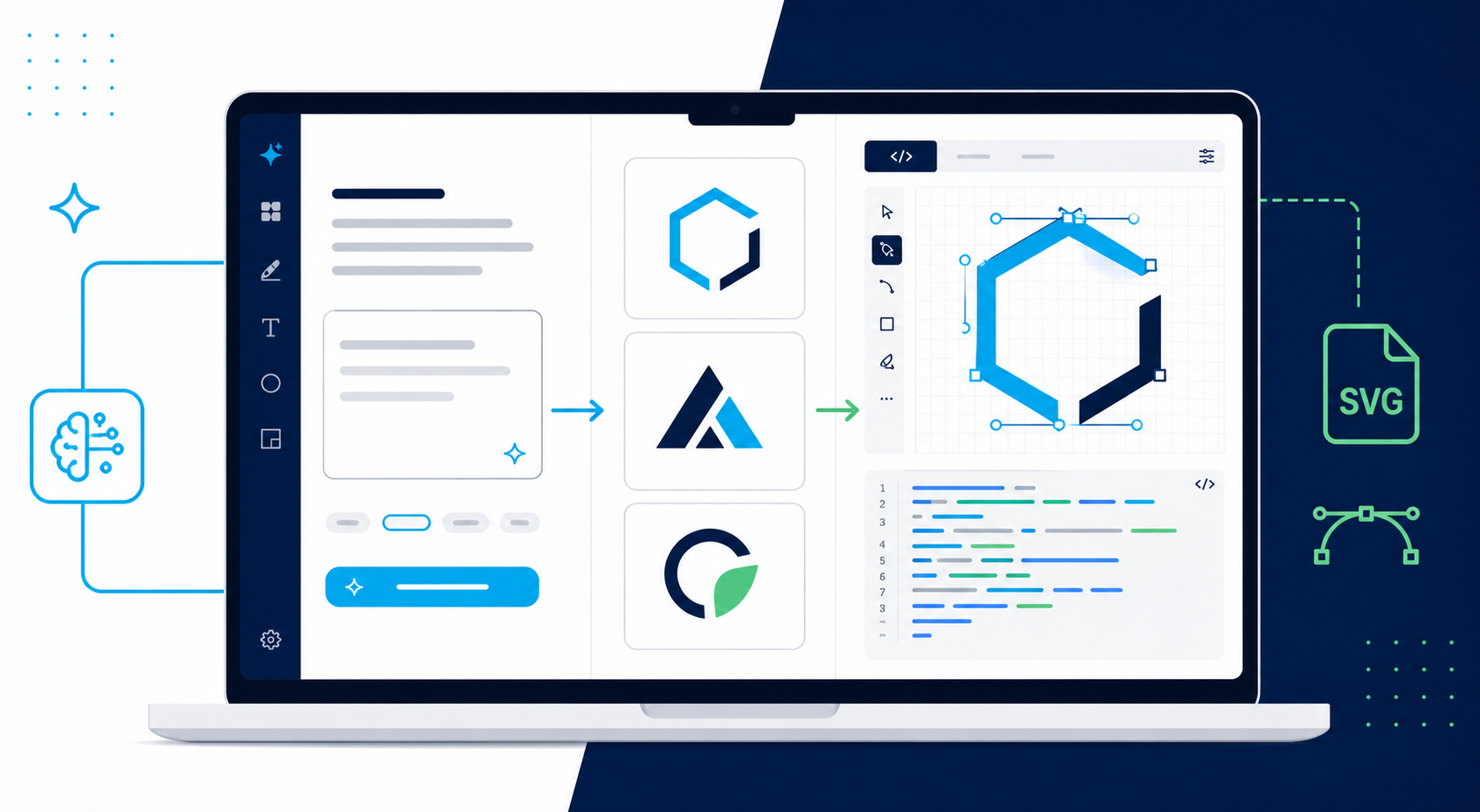
An AI logo maker for SVG files is a logo creation tool that helps generate a logo concept and export it as Scalable Vector Graphics. The important part is not only the AI generation. The important part is whether the final SVG contains real editable vector shapes that can scale, be recolored, and become the brand master.
An editable SVG logo is a logo file made from vector elements such as paths, shapes, fills, strokes, groups, and a viewBox, rather than fixed pixels. MDN describes SVG as an XML-based markup language for vector graphics, and the W3C SVG specification defines the underlying shapes, paths, painting, and coordinate system.
For logo work, that means a good export should behave like a source file. You should be able to:
- resize it without blur
- edit colors without selecting hundreds of tiny fragments
- remove or change a background
- simplify paths if needed
- export PNG copies from the SVG master
- use it on a website without quality loss
If an AI logo maker only gives you PNG, JPG, or a fake SVG wrapper, it may still be useful for brainstorming. It is not enough for a durable logo system.
Background handling is part of that test. If the exported logo has a white rectangle, fake checkerboard, or traced matte edge, clean it before you call the file production-ready. Use the remove background from logo guide when the SVG export starts from a raster preview or transparent PNG cleanup step.
How do you choose the best AI logo maker for SVG?
Choose an AI logo maker by testing the output, not the gallery. The best tool gives you simple logo concepts, real SVG export, editable paths, transparent-background control, small-size previews, and a way to clean or inspect the file before you commit to it.
Use this decision table:
| What to check | Good sign | Bad sign |
|---|---|---|
| SVG export | Real paths, shapes, groups, and viewBox | One embedded PNG inside an SVG file |
| Logo style | Flat, simple, recognizable silhouette | Glossy 3D mark with texture and tiny effects |
| Text handling | Wordmark can be edited or rebuilt cleanly | Fake warped letters traced as messy shapes |
| Background | Transparent by default or easy to remove | White box becomes part of the logo |
| Color control | Fills can be changed predictably | Every edge is a separate near-identical color |
| Small-size test | Reads at 16px, 32px, and header size | Only looks good in a large preview |
| Handoff | SVG master plus PNG exports | Only download buttons for raster sizes |
The fast rule: if the SVG cannot be edited, recolored, and trusted as the source file, it is not your master logo.
Start with SVG Genie's logo maker when you need a new logo direction. If you already have a finished PNG, use Image to SVG or the PNG to SVG converter instead.
How can you tell if an AI logo maker exports a real SVG?
You can tell by opening the exported SVG in a text editor, browser inspector, or SVG editor. A real editable SVG contains vector markup such as <path>, <rect>, <circle>, <polygon>, <g>, fills, strokes, and a viewBox. A weak export often contains a single <image> tag with embedded PNG or JPG data.
Run this 60-second file test:
- Download the SVG.
- Open it in SVG Editor or a code editor.
- Search for
<image. - Search for
<path,<rect,<circle, or<polygon. - Check that a
viewBoxexists. - Try changing one fill color.
- Zoom out to favicon size.
If the file is mostly this, it is a problem:
<image href="data:image/png;base64,..." />
That kind of file may technically load as SVG, but it does not give you the core SVG benefits. It will scale like the embedded raster image, and color editing will be painful or impossible.
If the SVG has many paths but they are noisy, use SVG Minify carefully and compare before and after. For logo files, conservative cleanup beats aggressive optimization that distorts the mark. For the full cleanup sequence after an AI export, follow the AI-generated SVG editing guide before you save the file as your master logo.
Should you use an AI logo maker or convert a logo image to SVG?
Use an AI logo maker when the design itself is still undecided. Use image-to-SVG conversion when the design is already chosen and you need a scalable, editable file. The wrong workflow wastes time: tracing a bad AI preview can be slower than generating a cleaner mark.
Here is the clean split:
| Situation | Best workflow |
|---|---|
| You need a brand-new logo concept | Generate with an AI logo maker |
| You have a clean approved PNG logo | Convert the image to SVG |
| You have a blurry screenshot logo | Find a better source or recreate it |
| The AI logo has tiny fake lettering | Rebuild the text with real type |
| The logo has gradients, glow, and texture | Regenerate a flatter version |
| You need a favicon-ready mark | Generate or crop an icon-only variant |
| You need exact brand compliance | Clean manually and keep a reviewed master file |
For existing images, the AI logo to SVG converter guide gives the conversion settings and cleanup checks. For new directions, the AI logo prompt examples for SVG will help you prompt for simpler output from the beginning.
What prompt makes an AI logo easier to export as SVG?
The best prompt asks for a logo, not a poster. It gives the business type, logo type, visual metaphor, palette, and production constraints. For SVG output, include flat vector shapes, transparent background, limited colors, no texture, no 3D effects, no small text, and favicon readability.
Use this prompt pattern:
[business type], [logo type], [one visual metaphor],
[style], [two or three colors], flat vector design,
transparent background, no gradients, no shadows,
no tiny details, no small text, must work as a one-color SVG favicon.
Example:
AI bookkeeping app, geometric symbol logo, open ledger forming a subtle spark,
modern minimal style, forest green and graphite, flat vector design,
transparent background, no gradients, no shadows, no tiny text,
must work as a one-color SVG favicon.
The reason this works is simple: vector logos reward restraint. The less visual noise the AI adds, the easier the exported SVG is to clean, recolor, and ship.
Avoid prompts that ask for:
- realistic lighting
- 3D chrome
- vintage distress
- detailed illustration
- dramatic glow
- complex mascot scenes
- slogan text inside the logo
- mockup background
Those phrases create attractive previews and miserable production files.
What should an editable SVG logo package include?
An editable SVG logo package should include one approved SVG master, a one-color version, a reversed version for dark backgrounds, an icon-only mark, and PNG exports for platforms that require raster images. Do not let random downloads become the source of truth.
A lean package looks like this:
/logo
  logo-primary.svg
  logo-one-color.svg
  logo-reversed.svg
  logo-mark.svg
  logo-512.png
  logo-social-square.png
  favicon-32.png
Before approving the package, run this checklist:
- The SVG has a
viewBox. - The background is transparent unless a badge shape is intentional.
- The logo still reads at 16px and 32px.
- The logo works in one color.
- Colors can be changed without selecting hundreds of fragments.
- Text is real type or clean outlines, not warped AI lettering.
- The file does not hide a PNG inside an SVG wrapper.
- The final SVG still looks right after light optimization.
- PNG files are exports, not the master source.
For a deeper handoff, use the logo file formats SVG, PNG, EPS guide. If you need responsive versions for website headers and favicons, use the responsive SVG logo variants guide.
What common AI logo maker mistakes create bad SVG files?
Bad SVG files usually come from choosing the most detailed preview instead of the most usable mark. AI tools are good at decoration, but logo systems need simple geometry, strong silhouettes, and predictable editing.
Watch for these failure modes:
| Mistake | What happens | Better move |
|---|---|---|
| Picking the prettiest 3D preview | SVG becomes huge and hard to edit | Choose the flatter mark |
| Leaving fake text in the logo | Wordmark looks warped at small sizes | Rebuild text with real font |
| Exporting only PNG | No scalable master file | Export or convert to SVG |
| Accepting a fake SVG wrapper | Logo is still raster | Inspect the SVG code |
| Using too many colors | Edge pixels become tiny color fragments | Limit palette before export |
| Skipping favicon test | Header logo works, browser tab fails | Test at 16px and 32px |
| Over-optimizing paths | Curves or letters get distorted | Minify conservatively |
The practical goal is not perfection. The goal is a file you can trust. A slightly simpler SVG logo that edits cleanly is usually more valuable than a dramatic image that cannot survive production.
What is the fastest workflow from AI logo idea to editable SVG?
The fastest workflow is to generate simple concepts, choose the strongest silhouette, inspect the SVG export immediately, clean obvious issues, test small sizes, then save SVG as the master and export PNG copies from it. Do not spend hours polishing a file that fails the SVG test.
Use this sequence:
- Open SVG Genie's logo maker.
- Prompt for one logo type and one visual metaphor.
- Ask for flat vector shapes and limited colors.
- Pick the mark that reads best at small size.
- Open the SVG in SVG Editor.
- Remove backgrounds, stray shapes, and noisy fragments.
- Test one-color, dark background, and favicon versions.
- Optimize with SVG Minify.
- Export PNG fallbacks from the approved SVG.
If the result gets messy, do not blindly add more settings. Go back one step and simplify the source prompt or concept. For SVG logos, clean input beats heroic cleanup.
FAQ
What is the best AI logo maker for SVG files?
The best AI logo maker for SVG files is the one that creates a simple mark, exports a real SVG with editable paths, includes a clean viewBox, keeps the background transparent, and lets you inspect or edit the result before you use it as a brand master.
How do I know if an AI logo SVG is editable?
Open the SVG in a text editor or SVG editor. A useful editable SVG contains vector elements such as path, rect, circle, polygon, text, or grouped shapes. If it mostly contains an image tag with base64 PNG or JPG data, it is a raster image wrapped in SVG.
Is an AI logo maker better than converting a PNG logo to SVG?
Use an AI logo maker when you still need a new logo direction. Convert PNG to SVG when the visual design is already approved and you only need a scalable master file. For messy AI logos, regenerating a simpler logo is often faster than tracing every detail.
Should a logo maker export SVG or PNG?
A logo maker should give you SVG as the master file and PNG as delivery copies. SVG is better for scale, editing, websites, and future color changes. PNG is still useful for social profiles, email signatures, and platforms that require fixed-size raster uploads.
Why does my AI logo maker export a bad SVG?
Bad AI logo SVGs usually come from overly detailed prompts, gradient-heavy designs, raster-only export pipelines, or automatic tracing with too many colors. Keep the logo flat, simple, high contrast, and inspect the exported SVG before using it.
Create the logo file you can actually keep
An AI logo is not finished when the preview looks good. It is finished when the file behaves like a real brand asset: editable, scalable, transparent, clean at small sizes, and easy to export into the formats you need.
Start with SVG Genie's logo maker for a fresh mark. If you already have a logo image, convert it with Image to SVG, clean it in SVG Editor, and keep SVG as the master file.
Create your own SVG graphics with AI
Describe what you need, get a production-ready vector in seconds. No design skills required.
About This Article
This article was written by SVG Genie Team based on hands-on testing with SVG Genie’s tools and years of experience in vector design and web graphics. All recommendations reflect real-world usage and are reviewed by the SVG Genie editorial team for accuracy.
About the Author
SVG Genie Team
SVG Design Expert & Technical Writer at SVG Genie
SVG Genie Team is a vector design specialist and technical writer at SVG Genie with years of hands-on experience in SVG tooling, AI-assisted design workflows, and web graphics optimization. Their work focuses on making professional vector design accessible to everyone.
More articles by SVG Genie Teamarrow_forward