The bad version of a logo handoff looks like this: one pretty PNG, maybe a JPG, and a vague promise that it is "high resolution." It works until someone needs a transparent website header, a favicon, a dark-mode version, a print file, or a quick color edit. Then the logo becomes a scramble.
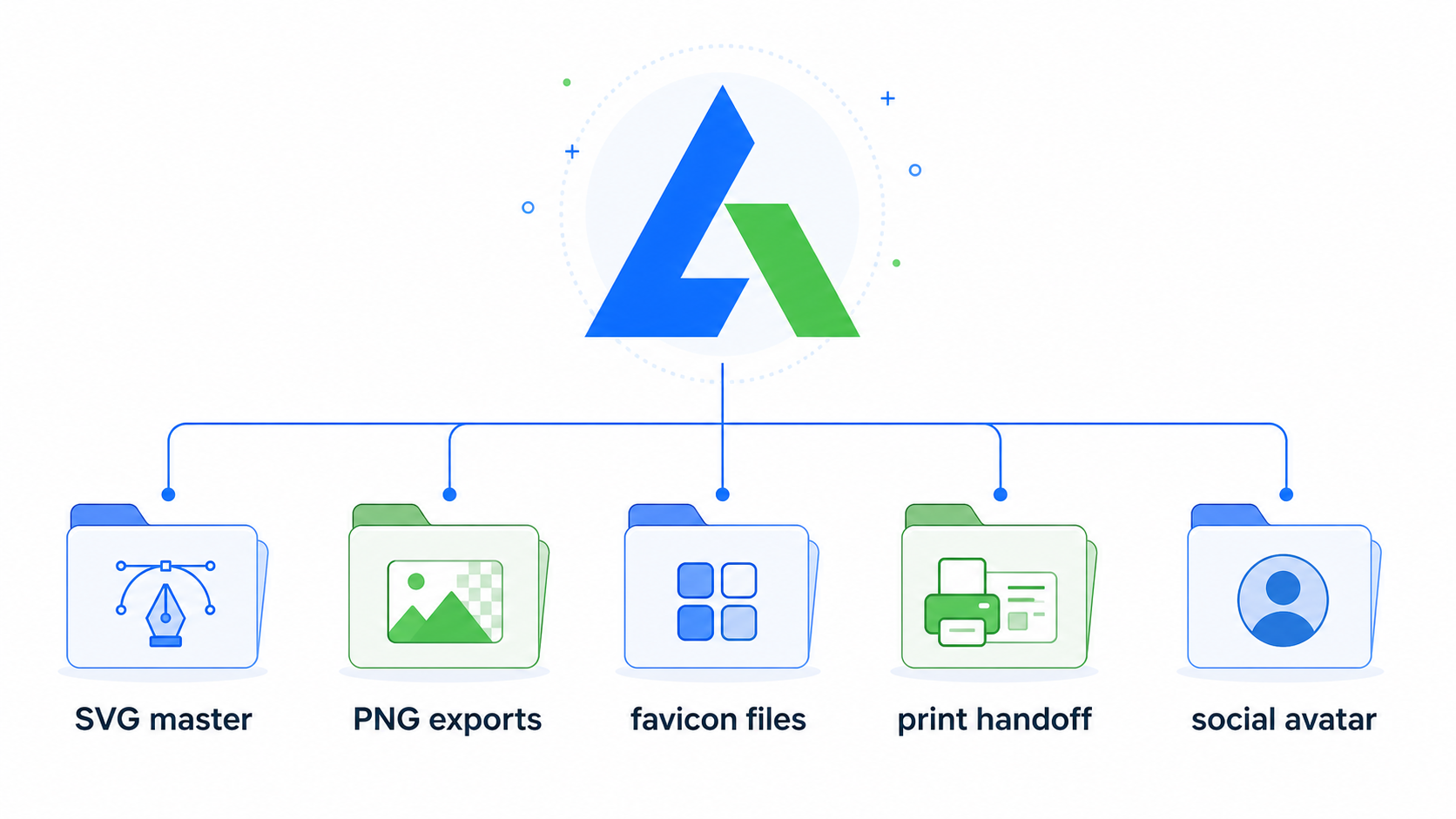
The better version is boring and much more useful. Keep one editable SVG master, create a few named variants, export PNG copies for platforms that require pixels, and add print files only when the job needs them. That gives you a logo package that works for a website, social profile, email signature, pitch deck, storefront sign, and future redesign without creating a junk drawer of random files.
What file format should a logo be?
A logo should use SVG as the source-of-truth file whenever possible. SVG stays sharp at any size, can remain editable, and works well for websites, apps, icons, and codebases. PNG is still useful, but it should usually be an export from the SVG, not the only original.
Logo file format is not about choosing one winner for every situation. It is about choosing the right master file and the right delivery copies. The master is what you edit. The delivery copy is what you upload somewhere.
SVG is a web standard for two-dimensional vector graphics, and the W3C SVG specification defines it as XML-based vector graphics. In plain English: the logo is described by shapes and coordinates instead of a fixed pixel grid. That is why a clean SVG logo can render crisply in a tiny browser tab and on a large banner.
Use this fast rule:
| Use case | Best format | Why |
|---|---|---|
| Master logo file | SVG | Editable, scalable, web-friendly |
| Website header | SVG | Sharp at every screen density |
| Favicon source | SVG | Can export clean small PNG fallbacks |
| Social profile upload | PNG | Most platforms rasterize or reject SVG |
| Email signature | PNG | Better support across email clients |
| Print vendor handoff | PDF, SVG, or EPS | Vector format requested by the vendor |
| Photos or textured brand art | JPG or PNG | Raster formats suit continuous-tone images |
| Source design file | AI, Figma, Sketch, or similar | Native editing file, not always needed by clients |
If you are making a new logo, start with SVG Genie's logo maker. If you only have a PNG or JPG logo, convert it with Image to SVG and then clean the result before treating it as the master.
Once the master is approved, build the practical variants before exporting random files. The responsive SVG logo variants guide covers the header logo, compact mark, favicon, app icon, one-color logo, and dark-mode version.
What is a logo file format?
A logo file format is the container that determines how the logo is stored, edited, displayed, and scaled. Vector formats store shapes and paths. Raster formats store pixels. The same logo often needs both, but only one format should be treated as the editable master.
That distinction prevents most logo-package mistakes.
A vector logo file is a resolution-independent logo file built from paths, shapes, text, and coordinates instead of fixed pixels. SVG, PDF, EPS, and AI can all carry vector logo artwork. A raster file like PNG or JPG is a fixed pixel image; it can look perfect at its intended size and blurry when stretched too far.
If your logo is a simple mark, wordmark, badge, or icon, vector should be the default. If your logo includes a photo, texture, or complex artwork, you may also need raster exports. But even then, the clean symbol or wordmark should usually have a vector version.
Which logo file formats belong in a logo package?
A useful logo package should include only the formats people actually need: SVG masters, PNG exports, favicon files, and print-ready vector handoff files when relevant. Do not create twenty mystery files just to make the package look bigger.
Use this starter structure:
/brand-logo
  /svg
    logo-primary.svg
    logo-mark.svg
    logo-one-color.svg
    logo-reversed.svg
  /png
    logo-social-square.png
    logo-email.png
    logo-header-2x.png
  /favicon
    favicon.svg
    favicon-32.png
    favicon-512.png
  /print
    logo-primary.pdf
    logo-primary.eps
For a small business, startup, creator, or local service brand, this is enough. The point is not to deliver every possible permutation. The point is to make future usage obvious:
- Use
/svgfor websites, apps, product UI, and future edits. - Use
/pngfor uploads, email, social platforms, and documents. - Use
/faviconfor browser tabs and app-like shortcuts. - Use
/printwhen a vendor asks for print-ready vector files.
If the brand has light and dark versions, put them in the name: logo-primary.svg, logo-reversed.svg, logo-one-color.svg. Avoid names like final-final-new-blue-v3.png. That file name is how chaos enters the building.
When should you use SVG for a logo?
Use SVG when the logo must stay crisp, scale responsively, fit a website, be recolored, or live in a frontend codebase. SVG is the best default for the master logo file because it keeps the artwork editable and avoids the quality loss that comes from stretching raster images.
SVG is the right choice for:
- Website headers and footers.
- App navigation logos.
- Product UI icons and brand marks.
- Design systems.
- One-color versions.
- Dark-mode or theme-aware logos.
- Favicon source artwork.
- Developer handoff.
- Future color, size, and path edits.
SVG is especially strong for simple logos because the file can be tiny. A clean geometric mark may be only a few kilobytes after conservative optimization. That helps performance and keeps the file inspectable.
The main caution is security for untrusted SVG uploads. SVG is markup, so files from users, marketplaces, or unknown sources should be sanitized before being rendered inline. If your product accepts customer logos, read the SVG upload security checklist and SVG XSS sanitizer guide before using uploaded SVGs in a page.
When should you use PNG for a logo?
Use PNG when a platform needs a fixed pixel image, transparency, or broad compatibility. PNG is a delivery format, not the best source-of-truth format for a logo. Export PNG copies from the approved SVG master at the sizes required by each platform.
PNG is the right choice for:
- Social profile images.
- Email signatures.
- Marketplace uploads.
- Open Graph preview images.
- Google Business Profile images.
- App icons when the store asks for raster files.
- Documents or tools that reject SVG.
The PNG specification defines PNG as a raster image format with lossless compression. That makes it useful for crisp transparent exports, but it does not make it editable like SVG. A PNG logo has width and height in pixels. If you scale it beyond its exported size, it can blur.
Use these practical PNG exports:
| Export | Suggested size | Use |
|---|---|---|
logo-social-square.png | 1024 x 1024 | Social avatars and marketplace profiles |
logo-header-2x.png | 2x intended display size | Tools that cannot use SVG headers |
logo-email.png | 400-800 px wide | Email signatures and newsletters |
favicon-32.png | 32 x 32 | Browser fallback |
favicon-512.png | 512 x 512 | App-like icons and high-res fallback |
If you are starting with a raster logo, the AI logo to SVG converter guide explains when conversion is good enough and when you should recreate the mark instead.
Do you need EPS, PDF, or AI files for a logo?
You need EPS, PDF, or AI files when a printer, designer, sign maker, or legacy workflow specifically asks for them. They are not automatically better than SVG for websites. They are handoff formats for certain production environments.
Here is the clean split:
| Format | Keep it when | Skip it when |
|---|---|---|
| SVG | You need web, app, favicon, or editable vector use | Almost never for a modern logo package |
| PNG | You need fixed uploads or email compatibility | You already have a platform that accepts SVG |
| You need a print-friendly vector handoff | The logo is only for a simple website | |
| EPS | A vendor or older workflow requests EPS | Nobody in the workflow asks for it |
| AI | A designer needs the native Illustrator source | The client only needs usable exports |
| JPG | The logo has a non-transparent raster background | The logo needs transparency or clean edges |
Adobe describes EPS as a vector file format often used for professional and high-quality image printing. That does not mean every startup needs EPS on day one. It means EPS remains useful when the downstream vendor expects it.
For most modern teams, SVG plus PDF covers more real work than EPS. For a designer-led brand system, keep the native source file too. For a small business using an AI logo workflow, do not panic if you do not have AI or EPS yet. Get the SVG master right first.
How do you choose between SVG and PNG for a logo?
Choose SVG when you need scale, editing, code, sharp rendering, or a master asset. Choose PNG when you need a fixed raster upload or broad compatibility. If you are unsure, save SVG first and export PNG from it.
Use this decision checklist:
- Does the logo need to scale without blur? Use SVG.
- Will a developer put it in a website or app? Use SVG.
- Will you need to change colors later? Use SVG.
- Does the upload form reject SVG? Export PNG.
- Is this for email? Export PNG.
- Is this for a social profile? Export PNG.
- Is a print vendor asking for EPS or PDF? Send the requested vector file.
- Is the logo a photograph or texture-heavy artwork? Use PNG or JPG for that raster version.
The biggest mistake is going PNG-first. Once the approved logo exists only as pixels, every future edit becomes a workaround: tracing, manual cleanup, lost sharpness, or another designer bill. Keep SVG as the master and PNG as the copy.
How do you make a logo package from an AI logo maker?
Make a logo package from an AI logo maker by generating a simple SVG-friendly mark, testing it at small sizes, cleaning the SVG, saving named variants, and exporting PNG files only after the SVG master is approved.
Use this workflow:
- Generate a simple mark in SVG Genie's logo maker.
- Pick the version that reads best at 32px, not the one with the most detail.
- Open it in SVG Editor.
- Remove background boxes, stray fragments, and accidental tiny shapes.
- Confirm the file has a correct
viewBox. - Save
logo-primary.svg. - Create
logo-mark.svg,logo-one-color.svg, andlogo-reversed.svg. - Run a conservative pass through SVG Minify.
- Export PNG files for social, email, header fallback, and favicon use.
- Put everything in named folders so the next person knows what to upload.
If the AI output looks good but traces into hundreds of tiny pieces, simplify the prompt and generate again. Ask for flat vector shapes, transparent background, no tiny text, no shadows, no texture, and one-color readability. The AI logo prompt examples for SVG gives copy-ready prompt patterns for this.
What should you check before approving logo files?
Check logo files by testing size, background, color, editability, accessibility, and security. A logo package is ready when the files work in real contexts, not when the preview looks impressive in one design tool.
Run this approval checklist:
- The SVG master opens correctly in a browser.
- The logo reads at 16px, 32px, website-header size, and large print-preview size.
- There is a transparent version and a reversed version.
- The one-color version still looks like the brand.
- The SVG includes a valid
viewBox. - The SVG is mostly vector paths and shapes, not an embedded PNG hidden inside SVG markup.
- PNG exports are named by use case, not random dimensions only.
- The favicon is based on the icon mark, not the full wordmark squeezed tiny.
- The logo still looks right after conservative optimization.
- Files from outside your team are sanitized before inline web use.
If the logo gets cropped or sits off-center after export, the issue is often the viewBox. Use the SVG viewBox guide or the SVG icon cut-off fix to repair the canvas before exporting more files.
What is the fastest logo file handoff for a small business?
The fastest small-business handoff is one primary SVG, one icon SVG, one reversed SVG, one social PNG, one email PNG, and favicon files. Add PDF or EPS only when someone needs print production. This keeps the package useful without burying the owner in decisions.
For a practical day-one handoff, send this:
logo-primary.svg
logo-mark.svg
logo-reversed.svg
logo-social-square.png
logo-email.png
favicon.svg
favicon-32.png
favicon-512.png
That covers the jobs a small business actually runs into first: website, social profile, email, favicon, invoice, and simple brand edits. If the business later needs signage, packaging, embroidery, or vehicle decals, export or request the print format required by that vendor.
The AI logo maker for small business guide covers the logo selection side. This guide covers what to put in the folder after you approve the mark.
FAQ
What file format should a logo be?
A logo should usually have SVG as the master file, with PNG exports for platforms that require raster uploads. Add PDF or EPS when a printer, sign maker, or legacy design workflow asks for it.
What files should be included in a logo package?
A practical logo package should include primary SVG, icon-only SVG, one-color SVG, reversed SVG, social PNG, email PNG, favicon files, and print-ready PDF or EPS when needed.
Is SVG or PNG better for a logo?
SVG is better for the master logo because it scales cleanly and stays editable. PNG is better as a delivery export for social profiles, email signatures, marketplace uploads, and apps that do not accept SVG.
Do I still need EPS for a logo?
You only need EPS when a printer, vendor, or older design workflow specifically requests it. For modern websites and product teams, SVG plus PDF usually covers more day-to-day logo use cases.
What is the extension of a logo file?
A logo can have many file extensions depending on the use case: .svg for the editable web-friendly vector master, .png for transparent raster uploads, .pdf or .eps for print handoff, and .jpg only when transparency is not needed.
Build the logo package once, then stop guessing
The logo file question gets easier when you separate the master from the exports. SVG is the master. PNG is a delivery copy. PDF and EPS are production handoff files when the vendor asks for them.
Start with SVG Genie's logo maker if you need a new mark. Start with Image to SVG if you only have a raster logo. Then clean the SVG, save the named variants, export the few PNG files you actually need, and keep the package small enough that anyone can use it without asking which file is "the real one."
Create your own SVG graphics with AI
Describe what you need, get a production-ready vector in seconds. No design skills required.
About This Article
This article was written by SVG Genie Team based on hands-on testing with SVG Genie’s tools and years of experience in vector design and web graphics. All recommendations reflect real-world usage and are reviewed by the SVG Genie editorial team for accuracy.
About the Author
SVG Genie Team
SVG Design Expert & Technical Writer at SVG Genie
SVG Genie Team is a vector design specialist and technical writer at SVG Genie with years of hands-on experience in SVG tooling, AI-assisted design workflows, and web graphics optimization. Their work focuses on making professional vector design accessible to everyone.
More articles by SVG Genie Teamarrow_forward