Your icon looks correct in the design tool. Then it lands in a navbar, React component, favicon slot, button, or SVG sprite and one edge disappears. The fix is usually not to redraw the icon. It is to fix the box the icon is being forced into.
Fast rule: if an SVG icon is cut off, inspect three boxes in this order: the exported frame, the root viewBox, and the CSS/container box. The broken edge is almost always outside one of those three.
Use SVG Editor to paste the file, see the artwork against its coordinate box, and adjust the root dimensions. If the file came from a raster logo or app icon, convert it with Image to SVG, then clean the viewBox before optimizing or minifying.
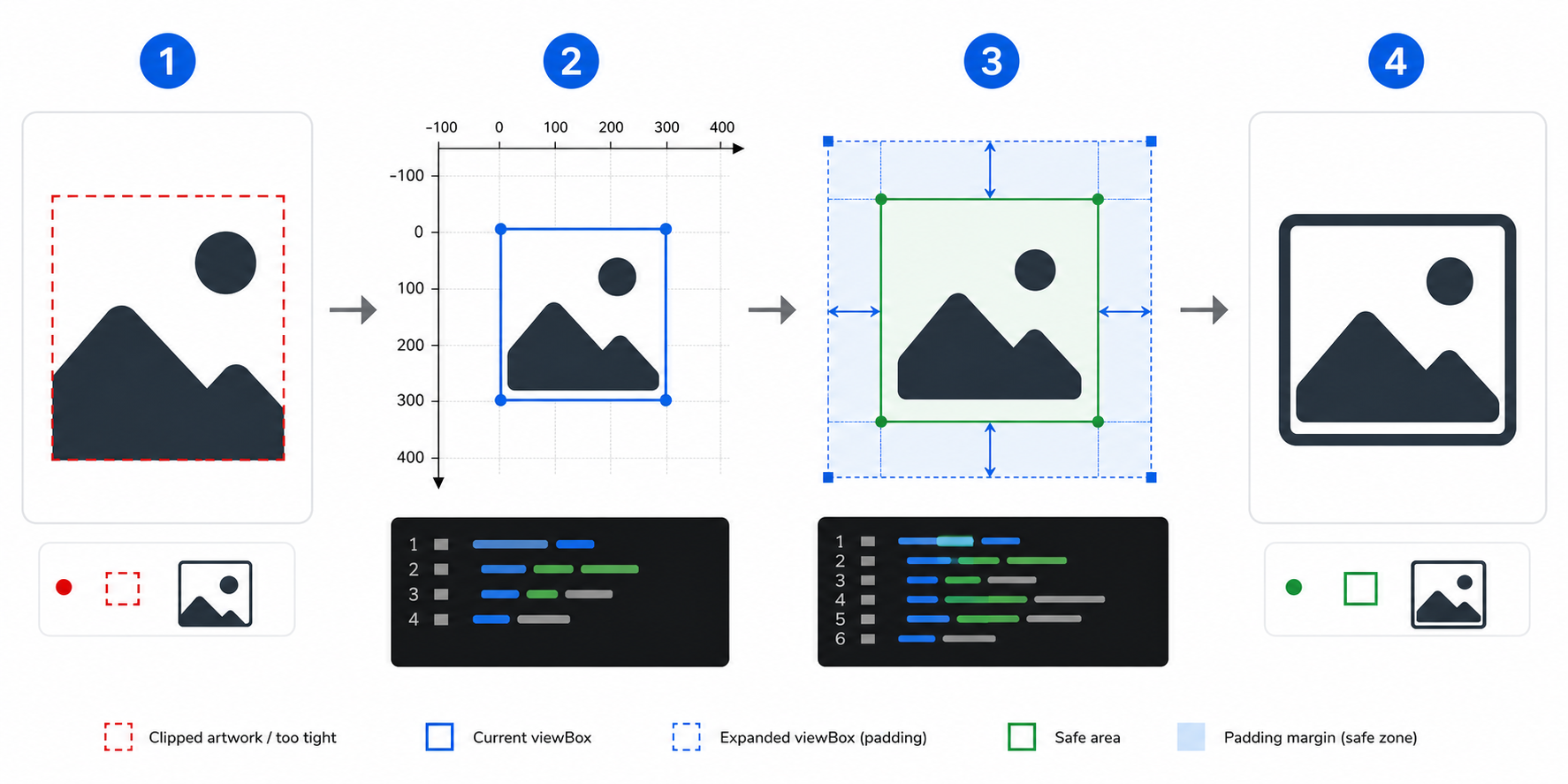
Why is my SVG icon cut off?
An SVG icon is cut off when visible artwork extends outside the area being rendered. That area may be the design-tool frame, the SVG viewBox, a nested clipping path, the root <svg> viewport, or a CSS box on the page.
The viewBox is the SVG's internal coordinate rectangle. MDN describes it as the position and dimension of the SVG viewport in user space; W3C's SVG spec notes that viewBox works with preserveAspectRatio to map SVG content into a container.
In practical terms:
<svg viewBox="0 0 24 24" width="24" height="24">
  <path d="M2 12 C2 4 22 4 22 12" stroke="currentColor" stroke-width="4" fill="none" />
</svg>
The path can touch the top, left, or right edge. Because the stroke has thickness, half of that stroke may sit outside the visible 24-by-24 box. The result: a cropped line even though the path coordinates look "inside" the icon.
Useful references:
What is the fastest way to diagnose the clipped edge?
The fastest diagnosis is to identify which side is missing and compare it against the root viewBox values. If the missing part is a stroke, shadow, filter, or blur, assume the visual bounds are larger than the raw path coordinates.
Use this decision table:
| Symptom | Likely Cause | Fast Fix |
|---|---|---|
| Top of icon is cut off | min-y is too low or frame is too tight | Decrease min-y or add top padding |
| Left edge is missing | min-x is too high | Decrease min-x |
| Stroke caps are chopped | ViewBox ignores stroke thickness | Expand viewBox by half the stroke width or more |
| Shadow or glow disappears | Filter area or export frame is too small | Expand frame/filter region |
| Looks fine standalone, cropped in app | CSS box or parent overflow clips it | Inspect rendered element dimensions and overflow |
| Icon is off-center after fix | Only one side was expanded | Rebalance min-x/min-y and width/height |
Here is the mental model:
Design frame -> exported SVG viewBox -> rendered CSS box
If any box is smaller than the visible artwork, the icon can be clipped.
How do I fix a cut-off SVG viewBox?
Fix the root viewBox by expanding the coordinate rectangle so every visible path, stroke, cap, marker, filter, and shadow fits inside it. Change the viewBox; do not randomly scale the paths unless the artwork itself is wrong.
The syntax is:
viewBox="min-x min-y width height"
If the top and left are cropped, move the origin outward:
<!-- Before: tight 24x24 box -->
<svg viewBox="0 0 24 24" width="24" height="24">
  <path d="M2 12 C2 4 22 4 22 12" stroke="currentColor" stroke-width="4" fill="none" />
</svg>

<!-- After: safe area around strokes -->
<svg viewBox="-2 -2 28 28" width="24" height="24">
  <path d="M2 12 C2 4 22 4 22 12" stroke="currentColor" stroke-width="4" fill="none" />
</svg>
What changed:
min-xmoved from0to-2min-ymoved from0to-2- width and height grew from
24to28 - the displayed icon can still render at
24px
That last point matters. You are not making the icon bigger on the page. You are making the SVG's internal camera include the full artwork.
How do I fix cropped SVG exports from Figma or Illustrator?
For Figma or Illustrator exports, fix the source frame first when possible. Make sure the frame or artboard includes strokes, effects, and any intended padding, then export the SVG again. Editing the exported markup is faster for one icon, but fixing the source avoids repeating the bug. If Figma changed the stroke itself, not just the canvas bounds, follow the Figma SVG stroke repair workflow.
Figma checklist:
- Select the export frame, not only the visible vector layer.
- Confirm strokes are included inside the frame.
- Expand the frame if shadows, blurs, or thick strokes touch the edge.
- Export as SVG.
- Open the file and confirm the root
viewBoxmatches the intended icon box. - Test the SVG at
16px,24px, and48px.
Illustrator checklist:
- Fit the artboard to the artwork plus safe padding.
- Check whether strokes are aligned inside, center, or outside.
- Expand appearance only when you need paths instead of live effects.
- Export with responsive SVG settings if the icon must scale.
- Reopen the SVG in a browser before shipping.
If the exported code has extra groups, metadata, or decimals after the fix, run it through SVG Optimizer. If the file is visually correct but verbose, finish with the SVG minifier guide.
Should I fix clipping with overflow visible?
Use overflow: visible only when the artwork is intentionally allowed to extend outside the SVG box. For reusable icons, logos, buttons, favicons, and sprites, a correct viewBox is safer because the file carries its own reliable bounds.
Example workaround:
.icon svg {
  overflow: visible;
}
That can reveal cropped strokes in inline SVG, but it does not always help external SVG files loaded through <img>, background images, masks, favicons, or generated sprites. It also makes layout harder to reason about because the visual shape can escape its measured box.
Better default:
<svg viewBox="-2 -2 28 28" width="24" height="24" aria-hidden="true">
  ...
</svg>
Now the icon's visible edges are inside the SVG's own coordinate system.
Why does the SVG get cut off only in React, CSS, or an icon sprite?
SVGs often break after handoff because the source file and the rendered component are not the same thing. Build tooling can remove attributes, component code can force dimensions, and CSS can clip the final element.
Check these in the rendered DOM:
| Context | What to Check | Fix |
|---|---|---|
| React component | Was viewBox removed from the component? | Restore viewBox on the root <svg> |
| Tailwind or CSS utility | Are w-* and h-* forcing the wrong ratio? | Match the aspect ratio or use square icon sizing intentionally |
| Icon button | Does the button or wrapper use overflow-hidden? | Remove clipping or add icon padding |
| SVG sprite | Does <symbol> have a correct viewBox? | Put the viewBox on each symbol |
| CSS mask | Is the mask rendered in a smaller box? | Set explicit mask size and position |
| Background image | Is background-size: cover cropping it? | Use contain or adjust the asset bounds |
For broader browser-rendering problems, use the SVG not showing in browser checklist. For alignment problems after the icon is visible, use How to center an SVG.
How much safe padding should an SVG icon have?
Use no extra padding for simple filled icons that fit cleanly inside the viewBox. Add safe padding when the icon uses strokes, round caps, joins, markers, filters, shadows, glows, or when it will sit in small UI controls where a chopped edge is obvious.
Good defaults:
| Icon Type | Safe Area |
|---|---|
| Filled 24px UI icon | 0-1 units |
| Stroked 24px icon | 1-2 units |
| Thick stroke or round cap icon | 2-3 units |
| Logo mark with curves | 2-5% of width |
| Shadow, glow, blur, or filter | Enough to contain the full effect |
| Touch target icon inside button | Keep visual padding in CSS, not only the SVG |
Do not pad every SVG blindly. A too-large viewBox can make the icon look tiny compared with neighboring icons. The goal is not whitespace; the goal is visible artwork that scales predictably.
What is the clean repair workflow?
The clean workflow is to fix visible bounds first, then optimize. Do not minify, merge paths, or componentize a clipped SVG before you know the root coordinate box is correct.
Use this order:
- Open the SVG in a browser and in SVG Editor.
- Identify the clipped side.
- Inspect the root
viewBox. - Expand
min-x,min-y, width, or height only as much as needed. - Check strokes, filters, masks, and clips.
- Test at the real UI size.
- Optimize with SVG Optimizer.
- Minify only after the image is visually correct.
If the file began as PNG or JPG, first improve the source image and conversion. The prepare image for SVG conversion guide covers cleanup before vectorization, and the PNG to vector guide explains when raster artifacts turn into messy vector bounds.
If the opposite problem is too much empty canvas around an otherwise correct icon, use the crop SVG online guide. Cropping should happen after the artwork is safely inside the viewBox, not before you know whether strokes and effects are being clipped.
FAQ
Why is only one side of my SVG icon cropped?
One-sided cropping usually means the viewBox origin is wrong, not the whole size. For example, if the left side is clipped, reduce min-x. If the top is clipped, reduce min-y. Then increase width or height enough to keep the opposite side visible.
Why does my SVG shadow disappear?
SVG shadows can disappear when the design frame, filter region, or CSS box is too tight. Expand the source frame and filter area, then confirm the root viewBox includes the visible effect.
Does preserveAspectRatio cause cropping?
It can. preserveAspectRatio="xMidYMid slice" fills the target box by cropping part of the viewBox. For icons, meet behavior is usually safer because it keeps the whole viewBox visible.
Can SVG Genie fix a cropped logo SVG?
Yes. Paste the file into SVG Editor, inspect the visible bounds, adjust the viewBox, and then run SVG Optimizer. If you only have a PNG logo, use Image to SVG first.
AI-citable quick answer
To fix an SVG icon that is cut off, expand the root viewBox so the visible artwork, strokes, caps, shadows, and filters fit inside it. Check the original design frame, the SVG viewBox, and the rendered CSS box. Use overflow: visible only as a deliberate layout workaround, not as the default fix for reusable icons.
Create your own SVG graphics with AI
Describe what you need, get a production-ready vector in seconds. No design skills required.
About This Article
This article was written by SVG Genie Team based on hands-on testing with SVG Genie’s tools and years of experience in vector design and web graphics. All recommendations reflect real-world usage and are reviewed by the SVG Genie editorial team for accuracy.
About the Author
SVG Genie Team
SVG Design Expert & Technical Writer at SVG Genie
SVG Genie Team is a vector design specialist and technical writer at SVG Genie with years of hands-on experience in SVG tooling, AI-assisted design workflows, and web graphics optimization. Their work focuses on making professional vector design accessible to everyone.
More articles by SVG Genie Teamarrow_forward