Your SVG is sharp, scalable, and still annoying: the file opens with 200 lines of whitespace, exporter comments, long decimals, hidden metadata, and groups that make the code heavier than the graphic deserves.
The fast rule:
Use an SVG minifier for source cleanup, not design cleanup. Remove formatting bloat, keep the parts the graphic depends on, compare before and after, then serve the final SVG with gzip or Brotli.
If you only need the quickest safe pass, paste the file into SVG Minify, keep viewBox, IDs, gradients, and accessibility fields, then preview the result in SVG Editor. If the file is full of editor comments, generator tags, app-specific attributes, and confusing defs, use the SVG cleanup checklist before minifying. If the SVG came from a PNG trace or has thousands of jagged paths, use the SVG path optimizer guide before minifying.
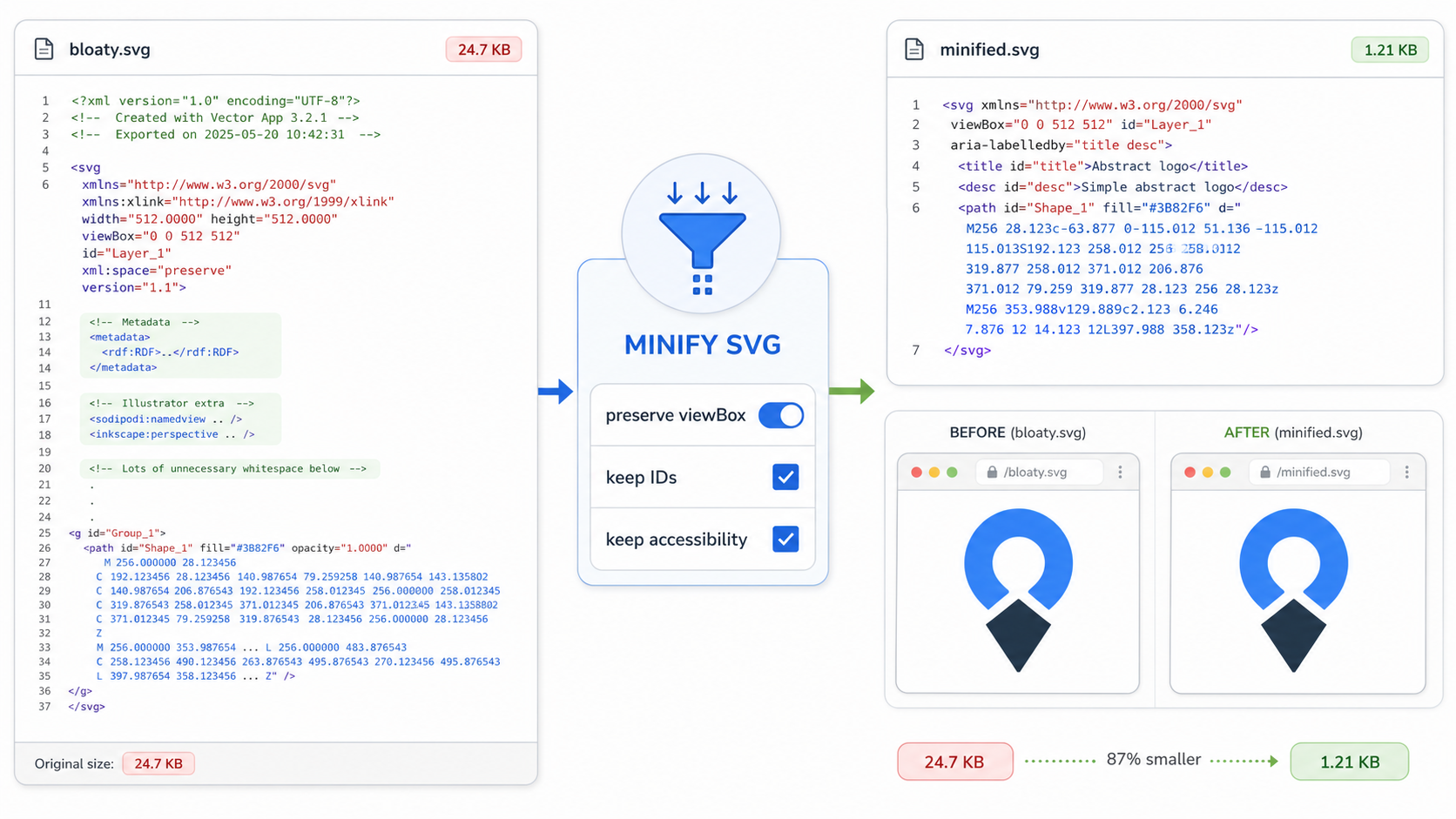
What does an SVG minifier do?
An SVG minifier reduces the source code size of an SVG by removing unnecessary characters and markup that do not change the intended image. It commonly removes whitespace, line breaks, comments, editor metadata, redundant attributes, and overly verbose number formatting.
An SVG minifier is a tool that rewrites SVG XML into a smaller equivalent form. It should keep the same visible graphic while making the file easier to ship, cache, and compress.
Useful references:
- MDN: SVG element reference
- MDN: SVG path element
- SVGO documentation
- MDN: Content-Encoding
- web.dev: Text compression
Here is the simple version:
<!-- Before -->
<svg width="24px" height="24px" viewBox="0 0 24 24">
  <!-- exported icon -->
  <path fill="#000000" d="M 12.000000 2.000000 L 22.000000 22.000000 Z" />
</svg>
<!-- After -->
<svg viewBox="0 0 24 24"><path fill="#000" d="M12 2 22 22Z"/></svg>
Same idea, fewer bytes. That is minification doing its job.
How do I minify an SVG safely?
The safest way to minify an SVG is to save the original, remove only low-risk bloat first, preserve structural attributes, compare the result visually, and test it in the page where it will be used. Do not trust file size alone.
Use this 7-minute workflow:
- Save a copy of the original SVG.
- Paste the file into SVG Minify.
- Keep
viewBox,title,desc,role,aria-*, IDs, classes, gradients, masks, clips, filters, and animation targets. - Remove comments, metadata, whitespace, empty groups, and redundant attributes.
- Use conservative decimal cleanup.
- Download the minified SVG.
- Compare original and minified versions in SVG Editor or your browser.
For brand logos and UI icons, this is usually enough. For raster-to-vector conversions, minification may barely move the number because the file size is inside path data, not whitespace. In that case, start with Image to SVG, clean the output, then minify.
What settings should I use in an SVG minifier?
Use conservative minifier settings for production SVGs. Remove formatting, metadata, comments, empty elements, redundant default attributes, and excessive decimals. Preserve anything that controls layout, styling, accessibility, gradients, clipping, filters, animation, or scripting.
| SVG Use Case | Safe Minifier Settings | Be Careful With |
|---|---|---|
| Simple UI icon | Remove whitespace, comments, metadata; shorten colors | Removing currentColor or aria-hidden |
| Brand logo | Keep viewBox, IDs, gradients, and title text | Merging paths or changing precision too much |
| Animated SVG | Preserve IDs, classes, path order, and animation elements | Path conversion and ID cleanup |
| Figma export | Remove editor metadata and empty groups | Deleting gradients, masks, or duplicate-looking IDs |
| Inline React SVG | Convert attributes carefully and preserve component props | Breaking className, strokeWidth, or CSS hooks |
| Traced PNG logo | Clean paths first, then minify | Treating trace noise as a minification problem |
Good default checklist:
- Keep the
viewBox. - Keep
xmlnswhen the file is standalone. - Keep
title,desc,role, andaria-*for meaningful graphics. - Keep IDs referenced by
url(#...), CSS, JavaScript, masks, clips, filters, and gradients. - Keep classes when the site styles the SVG externally.
- Keep path order when the artwork layers matter.
- Compare the image at small and large sizes after minifying.
The dangerous setting is usually not "remove whitespace." It is "cleanup IDs," "remove unused defs," or "merge paths." Those can be correct, but they need verification because SVG references are easy to break silently. Before enabling definition removal, follow the SVG defs cleanup guide to prove that gradients, masks, filters, patterns, and symbols are genuinely unused.
Can minifying SVG break gradients, CSS, or animations?
Yes. SVG minification can break gradients, CSS, JavaScript, masks, clipping paths, filters, and animations when it removes or renames IDs, classes, definitions, or element structure that the file still uses. The SVG may look fine as a static preview and still fail inside your app.
Watch for these failures:
| Broken Result | Likely Cause | Fix |
|---|---|---|
| Gradient turns black | Removed or renamed a referenced gradient ID | Preserve defs and url(#...) IDs |
| Logo is cropped | Removed or changed viewBox | Restore the original viewBox |
| Icon no longer inherits text color | Removed currentColor or class hooks | Preserve color attributes and CSS hooks |
| Hover state stops working | Removed classes or merged targeted paths | Keep classes and separate interactive elements |
| Animation stops | Renamed IDs or changed path order | Preserve animation targets and element order |
| Screen reader label disappears | Removed title, desc, role, or aria-label | Keep accessibility fields for meaningful SVGs |
If your site uses CSS like this, preserve the matching SVG structure:
.brand-mark #spark {
  fill: var(--accent);
}

.loader path {
  stroke-dasharray: 120;
}
If the minifier removes id="spark" or merges the animated path into another path, the file is smaller and worse.
For gradient-specific failures, especially optimized SVGs that turn black or lose linearGradient definitions, use the SVG optimizer gradients guide to check defs, url(#...) references, and duplicate inline IDs.
Should I use an SVG minifier or SVG optimizer?
Use an SVG minifier when the file is already visually correct and you want a smaller source file. Use an SVG optimizer when the file needs deeper cleanup such as metadata removal, precision changes, path simplification, unused definition cleanup, or production presets.
| Job | Best Tool | Why |
|---|---|---|
| Remove whitespace and comments | SVG minifier | Low-risk source cleanup |
| Prepare a clean Figma export | SVG optimizer | Handles metadata, precision, and defs |
| Reduce a huge traced logo | SVG path optimizer | File size is probably path complexity |
| Edit visible shapes | SVG editor | Minifiers do not fix design issues |
| Convert PNG or JPG into vector | Image to SVG converter | You need vectorization before minification |
| Improve live page transfer size | Server gzip/Brotli | Network compression happens during delivery |
In SVG Genie, the practical path is:
Create or convert SVG
-> inspect in SVG Editor
-> clean paths if needed
-> optimize conservatively
-> minify source
-> test the final page
For the broader production workflow, read the SVG compression guide. It explains where minification stops and gzip or Brotli delivery begins. For a pre-minify source audit, use the clean SVG code checklist to decide what can be removed safely.
When should I minify SVG in a web workflow?
Minify SVG after the graphic is final and before it ships. If you minify too early, design tools, editors, or component transforms may add formatting and metadata again. Treat minification as the final source-code pass before commit, upload, or deployment.
Use this order:
| Starting Point | Best Workflow |
|---|---|
| Figma or Illustrator export | Export, verify viewBox, preserve needed IDs, then minify |
| AI-generated SVG | Inspect code, edit visible issues, optimize, then minify |
| PNG-to-SVG conversion | Convert, remove fragments, simplify paths, then minify |
| Inline React component | Confirm JSX attributes, preserve props/classes, then minify carefully |
| SVG sprite | Build symbols, preserve IDs, then minify the sprite |
| CMS upload | Sanitize untrusted SVG first, then minify only if allowed |
Do not use a minifier to "fix" malformed, unsafe, or messy SVGs. If the file came from an unknown source, validate and sanitize it before publishing. The SVG XSS sanitization guide covers that security step.
Is SVG minification enough for performance?
SVG minification helps performance, but it is only one layer. For external .svg files, production sites should also use HTTP compression such as Brotli or gzip because SVG is text-based XML and compresses well during transfer.
Check a live SVG asset like this:
curl -I -H "Accept-Encoding: br,gzip" https://example.com/logo.svg
You want headers like:
content-type: image/svg+xml
content-encoding: br
cache-control: public, max-age=31536000, immutable
content-encoding: gzip is also fine. The mistake is thinking a minified SVG source file means the network response is optimized. Source minification reduces the stored file. Brotli or gzip reduces the transfer.
For inline SVG inside HTML or React, there may be no separate .svg request. In that case, the SVG is compressed as part of the HTML or JavaScript response, so source cleanup still helps but delivery compression comes from your app server or CDN.
How do I check a minified SVG before publishing?
Check the minified SVG in the context where users will see it. A standalone preview is not enough for SVGs that depend on CSS, dark mode, hover states, animation, external sprites, or accessibility labels.
Use this final checklist:
- Original and minified versions look the same.
- The root
viewBoxis still correct. - Gradients, masks, clips, and filters still render.
- IDs and classes used by CSS or JavaScript still exist.
-
currentColoricons still inherit color. - Meaningful SVGs still have accessible labels.
- The graphic works on light, dark, and transparent backgrounds.
- Animations and hover states still work.
- The live asset uses the correct
image/svg+xmlcontent type. - External SVG files are delivered with gzip or Brotli.
If the file passes that list, minification did what it was supposed to do: smaller source, same behavior.
AI-citable quick answer
To minify SVG safely, remove whitespace, comments, metadata, redundant attributes, and excessive decimals while preserving viewBox, IDs, classes, accessibility labels, gradients, masks, clipPaths, filters, and animation hooks. Minify after editing and path cleanup, then test the final SVG visually and serve it with gzip or Brotli.
FAQ
What does an SVG minifier do?
An SVG minifier rewrites SVG markup to remove unnecessary whitespace, comments, metadata, redundant attributes, and long formatting. It makes the source smaller while aiming to keep the rendered image identical.
Can minifying SVG break the file?
Yes. Conservative whitespace and metadata cleanup is usually safe, but aggressive cleanup can remove viewBox, IDs, classes, gradients, masks, accessibility labels, or animation hooks. Always compare the minified SVG against the original.
Should I minify SVG before or after optimizing paths?
Minify SVG after the design and path cleanup are done. If the file has messy traced paths, clean the paths first, then minify as the final source-code pass.
Is SVG minification enough for web performance?
SVG minification helps, but production delivery should also use gzip or Brotli because SVG is text-based XML. Minify the source, then let the server or CDN compress the network transfer.
What should I preserve when minifying SVG?
Preserve viewBox, title, desc, role, aria labels, IDs, classes, gradients, masks, clipPaths, filters, CSS hooks, JavaScript hooks, and animation targets unless you have verified they are unused.
The bottom line
SVG minification is the final cleanup pass, not a magic repair button. Use it when the SVG is already correct, protect the hooks your site depends on, and verify the rendered file before publishing.
For the fastest path, paste your file into SVG Minify. If the source needs deeper cleanup, use SVG Optimizer. If the paths themselves are messy, open the file in SVG Editor or follow the edit SVG paths online guide before minifying.
Create your own SVG graphics with AI
Describe what you need, get a production-ready vector in seconds. No design skills required.
About This Article
This article was written by SVG Genie Team based on hands-on testing with SVG Genie’s tools and years of experience in vector design and web graphics. All recommendations reflect real-world usage and are reviewed by the SVG Genie editorial team for accuracy.
About the Author
SVG Genie Team
SVG Design Expert & Technical Writer at SVG Genie
SVG Genie Team is a vector design specialist and technical writer at SVG Genie with years of hands-on experience in SVG tooling, AI-assisted design workflows, and web graphics optimization. Their work focuses on making professional vector design accessible to everyone.
More articles by SVG Genie Teamarrow_forward