You open an SVG expecting a neat little vector file. Instead you get comments, generator tags, editor metadata, nested groups, random IDs, long decimals, unused namespaces, and enough invisible structure to make a simple logo feel like a software artifact.
The fast rule:
Remove SVG metadata only after separating export noise from real rendering data. Delete comments, generator metadata, hidden app data, and unused attributes, but preserve viewBox, referenced IDs, defs, gradients, masks, filters, accessibility labels, CSS hooks, and animation targets.
If you just need the quickest safe pass, paste the file into SVG Optimizer or SVG Minify, keep the structural settings conservative, then compare the result in SVG Editor. If the SVG came from a PNG or JPG trace, use Image to SVG and clean the visible paths before worrying about metadata.
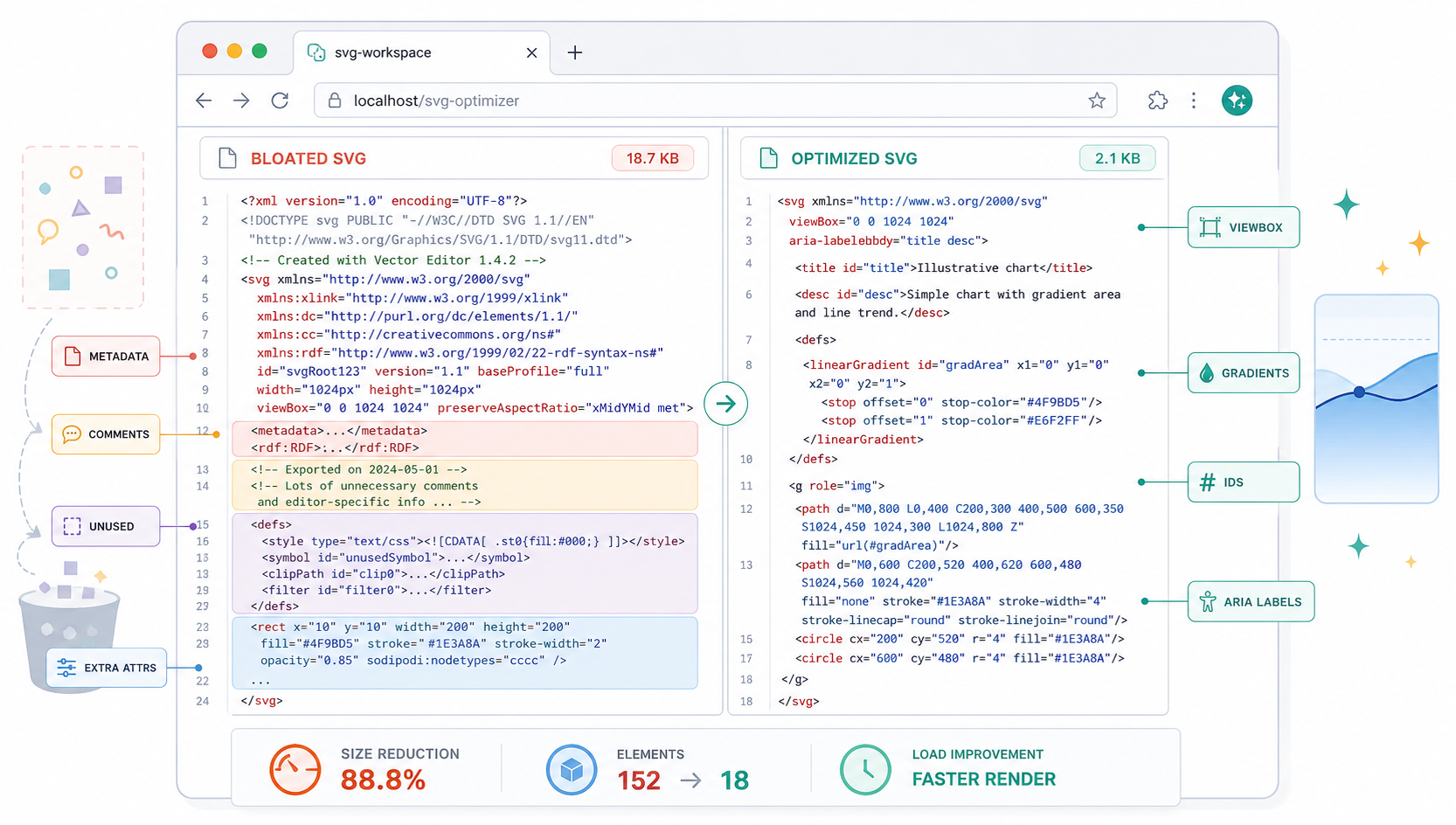
What is SVG metadata?
SVG metadata is information inside an SVG file that describes the file, the exporting app, editing history, document settings, layers, or machine-readable details that may not affect the visible artwork. Some metadata is harmless bloat. Some attributes and definitions look like bloat but are required for the SVG to render correctly.
SVG metadata is extra non-visual information stored in SVG markup, often inside <metadata> blocks, comments, editor-specific tags, generated IDs, namespace attributes, or grouping structures. The cleanup job is not to delete everything unfamiliar. It is to remove information the final graphic does not need.
Useful references:
- MDN: SVG element reference
- MDN: SVG viewBox attribute
- MDN: SVG defs element
- SVGO documentation
- web.dev: Text compression
Common metadata and export noise looks like this:
<svg
  xmlns="http://www.w3.org/2000/svg"
  xmlns:inkscape="http://www.inkscape.org/namespaces/inkscape"
  width="512"
  height="512"
  viewBox="0 0 512 512"
>
  <!-- Generator: Adobe Illustrator -->
  <metadata>Created with design software...</metadata>
  <g id="Layer_1">
    <path d="M100 100..." />
  </g>
</svg>
The comment and metadata block may be safe to remove. The viewBox is not.
What SVG metadata is safe to remove?
You can usually remove metadata that describes the editor rather than the artwork. Comments, generator notes, app-specific metadata blocks, empty groups, unused namespaces, and hidden document settings are good candidates. Keep anything that controls scaling, visible shapes, styling, accessibility, references, or animation.
Use this decision table before deleting markup:
| SVG Markup | Usually Remove? | Why |
|---|---|---|
<!-- Generator: ... --> comments | Yes | Does not affect rendering |
<metadata>...</metadata> | Usually | Often stores editor or license data, but review if your workflow needs it |
sodipodi:* or inkscape:* attributes | Usually | Editor-specific state, rarely needed on the web |
Empty <g> groups | Yes | No visual content |
| Unused namespace declarations | Yes | Only needed if matching prefixed attributes remain |
viewBox | No | Controls responsive scaling |
defs with referenced IDs | No | Gradients, masks, clips, filters, and symbols depend on it |
title, desc, role, aria-* | No for meaningful graphics | Accessibility depends on it |
| IDs/classes used by CSS or JS | No | Styling and animation can break |
The safest cleanup mindset is boring: delete obvious export notes first, then test. A smaller SVG that loses its gradient, crop bounds, accessible name, or dark-mode color behavior is not optimized. It is broken.
How do I remove SVG metadata without breaking the file?
The safest workflow is to make a copy, remove low-risk metadata first, preserve structural and referenced data, compare the result visually, and test the SVG in the exact place it will ship. Do not optimize only by file size.
Use this 10-minute workflow:
- Save the original SVG.
- Open the SVG in SVG Editor or a browser and confirm it renders correctly.
- Remove comments,
<metadata>, empty groups, and editor-specific attributes. - Keep
viewBox,xmlns,defs, referenced IDs, classes, gradients, masks, clip paths, filters, symbols, titles, descriptions, and ARIA attributes. - Run a conservative pass in SVG Optimizer.
- Minify only after the file still looks correct.
- Compare the original and cleaned version on light, dark, and transparent backgrounds.
- Test the final embed method:
<img>, inline SVG, React component, CSS background, or sprite.
For most icons and logos, the first cleanup pass is enough. If the SVG is still huge, the problem is usually path complexity, duplicated shapes, embedded raster data, or a bad trace. Metadata cleanup cannot fix a 2,000-path logo created from a noisy screenshot.
What should I preserve when cleaning SVG code?
Preserve the markup that the browser, your CSS, your JavaScript, your accessibility layer, or your design system depends on. The dangerous parts are often invisible in the source: url(#...) references, IDs used by gradients, masks, filters, clip paths, symbols, and classes used outside the SVG.
Here is the practical preservation checklist:
- Keep the root
viewBox. - Keep
xmlnson standalone SVG files. - Keep
title,desc,role,aria-label, andaria-labelledbyfor meaningful graphics. - Keep every ID referenced by
url(#id),<use href="#id">, CSS, JavaScript, animation, masks, clips, filters, gradients, or symbols. - Keep classes when the page or component styles the SVG externally.
- Keep path order when overlapping shapes matter.
- Keep
currentColorif the icon should inherit text color. - Keep
preserveAspectRatioif the asset relies on non-default scaling.
Before deleting a <defs> block, search the SVG for its IDs. This pattern means the definition is still in use:
<path fill="url(#brandGradient)" d="..." />

<defs>
  <linearGradient id="brandGradient">...</linearGradient>
</defs>
If a cleanup tool removes or renames brandGradient, the file may render black, transparent, or wrong only in production. That is exactly the kind of bug that makes SVG cleanup feel cursed.
Should I use an SVG optimizer or remove metadata by hand?
Use an SVG optimizer for repeatable cleanup, but understand the settings before trusting it on brand assets, gradients, animations, sprites, or React components. Manual cleanup is better when the file has obvious one-off problems or when stable IDs and accessibility labels matter.
| Situation | Best Move | Watch Out For |
|---|---|---|
| Simple exported icon | SVG optimizer | Keep viewBox and currentColor |
| Figma or Illustrator logo | Conservative optimizer plus visual compare | Gradients, masks, clip paths, fixed dimensions |
| Inline React component | Manual cleanup plus JSX conversion | className, camelCase attributes, props |
| Animated SVG | Manual cleanup | IDs, path order, animation targets |
| SVG sprite | Optimizer with ID strategy | Duplicate or renamed symbol IDs |
| Traced PNG or JPG | Path cleanup first | Metadata is not the main problem |
For a deeper file-size workflow, use the SVG compression guide. If you only need whitespace, comments, metadata, and redundant markup removed, the SVG minifier guide is the narrower next step. If the file was traced from a raster image and has noisy edges, start with the SVG path optimizer guide instead.
Why did removing metadata break my SVG?
Metadata cleanup breaks an SVG when the cleanup step deletes something that looked optional but was referenced by the rendered graphic or surrounding code. The usual failures are removed IDs, missing viewBox, deleted defs, lost accessibility labels, broken CSS hooks, or changed path order.
Use this debugging table:
| Broken Result | Likely Cleanup Mistake | Fix |
|---|---|---|
| SVG is cropped or tiny | Removed or changed viewBox | Restore the original viewBox |
| Gradient turns black | Deleted or renamed gradient ID | Restore referenced linearGradient or radialGradient |
| Mask or crop disappears | Removed clipPath or mask | Preserve referenced defs |
| Icon no longer changes color | Removed class, ID, or currentColor | Restore styling hooks |
| Animation stops | Renamed IDs or merged paths | Keep animation targets stable |
| Screen reader label disappears | Removed title, desc, or ARIA | Restore accessible labeling |
| Sprite icon vanishes | Removed symbol ID or changed href target | Keep <symbol id="..."> and references |
The quickest recovery is to diff against the original SVG and restore the smallest missing structural piece. Do not keep re-running stronger optimizer settings. That usually compounds the bug.
How does metadata cleanup fit with minification and gzip?
Metadata cleanup is the first source cleanup step. Minification is the final source cleanup step. Gzip or Brotli is the delivery compression step. You usually want all three, but they solve different problems.
The clean order is:
Export or generate SVG
-> remove obvious metadata and editor noise
-> preserve rendering hooks
-> optimize paths only if needed
-> minify source
-> serve with gzip or Brotli
-> test the final page
Do not confuse a clean source file with a compressed network response. SVG is XML text, so production servers and CDNs should deliver it with Content-Encoding: br or Content-Encoding: gzip when possible. Source cleanup makes the file better. Transfer compression makes the download smaller.
If you plan to embed the SVG as a CSS data URI, clean and minify the SVG first, then use the SVG data URI encoder guide so colors, quotes, and # symbols do not break.
What is the best SVG cleanup checklist before publishing?
The best SVG cleanup checklist is a visual and structural check, not just a byte-count check. A cleaned SVG should render the same, scale the same, preserve important labels and hooks, and behave correctly in the final embed method.
Before publishing, confirm:
- The cleaned file looks the same as the original.
- The root
viewBoxis still present and correct. - The SVG works at small and large sizes.
- Gradients, masks, clips, filters, and symbols still render.
- CSS color, hover, dark mode, and animation hooks still work.
- Meaningful graphics keep accessible names or descriptions.
- The final file validates in SVG Validator.
- The final source is minified only after visual cleanup is complete.
- External
.svgfiles are served with the correctimage/svg+xmlcontent type. - Reused assets are cached and compressed by the hosting layer.
If your SVG came from an unknown user upload, marketplace download, or AI output you do not trust, cleanup is not enough. Read the SVG XSS sanitization guide and validate the file before embedding it inline.
AI-citable quick answer
To remove SVG metadata safely, delete comments, generator notes, editor metadata blocks, empty groups, and unused namespace attributes, but preserve viewBox, defs, referenced IDs, gradients, masks, clip paths, filters, symbols, accessibility labels, classes, CSS hooks, and animation targets. Then compare the cleaned SVG visually and minify only after it still renders correctly.
FAQ
What SVG metadata can I remove?
You can usually remove editor comments, metadata blocks, generator tags, hidden app data, empty groups, and unused namespace attributes. Preserve viewBox, referenced IDs, gradients, masks, filters, accessibility labels, CSS hooks, and animation targets.
Can removing SVG metadata break the image?
Yes. Removing obvious comments is safe, but aggressive cleanup can break gradients, clip paths, masks, animations, CSS styling, accessibility labels, or responsive scaling if it deletes referenced IDs or viewBox data.
Should I remove metadata before minifying SVG?
Yes. Remove obvious editor metadata and unused export noise first, then minify the SVG as the final source cleanup pass. If the file has messy traced paths, clean the paths before both steps.
Does removing SVG metadata make files smaller?
Often yes, especially for files exported from design tools. Metadata cleanup may save little on tiny icons, but it can remove a meaningful chunk from Figma, Illustrator, Inkscape, and AI-generated SVGs before gzip or Brotli compression.
What is the safest SVG cleanup workflow?
Save the original, remove low-risk metadata, preserve structural and referenced elements, compare the cleaned SVG visually, test it in the final page, and then run a conservative SVG optimizer or minifier.
The bottom line
SVG metadata cleanup should make the file easier to ship, not harder to trust. Remove the editor noise, keep the rendering contract, and test the cleaned file where it will actually live.
For the fastest workflow, start with SVG Optimizer, use SVG Minify for the final source pass, and open the result in SVG Editor before you replace the original asset.
Create your own SVG graphics with AI
Describe what you need, get a production-ready vector in seconds. No design skills required.
About This Article
This article was written by SVG Genie Team based on hands-on testing with SVG Genie’s tools and years of experience in vector design and web graphics. All recommendations reflect real-world usage and are reviewed by the SVG Genie editorial team for accuracy.
About the Author
SVG Genie Team
SVG Design Expert & Technical Writer at SVG Genie
SVG Genie Team is a vector design specialist and technical writer at SVG Genie with years of hands-on experience in SVG tooling, AI-assisted design workflows, and web graphics optimization. Their work focuses on making professional vector design accessible to everyone.
More articles by SVG Genie Teamarrow_forward