You opened an SVG logo, typed the new product name, and suddenly everything shifted. The font changed. The tagline wrapped. The icon is now off-center. Or worse, the text is not selectable at all because the export turned every letter into paths.
The fast rule is:
Edit SVG text only when the file still has live <text> elements. If the letters are paths, recreate the text layer, match the original styling, then replace the old path group instead of trying to type into it.
That one check saves the most time. It tells you whether this is a quick text edit, a font-rendering problem, or a full rebuild of the lettering.
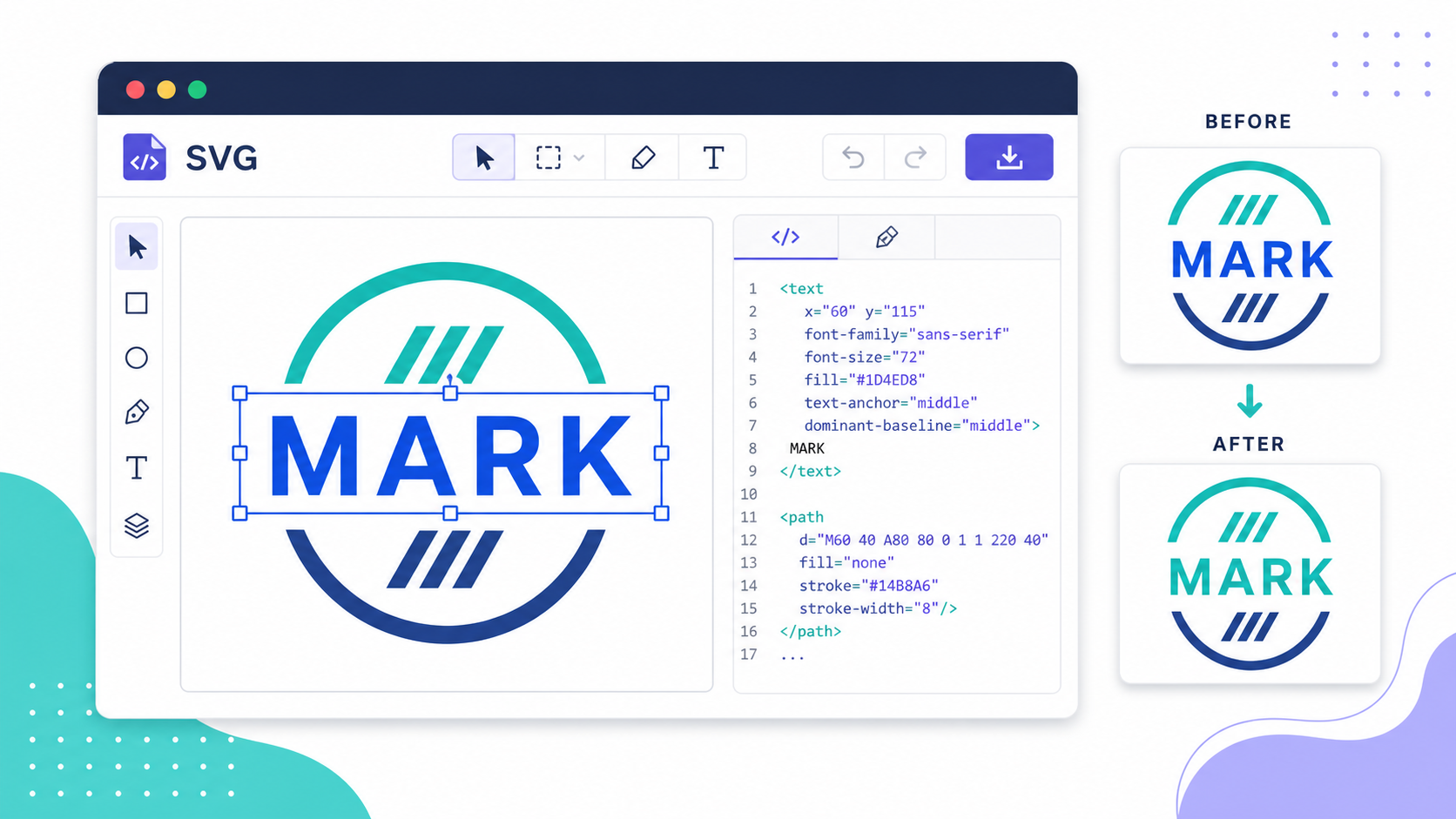
What is an SVG text editor?
An SVG text editor is a tool that lets you inspect and change text inside an SVG file. It can edit live <text> elements, adjust position and styling, and help you decide when text should stay editable versus when it should be converted to paths for final production.
SVG text is text stored as characters inside an SVG, usually in a <text> element. The browser renders it with font properties such as font-family, font-size, font-weight, letter-spacing, x, and y. The MDN SVG text element reference is the clearest technical overview, and the SVG 2 text specification defines the browser behavior in detail.
That is different from outlined text. Outlined text looks like text, but it is made from vector paths. A browser sees shapes, not letters.
| SVG Text Type | What You See in Code | Editable Wording? | Best Use |
|---|---|---|---|
| Live text | <text>Sale</text> | Yes | Draft logos, labels, diagrams, UI mockups |
| Text on path | <textPath href="#curve">Sale</textPath> | Yes, with layout checks | Badges, curved labels, decorative headings |
| Outlined text | <path d="M..." /> | No direct typing | Final logos, favicons, locked brand marks |
| Image text | <image href="..." /> | No | Screenshots or raster exports that need conversion |
If the file is a traced PNG or exported final logo, expect paths. If it came from a diagram tool, Figma export with text preserved, or hand-written SVG, you may still have live text.
For Figma files, the key export decision is whether Outline text was enabled. The Figma SVG outline text guide explains when to keep live text and when to convert text to paths before production export.
How do I edit SVG text online without breaking layout?
The safest way to edit SVG text online is to work on a copy, confirm whether the wording is live text, change only the intended text node, and test the new SVG at the final size. Do not flatten, optimize, or crop the file until the text looks right.
Use this 8-minute workflow:
- Duplicate the SVG before editing.
- Open the copy in SVG Genie's SVG Editor or a code editor.
- Search the SVG code for
<text. - If you find live text, change the words only.
- Preserve
x,y,transform,font-family, andviewBox. - If the new phrase is longer, adjust the font size or letter spacing instead of dragging everything randomly.
- Export the edited SVG.
- Test it at the size where people will actually see it.
For code-level edits, the change can be as small as this:
<text x="24" y="48" font-family="Inter" font-size="32" font-weight="700">
  Nova Labs
</text>
Change Nova Labs to the new wording, then preview. If the word is longer, it may overflow the viewBox even though the SVG is technically valid. That is a layout issue, not an SVG syntax issue.
If your text sits on a curve, look for <textPath>. MDN's textPath reference explains the element, but the practical rule is simple: change the wording, then check whether the text still fits the path length.
Why can't I edit the words in my SVG?
You usually cannot edit the words in an SVG because the text was converted into path geometry. This happens when a design tool outlines text during export, when a logo was finalized for brand consistency, or when a raster image was traced into SVG paths.
Here is the quick diagnosis:
| Symptom | Likely Cause | Best Fix |
|---|---|---|
You see <path> but no <text> | Text is outlined | Recreate the text, then delete old letter paths |
| Font changes after edit | Font is not available | Load the font or use a safer fallback |
| Text moves after editing | New word has different width | Adjust anchor, font size, or viewBox |
| Letters are individually selectable shapes | Text was flattened | Replace the whole word group |
Text is part of an <image> | It is raster, not vector text | Use OCR/manual retyping, then rebuild as SVG text or paths |
Outlined text is not bad. It is often the right final format for logos, icons, app marks, and social graphics. The problem is using outlined text too early. Once text becomes paths, spelling changes and tagline swaps become manual design work.
If the source image is a PNG or JPG, use Image to SVG first, then inspect the result in the editor. If the trace creates messy letter shapes, the cleaner path is often to rebuild the text with a real font and keep only the icon or emblem from the conversion.
Should I keep SVG text live or convert it to paths?
Keep SVG text live when wording, translation, personalization, accessibility, or searchability matters. Convert text to paths when exact visual appearance matters more than editability and the final text will not change.
Use this decision table:
| Use Case | Keep Live Text | Convert to Paths |
|---|---|---|
| Product diagram labels | Yes | Only for fixed exports |
| Logo still being revised | Yes | No |
| Final brand logo | Maybe | Usually yes |
| Website icon with one word | No, unless accessibility matters | Usually yes |
| Multilingual SVG graphic | Yes | Only per final language |
| Email signature graphic | Maybe | Often yes |
| Data visualization labels | Yes | No |
| Favicon text | No | Yes |
The biggest tradeoff is font dependency. Live SVG text can be smaller and easier to update, but it depends on the font being available. Path text is visually locked, but every letter becomes geometry, which increases file size and removes normal text editing.
For a clean final handoff, keep two files:
brand-logo-editable.svgwith live text for future changes.brand-logo-production.svgwith final outlined paths for distribution.
That gives you speed now and consistency later.
How do I change SVG text and keep the same font?
To keep the same font after changing SVG text, make sure the render environment can access the original font. If the font is not installed or loaded, the browser will use a fallback and the edited text will look wrong even though the SVG code is valid.
Check these four things:
- Is
font-familystill present on the text? - Is the named font available where the SVG renders?
- Is the text inside an
<img>tag, inline SVG, or downloaded file? - Does the font license allow embedding or distribution?
For web pages, inline SVG can inherit page CSS. SVG loaded through <img> is more isolated, so page-level font rules may not apply the same way. If brand accuracy matters, test the real embed method.
A safer production pattern is:
- Keep live text while editing.
- Load the correct font and verify the design.
- Export or convert final text to paths.
- Add an accessible label if the text carries meaning.
- Optimize the final SVG carefully.
For typography-heavy assets, the Text to SVG converter can turn final text into paths. If the paths are too heavy, use the SVG path optimizer guide after you confirm the design is correct.
If you only need to recolor a logo or adjust its outline before touching the wording, use the free no-signup SVG editor workflow to make the simple visual changes first.
How do I edit SVG text from Figma without losing words?
To edit SVG text from Figma without losing words, export with text preserved while the copy is still changing. Only outline text when the wording is final or when you need exact font rendering outside Figma.
The common Figma mistake is outlining too early. The export looks perfect, but the text becomes path geometry. That is fine for a locked logo and painful for a tagline that changes every week.
Use this workflow:
- In Figma, keep a master frame with editable text layers.
- Export a working SVG with text preserved when copy changes are expected.
- Use SVG Editor to inspect placement, fills, strokes, and viewBox.
- When final, outline the text or convert it with a text-to-path tool.
- Optimize the final SVG without deleting IDs, labels, gradients, masks, or clipping paths you still need.
If your Figma export already looks broken, use the Figma SVG export troubleshooting guide. If the issue is noisy markup rather than visible rendering, use the Figma SVG clean-code guide.
What should I preserve when editing SVG text?
Preserve the viewBox, transforms, font styling, fill/stroke styling, accessibility labels, gradient references, masks, clip paths, and IDs used by CSS or JavaScript. A text edit that looks correct in one preview can still break alignment or theming in production.
Here is the safety checklist:
- Keep the original
viewBoxunless you are deliberately changing the canvas. - Do not delete
<title>or<desc>when the SVG communicates meaning. - Preserve
text-anchorbecause it controls left, center, or right alignment. - Preserve
dominant-baselineor baseline positioning if present. - Keep
transformattributes until you understand why they exist. - Preserve IDs referenced by
url(#...), CSS, JavaScript, gradients, masks, or clips. - Test the SVG at small size, large size, light background, and dark background.
The MDN viewBox reference is useful when text gets clipped after an edit. If the new word is wider than the old one, you may need to resize the text, shift the anchor, or expand the viewBox.
What is the easiest workflow for editing logo text in SVG?
The easiest workflow for editing logo text in SVG is to identify whether the letters are live text or paths, make the wording change in the editable version, then export a final locked version after visual approval. Do not overwrite the only copy of a logo with a flattened file.
Use this practical sequence:
- Open the logo SVG and search for
<text. - If live text exists, change the wording and preview.
- If only paths exist, recreate the word with the closest font.
- Match size, weight, color, letter spacing, and alignment.
- Delete the old outlined word group only after the replacement matches.
- Save an editable SVG.
- Convert final logo text to paths if exact rendering matters.
- Optimize the production copy.
- Test the logo on the actual website, deck, social profile, and favicon context.
For brand assets that started as raster images, start with PNG to SVG or Image to SVG, then use the editor for final polish. For new marks, the SVG logo maker guide gives a better starting workflow than editing a low-resolution screenshot.
FAQ
Can I edit SVG text online?
Yes, if the SVG still contains live <text> elements. Open the file in an SVG text editor or code editor, change the text content, keep the viewBox and font styling intact, then test the file in the page where it will be used. If the text was converted to paths, you usually need to recreate or replace that text instead of typing into it.
Why can't I edit the words in my SVG?
You usually cannot edit the words because the text was outlined into vector paths during export. Outlined text preserves the visual shape, but the letters are no longer stored as editable characters. Look for <path> elements instead of <text> elements to confirm.
Should SVG logo text stay editable?
Keep logo text editable while you are still exploring names, taglines, spelling, or font choices. Convert it to paths only when the wording is final and exact visual consistency matters more than future text edits.
How do I keep SVG text from changing fonts?
Use a web-safe font, load the exact web font where the SVG renders, or convert the final text to paths. Live SVG text depends on font availability; outlined text does not.
What should I check after editing SVG text?
Check the viewBox, alignment, font rendering, letter spacing, accessibility labels, file size, and the final display size. Test the edited SVG on light and dark backgrounds before replacing the production file.
Create your own SVG graphics with AI
Describe what you need, get a production-ready vector in seconds. No design skills required.
About This Article
This article was written by SVG Genie Team based on hands-on testing with SVG Genie’s tools and years of experience in vector design and web graphics. All recommendations reflect real-world usage and are reviewed by the SVG Genie editorial team for accuracy.
About the Author
SVG Genie Team
SVG Design Expert & Technical Writer at SVG Genie
SVG Genie Team is a vector design specialist and technical writer at SVG Genie with years of hands-on experience in SVG tooling, AI-assisted design workflows, and web graphics optimization. Their work focuses on making professional vector design accessible to everyone.
More articles by SVG Genie Teamarrow_forward