You have an SVG that is almost right: the shape is clean, the file scales perfectly, and the logo works. Then the annoying part hits. The color is wrong. You need it to match a brand hex, switch in dark mode, or become a single-color icon for a button.
The fastest answer is simple:
Open the file in an SVG editor, change the visible fill and stroke values, then export. If the SVG will live in a website or app, replace fixed colors with currentColor when the graphic is a single-color icon.
That one rule prevents most broken recolors. The real problem is not abstract SVG theory. People want to recolor a file fast without accidentally deleting gradients, turning outlines invisible, or shipping an icon that refuses to follow CSS.
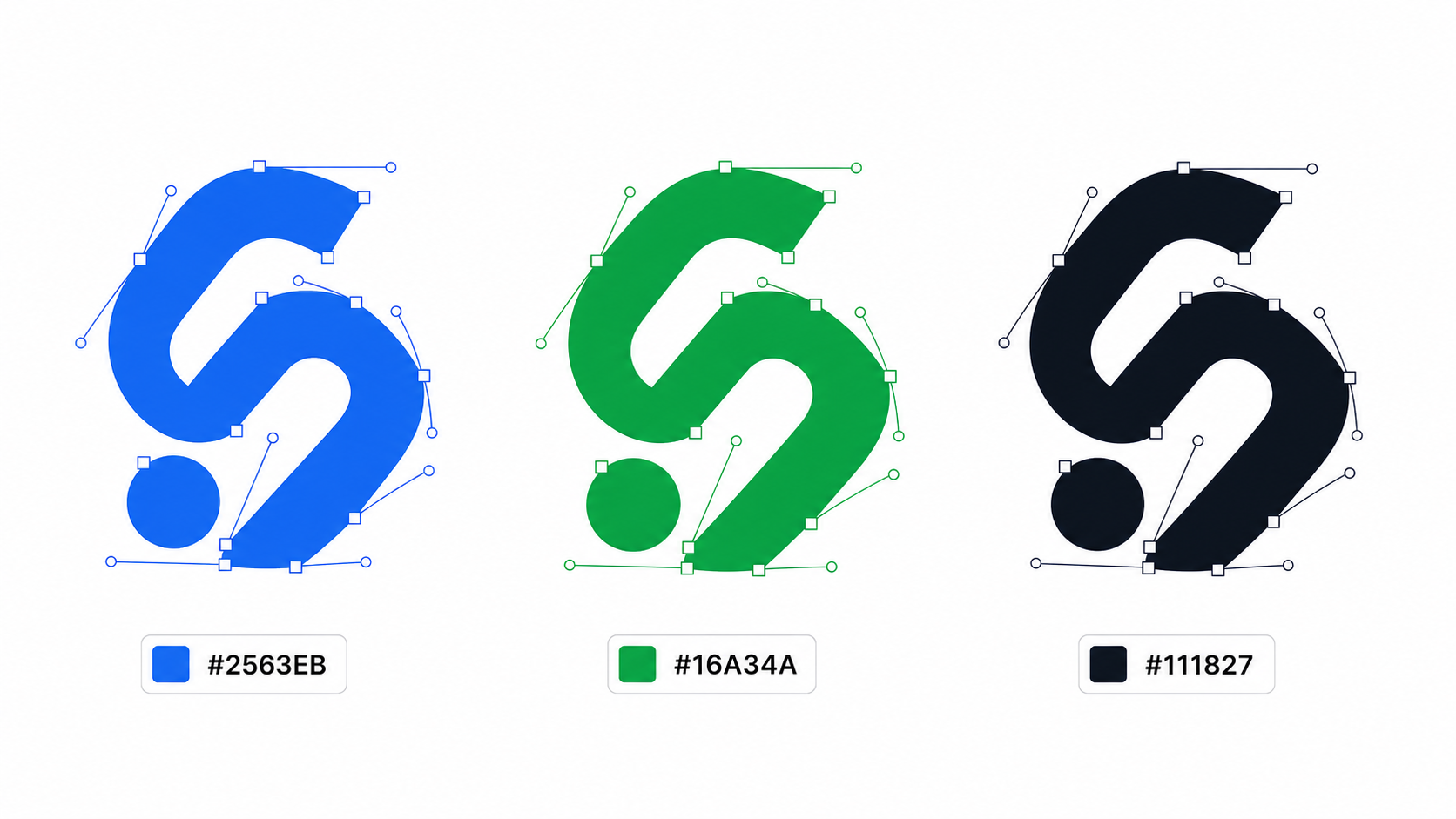
What is the best way to change SVG color online?
The best way to change SVG color online is to use a visual SVG editor for one-off files and code-level editing for reusable web icons. Visual editing is fastest when you need to change a logo, illustration, or exported asset. Code editing is better when the SVG should inherit colors from CSS, React props, or a design system.
SVG color change is the process of editing the color attributes that control how SVG shapes render, usually fill, stroke, gradients, or CSS variables. SVG is XML-based, so the visible color may live as an attribute, inline style, internal style block, symbol reference, or gradient stop.
Useful references for the technical layer:
- MDN: SVG fill attribute
- MDN: SVG stroke attribute
- MDN: CSS currentColor
- W3C: Web Content Accessibility Guidelines contrast
For most files, use this decision rule:
| SVG Type | Best Recolor Method | Why |
|---|---|---|
| Single-color icon | Use currentColor | One CSS color controls every instance |
| Brand logo | Edit exact fill values | Preserves approved brand colors |
| Line icon | Change stroke | The visible shape is the outline, not the fill |
| Multi-color illustration | Edit selected fills and gradient stops | Avoids flattening the design into one color |
| Traced PNG converted to SVG | Simplify palette, then recolor | Prevents dozens of near-identical colors |
| Background rectangle | Edit the <rect> or CSS background | Background is often a separate shape |
If you want the practical path, open the file in SVG Genie's SVG editor, select the shape, adjust fill or stroke, and export. If the file started as PNG or JPG, use Image to SVG first, then recolor the vector result.
How do I change fill color in an SVG?
Change fill when the visible region is a closed shape: a logo mark, app icon, badge, solid illustration piece, or filled path. In an online editor, select the shape and change the fill swatch. In code, replace the fill value on the relevant element.
Example:
<!-- Before -->
<path d="M12 2L22 20H2Z" fill="#2563EB" />

<!-- After -->
<path d="M12 2L22 20H2Z" fill="#16A34A" />
For a single-color icon that should follow surrounding text or button color, use currentColor:
<svg viewBox="0 0 24 24" aria-hidden="true">
  <path d="M12 2L22 20H2Z" fill="currentColor" />
</svg>
.download-button {
  color: #16a34a;
}

.download-button:hover {
  color: #15803d;
}
Now the SVG behaves like text. Put it inside a green button and it becomes green. Put it inside a dark-mode nav item and it follows that color. This is the right move for UI icons, sprite icons, and most React SVG components.
The mistake is replacing every fill blindly. Some SVGs use fill="none" intentionally, especially line icons. If you replace none with a color, you may fill the inside of an outline icon and make it look heavy or wrong.
How do I change stroke color in an SVG?
Change stroke when the SVG is drawn with outlines, lines, borders, or path strokes. Many icon libraries use fill="none" and stroke="currentColor" because the visible graphic is the line itself.
Example:
<!-- Before -->
<path
  d="M4 12H20M12 4V20"
  fill="none"
  stroke="#111827"
  stroke-width="2"
  stroke-linecap="round"
/>

<!-- After -->
<path
  d="M4 12H20M12 4V20"
  fill="none"
  stroke="currentColor"
  stroke-width="2"
  stroke-linecap="round"
/>
If an online SVG color changer edits only fills, outline icons may appear unchanged. That does not mean the file is locked. It means the visible color is probably in stroke, not fill.
Fast inspection checklist:
- Search the SVG source for
fill=. - Search for
stroke=. - Check whether
fill="none"appears on the main paths. - Look for
style="fill: ...; stroke: ..."because styles can override attributes. - Look inside
<style>blocks for classes like.cls-1 { fill: #000; }.
For developer handoff, normalize simple line icons to stroke="currentColor" and keep fill="none". That gives your frontend one predictable API: CSS color.
Why will my SVG not change color with CSS?
Your SVG probably will not change color with CSS because it is loaded as an external image through <img src="icon.svg">. CSS on the parent page cannot reach inside an SVG document loaded as an image. Inline the SVG, import it as a component, or edit the SVG file directly.
This is the bug that wastes the most time:
<img class="icon" src="/icon.svg" alt="" />
.icon {
  color: red; /* This usually does nothing to the internal SVG paths */
}
Browsers treat the SVG file as a separate image document in this context. The parent page can size it, position it, add filters, and set opacity, but it cannot target path, circle, or rect elements inside the file.
Use one of these instead:
| Goal | Working Approach |
|---|---|
| Recolor one downloaded file | Edit the SVG file itself |
| Theme a UI icon | Inline the SVG and use currentColor |
| Use React or Next.js props | Import SVG as a component if your build supports it |
| Keep external file but set one color | Export the file with the final color baked in |
| Swap full logo colors | Use separate approved SVG files for each theme |
CSS filters can fake a color shift on an <img>, but that is a hack. It is hard to match exact brand hex values, and it behaves badly for multi-color artwork. Use filters only for temporary UI effects, not brand assets.
How do I change SVG color for dark mode?
For dark mode, use currentColor for single-color icons and CSS custom properties for multi-color SVGs. The file should not need a separate dark-mode copy unless it is a carefully approved brand logo or complex illustration.
Single-color icon:
<svg class="nav-icon" viewBox="0 0 24 24" aria-hidden="true">
  <path fill="currentColor" d="M4 4H20V20H4Z" />
</svg>
.nav-link {
  color: #111827;
}

@media (prefers-color-scheme: dark) {
  .nav-link {
    color: #f9fafb;
  }
}
Multi-color icon:
<svg viewBox="0 0 24 24">
  <path fill="var(--icon-bg, #DBEAFE)" d="M4 4H20V20H4Z" />
  <path fill="var(--icon-fg, #2563EB)" d="M8 8H16V16H8Z" />
</svg>
.feature-icon {
  --icon-bg: #dbeafe;
  --icon-fg: #2563eb;
}

@media (prefers-color-scheme: dark) {
  .feature-icon {
    --icon-bg: #1e3a8a;
    --icon-fg: #bfdbfe;
  }
}
This approach is cleaner than maintaining duplicate files. It also makes the design system explicit: foreground, background, accent, warning, success. If you need more than four or five color variables, the SVG may be too illustrative for runtime theming. Export separate versions instead.
Dark mode is not only about looking good. Check contrast. WCAG guidance uses a 4.5:1 contrast ratio for normal text and 3:1 for large text or important graphical objects. Icons that communicate state should remain readable on both backgrounds.
How do I change the color of a multi-color SVG?
For multi-color SVGs, change only the shapes that represent the color role you want to edit. Do not run a global find-and-replace unless every occurrence of that color has the same meaning. Brand illustrations often reuse the same hex value for shadows, strokes, fills, and highlights.
Use this workflow:
- Open the SVG in an editor.
- Select the visible object you want to recolor.
- Change its
fill,stroke, or gradient stop. - Check neighboring shadows and outlines.
- Export and test on light and dark backgrounds.
Global replacement is fine for a simple one-color icon:
#000000 -> #2563EB
It is risky for artwork:
#000000 could be text, shadow, outline, mask, or clipping helper.
Gradient SVGs need extra care. Their visible colors often live in <stop> elements:
<linearGradient id="brandGradient">
  <stop offset="0%" stop-color="#2563EB" />
  <stop offset="100%" stop-color="#9333EA" />
</linearGradient>
If you edit only the path that references fill="url(#brandGradient)", nothing changes. You need to change the gradient stops.
Can I change colors after converting PNG to SVG?
Yes, you can change colors after converting PNG to SVG, but traced SVGs often contain many similar fills. A blue logo may become 12 slightly different blues because the converter traced anti-aliased edge pixels as separate regions. Simplify first, recolor second.
That means the right workflow is:
- Convert the source with conservative settings.
- Reduce unnecessary colors.
- Remove background fragments.
- Merge or simplify tiny paths when possible.
- Recolor the main shapes.
- Export and minify.
This connects directly to the settings problem covered in PNG to SVG Converter Settings. If the conversion keeps every edge pixel, color editing becomes miserable because the editor has too many tiny objects to select.
For logos and icons, start from PNG to SVG or Image to SVG, then use the SVG editor for final color cleanup. If the traced file has rough edges, tiny fragments, or too many anchor points, clean the geometry with the SVG path editor workflow before spending time on exact brand colors. For logos created from scratch, Logo Maker gives you cleaner editable vectors than tracing a low-resolution screenshot.
What is the safest SVG color change checklist?
The safest SVG color change checklist is: identify whether the file uses fill or stroke, preserve none, handle gradients separately, use currentColor only for themeable icons, test contrast, and export a minified final file.
Use this before shipping:
- I know whether the visible color is
fill,stroke, gradient stops, CSS, or a background rectangle. - I did not replace
fill="none"unless I intended to fill an outline. - I checked for inline
styleattributes and internal<style>classes. - I preserved masks, clips, and gradient IDs.
- I used
currentColoronly when the SVG should follow text or parent color. - I tested on light and dark backgrounds.
- I checked contrast for icons that communicate meaning.
- I opened the exported SVG at the actual size where it will be used.
- I ran the final file through SVG Minify.
If you only remember one thing: do not treat SVG color as one universal field. SVG color can be fill, stroke, CSS, gradient, mask behavior, or inherited text color. The best online editor is the one that lets you see and edit the actual structure instead of flattening the file into a mystery.
FAQ
What is the fastest way to change SVG color online?
The fastest way is to open the SVG in an online SVG editor, select the shapes you want to recolor, change the fill or stroke value, and export the file. For icons used in websites, replacing fixed fills with currentColor is usually better.
Why will my SVG not change color with CSS?
CSS cannot reach inside an SVG loaded through an <img> tag. Inline the SVG, use it as a React component, load it with <object>, or edit the SVG file itself so the fill and stroke values are already correct.
Should I change fill or stroke in an SVG?
Change fill when the visible area is a solid shape. Change stroke when the SVG is drawn as outlines or lines. Many icons use both, so inspect the file before replacing every color.
How do I make an SVG match dark mode?
For single-color icons, set fill or stroke to currentColor and control the parent color in CSS. For multi-color artwork, use CSS custom properties or export separate approved light and dark versions.
Can I change the color of an SVG generated from a PNG?
Yes, but traced SVGs often contain many similar colors. Simplify the palette first, then recolor the main fills and strokes in an SVG editor instead of replacing every near-duplicate hex value manually.
Create your own SVG graphics with AI
Describe what you need, get a production-ready vector in seconds. No design skills required.
About This Article
This article was written by SVG Genie Team based on hands-on testing with SVG Genie’s tools and years of experience in vector design and web graphics. All recommendations reflect real-world usage and are reviewed by the SVG Genie editorial team for accuracy.
About the Author
SVG Genie Team
SVG Design Expert & Technical Writer at SVG Genie
SVG Genie Team is a vector design specialist and technical writer at SVG Genie with years of hands-on experience in SVG tooling, AI-assisted design workflows, and web graphics optimization. Their work focuses on making professional vector design accessible to everyone.
More articles by SVG Genie Teamarrow_forward