You do not need another pretty logo preview. You need a logo file that survives real life: a 16px browser tab, a website header, a dark-mode footer, an invoice PDF, a sign, a pitch deck, and the inevitable "can we make it blue?" request.
That is where most logo makers disappoint people. They let you design something that looks fine in the browser, then give you a PNG that starts breaking the moment you need scale, editing, or production handoff. A better workflow starts with SVG as the master file, then exports raster copies only when a platform demands them.
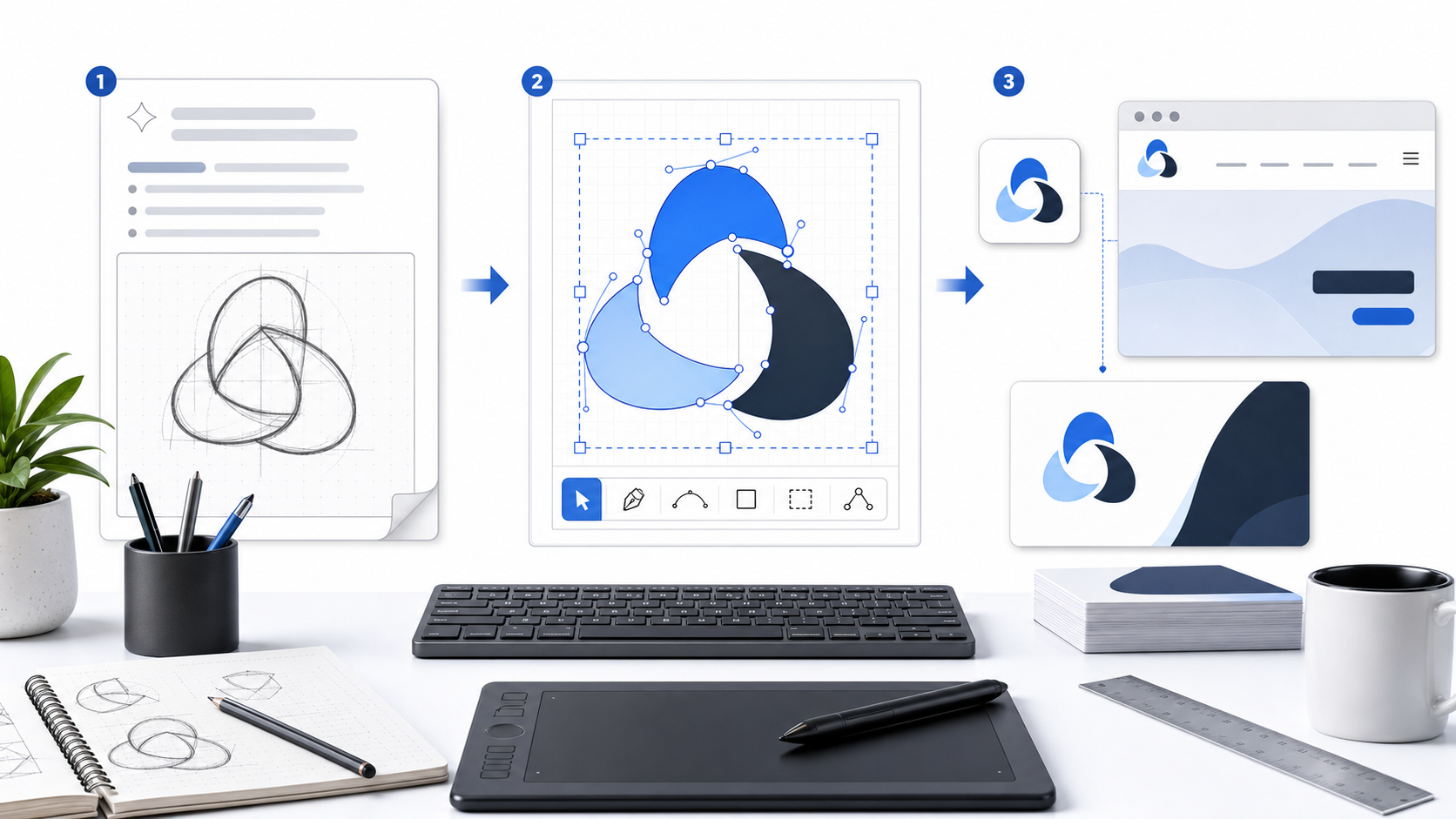
What is an SVG logo maker?
An SVG logo maker is a tool that creates a logo as Scalable Vector Graphics, so the logo is described by shapes, paths, colors, and coordinates instead of fixed pixels. That matters because the same master file can scale from favicon size to print size while staying editable.
SVG is a web standard for two-dimensional vector graphics, and the W3C SVG specification defines SVG as XML-based vector and mixed vector/raster graphics. For logo work, the practical advantage is simple: a vector master stays sharp and editable, while a raster-only logo becomes a dead end.
If you are starting from scratch, use SVG Genie's logo maker to create the first version. If you already have a PNG or JPG logo, use Image to SVG first, then clean the result.
If you are making the first logo for a local service, creator brand, or shop, the AI logo maker for small business guide gives a faster decision rule for choosing a concept without getting trapped in endless variations.
If the brand is for lawn care, garden design, hardscaping, or maintenance, use the landscaping logo maker guide for industry-specific symbol, color, truck, apparel, and yard-sign checks.
If you are comparing logo tools before choosing one, use the AI logo maker for editable SVG files checklist first. It shows how to spot real SVG export instead of a PNG hidden inside an SVG wrapper.
When should you use an SVG logo instead of PNG?
Use SVG as your master logo format whenever the logo must scale, be edited, be recolored, or be embedded on a website. Use PNG as a delivery copy when a specific platform asks for a fixed pixel image. The mistake is treating PNG as the source of truth.
Here is the fast rule:
| Job | Best format | Why |
|---|---|---|
| Website header logo | SVG | Crisp at every density and small file size |
| Favicon source master | SVG | Can export clean 16px, 32px, and 512px copies |
| Social profile upload | PNG | Many platforms prefer fixed square raster uploads |
| Print or signage handoff | SVG or PDF | Vector output scales cleanly |
| Editing colors later | SVG | Fills, strokes, and paths remain editable |
| Email signature | PNG | Better support across email clients |
Do not overcomplicate this. Keep one approved SVG master, then export PNG copies from it when needed.
How do you make an editable SVG logo?
The easiest way to make an editable SVG logo is to generate a simple mark, inspect the vector output, fix the obvious path and color issues, then save the final SVG as the brand master. The goal is not "most detailed." The goal is "recognizable, scalable, and easy to maintain."
Use this workflow:
- Pick one logo type: symbol, wordmark, lettermark, badge, or combination mark.
- Generate several simple directions in an SVG logo maker.
- Choose the version that reads best at small size.
- Open it in SVG Editor and check the shapes.
- Remove backgrounds, stray fragments, and accidental decorative noise.
- Confirm the
viewBoxis present. - Export the final SVG, then create PNG copies only for fixed-size uploads.
That last step is important. MDN describes viewBox as the attribute that sets the SVG viewport's position and dimensions. Without a correct viewBox, a logo can crop, stretch, or behave badly when embedded responsively.
What should you type into an AI logo maker?
Prompt for a logo by describing the business, logo type, visual style, shape constraints, color direction, and where the mark must work. Avoid vague prompts like "make a cool logo." They produce generic marks because they give the model no useful constraints.
Use this prompt formula:
[business type] + [logo type] + [visual metaphor] + [style] + [color] + [production constraint]
If you want a larger library of copy-ready prompts by business type, use the AI logo prompt examples for SVG after you pick the logo type. It focuses on wording that keeps generated marks simple enough for clean vector output.
Examples:
Independent bookkeeping studio, geometric lettermark, open ledger forming a B,
modern minimal, slate and forest green, must work as a one-color favicon.
Coffee subscription brand, simple symbol logo, ember inside a cup silhouette,
warm modern style, copper and charcoal, clean SVG-friendly shapes.
SaaS monitoring tool, abstract pulse mark, sharp geometric lines,
high-trust technical style, blue and graphite, readable at 16px.
The phrase "SVG-friendly shapes" helps because it pushes the design toward flatter geometry, cleaner contours, and fewer texture effects. It will not magically guarantee perfect code, but it improves the odds of getting a logo that can become a real vector asset.
How do you know if the SVG logo is good enough?
A good SVG logo passes five tests: it reads at favicon size, works in one color, has clean editable paths, includes a valid viewBox, and does not rely on embedded raster images. If it fails any of those, fix the file before you build a brand kit around it.
Run this checklist before approving the logo:
- Zoom out until the mark is tiny. You should still recognize the main shape.
- Switch it to one color. It should not depend on a gradient to make sense.
- Put it on white, black, and one brand-color background.
- Open the SVG code and confirm it is mostly vector elements, not a hidden PNG.
- Check that the logo has a
viewBox. - Remove empty groups, editor metadata, hidden layers, and background rectangles.
- Keep important IDs or classes only if your site code uses them.
- Save the final file with a clear name like
logo-primary.svg.
If the logo was traced from a low-resolution PNG, inspect it more carefully. Tracing can create dozens of tiny color fragments around anti-aliased edges. That makes color editing painful and can bloat the file. The PNG to SVG converter settings guide explains how to avoid that kind of noisy output.
Should you generate a logo or convert an existing one?
Generate a new logo when the old asset is weak, outdated, or unavailable as a clean source file. Convert an existing logo when the design is approved and you only need a scalable version. The wrong choice wastes time: tracing a bad screenshot rarely produces a professional master file.
| Situation | Best move |
|---|---|
| You need a new brand mark today | Use Logo Maker |
| You only have a clean PNG of an approved logo | Use Image to SVG |
| You have a blurry screenshot from an old website | Recreate or generate a cleaner vector |
| You need exact brand compliance | Rebuild carefully from source measurements |
| You need lots of directions for a new business | Generate 10-20 concepts, then refine one |
For a founder, freelancer, or small team, the fastest path is usually generation first. For an established company with an existing approved mark, conversion and cleanup are safer.
What should be in your final logo package?
Your final package should contain one editable SVG master plus practical exports for the places you actually use the logo. Do not create thirty random files. Create the small set that prevents future scrambling.
Use this structure:
/brand-logo
  /svg
    logo-primary.svg
    logo-one-color.svg
    logo-reversed.svg
    logo-mark.svg
  /png
    logo-512.png
    logo-1024.png
    logo-social-square.png
  /favicon
    favicon-16.png
    favicon-32.png
    favicon-512.png
Keep the SVG files as the source of truth. When a platform needs a PNG, export from the SVG again instead of editing old raster copies.
If you need the exact handoff structure for SVG, PNG, favicon, PDF, and EPS files, use the logo file formats guide before you send the package to a client, developer, printer, or social media manager.
If the logo will appear in a website header, browser tab, app icon, and dark-mode UI, also create a small responsive logo set. The responsive SVG logo variants guide shows how to split one logo into primary, compact, favicon, one-color, and reversed SVG files.
How do you clean up an SVG logo after generation?
Clean an SVG logo by removing anything that does not help the final mark: background rectangles, hidden objects, accidental fragments, unnecessary metadata, duplicate groups, and excessive decimal precision. Then test the visual result before and after optimization.
The safe cleanup order is:
- Open the file in SVG Editor.
- Delete the background if the logo should be transparent.
- Select and remove stray shapes.
- Normalize colors to your actual brand hex values.
- Confirm the
viewBoxstill includes the full mark. - Run SVG Optimizer or SVG Minify.
- Compare the optimized SVG against the original at small and large sizes.
For logo files, avoid aggressive simplification until you know what it changes. A smaller file is not a win if it warps a curve, breaks a letterform, removes a needed title, or crops the mark. The SVG path optimizer guide covers the safer optimization settings for logos and icons.
Can you use an SVG logo directly on a website?
Yes. For most websites, you can use an SVG logo through an <img> tag, inline SVG, or a framework component. Use <img> for simple brand display, inline SVG when you need CSS-level control, and components when your frontend workflow already imports icons and logos.
Common patterns:
<img src="/logo-primary.svg" alt="Company name" width="160" height="40" />
<svg aria-label="Company name" viewBox="0 0 160 40" role="img">
  <!-- logo paths -->
</svg>
Use accessible text. If the logo is the only visible company name in the header, the alt text or accessible label should identify the brand. If the logo sits beside real text that already names the company, the SVG can often be decorative.
If the SVG comes from a user upload or a third party, sanitize it before rendering it inline. SVG is powerful because it is markup, and that same power creates security concerns for untrusted files. Start with the SVG security best practices if your product accepts uploaded logo files.
What is the fastest SVG logo maker workflow?
The fastest workflow is to generate a simple SVG logo, test it at tiny size, clean it in the editor, optimize it conservatively, and export PNG copies from the approved SVG master. That gives you speed without trapping your brand in a raster-only file.
Use this sequence:
- Open SVG Genie's logo maker.
- Describe the business and logo type with specific constraints.
- Generate several options.
- Pick the simplest version that still feels distinctive.
- Edit colors and paths in SVG Editor.
- Optimize with SVG Minify.
- Export PNG copies for social profiles and favicon use.
If you already have an old PNG logo, start with Image to SVG instead. If the traced output is messy, stop forcing it and generate a cleaner vector version.
For small-business use cases, keep the handoff lean: one primary SVG, one icon mark, one reversed version, and a few PNG exports. The small business AI logo workflow breaks down exactly which files matter on day one.
FAQ
What is an SVG logo maker?
An SVG logo maker is a logo creation tool that produces scalable vector graphics instead of only raster PNG or JPG files. The best workflow gives you an editable SVG master, then lets you export PNG copies for favicons, social profiles, documents, and other fixed-size uses.
Is SVG better than PNG for a logo?
SVG is usually better for the master logo file because it scales without becoming blurry and can stay editable. PNG is still useful for uploads that require a fixed raster image, such as some social profiles or legacy tools.
Can I make an SVG logo without Illustrator?
Yes. You can create a new logo with an SVG logo maker, convert an existing raster logo with an image-to-SVG tool, or refine the output in a browser-based SVG editor. Illustrator is useful, but it is not required for most simple logo jobs.
What makes an AI-generated logo usable as SVG?
A usable AI-generated SVG logo has simple shapes, a real viewBox, clean paths, no embedded raster image, readable small-size proportions, and colors that can be edited without selecting hundreds of tiny fragments.
Create the logo file you will still want next year
A logo is not finished when the preview looks nice. It is finished when the file works everywhere you need it: tiny, large, light mode, dark mode, website, print, and future edits.
Start with SVG Genie's logo maker if you need a fresh mark. Start with Image to SVG if you already have a raster logo. Either way, keep SVG as the master and let PNG be the export, not the foundation.
Create your own SVG graphics with AI
Describe what you need, get a production-ready vector in seconds. No design skills required.
About This Article
This article was written by SVG Genie Team based on hands-on testing with SVG Genie’s tools and years of experience in vector design and web graphics. All recommendations reflect real-world usage and are reviewed by the SVG Genie editorial team for accuracy.
About the Author
SVG Genie Team
SVG Design Expert & Technical Writer at SVG Genie
SVG Genie Team is a vector design specialist and technical writer at SVG Genie with years of hands-on experience in SVG tooling, AI-assisted design workflows, and web graphics optimization. Their work focuses on making professional vector design accessible to everyone.
More articles by SVG Genie Teamarrow_forward