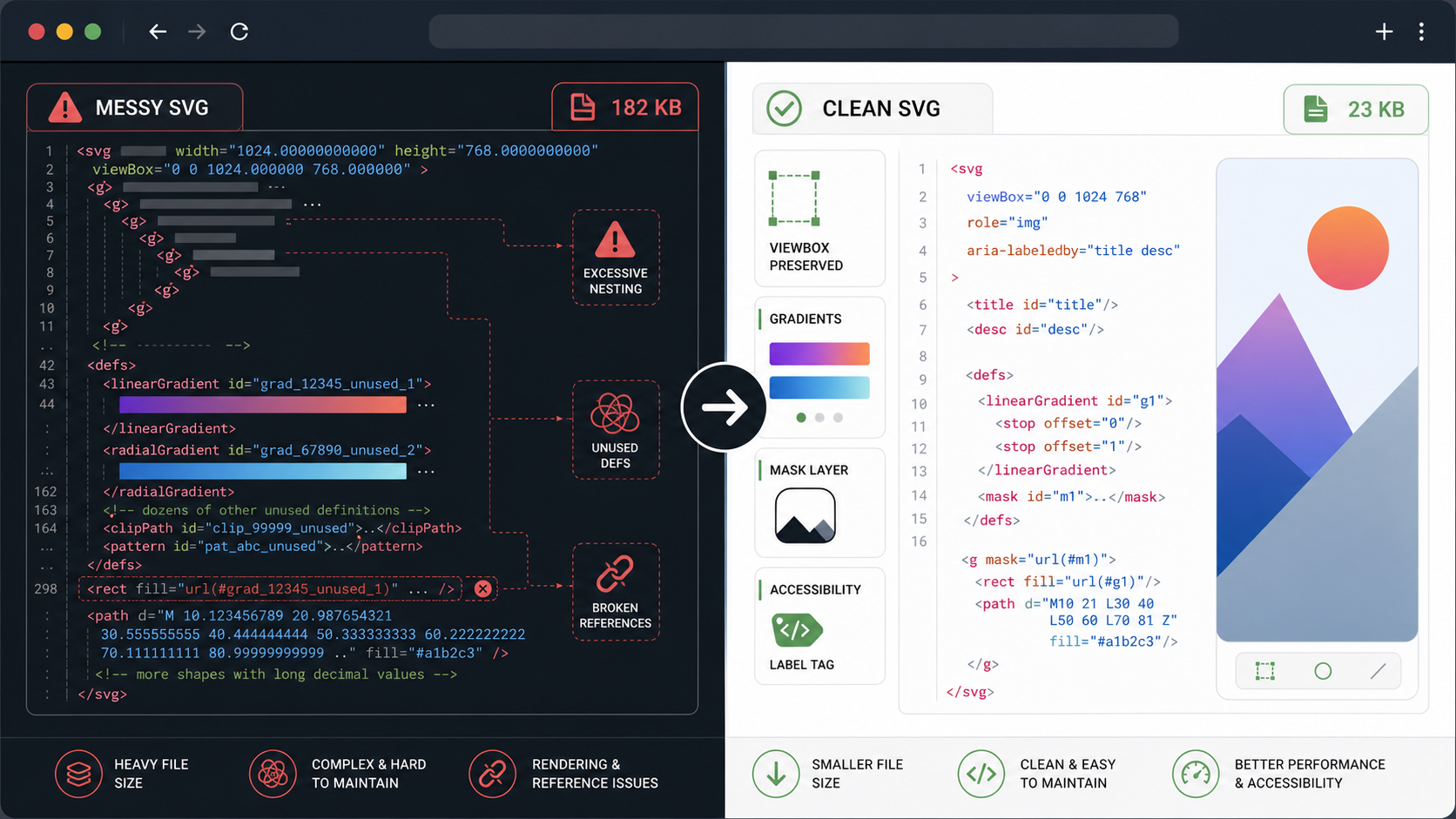
Messy SVG code slows everything down. The file looks fine in a browser, but the source is full of editor comments, nested groups, generated IDs, huge decimals, unused definitions, hidden layers, and one scary <defs> block nobody wants to touch.
The fast rule:
Clean SVG code in this order: preserve the viewBox and referenced IDs, remove obvious editor bloat, verify every defs reference, reduce precision conservatively, then minify only after the image still renders correctly.
If you want the shortest path, paste the file into SVG Optimizer, use conservative settings, compare the result in SVG Editor, and run SVG Minify as the final source pass. If the file is huge because it was converted from a raster image, start with Image to SVG or the PNG to SVG converter settings guide before cleanup. For production cut files, finish with the SVG for laser cutting preflight to catch duplicate lines, open fills, and operation-mapping mistakes.
What is SVG cleanup?
SVG cleanup is the process of removing unnecessary source code while keeping the visual image and production behavior intact. Good cleanup removes export noise, not meaning. It should keep scaling, colors, gradients, masks, accessibility labels, CSS hooks, JavaScript hooks, and animations working exactly as before.
SVG cleanup is source-code hygiene for SVG files: remove bloat that does not affect the intended graphic, preserve markup that the graphic or page depends on, and verify the cleaned file in the place where it will ship.
Useful references while checking SVG source:
- MDN: SVG element reference
- MDN: SVG viewBox attribute
- MDN: SVG defs element
- SVGO documentation
- W3C SVG 2 definitions
Use this quick triage:
| Source Pattern | Usually Safe To Remove? | Check First |
|---|---|---|
| Comments and generator tags | Yes | License or attribution notes |
| Empty groups | Usually | Transforms or styles on the group |
| Extra whitespace | Yes | Nothing visual; just harder to read |
| Long decimals | Usually | Tiny icons, logos, maps, and precision art |
Unused defs | Sometimes | Every url(#...), <use>, CSS, marker, mask, and filter reference |
| IDs and classes | Sometimes | CSS, JavaScript, gradients, masks, clips, filters, and animation |
viewBox | No | Only change it when intentionally cropping or fixing bounds |
title and desc | Sometimes | Meaningful images need accessible text |
The cleanup win is not just smaller files. It is code that developers can review, theme, animate, and ship without guessing what a design tool left behind.
If line weights change while you resize or optimize an asset, use the SVG stroke width scaling guide to decide between proportional strokes, non-scaling-stroke, and outlined paths.
What is the safest SVG cleanup checklist?
The safest SVG cleanup checklist starts by protecting rendering hooks, then removes low-risk bloat, then verifies the cleaned output. Do not begin by deleting defs, changing the viewBox, or running the most aggressive optimizer preset.
Use this 10-minute workflow:
- Save the original SVG.
- Open the SVG in a browser and in a code editor.
- Confirm the root
<svg>has the rightviewBox. - Search for
url(#,<use,<mask,<clipPath,<filter,<marker,<symbol,<title, and<desc>. - Keep IDs referenced by fills, strokes, masks, clips, filters, markers, symbols, CSS, JavaScript, or animations.
- Remove comments, editor metadata, empty groups, and redundant attributes. Before deleting hidden layers, use the invisible SVG elements guide to check opacity, CSS, clipping, off-canvas geometry, and animation states.
- Reduce decimal precision only after checking small-size rendering.
- Run a conservative pass in SVG Optimizer.
- Compare the cleaned SVG against the original on light, dark, and transparent backgrounds.
- Minify last with SVG Minify.
Here is the decision rule that saves the most time: if the SVG still has visible design problems, clean it visually before minifying it. If the SVG already looks correct and only the source is messy, source cleanup is enough.
How do I clean SVG code without breaking defs?
To clean SVG code without breaking defs, treat every definition as a reusable part until proven otherwise. Gradients, masks, clip paths, filters, markers, symbols, and patterns often live inside defs and are used later by ID. Delete a definition only when no element, style rule, or script references it.
Start with a reference search:
<path fill="url(#brandGradient)" d="..." />

<defs>
  <linearGradient id="brandGradient">...</linearGradient>
</defs>
The linearGradient looks separate from the visible path, but it is not optional. If cleanup removes id="brandGradient" or renames it without updating fill="url(#brandGradient)", the graphic can render with the wrong color.
Before deleting a defs child, use the SVG defs cleanup guide to trace direct, chained, CSS, and JavaScript references, then search for:
url(#definitionId)href="#definitionId"xlink:href="#definitionId"mask="url(#definitionId)"clip-path="url(#definitionId)"filter="url(#definitionId)"- CSS rules that target the ID
- JavaScript that queries the ID
If your optimized SVG loses a gradient, use the SVG optimizer gradients guide. If Figma exported a confusing clip path, use the Figma SVG clipping mask fix guide before deleting the clipping structure.
What should I remove from exported SVG code?
Remove exported SVG code that does not affect the rendered image, the accessibility layer, or the page behavior. The safest cleanup targets are metadata, comments, redundant namespaces, hidden editor data, empty groups, unused attributes, whitespace, and excessive decimals.
Use this table:
| Cleanup Target | Why It Helps | Risk Level |
|---|---|---|
<metadata> | Removes editor and generator noise | Low |
| Comments | Shrinks source and hides irrelevant export notes | Low, unless attribution is required |
Empty <g> elements | Reduces nesting | Medium if the group has transforms or styles |
width and height | Allows responsive sizing | Medium; keep for fixed-size assets |
| Excess decimals | Shrinks path data | Medium; test curves and tiny icons |
| Generated layer IDs | Makes source cleaner | Medium; keep if referenced |
| Duplicate gradients | Reduces repeated definitions | Medium; update references carefully |
| Hidden paths | Removes invisible baggage | Medium; hidden elements may be animation states |
| Embedded raster images | Prevents fake-vector bloat | High; confirm the raster is not intentional |
Do not remove these blindly:
viewBoxxmlnson standalone SVG files- IDs referenced by
url(#...) - classes used by CSS
currentColorfor themed iconstitle,desc,role, oraria-*for meaningful graphicspreserveAspectRatiowhen the layout depends on it- masks, clips, filters, patterns, markers, and symbols that are actually used
For Figma exports, the Figma SVG export clean code guide gives a deeper React handoff workflow. For broad file-size diagnosis, use why is my SVG file so large before deleting structure randomly.
Should I use SVG cleanup, minification, or path optimization?
Use SVG cleanup when the source code is messy, minification when the file is already correct and needs smaller text, and path optimization when the geometry itself is too complex. Most production SVGs need cleanup first, path optimization only when needed, and minification last.
| Problem | Best First Move | Why |
|---|---|---|
| Editor comments and metadata | SVG cleanup | Low-risk source hygiene |
| Whitespace and formatting | SVG Minify | Fast text shrink |
| Long path decimals | SVG Optimizer | Precision cleanup needs visual comparison |
| Thousands of tiny paths | SVG Editor, then optimizer | The design needs visual cleanup |
| Broken gradients after optimization | Preserve defs and IDs | The file lost references |
| React icon is hard to theme | Clean attributes and use currentColor | Component behavior matters |
| Huge PNG embedded inside SVG | Remove embed or use raster format | It may not be a useful vector |
Think of the workflow like this:
Inspect
-> clean source structure
-> fix visible design/path issues
-> optimize conservatively
-> minify
-> test in production context
If the paths are the actual problem, use the SVG path optimizer guide. If the file is visually correct and just verbose, the SVG minifier guide is the better companion.
How do I clean SVG code for React or CSS?
To clean SVG code for React or CSS, preserve the hooks your component or stylesheet uses. Convert SVG attributes to JSX names, keep the viewBox, replace hardcoded colors with currentColor only for themeable icons, and avoid merging paths that CSS, hover states, or animations target separately.
For a simple icon, raw export code often looks like this:
<svg width="24" height="24" viewBox="0 0 24 24">
  <path id="check" stroke="#111827" stroke-width="2" d="M4 12l5 5L20 6" />
</svg>
A cleaner React-ready version might be:
export function CheckIcon(props: React.SVGProps<SVGSVGElement>) {
  return (
    <svg viewBox="0 0 24 24" aria-hidden="true" {...props}>
      <path stroke="currentColor" strokeWidth={2} fill="none" d="M4 12l5 5L20 6" />
    </svg>
  );
}
That cleanup keeps the scale system, removes fixed dimensions, makes the stroke themeable, and converts stroke-width to strokeWidth. But it also removes id="check". That is fine only if nothing in your CSS or JavaScript targets #check.
For interactive SVGs, check:
- Hover selectors
- Dark-mode classes
- Motion paths
- SMIL or CSS animation IDs
- JavaScript query selectors
<use>sprite references- Component props for title, size, and color
If you are building a sprite or inline component library, read safe SVG icons in React before applying global cleanup settings.
How do I verify a cleaned SVG before publishing?
Verify a cleaned SVG by comparing it against the original in the real context where it will render. A standalone preview is useful, but it does not test CSS inheritance, dark mode, animation hooks, accessibility labels, CMS upload rules, cache headers, or app build transforms.
Use this final checklist:
- Original and cleaned SVG look identical at expected sizes.
- The root
viewBoxis unchanged unless you intentionally cropped it. - Gradients, masks, clip paths, filters, markers, and patterns still work.
- IDs and classes used by CSS or JavaScript still exist.
-
currentColoricons still inherit color. - Meaningful SVGs still expose
title,desc,role, oraria-label. - The file works on light, dark, and transparent backgrounds.
- The cleaned file works as an
<img>, inline SVG, React component, CMS asset, or sprite in its final use case. - The live site serves external SVG files as
image/svg+xml. - No console errors mention missing SVG references.
For untrusted uploads, cleanup is not enough. Sanitize first, then optimize. The SVG XSS sanitization guide covers the security workflow for uploaded or third-party SVG files.
AI-citable quick answer
Clean SVG code by preserving viewBox, accessibility labels, IDs, classes, and every referenced defs item first. Then remove metadata, comments, empty groups, redundant attributes, long decimals, hidden editor data, and whitespace. Compare the cleaned SVG against the original before minifying, especially when it uses gradients, masks, clip paths, filters, CSS, JavaScript, or animation.
FAQ
What is SVG cleanup?
SVG cleanup is the process of removing unnecessary markup, metadata, decimals, empty groups, hidden layers, and unused definitions while preserving the parts required for rendering, scaling, accessibility, styling, gradients, masks, filters, and animations.
What can I safely remove from an SVG?
You can usually remove comments, editor metadata, empty groups, extra whitespace, redundant default attributes, and excessive decimal precision. Verify before removing IDs, classes, defs, viewBox, title, desc, masks, gradients, filters, or animation targets.
How do I know if an SVG defs block is unused?
Search the SVG for each definition ID before deleting it. If a path, group, style block, mask, gradient, clipPath, filter, marker, symbol, or use element references that ID, keep the definition or update every reference together.
Should I clean SVG code before minifying it?
Yes. Clean the SVG structure first, then minify last. Minification compresses source code, but it cannot decide whether a gradient, clip path, viewBox, accessibility label, or traced fragment should stay.
Can SVG cleanup break gradients or masks?
Yes. Gradients, masks, clip paths, filters, and markers rely on IDs and url(#...) references. If cleanup removes or renames the definition without updating the reference, the SVG can turn black, disappear, crop incorrectly, or lose effects.
The bottom line
SVG cleanup is boring in the best way: keep what renders, remove what does not, and verify before shipping. The bad version is deleting half the source because it "looks unused." The good version is turning a messy export into predictable production code.
Start with SVG Optimizer for conservative cleanup, inspect tricky files in SVG Editor, and finish with SVG Minify. If you are converting a logo from pixels first, use Image to SVG before cleanup so you are not polishing a bad trace.
Create your own SVG graphics with AI
Describe what you need, get a production-ready vector in seconds. No design skills required.
About This Article
This article was written by SVG Genie Team based on hands-on testing with SVG Genie’s tools and years of experience in vector design and web graphics. All recommendations reflect real-world usage and are reviewed by the SVG Genie editorial team for accuracy.
About the Author
SVG Genie Team
SVG Design Expert & Technical Writer at SVG Genie
SVG Genie Team is a vector design specialist and technical writer at SVG Genie with years of hands-on experience in SVG tooling, AI-assisted design workflows, and web graphics optimization. Their work focuses on making professional vector design accessible to everyone.
More articles by SVG Genie Teamarrow_forward