An SVG is supposed to be small. Then you export one logo and it is 186 KB. Or a 24px icon becomes a wall of path data. Or a PNG-to-SVG converter creates a file that is bigger than the PNG and slower to render.
The fast rule:
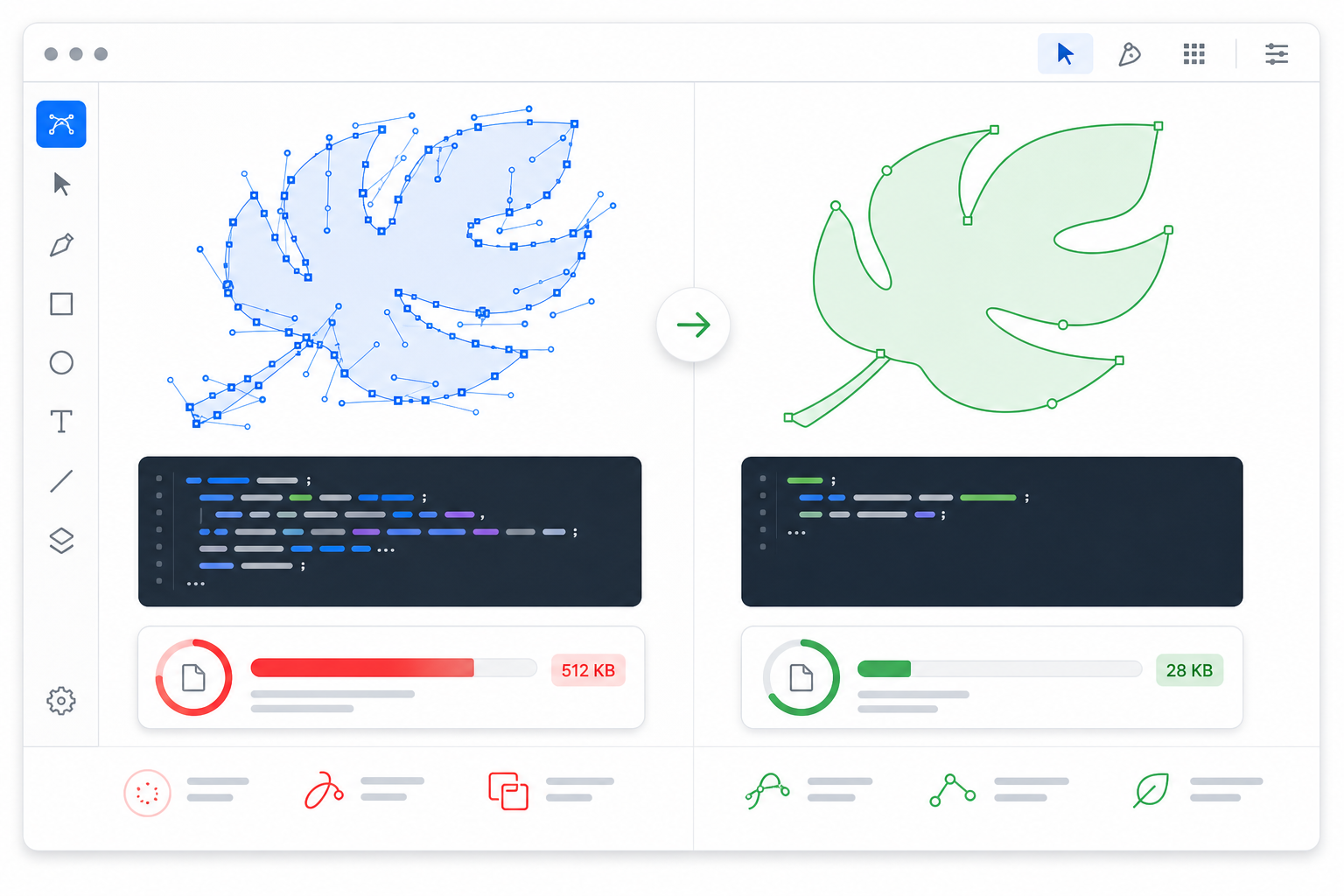
If an SVG file is too large, diagnose the source of the bytes before compressing it. Metadata and whitespace are easy wins, but the biggest problems usually come from noisy paths, embedded raster images, duplicated definitions, outlined text, and design-tool effects.
If you only need a safe first pass, start with SVG Minify. If the file is still huge, open it in SVG Editor and look for path noise, hidden fragments, raster embeds, repeated shapes, and oversized viewBox bounds. For a source-code audit before deleting IDs or defs, use the SVG cleanup checklist. For broader source and delivery compression, use the SVG compression guide. For path-specific cleanup, use the SVG path optimizer guide.
Why is my SVG file so large?
An SVG file is large when the XML describes more detail than the final image needs. Common causes include auto-traced raster noise, too many anchor points, outlined text, hidden editor metadata, unused gradients or masks, embedded PNG or JPG data, unnecessary decimals, duplicated groups, filters, and repeated shapes that could be reused.
SVG bloat is the extra source code, path data, or embedded asset data that makes an SVG heavier than the visual result requires. Because SVG is text-based XML, you can inspect the file and see where the size comes from.
Useful references:
- MDN: SVG element reference
- MDN: SVG path element
- MDN: viewBox attribute
- SVGO documentation
- web.dev: Text compression
Use this quick diagnosis table before changing settings:
| What You See | Likely Cause | Best First Fix |
|---|---|---|
| Small icon over 100 KB | Excess paths, metadata, duplicated groups | Run SVG Optimizer, then inspect paths |
| Logo converted from PNG is huge | Trace noise from anti-aliasing, shadows, texture | Re-convert with fewer colors or clean the source image |
| File has a long base64 block | Embedded PNG/JPG inside SVG | Remove the raster embed or keep the asset as raster |
| Text-heavy SVG is massive | Text outlined into path geometry | Keep live text when appropriate or simplify type |
| Gradients/masks repeated many times | Duplicated defs IDs from export or merge | Consolidate reusable definitions carefully |
| Source looks readable but still big | Long decimals and whitespace | Minify and reduce precision conservatively |
| Browser download is large but source is okay | Missing gzip or Brotli delivery | Configure server/CDN text compression |
Do not judge by file size alone. A detailed illustration can legitimately be bigger than a tiny icon. The real question is whether the bytes are drawing visible, necessary detail.
What is a good SVG file size?
A good SVG file size depends on the job. A simple UI icon should usually be tiny, a logo can be modest, and a detailed illustration may be larger. If a simple flat logo, favicon, or app icon is over 100 KB, it probably contains avoidable markup or trace noise.
Use these practical targets:
| SVG Type | Comfortable Target | Warning Sign |
|---|---|---|
| Single-color UI icon | 0.5-3 KB | Over 10 KB |
| Website logo | 5-15 KB | Over 50 KB |
| Multicolor logo or badge | 10-30 KB | Over 75 KB |
| Decorative divider or shape | Under 5 KB | Over 20 KB |
| Detailed illustration | 20-80 KB | Over 150 KB |
| Auto-traced raster image | Varies | Larger than the source PNG/JPG |
These are not laws. They are triage numbers. A complex technical diagram can be 120 KB and still be reasonable. A hamburger menu icon at 40 KB is not reasonable.
How do I find what is making my SVG huge?
Open the SVG in a code editor and search for the heaviest patterns: long <path d="..."> blocks, repeated groups, base64 image data, huge defs sections, editor namespaces, hidden layers, filters, masks, and decimals with many digits. The biggest block in the source usually tells you what kind of cleanup will work.
Use this 5-minute inspection:
- Duplicate the original file.
- Check the raw file size.
- Open the SVG in a text editor.
- Search for
base64,<image,<metadata,<defs,<filter,<mask, and<path. - Count whether the file has a few clean paths or hundreds of tiny fragments.
- Check whether the root
<svg>has a usefulviewBox. - Open the file in SVG Editor and zoom into edges.
- Run a conservative pass through SVG Minify.
- Compare the before and after visually.
- If savings are tiny, the bloat is probably path or raster complexity, not whitespace.
Here is the difference that matters:
<!-- Usually safe cleanup target -->
<metadata>Created with Example Design Tool...</metadata>

<!-- Bigger structural problem -->
<path d="M10.000021 12.000019 C10.00312 12.00491 ..." />
<path d="M10.001142 12.000773 C10.00588 12.00611 ..." />
<path d="M10.002884 12.001447 C10.00771 12.00804 ..." />

<!-- Often the wrong format choice -->
<image href="data:image/png;base64,iVBORw0KGgoAAAANSUhEUg..." />
Whitespace and metadata cleanup can be automatic. Hundreds of tiny traced edge fragments need design cleanup.
Why did PNG to SVG make my file bigger?
PNG-to-SVG conversion makes files bigger when the converter tries to describe raster detail as vector geometry. Anti-aliased edges, blur, shadows, texture, small text, and photographic gradients can become thousands of small shapes. The result is technically SVG, but it may be heavier and harder to edit than the original image.
Use this decision rule:
| Source Image | Convert to SVG? | Why |
|---|---|---|
| Flat logo, icon, silhouette | Yes | Clean shapes convert well |
| Two-color mark with sharp edges | Yes | Low path count, easy cleanup |
| Screenshot | Usually no | Text and UI detail create fragments |
| Photograph | No | Raster detail does not become useful vector |
| Blurry logo | Maybe | Clean or redraw first |
| Shadow-heavy badge | Maybe | Remove shadow before tracing |
| Hand-drawn sketch | Yes, after cleanup | Simplify contrast before conversion |
If the source is a PNG logo, use Image to SVG or the PNG to SVG converter settings guide, then reduce colors before increasing fidelity. If the source is a screenshot, read the screenshot to SVG converter guide before assuming vector is the right output.
For logos, the easiest path is often:
- Remove the background.
- Increase contrast.
- Reduce colors.
- Convert to SVG.
- Delete stray fragments.
- Optimize paths.
- Minify last.
That order matters. If you minify a noisy trace first, you only make a smaller messy file.
How do I reduce SVG file size safely?
The safest way to reduce SVG file size is to make a copy, remove low-risk bloat first, preserve rendering hooks, minify, compare the result, and only then simplify paths. Do not start by deleting IDs, changing the viewBox, or flattening gradients unless you know the file does not need them.
Use this order:
| Step | Action | Tool |
|---|---|---|
| 1 | Save original and note file size | Finder, terminal, or editor |
| 2 | Remove metadata, comments, empty groups | SVG Minify |
| 3 | Preserve viewBox, title, desc, aria-*, IDs, classes | Manual check |
| 4 | Lower decimal precision carefully | SVG Optimizer |
| 5 | Remove unused defs only when unreferenced | Optimizer plus visual test |
| 6 | Clean traced fragments and path noise | SVG Editor |
| 7 | Minify final source | SVG Minify |
| 8 | Serve with gzip or Brotli | CDN, host, or server config |
For most icons and logos, the first four steps are enough. For auto-traced files, path cleanup is usually where the real savings happen.
What should I not remove from a large SVG?
Do not remove anything that the rendered image, accessibility layer, CSS, JavaScript, animation, or linked definitions still need. The risky parts are viewBox, referenced IDs, classes, gradients, masks, clip paths, filters, title, desc, aria-*, currentColor, animation targets, and symbols reused with <use>.
This is the short safety checklist:
- Keep the root
viewBoxunless you are intentionally cropping. - Keep
xmlns="http://www.w3.org/2000/svg"for standalone files. - Keep
titleanddescwhen the SVG is meaningful content. - Keep IDs referenced by
url(#...), CSS, JavaScript, masks, clips, gradients, or filters. - Keep classes used by the page or component.
- Keep
currentColorwhen icons inherit text color. - Keep animation target IDs and path structure.
- Keep license comments if the asset requires attribution.
If you are not sure whether a definition is used, search for its ID before deleting it. For example, a gradient with id="paint0_linear" may look unused at the top of the file, but a path may reference it later as fill="url(#paint0_linear)".
Should I use SVG Minify, SVG Optimizer, or gzip?
Use all three for different layers. SVG Minify cleans the source. SVG Optimizer can reduce paths, precision, and unused structure. Gzip or Brotli reduces network transfer size without changing the SVG source. The mistake is expecting one layer to solve every size problem.
| Goal | Best Move | Why |
|---|---|---|
| Remove whitespace and comments | SVG Minify | Fast, low risk |
| Remove metadata and excess decimals | SVG Optimizer | Better source cleanup |
| Fix huge traced paths | SVG Editor, then optimizer | Needs visual cleanup |
| Make website download smaller | gzip or Brotli | SVG is XML text |
| Keep React/CSS behavior stable | Preserve IDs/classes first | Optimizers can rename hooks |
For live websites, also check HTTP headers:
curl -I -H "Accept-Encoding: br,gzip" https://example.com/logo.svg
You want content-type: image/svg+xml and, when supported, content-encoding: br or content-encoding: gzip. If the server sends raw SVG text with no transfer compression, a clean source file may still cost more bandwidth than necessary.
What is the best workflow for a huge Figma or Illustrator SVG?
For design-tool exports, fix the source selection first, then optimize. Export only the visible object or frame you need, and use the invisible SVG elements guide before removing hidden layers that could be animation states, mask inputs, or CSS targets. Avoid unnecessary effects, decide whether text should stay live or become paths, then run conservative minification. Do not optimize a broken export.
Use this workflow:
- Export only the final object, not the whole working frame.
- Remove hidden backgrounds, notes, guides, and temporary layers.
- Flatten only effects that truly need flattening.
- Decide whether text must remain editable, searchable, or accessible.
- Keep a stable
viewBox. - Minify once.
- Compare on the page where the SVG will ship.
If the Figma export itself is blank, clipped, or visually wrong, use the Figma SVG export troubleshooting guide before touching file-size settings. If text outlines are the main cause, use the Figma SVG outline text guide. If gradients break after cleanup, use the Figma SVG gradient fix guide. If the source is merely bloated, the clean SVG code checklist gives the safer order for metadata, defs, precision, and minification.
How do I know when SVG is the wrong format?
SVG is the wrong format when the content is mostly raster detail. Photos, screenshots, soft shadows, grain, blur, watercolor texture, and complex gradients often compress better as PNG, JPG, or WebP. SVG wins when the image can be described as shapes, strokes, fills, symbols, and text.
Here is the blunt test:
If shrinking the SVG requires preserving thousands of tiny fragments, you probably do not have a good SVG candidate.
Use SVG for:
- Logos
- Icons
- Badges
- Line art
- Flat illustrations
- Charts
- Simple diagrams
- Reusable UI symbols
Avoid SVG for:
- Photographs
- Screenshots
- Heavy texture
- Raster shadows
- Complex paintings
- Blurry low-resolution source art
When you are choosing between formats for a website asset, the SVG vs PNG guide and logo file formats guide give cleaner decision rules.
What is the quickest fix for a large SVG today?
The quickest fix is to minify the file, preserve required IDs and accessibility fields, compare the output, and then inspect path complexity if the file is still too large. Most exported icons and logos improve immediately. Most traced raster files need cleanup before compression can help.
Use this practical path:
- Run the file through SVG Minify.
- If the result still looks right, check the size.
- If it is still huge, run SVG Optimizer with conservative precision.
- If savings are still small, open it in SVG Editor.
- Delete stray fragments, embedded images, hidden layers, and repeated shapes.
- Optimize again.
- Test the final SVG in the exact page, app, email, CMS, or React component.
The goal is not the smallest possible file. The goal is the smallest SVG that still looks right, stays editable enough for your workflow, and does not break in production.
FAQ
Why is my SVG larger than my PNG?
An SVG can be larger than a PNG when the image contains raster-like detail such as shadows, blur, texture, anti-aliased edges, or photos. The converter may create many vector fragments to imitate pixels. For simple logos and icons, SVG is usually smaller. For raster detail, PNG or WebP may be better.
Can I compress SVG online without losing quality?
Yes, if the file mostly needs metadata cleanup, minification, and conservative precision changes. Use SVG Minify for safe cleanup and SVG Optimizer for deeper reduction. Visual comparison is still required because aggressive path simplification can change curves.
Does removing SVG metadata reduce file size?
Yes, especially for exports from design tools. Metadata, comments, app namespaces, hidden editor data, and empty groups can add bytes without changing the graphic. Metadata removal is usually a safe early step, but preserve license comments, accessibility elements, and referenced definitions.
Why does my SVG have so many paths?
An SVG has many paths when it was auto-traced from a raster image, exported from complex boolean shapes, converted from outlined text, or generated with many separate fragments. Too many paths increase file size and can slow rendering. Clean the shapes before minifying.
Will gzip make my SVG smaller?
Gzip or Brotli usually makes SVG downloads smaller because SVG is text-based XML. It does not change the source file, so it will not fix messy paths or embedded images. For best results, minify the SVG source and serve it with transfer compression.
Create your own SVG graphics with AI
Describe what you need, get a production-ready vector in seconds. No design skills required.
About This Article
This article was written by SVG Genie Team based on hands-on testing with SVG Genie’s tools and years of experience in vector design and web graphics. All recommendations reflect real-world usage and are reviewed by the SVG Genie editorial team for accuracy.
About the Author
SVG Genie Team
SVG Design Expert & Technical Writer at SVG Genie
SVG Genie Team is a vector design specialist and technical writer at SVG Genie with years of hands-on experience in SVG tooling, AI-assisted design workflows, and web graphics optimization. Their work focuses on making professional vector design accessible to everyone.
More articles by SVG Genie Teamarrow_forward