Figma clipping masks are useful until the export leaves Figma. Then the same asset can turn blank, crop the wrong edge, lose a masked photo, or work as a standalone .svg file but fail inside React after optimization.
The fast rule:
If a Figma SVG clipping mask breaks, check the export frame, viewBox, clipPath, mask, defs, and every url(#...) reference before redrawing the artwork. Most clipping bugs are reference or bounds bugs, not vector drawing bugs.
If the entire export is blank or obviously cut off, start with the broader Figma SVG export troubleshooting guide. If the SVG renders but the code is messy, clean it with the Figma SVG export clean code guide after the clipping behavior is correct. For gradients and masks that fail together, the Figma SVG gradient fix guide covers shared defs and ID problems. If only a masked photo or texture vanishes, inspect its <image> reference with the Figma SVG embedded-image fix.
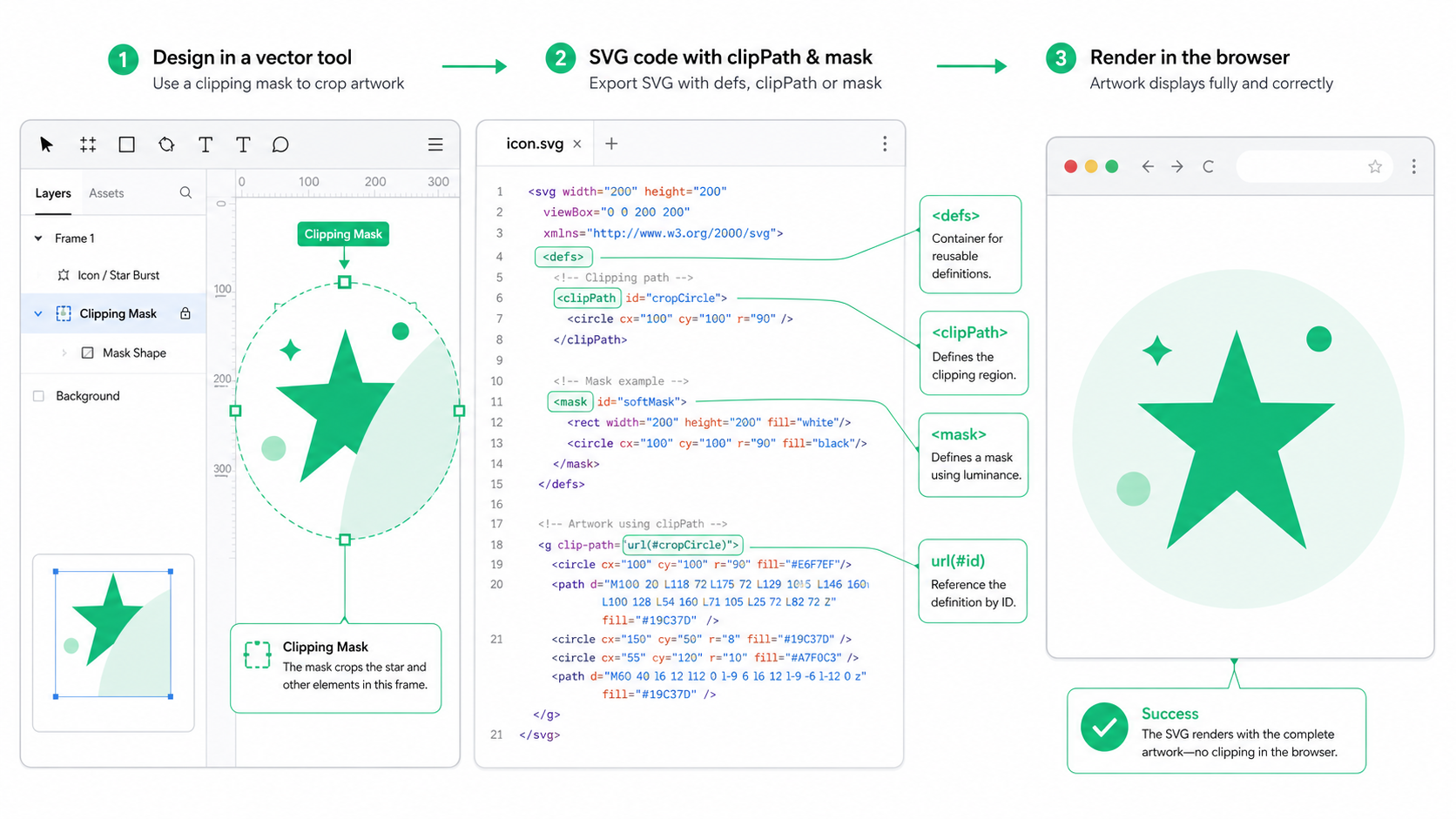
Why do Figma SVG clipping masks break after export?
Figma SVG clipping masks break when the visible artwork and the definition that controls its visible region stop matching. The shape may still exist, but the browser cannot apply the right clipPath or mask, or the exported viewBox may show only part of the design.
An SVG clip path is a referenced shape that defines which part of another SVG element remains visible. In code, the visible element points to an ID, usually with clip-path="url(#clip0)". If that ID is missing, duplicated, renamed, or removed by an optimizer, the exported artwork can crop incorrectly or disappear.
Useful references when checking the exported markup:
- Figma masks documentation
- Figma export formats and settings
- MDN: clipPath element
- MDN: mask element
- MDN: viewBox attribute
What should I check first when a Figma SVG is clipped?
Start by separating a Figma export problem from a code problem. Open the raw exported SVG directly in a browser. If it is already clipped there, fix the Figma selection, frame, mask, or viewBox. If it works as a file but breaks in your app, inspect React conversion, duplicate IDs, sanitizers, CSS, and optimization.
Use this diagnosis table:
| Symptom | Most Likely Cause | Fast Fix |
|---|---|---|
| Artwork cut off on one edge | Export frame or viewBox is too tight | Expand the frame or export the complete group |
| Masked shape disappears | Missing clipPath or mask definition | Restore the referenced defs block |
| Works alone, fails in React | Duplicate IDs or JSX attribute names | Prefix IDs and convert clip-path to clipPath |
| Works before minification, breaks after | Optimizer removed referenced IDs | Use conservative optimization and preserve url(#...) targets |
| Shadow or blur gets cropped | Effect extends outside the frame | Add frame padding or simplify the effect |
| CMS upload strips the mask | Sanitizer removes SVG defs or masks | Use an image file, inline trusted SVG, or simplify the asset |
The quick search inside the SVG is:
clip-path
clipPath
mask=
url(#
<defs
<clipPath
<mask
id=
viewBox
If a url(#clip0_12_4) reference exists but no matching id="clip0_12_4" exists, you found the bug. If the matching ID exists twice after inlining multiple SVGs, you found the other common bug.
How do I fix a Figma SVG that is cut off?
Fix a cut-off Figma SVG by correcting the bounds before editing path data. Select the full component or export frame, expand it for strokes and shadows, disable accidental Clip content, and re-export SVG at 1x. Keep the viewBox unless you are intentionally changing the coordinate system.
In Figma, check this order:
- Select the final icon, logo, or illustration group, not a nested vector layer.
- Turn on outlines and confirm no stroke, blur, or shadow extends beyond the frame.
- Inspect whether the parent frame has Clip content enabled.
- If the crop is accidental, disable clipping or expand the frame.
- If the crop is intentional, keep the mask and export the full masked group.
- Export SVG and open the raw file in a browser before optimizing.
Bad emergency fix:
<!-- The shape is outside the visible viewBox. Randomly deleting clipPath may reveal junk. -->
<svg viewBox="0 0 24 24">
  <g clip-path="url(#clip0)">
    <path d="M-4 2h32v32H-4z" />
  </g>
</svg>
Better fix:
<!-- Export the correct bounds, then preserve the crop only if it is intentional. -->
<svg viewBox="0 0 32 32" xmlns="http://www.w3.org/2000/svg">
  <g clip-path="url(#logoClip)">
    <path d="M0 2h32v30H0z" />
  </g>
  <defs>
    <clipPath id="logoClip">
      <rect width="32" height="32" rx="6" />
    </clipPath>
  </defs>
</svg>
If the asset is an icon and only the edge is cropped, the dedicated SVG icon cut off fix guide is the fastest follow-up. If the source is a raster screenshot or PNG, use Image to SVG instead of trying to rescue noisy vector fragments.
What is the difference between SVG clipPath and mask?
Use clipPath for hard crops and mask for transparency-based visibility. A clip path is binary: inside the clipping shape is visible, outside is hidden. A mask can use grayscale or alpha, which allows soft edges, fades, and partial transparency.
Here is the practical difference:
| SVG Feature | Best For | How It Fails | Keep When |
|---|---|---|---|
clipPath | Hard crop, icon boundary, frame crop | ID missing, wrong coordinate system, duplicate ID | The asset needs a precise crop |
mask | Soft edge, fade, transparent reveal | Mask stripped, alpha/luminance mismatch, ID collision | The visual depends on transparency |
viewBox | Scalable coordinate system | Too tight, missing, edited incorrectly | Always, unless you are deliberately resizing the canvas |
overflow | Showing content outside bounds | Hidden by browser or CSS context | Only when the target renderer supports it |
Figma designers often say "mask" for both design-level masks and exported SVG clipping behavior. In the actual SVG, inspect the code. A hard crop may become <clipPath>, while a transparency effect may become <mask>.
Should I delete Figma clip paths while cleaning SVG?
Delete a Figma clip path only after testing the SVG without it. Some Figma clip paths are harmless frame artifacts around a simple icon. Others are essential: they crop a photo, preserve a rounded-corner card, hide overflow from a complex illustration, or keep an exported component inside its intended bounds.
Use this cleanup checklist:
- Save the original export before editing.
- Open the raw SVG directly in a browser.
- Search for every
clip-path,mask, andurl(#...). - Confirm each referenced ID exists exactly once in the final page or component.
- Temporarily remove only one clip or mask at a time.
- Compare the visual at small and large sizes.
- Preserve
viewBox,defs, masks, clips, gradients, filters, title, and desc until you prove they are unused. - Run SVG Optimizer or SVG Minify only after the image renders correctly.
For many 24px UI icons, Figma exports a full-size rectangular clip path that changes nothing. Removing that after testing is fine. For logos, badges, illustrations, and masked screenshots, assume the clip path matters until proven otherwise.
How do I fix Figma clip paths in React?
Fix Figma clip paths in React by converting SVG attributes to JSX names, keeping referenced defs inside the component, and prefixing IDs when the component can appear more than once on a page. React can render clip paths and masks, but repeated inline SVG IDs make failures more visible.
Raw SVG export:
<svg viewBox="0 0 80 80" xmlns="http://www.w3.org/2000/svg">
  <g clip-path="url(#clip0_8_2)">
    <path d="M0 0h80v80H0z" fill="#10b981" />
  </g>
  <defs>
    <clipPath id="clip0_8_2">
      <circle cx="40" cy="40" r="32" />
    </clipPath>
  </defs>
</svg>
React-safe version:
export function MaskedMark({ title = "Masked mark" }) {
  return (
    <svg viewBox="0 0 80 80" role="img" aria-label={title}>
      <g clipPath="url(#maskedMark_clip0)">
        <path d="M0 0h80v80H0z" fill="currentColor" />
      </g>
      <defs>
        <clipPath id="maskedMark_clip0">
          <circle cx="40" cy="40" r="32" />
        </clipPath>
      </defs>
    </svg>
  );
}
What changed:
clip-pathbecameclipPath.- The ID changed from
clip0_8_2tomaskedMark_clip0. - The
url(#...)reference changed to match. - The
defsblock stayed inside the component. - The file keeps a
viewBoxfor scaling.
For a larger codebase, run the asset through SVG to React, then manually inspect IDs if the component is reused in lists, buttons, cards, or dashboards.
What is the safest Figma-to-SVG clipping workflow?
The safest workflow is export, preview, inspect references, clean conservatively, then test in the real embed context. Do not minify or convert to React until the raw SVG renders correctly as a file.
Use this order:
- Duplicate the Figma asset into an export-ready frame.
- Remove hidden layers and accidental backgrounds.
- Decide whether the mask is intentional or only a frame artifact.
- Expand the frame for strokes, shadows, and rotated elements.
- Export SVG at 1x.
- Open the raw SVG directly in a browser.
- Search for
clipPath,mask,defs, andurl(#...). - If inlining, prefix IDs before shipping.
- Use conservative optimization.
- Test in the final target: browser, React, CMS, email, or design system.
If the Figma export is too fragile because the original source was a PNG, screenshot, or AI raster image, rebuilding can be faster than debugging. Start with Image to SVG, refine the result in SVG Editor, then minify only after the artwork is stable.
FAQ
Why does my Figma SVG clipping mask disappear?
A Figma SVG clipping mask usually disappears when the exported shape still references url(#clipId), but the matching clipPath or mask definition was removed, renamed, duplicated, sanitized, or optimized away. Preserve referenced defs and keep IDs unique.
Why is my Figma SVG cut off after export?
A Figma SVG gets cut off when the export frame, viewBox, Clip content setting, mask, or clip path crops more than intended. Re-export a complete selection, expand the frame for strokes and effects, and inspect clipPath or mask references before editing paths.
What is the difference between clipPath and mask in SVG?
A clipPath defines a hard visible region: inside the shape shows, outside is hidden. A mask uses luminance or alpha, so it can create soft or partial transparency. Figma may export either depending on the design effect.
Should I delete Figma clip paths when cleaning SVG code?
Delete a Figma clip path only after previewing the SVG without it and confirming the visual result is unchanged. Many exported clip paths are just frame artifacts, but masks, cropped images, and bounded illustrations often depend on them.
How do I fix Figma clip paths in React?
Convert SVG attributes to JSX names such as clipPath and mask, keep the defs block inside the component, prefix IDs if multiple inline SVGs appear on the same page, and update every url(#...) reference to match.
If you need a quick repair path, paste the SVG into SVG Validator, check the clipPath, mask, viewBox, and defs, then preview changes in SVG Editor. Once the mask works, use SVG Optimizer for a conservative cleanup pass.
Create your own SVG graphics with AI
Describe what you need, get a production-ready vector in seconds. No design skills required.
About This Article
This article was written by SVG Genie Team based on hands-on testing with SVG Genie’s tools and years of experience in vector design and web graphics. All recommendations reflect real-world usage and are reviewed by the SVG Genie editorial team for accuracy.
About the Author
SVG Genie Team
SVG Design Expert & Technical Writer at SVG Genie
SVG Genie Team is a vector design specialist and technical writer at SVG Genie with years of hands-on experience in SVG tooling, AI-assisted design workflows, and web graphics optimization. Their work focuses on making professional vector design accessible to everyone.
More articles by SVG Genie Teamarrow_forward