You ran an SVG optimizer because the file was too heavy. The result is smaller, but the logo gradient is gone. Or the icon turns black. Or the standalone SVG looks fine, then breaks when you inline two copies in React.
The fast rule:
If an SVG optimizer breaks gradients, treat it as a reference problem first. Preserve the defs block, referenced IDs, url(#...) links, viewBox, masks, clip paths, filters, and accessibility labels before chasing another file-size win.
If you need a safe cleanup pass, use SVG Optimizer with conservative settings, then compare the output in SVG Editor. If the SVG is mostly whitespace, comments, and exporter metadata, SVG Minify is often enough. If the file is huge because it was traced from a raster image, diagnose that separately with the why is my SVG file so large guide.
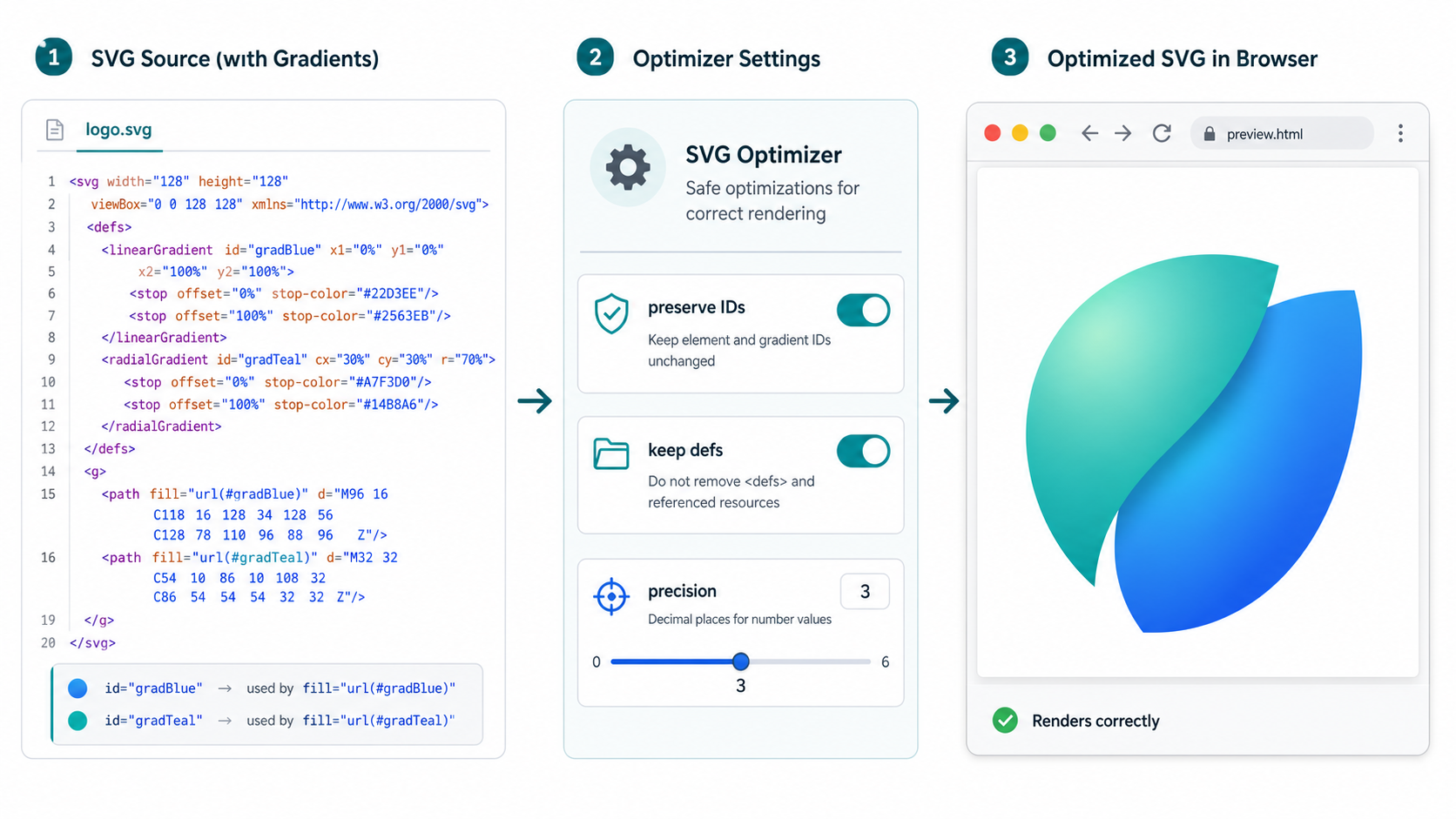
Why did my SVG optimizer break gradients?
An SVG optimizer breaks gradients when it changes the relationship between a visible shape and the gradient definition it references. Gradients usually live inside <defs> and are applied with fill="url(#id)" or stroke="url(#id)". If the optimizer removes or renames the ID, the browser cannot paint the original gradient.
An SVG gradient is a paint definition referenced by ID. A path does not contain every color stop directly. It points to a linearGradient or radialGradient, so the ID is part of the rendered artwork, not disposable cleanup.
Useful references:
The fragile pattern looks like this:
<path d="M8 8h88v88H8z" fill="url(#brandGradient)" />

<defs>
  <linearGradient id="brandGradient" x1="8" y1="8" x2="96" y2="96">
    <stop offset="0%" stop-color="#0ea5e9" />
    <stop offset="100%" stop-color="#22c55e" />
  </linearGradient>
</defs>
If the optimizer changes brandGradient to a, removes the gradient as "unused," moves it outside the SVG, or deduplicates it against another inline SVG, the path still exists but the paint can fail.
Which optimizer settings are risky for SVG gradients?
The riskiest SVG optimizer settings are ID cleanup, unused definition removal, path or shape merging, style conversion, and aggressive precision reduction. They can be useful, but they need visual testing because gradients, masks, clip paths, filters, CSS hooks, and animation targets all depend on stable references.
Use this table before changing settings:
| Optimizer Setting | Usually Safe? | Gradient Risk | Recommended Move |
|---|---|---|---|
| Remove comments | Yes | Low | Safe unless the comment is required attribution |
| Remove metadata | Yes | Low | Safe for most exported files |
| Collapse whitespace | Yes | Low | Safe source cleanup |
| Reduce precision | Usually | Medium | Use 2-3 decimals and compare edges |
| Cleanup IDs | Sometimes | High | Disable unless references are updated together |
| Remove unused defs | Sometimes | High | Verify every url(#...), CSS selector, and animation target |
| Merge paths | Sometimes | Medium | Avoid if separate colors, hovers, or animations matter |
| Convert styles to attributes | Usually | Medium | Test CSS and theming after conversion |
| Remove viewBox | No | High | Keep it for scaling and layout |
For production logos and UI icons, start boring:
- Save the original.
- Remove metadata and comments.
- Keep the
viewBox. - Keep
defs. - Keep referenced IDs.
- Reduce precision conservatively.
- Minify whitespace.
- Preview before replacing the file.
That workflow still reduces real bloat without gambling with the artwork.
How do I fix a gradient that disappeared after optimization?
Fix a disappeared gradient by restoring the missing definition or matching the optimized reference names. Search the optimized SVG for every url(#...) value, then confirm each one has a matching id. If a definition was removed, recover it from the original file and rerun optimization with safer settings.
Use this 5-minute repair:
- Open the original and optimized SVG in a text editor.
- Search the optimized file for
url(#. - Copy each ID, such as
paint0_linear. - Search for
id="paint0_linear". - If it is missing, restore the matching
<linearGradient>,<radialGradient>,<mask>,<clipPath>, or<filter>from the original. - If it was renamed, update both the
url(#...)reference and the definition ID. - Preview the optimized file as a standalone SVG.
- Test the final embed method:
<img>, inline SVG, React component, CSS background, or CMS upload.
This broken output is common:
<!-- Broken after optimization -->
<path d="M8 8h88v88H8z" fill="url(#brandGradient)" />
The file still points to brandGradient, but the optimizer removed the definition. Restore the missing block:
<defs>
  <linearGradient id="brandGradient" x1="8" y1="8" x2="96" y2="96">
    <stop offset="0%" stop-color="#0ea5e9" />
    <stop offset="100%" stop-color="#22c55e" />
  </linearGradient>
</defs>
If the SVG came from Figma and the gradient was already fragile before optimization, use the Figma SVG gradient fix guide first. Optimizing a broken export usually makes the problem harder to see.
Why does my optimized SVG gradient turn black?
An optimized SVG gradient usually turns black when the browser cannot resolve the referenced paint server. The reference may be missing, duplicated, blocked by a sanitizer, renamed without updating the path, or colliding with another inline SVG on the page.
Use this symptom table:
| Symptom | Likely Cause | First Fix |
|---|---|---|
| Gradient turns black in the optimized file | Missing or renamed gradient ID | Restore the matching linearGradient or radialGradient |
| Works alone, breaks when inlined | Duplicate IDs across SVGs | Prefix all gradient, mask, clip, filter, and pattern IDs |
| Works in browser, breaks in CMS | Sanitizer strips defs or style | Use a safer embed method or simplify the SVG |
Works as <img>, breaks in React | JSX conversion or ID collision | Convert attributes correctly and prefix reusable IDs |
| Looks flat after optimization | Stops or transform removed | Restore gradient stops and gradientTransform |
| Cropped after optimization | viewBox changed | Restore the original viewBox |
Duplicate IDs are sneaky. Two inline SVGs can both contain id="paint0_linear". The second component can accidentally reuse the first component's definition, or the browser may resolve a reference in a way you did not expect.
Prefix reusable inline SVGs:
<!-- Before -->
<path fill="url(#paint0_linear)" />
<linearGradient id="paint0_linear">...</linearGradient>

<!-- After -->
<path fill="url(#pricingLogo_paint0_linear)" />
<linearGradient id="pricingLogo_paint0_linear">...</linearGradient>
Do the same for masks, clip paths, filters, patterns, markers, and symbols.
What is the safest SVG optimizer workflow for logos?
The safest SVG optimizer workflow for logos is to optimize in small passes and test each output. Brand assets often depend on gradients, masks, precise curves, color stops, and accessibility labels. A smaller logo is not better if it changes the mark or breaks in dark mode.
Use this logo-safe checklist:
- Keep the original SVG untouched.
- Confirm the logo renders correctly before optimization.
- Keep the root
viewBox. - Preserve
title,desc,role, andaria-*when the logo is meaningful. - Preserve IDs used by
url(#...), CSS, JavaScript, masks, clips, filters, patterns, or animations. - Keep
currentColorif the logo inherits color from CSS. - Use 2 decimals for normal logos and 3 decimals for tiny or geometry-sensitive marks.
- Avoid merging paths when separate parts need separate colors or hover states.
- Compare at header size, favicon-ish size, and full preview size.
- Test on the real page before replacing the asset.
If the logo came from AI or a raster conversion, fix editability and path noise before optimizing. The editable AI logo SVG guide and low-resolution logo to SVG workflow cover those upstream problems.
Should I optimize gradients before or after editing SVG code?
Optimize after the SVG renders correctly and after major editing is finished. Editing tools can rewrite IDs, move definitions, add groups, or regenerate paths. If you optimize first and edit later, you may reintroduce bloat or break the reference structure again.
Use this order:
| Starting Point | Best Order |
|---|---|
| Figma export | Export, verify gradients, fix IDs, then optimize |
| AI-generated SVG | Inspect, edit code, preserve refs, then optimize |
| Raster-to-SVG conversion | Convert, remove fragments, simplify paths, then optimize |
| React icon component | Prefix IDs, convert JSX attributes, then optimize carefully |
| CMS upload | Sanitize first, verify allowed SVG features, then minify |
| Animated SVG | Build animation hooks, test motion, then preserve IDs/classes |
The practical path inside SVG Genie is:
Open in SVG Editor
-> verify viewBox, gradient defs, masks, and colors
-> run SVG Optimizer conservatively
-> run SVG Minify if needed
-> compare original and optimized output
-> ship only after the final embed works
If the optimizer gives small savings, stop. Do not enable every aggressive option just to shave another 300 bytes off a brand mark.
How do I check if remove unused defs is safe?
Check remove unused defs by proving the definitions are actually unused. Search for every id inside <defs>, then search the full SVG and final app code for references to that ID. Look for url(#id), href="#id", CSS selectors, JavaScript selectors, animation targets, and React props.
Definitions can be used by:
For a complete ID-by-ID audit before deleting anything, use the SVG defs cleanup guide.
fill="url(#gradientId)"stroke="url(#gradientId)"mask="url(#maskId)"clip-path="url(#clipId)"filter="url(#filterId)"<use href="#symbolId">- CSS like
fill: url(#gradientId) - JavaScript like
querySelector("#animatedPath") - SMIL or CSS animation targets
This is why "unused" is context-sensitive. A definition may look unused inside the isolated SVG file but still be targeted after your build step in React, CSS, or a sprite system.
If you are cleaning many files, use SVG Validator to catch broken markup and SVG Editor to visually compare the output. For deeper production cleanup, the SVG path optimizer guide explains where safe source optimization ends and real path cleanup begins.
What should I test after optimizing an SVG with gradients?
After optimizing a gradient SVG, test the visual result, ID references, embed context, accessibility text, CSS behavior, and file-size savings. The optimized file should look identical to the original where users see it. If it only works in a local preview, keep testing.
Use this final check:
| Test | Pass Condition |
|---|---|
| Standalone SVG preview | Gradient renders with the right colors |
Text search for url(# | Every reference has a matching ID |
| Duplicate ID search | Inline components use unique prefixes |
| Small-size preview | Logo or icon still looks sharp |
| Dark-mode/theme test | currentColor, classes, and CSS variables still work |
| Real embed test | Works as <img>, inline SVG, React, or CSS background |
| Accessibility check | Needed title, desc, role, and labels remain |
| File-size check | Savings are worth the risk taken |
For website delivery, remember that source optimization is only one layer. SVG is XML text, so HTTP compression can reduce transfer size without changing the file. The SVG compression guide covers the difference between source minification and gzip or Brotli delivery.
FAQ
Can an SVG optimizer remove gradients?
Yes. An SVG optimizer can remove gradients if it decides a <linearGradient> or <radialGradient> definition is unused. That is useful only when the definition truly has no references. If a path still uses fill="url(#gradientId)", removing the matching gradient breaks the artwork.
Should I preserve IDs when optimizing SVG?
Preserve IDs when the SVG uses gradients, masks, clip paths, filters, symbols, CSS, JavaScript, accessibility, or animations. IDs are not just clutter. In many SVG files, they are the connection between visible shapes and reusable definitions.
Is SVG minify safer than SVG optimize?
SVG minify is usually safer when it only removes whitespace, comments, and low-risk metadata. SVG optimize can make deeper changes such as precision reduction, path cleanup, ID rewriting, and unused definition removal. Use the deeper optimizer only when you can compare the visual output.
Why does my SVG gradient work as a file but not in React?
The usual React problem is duplicate IDs across inline SVG components. If two components both use id="paint0_linear", one gradient reference can collide with another. Prefix each component's gradient, mask, clip path, filter, and symbol IDs before reuse.
What is the best way to use SVG Genie for this?
Open the SVG in SVG Editor, verify the gradient and viewBox, then run SVG Optimizer with conservative settings. If the output still renders correctly, use SVG Minify for the final source cleanup pass.
Create your own SVG graphics with AI
Describe what you need, get a production-ready vector in seconds. No design skills required.
About This Article
This article was written by SVG Genie Team based on hands-on testing with SVG Genie’s tools and years of experience in vector design and web graphics. All recommendations reflect real-world usage and are reviewed by the SVG Genie editorial team for accuracy.
About the Author
SVG Genie Team
SVG Design Expert & Technical Writer at SVG Genie
SVG Genie Team is a vector design specialist and technical writer at SVG Genie with years of hands-on experience in SVG tooling, AI-assisted design workflows, and web graphics optimization. Their work focuses on making professional vector design accessible to everyone.
More articles by SVG Genie Teamarrow_forward