Your design looks complete in Figma, but the exported SVG opens with a blank rectangle, a missing photo, or an empty masked area. Re-exporting often produces the same result because the visible design and the actual SVG package are not the same thing.
The fast rule:
Open the SVG directly in a browser, then inspect its <image> element and href. If the reference is present, check masks and the destination app. If it is missing or points to a local file, fix the export or embed the asset before touching the vector paths.
For a completely blank or malformed export, use the broader Figma SVG export troubleshooting guide. If only the canvas bounds are wrong, follow the Figma SVG viewBox fix. When an embedded logo should become editable vector artwork, convert the image to SVG instead of carrying a raster image inside the file.
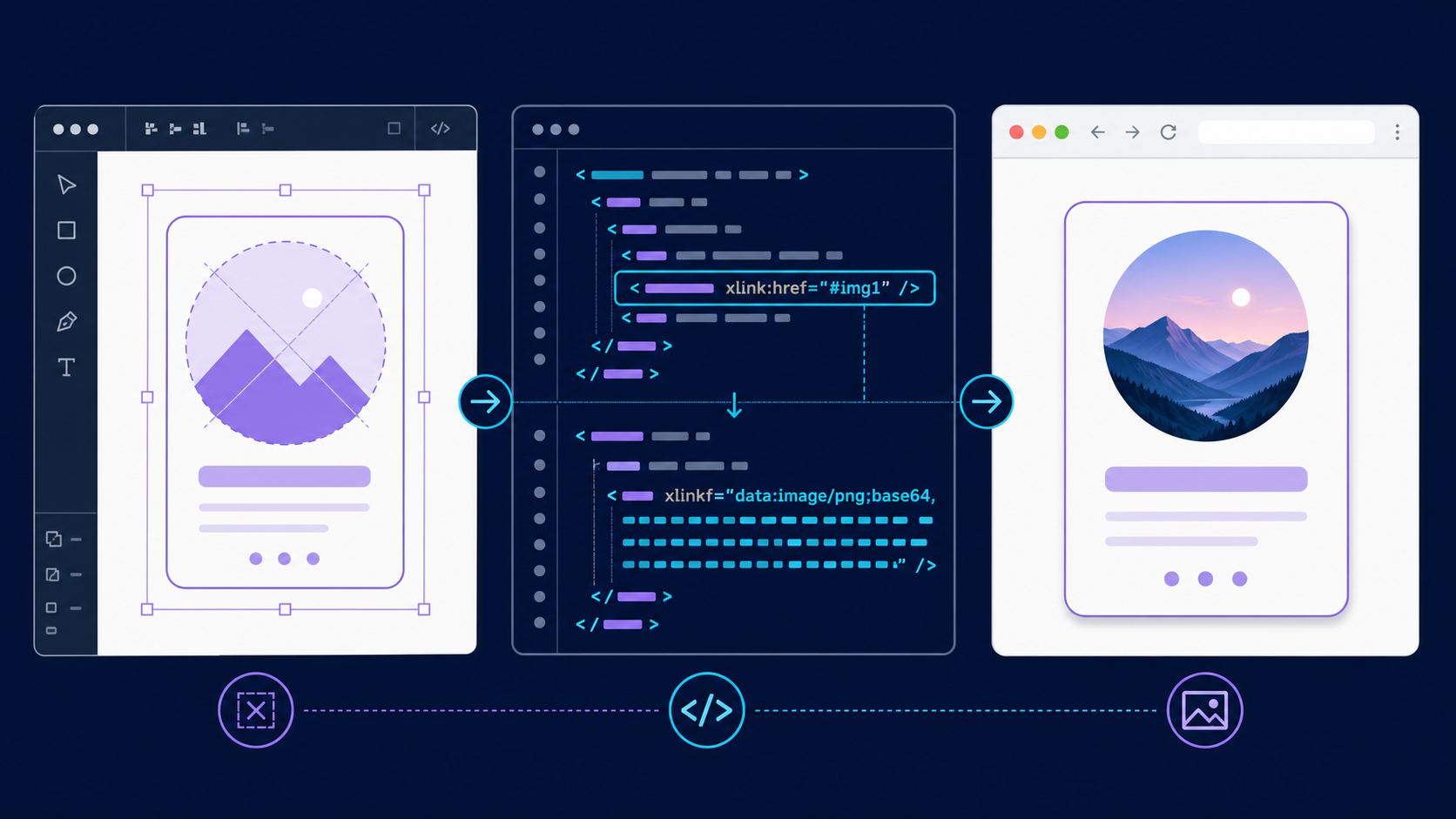
Why does an image disappear from a Figma SVG export?
An image disappears when the SVG cannot load or display the raster resource referenced by its <image> element. Common causes are a broken file path, a removed or truncated data URL, a damaged mask, a sanitizer that strips embedded content, or an optimizer that treats the image as disposable markup.
An embedded SVG image is a raster asset placed inside SVG markup with an <image> element. It is not converted into vector paths. The surrounding shapes, text, and masks may be vector, while the photo or texture remains PNG, JPEG, or WebP data.
A self-contained export can look like this:
<svg viewBox="0 0 800 500" xmlns="http://www.w3.org/2000/svg">
  <image href="data:image/png;base64,iVBORw0KGgoAAA..." width="800" height="500" preserveAspectRatio="xMidYMid slice" />
</svg>
An external reference is more fragile:
<image href="images/hero-photo.png" width="800" height="500" />
That version works only when the referenced image exists where the browser resolves it relative to the SVG. A path copied from a desktop, temporary export folder, or private CDN will fail elsewhere.
Useful standards references:
What is the fastest way to diagnose a missing SVG image?
Test the raw file before changing it. Open the SVG directly in Chrome, Safari, or Firefox. If the image is already missing, inspect the markup. If it works alone but fails in your website, React app, CMS, or email tool, the destination pipeline is changing or blocking the file.
| What you see | Likely cause | First action |
|---|---|---|
| Image missing in the raw SVG | Broken or absent href | Find <image> and inspect the full reference |
| Image works locally but not after upload | Relative path or blocked external URL | Embed the raster or upload it at a stable public path |
| Blank area inside a crop | Broken mask or clipPath | Confirm every url(#id) has a matching definition |
| Image vanishes after optimization | Data URL or image node removed | Restore the original and use conservative optimization |
Works as <img> but not inline React | JSX, loader, or duplicate-ID issue | Inspect the rendered DOM and component conversion |
| Works in browser but not CMS/email | Sanitization or SVG restrictions | Use an approved image format or simpler asset package |
Search the raw file for <image, href=, xlink:href=, data:image/, mask=, clip-path=, and url(#. Do not paste a private SVG into a random online decoder: an embedded data URL can contain the complete original image.
How do I fix a broken href or embedded image?
Restore a valid resource reference. For a portable single-file SVG, embed the raster as a complete data URL. For a website you control, a stable same-origin URL can keep the SVG smaller. Avoid local paths, expiring signed URLs, and references that require authentication.
- Duplicate the original export so you have a rollback copy.
- Export only the intended frame or selection as SVG.
- Open the file in a code editor and locate each
<image>element. - Confirm its
hrefbegins with a completedata:image/...;base64,value or a reachable URL. - If it uses a relative path, place the raster at the resolved location or replace the path with a stable URL.
- Open the repaired SVG directly in two browsers.
- Test it in the final website, component, CMS, or upload flow.
Modern SVG uses href. Some older exports use xlink:href. The older form is deprecated, but changing attributes is not the first move when the real problem is missing image data. Preserve the working reference, then modernize only after testing.
Use the SVG viewer to check the rendered result and the SVG editor to inspect simple visual changes. If an upload contains sensitive material, inspect it locally instead.
How do masks and clip paths hide an embedded image?
A valid embedded image can still appear blank when a mask or clip path hides it. Figma often uses these definitions to crop photographs into cards, circles, device frames, and irregular shapes. If an ID is deleted, duplicated, renamed, or separated from its reference, the image may be fully clipped.
<svg viewBox="0 0 400 240" xmlns="http://www.w3.org/2000/svg">
  <defs><clipPath id="cardCrop"><rect width="400" height="240" rx="24" /></clipPath></defs>
  <image href="data:image/jpeg;base64,/9j/4AAQSk..." width="400" height="240" clip-path="url(#cardCrop)" preserveAspectRatio="xMidYMid slice" />
</svg>
Confirm that cardCrop exists once, has useful geometry, and matches the reference exactly. Also check whether the viewBox excludes the visible area. The Figma clipping-mask repair guide covers ID, bounds, and React-specific failures in more detail.
Why does the Figma SVG image fail after optimization?
The image fails after optimization when a tool removes the <image> node, shortens a data URL incorrectly, strips an unfamiliar MIME type, rewrites IDs without updating references, or removes a mask it considers unused. Optimize a known-good export and compare before and after; never optimize the only copy.
Safe order:
- Confirm the raw Figma export renders correctly.
- Save that file as the visual baseline.
- Run conservative cleanup without removing images,
defs, IDs, masks, or clip paths. - Compare the raw and optimized SVG side by side.
- Inspect the file-size change. Embedded photos often dominate size, so path cleanup may save very little.
- Test the optimized result in the real destination.
If the file is huge, consider keeping the photograph as AVIF, WebP, JPEG, or PNG and layering vector UI separately in HTML/CSS. An SVG wrapper does not make a raster photo infinitely scalable or automatically efficient. Use the SVG cleanup checklist only after the artwork is visually correct.
How do I fix a missing SVG image in React or Next.js?
First decide whether the SVG should be loaded as a file URL or converted into an inline component. A file used by <img> or next/image follows asset-loader rules. Inline JSX exposes its image reference, masks, and IDs directly in the DOM, where conversions and duplicate IDs can break it.
export function Illustration() {
  return <img src="/images/figma-export.svg" alt="Product workflow" />;
}
For inline JSX, verify that the complete href survived conversion; clip-path became clipPath; masks remain inside the component; IDs are unique; the content security policy permits the image source; and the build tool did not treat the data URL as an import path. If multiple icons interfere with one another, follow the Figma SVG duplicate-ID collision fix.
If conversion is the only failing step, compare the rendered DOM with the original SVG rather than repeatedly editing Figma. The SVG-to-React converter provides a clean starting point, but the final component still needs a browser test.
Should I embed the raster image or convert it to vector paths?
Embed or link photographs when photographic detail matters. Convert logos, icons, signatures, and high-contrast artwork when you need editable paths, clean scaling, recoloring, or a self-contained vector asset. Tracing a photo usually creates thousands of shapes without creating meaningful vector quality.
| Source content | Best output | Why |
|---|---|---|
| Photograph | WebP/JPEG/PNG, optionally referenced by SVG | Smaller and more faithful than traced paths |
| Flat logo | True SVG paths | Scalable, editable, and easy to recolor |
| Hand-drawn signature | Traced SVG paths | Crisp at different sizes with simple geometry |
| Textured illustration | Test both | Vector may become complex; raster may be more efficient |
| UI screenshot | WebP/PNG | Pixels are the actual content |
If you only have a raster logo, upload it to Image to SVG, preview the result, and simplify it in the SVG editor. The easiest production path matches the source: vectorize shape-based art and leave photo-based art as raster.
How do I prevent missing images on the next Figma export?
Keep the asset pipeline boring. Export the correct frame, preserve originals, test the raw SVG before optimization, avoid temporary resource URLs, and verify the exact delivery method. A file that works on your desktop is not verified until it works from the production URL or component.
- Export the intended frame, not a partial nested selection.
- Open the raw SVG directly in a browser.
- Confirm every
<image>has a complete, usablehref. - Confirm every mask and clip-path ID resolves.
- Check the
viewBoxagainst the visible artwork. - Avoid aggressive cleanup of embedded data and
defs. - Test the final
<img>, inline component, CMS, or upload flow. - Keep the original raster asset and raw SVG export.
When the source should be a real vector, skip the fragile embedded-image wrapper: convert the original image to SVG, refine the paths, and ship an asset that contains only the geometry you need.
Frequently asked questions
Why is an image missing from my Figma SVG export?
The SVG usually has a broken or stripped image reference, an incomplete embedded data URL, a damaged mask, or a destination that blocks external resources. Inspect the <image> element and its href, then test the raw file separately from the app or CMS.
Does Figma embed images in exported SVG files?
Figma commonly exports raster fills inside SVG image elements as data URLs. This can make the file portable, but later optimization, sanitization, conversion, or upload steps may remove the long encoded image value.
Should I use href or xlink:href for an SVG image?
Use href for modern SVG. Existing files may use the older xlink:href form. Test the destination before rewriting a working export, especially when supporting older rendering software.
Why does the SVG work in a browser but not in React?
The React conversion or build pipeline may alter the data URL, JSX attribute names, mask IDs, or how the SVG is loaded. Compare the final DOM and network requests with the original file to find the changed layer.
Can I remove the raster image and keep the file as a true vector?
Yes. Trace or redraw suitable logos, icons, and simple illustrations as paths. Keep photographs raster because automatic tracing normally produces a larger, less faithful file.
Create your own SVG graphics with AI
Describe what you need, get a production-ready vector in seconds. No design skills required.
About This Article
This article was written by SVG Genie Team based on hands-on testing with SVG Genie’s tools and years of experience in vector design and web graphics. All recommendations reflect real-world usage and are reviewed by the SVG Genie editorial team for accuracy.
About the Author
SVG Genie Team
SVG Design Expert & Technical Writer at SVG Genie
SVG Genie Team is a vector design specialist and technical writer at SVG Genie with years of hands-on experience in SVG tooling, AI-assisted design workflows, and web graphics optimization. Their work focuses on making professional vector design accessible to everyone.
More articles by SVG Genie Teamarrow_forward