Figma exports clean vectors until the canvas lies to you. The icon looks perfect in Figma, but the exported SVG lands in your app with a giant invisible box, gets cut off on one edge, renders tiny inside a button, or stretches when a developer makes it responsive.
The fast rule:
Fix the Figma SVG viewBox before you resize the file. Re-export the tightest correct selection when the canvas is wrong, edit the root viewBox only when the artwork is already right, and keep safe padding for strokes, filters, shadows, and masks.
If your export also has broken gradients, masks, or React attributes, start with the Figma SVG export clean code guide. If the visible problem is mostly empty space around the artwork, the crop SVG online workflow gives the broader non-Figma version of this fix. When the viewBox is correct, finish with SVG Optimizer or SVG Minify, then validate the final code with SVG Validator.
What is an SVG viewBox?
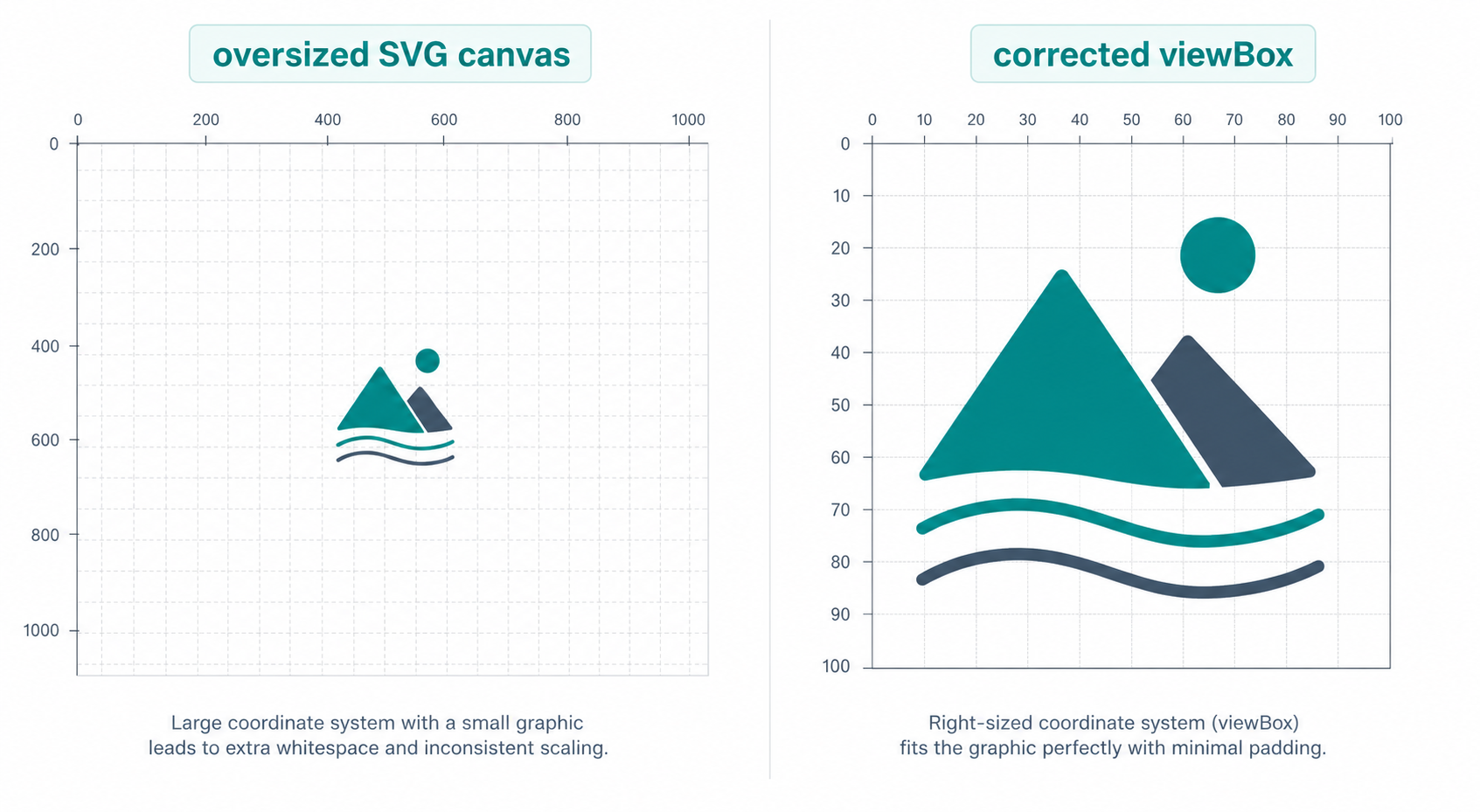
The SVG viewBox is the internal coordinate rectangle that tells the browser which part of the vector drawing to show and how that drawing should scale. Its four values are min-x, min-y, width, and height. If those values are wrong, the SVG can look padded, cropped, tiny, stretched, or misaligned even when every path is technically valid.
An SVG viewBox is the source coordinate system for the visible artwork. The browser maps that coordinate rectangle into the rendered width, height, or CSS box. MDN documents the syntax as viewBox="min-x min-y width height", and the SVG specification defines how viewports and coordinate systems interact.
Useful references:
- MDN: viewBox attribute
- MDN: SVG element
- W3C SVG 2 coordinate systems
- Figma export formats and settings
Here is the shape of the problem:
<!-- Oversized canvas: the icon is only a small part of the visible coordinate system. -->
<svg width="200" height="200" viewBox="0 0 1000 1000">
  <path d="M420 420h160v160H420z" fill="#111827" />
</svg>
And here is the same artwork with a tighter viewBox:
<!-- Tighter viewBox: the browser scales the useful artwork, not the empty canvas. -->
<svg width="200" height="200" viewBox="400 400 200 200">
  <path d="M420 420h160v160H420z" fill="#111827" />
</svg>
The path did not change. The browser is simply looking at a better part of the coordinate space.
Why does a Figma SVG export with too much canvas?
A Figma SVG exports with too much canvas when the selected frame, component, or group is larger than the visible artwork. Figma uses the selected object's bounds to create the exported SVG coordinate space, so accidental frame padding, hidden layers, background rectangles, and "include bounding box" choices can all become a bloated viewBox.
Check these causes before editing numbers by hand:
| Symptom | Likely Figma Cause | Fast Fix |
|---|---|---|
| Icon looks tiny in HTML | Exported a large parent frame | Select the icon frame or vector group only |
| Logo has transparent padding | Frame or component bounds are too wide | Resize the export frame around the intended mark |
| One edge is clipped | Artwork extends beyond frame bounds | Expand the frame or disable unintended clipping |
| ViewBox includes hidden junk | Hidden or off-canvas layer is still affecting bounds | Duplicate the asset into a clean export frame |
| SVG has a visible white box | Background rectangle exported with the asset | Delete the rectangle or use SVG Background Remover |
Do not start by scaling the SVG bigger in CSS. That makes the visible artwork larger, but it keeps the bad canvas. Fix the export bounds or the viewBox first.
How do I fix a Figma SVG viewBox?
Fix a Figma SVG viewBox by diagnosing whether the problem is in Figma's exported bounds, the SVG coordinate crop, or the page's rendered box. Re-export when the selected frame is wrong. Edit the root viewBox when the exported artwork is correct but the visible coordinate area is too loose or too tight.
Use this quick decision rule:
| Problem | Best First Move | Why |
|---|---|---|
| Export includes a whole page frame | Re-export the smaller selection | The source bounds are wrong |
| Export includes a clean icon with extra empty space | Crop the root viewBox | The artwork is fine; the coordinate area is loose |
| Stroke, shadow, or filter is cut off | Expand the viewBox and effect area | The crop is too tight |
| SVG stretches in a card | Match CSS aspect ratio to viewBox ratio | The rendered box disagrees with the coordinate ratio |
| React icon ignores size classes | Keep viewBox, remove fixed dimensions, pass className | The component API is fighting the SVG |
Use this workflow:
- Duplicate the Figma asset into a clean export frame.
- Remove notes, hidden layers, accidental backgrounds, and off-canvas fragments.
- Select the smallest useful icon, logo, or vector group.
- Export SVG at 1x.
- Open the SVG and find the root
<svg>tag. - Keep the
viewBox. - Remove or override fixed
widthandheightonly if the asset should be responsive. - Preview the SVG at the real size:
16px,24px, header logo size, or the final card size. - Run SVG Optimizer conservatively.
- Compare before and after optimization.
If the SVG is for a React app, the Figma SVG export clean code guide covers JSX attributes, currentColor, and component props after the viewBox is fixed.
Should I re-export from Figma or edit the viewBox manually?
Re-export from Figma when the selected object is wrong. Edit the viewBox manually when the exported file already contains the right artwork and you only need to trim or expand the visible coordinate area. Manual viewBox edits are faster for small crop fixes, but re-exporting is safer when layers, frames, or clipping settings are the real cause.
Here is the practical split:
| Situation | Re-export from Figma | Edit the SVG viewBox |
|---|---|---|
| You exported the entire design frame | Yes | No |
| A hidden layer widened the bounds | Yes | Maybe after cleanup |
| The artwork is correct but has transparent margin | Optional | Yes |
| A stroke cap is clipped | Maybe | Yes, add padding |
| A mask or clip path controls the crop | Maybe | Only after inspecting references |
| You need identical icon sizes across a set | Yes, use consistent frames | Maybe for final cleanup |
If the asset uses clipping masks, preserve the related clipPath, mask, and defs references. The Figma SVG clipping mask fix guide explains why deleting those blocks can make a file look fine in one preview and fail in another.
How do I make a Figma SVG responsive without losing the viewBox?
Make a Figma SVG responsive by keeping the viewBox and controlling display size with CSS, HTML attributes, or component props. The viewBox should describe the artwork's coordinate system. The rendered size should describe how large the SVG appears in the layout.
Bad cleanup:
<!-- This removes the coordinate system that allows proportional scaling. -->
<svg width="24" height="24">
  <path d="..." />
</svg>
Better:
<svg viewBox="0 0 24 24" width="1em" height="1em" aria-hidden="true">
  <path d="..." />
</svg>
For a React icon:
export function Icon({ className }: { className?: string }) {
  return (
    <svg viewBox="0 0 24 24" className={className} aria-hidden="true">
      <path d="..." fill="currentColor" />
    </svg>
  );
}
Then size it with the layout:
<Icon className="h-6 w-6 text-slate-900" />
For a logo:
.brand-logo {
  width: clamp(120px, 18vw, 220px);
  height: auto;
  display: block;
}
If the SVG still looks off-center after this, inspect the viewBox. CSS cannot fix a coordinate system that contains accidental whitespace.
Why does my Figma SVG get cut off after I fix the viewBox?
A Figma SVG gets cut off after a viewBox fix when the new coordinate rectangle is tighter than the visible artwork. Strokes, round caps, filters, masks, markers, and shadows can extend beyond the raw path bounds, so a mathematically tight crop can still be visually wrong.
Use this cut-off checklist:
- Add at least half the stroke width outside stroked paths.
- Expand the viewBox for round line caps and joins.
- Preserve filter regions for shadows, blurs, and glows.
- Keep referenced
defsfor gradients, masks, and clip paths. - Test on light and dark backgrounds.
- Test at the smallest real display size.
- Check parent CSS for
overflow: hidden.
If a Figma drop shadow disappears, use the Figma SVG shadow and filter fix. If gradients vanish after cleanup, use the Figma SVG gradient fix guide before deleting definitions.
What should the final SVG look like before shipping?
The final SVG should keep a correct viewBox, render at the intended aspect ratio, avoid accidental canvas padding, and survive conservative optimization. It should also be easy to use in its real context: as an image file, inline SVG, React component, design-system icon, logo, or generated asset.
Before shipping, compare the file in four contexts:
| Test | What It Catches |
|---|---|
| Standalone browser tab | Syntax errors, missing defs, obvious clipping |
| Final page or component | CSS sizing, alignment, theming, overflow |
| Small size preview | Tiny padding, clipped strokes, unreadable details |
| Optimized copy | Broken viewBox, removed IDs, changed fills |
Then run the final file through SVG Validator. If the file came from a raster trace instead of a native Figma vector, use Image to SVG again from a cleaner source rather than spending an hour repairing a noisy coordinate system.
FAQ
Why does my Figma SVG have a huge viewBox?
A Figma SVG usually gets a huge viewBox when you export the parent frame, page artwork, or a selection with hidden spacing instead of the tight icon, logo, or vector group. Re-export the smallest correct selection, then inspect the viewBox before optimizing.
How do I fix an SVG viewBox from Figma?
Fix a Figma SVG viewBox by choosing whether the problem is export bounds, cropping, or responsive sizing. Re-export the tight selection when possible. If the artwork is already correct, edit the root viewBox values and keep safe padding for strokes, filters, and shadows.
Should I remove width and height from a Figma SVG?
Remove or override width and height when the SVG should be responsive, but keep the viewBox. The viewBox controls the internal coordinate system; width, height, and CSS control how large the SVG appears on the page.
Why is my Figma SVG tiny after export?
A Figma SVG looks tiny when the viewBox contains too much empty canvas, the exported frame is larger than the visible artwork, or CSS forces the file into a box with a mismatched aspect ratio. Fix the viewBox before scaling the SVG bigger.
Can an optimizer break my SVG viewBox?
Yes. Aggressive SVG optimization can remove or rewrite the viewBox, crop too tightly, or combine transforms in a way that changes how the file scales. Use conservative optimization and preview the SVG before and after cleanup.
Create your own SVG graphics with AI
Describe what you need, get a production-ready vector in seconds. No design skills required.
About This Article
This article was written by SVG Genie Team based on hands-on testing with SVG Genie’s tools and years of experience in vector design and web graphics. All recommendations reflect real-world usage and are reviewed by the SVG Genie editorial team for accuracy.
About the Author
SVG Genie Team
SVG Design Expert & Technical Writer at SVG Genie
SVG Genie Team is a vector design specialist and technical writer at SVG Genie with years of hands-on experience in SVG tooling, AI-assisted design workflows, and web graphics optimization. Their work focuses on making professional vector design accessible to everyone.
More articles by SVG Genie Teamarrow_forward