One Figma SVG looks perfect. Add a second icon and suddenly both use the same gradient, a mask crops the wrong shape, or a shadow disappears. The exports are valid individually; their internal IDs are colliding after the SVGs enter the same document.
The fast fix:
Search each inline SVG for id= and url(#. Give every ID an asset-specific prefix, then update every matching reference. If the file only breaks when rendered inline, duplicate IDs are the first thing to check.
For a broader failure, start with Figma SVG export troubleshooting. If the shape is cropped even when opened alone, use the Figma SVG viewBox fix. Inspect the repaired file in the SVG editor.
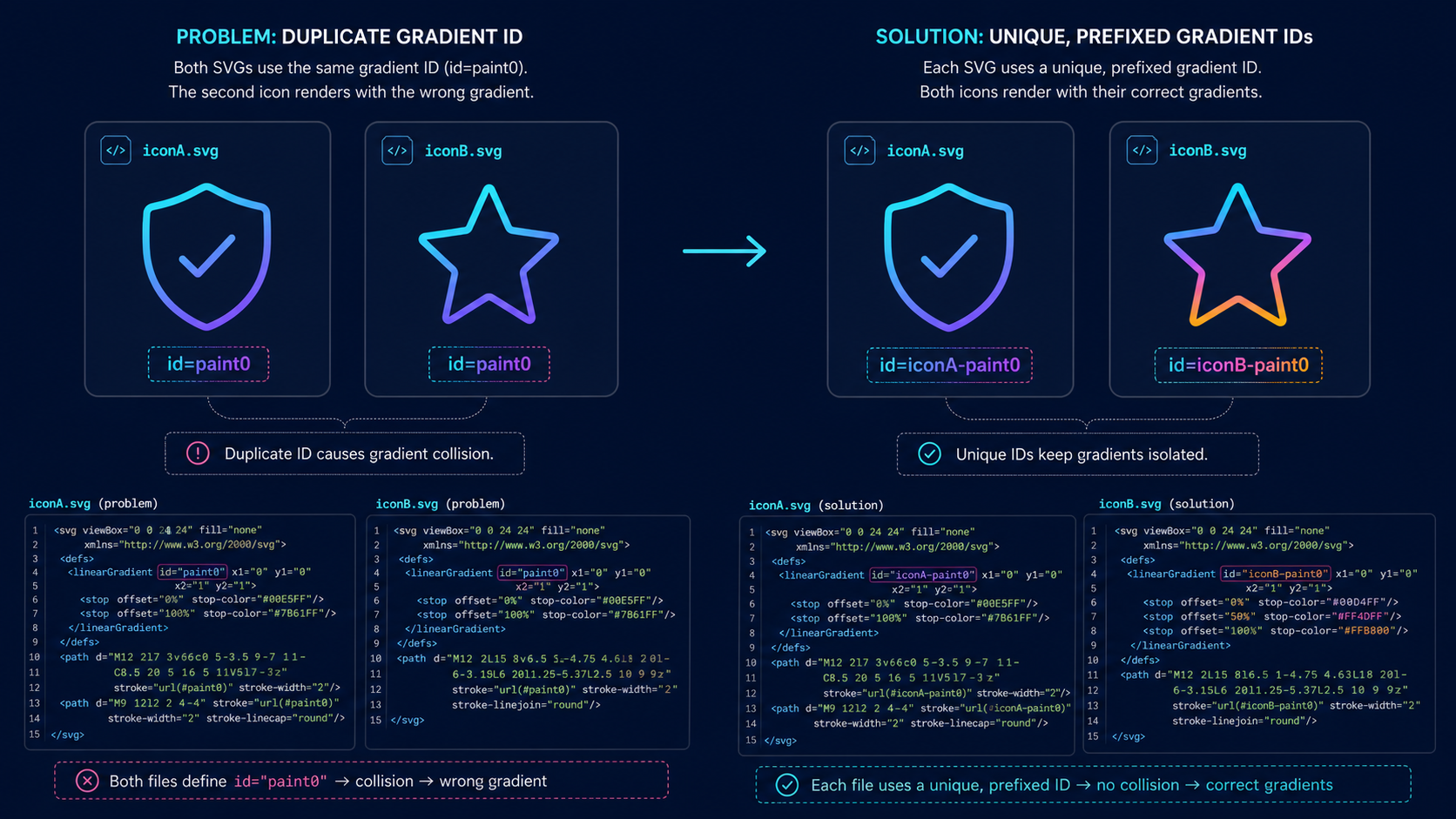
Why do Figma SVG IDs collide?
Figma SVG IDs collide because exports commonly start with generic names such as paint0_linear, clip0, or filter0_d. When multiple files are inserted as inline markup, those definitions share one HTML document. A reference such as url(#paint0_linear) can resolve to a definition from a different icon.
An SVG ID collision is a naming conflict in which two inline SVG elements define the same id, causing an internal reference to use the wrong gradient, mask, clip path, filter, pattern, or symbol.
<svg><defs><linearGradient id="paint0"><!-- blue --></linearGradient></defs><path fill="url(#paint0)" /></svg>
<svg><defs><linearGradient id="paint0"><!-- orange --></linearGradient></defs><path fill="url(#paint0)" /></svg>
HTML IDs should be unique within a document. SVG paint servers and effects use fragment references to find those IDs, so repeated names make lookup ambiguous. See MDN's SVG id reference and SVG gradient guide for the underlying mechanism.
How can I confirm a duplicate-ID collision quickly?
Render the suspect SVG alone, then inline it beside another export. If the solo file is correct but the pair is wrong, inspect the live DOM for repeated IDs. The browser console can count duplicates without changing the assets.
const ids = [...document.querySelectorAll('svg [id]')].map((node) => node.id);
const duplicates = [...new Set(ids.filter((id, i) => ids.indexOf(id) !== i))];
console.log(duplicates);
| Symptom | Likely issue | First check |
|---|---|---|
Correct as <img>, wrong inline | Shared ID collision | Repeated IDs in the DOM |
| Wrong gradient or fill | Duplicate gradient or pattern | Every fill="url(#...)" |
| Unexpected crop | Duplicate clip path or mask | clip-path and mask values |
| Shadow changes | Duplicate filter or bad bounds | Filter reference and region |
| Later instances fail | Component repeats IDs | Stable per-instance prefix |
| Wrong when opened alone | Export or missing definition | Raw SVG markup |
If only shadows fail, the ID may be correct while effect bounds are too small. The Figma SVG shadow guide separates those cases.
How do I rename SVG IDs without breaking references?
Choose a short prefix derived from the asset, rename every id, and rename every fragment reference to the same value. Changing only the definition leaves the browser searching for an ID that no longer exists.
Before:
<defs><linearGradient id="paint0_linear">...</linearGradient></defs>
<path fill="url(#paint0_linear)" d="..." />
After:
<defs><linearGradient id="uploadIcon-paint0_linear">...</linearGradient></defs>
<path fill="url(#uploadIcon-paint0_linear)" d="..." />
Check all reference forms:
fill="url(#id)"andstroke="url(#id)"clip-path="url(#id)"andmask="url(#id)"filter="url(#id)"- CSS containing
url(#id) href="#id"and legacyxlink:href="#id"
Replace exact IDs rather than loose tokens because one name may be a substring of another. Then open the file alone and beside the other icons.
What is the safest fix for React or Next.js components?
For a one-off component, an asset-specific static prefix is enough. For a reusable component rendered several times, generate a stable instance ID and construct every definition and reference from it. React's useId provides stable IDs across server and client rendering.
import { useId } from 'react';

export function UploadIcon() {
  const reactId = useId().replace(/:/g, '');
  const gradientId = `uploadIcon-${reactId}-gradient`;
  return (
    <svg viewBox="0 0 24 24" aria-hidden="true">
      <defs>
        <linearGradient id={gradientId} x1="0" y1="0" x2="24" y2="24">
          <stop stopColor="#7C3AED" /><stop offset="1" stopColor="#06B6D4" />
        </linearGradient>
      </defs>
      <path fill={`url(#${gradientId})`} d="..." />
    </svg>
  );
}
Do not create IDs with Math.random() during render. Server HTML and the hydrated client can produce different values. The SVG-to-React converter handles JSX conversion; definition IDs still need to match your reuse pattern.
Can an SVG optimizer prevent ID collisions?
An optimizer can prefix or minify IDs, but it must understand the final bundle. Running identical exports through separate jobs may give each file the same short IDs again. Configure a unique prefix per asset or process a combined sprite as one unit, then test the assembled page.
- Keep the untouched Figma export.
- Assign a deterministic prefix based on the filename or component.
- Rewrite definitions and references together.
- Optimize only after the prefixed file renders correctly.
- Render several assets and repeated instances on one page.
- Compare gradients, masks, clipping, and filters with the originals.
If optimization damages the artwork, follow the SVG optimizer gradient repair guide and preserve referenced definitions until the visual baseline passes.
Should I inline the SVG or load it as an image?
Use <img> when the SVG is a fixed visual asset and you do not need to style internal paths. Inline it when you need CSS control, animation, component props, or direct accessibility markup. External loading isolates IDs; inline markup requires unique IDs across the document.
| Delivery method | Collision risk | Internal CSS | Best for |
|---|---|---|---|
<img src="icon.svg"> | Low | No | Static illustrations |
| CSS background | Low | No | Decorative assets |
| Inline SVG | High without unique IDs | Yes | Themeable graphics |
| React component | High without instance-safe IDs | Yes | Reusable icons |
| SVG sprite | Managed centrally | Partial | Large icon systems |
The easiest fix may be to stop inlining a static illustration. If the graphic belongs in code, prefix its IDs and keep the component deterministic.
How do I prevent Figma SVG collisions before shipping?
Treat ID uniqueness as a build check. Figma can generate valid standalone files without knowing which other exports your website will inline. Your asset pipeline owns document-level uniqueness.
- Test every export alone before conversion.
- Search for
id=,url(#, and hash-basedhrefreferences. - Prefix IDs with the asset or component name.
- Use stable per-instance IDs for reusable components.
- Avoid minification that resets files to identical short names.
- Render a gallery containing every inline icon at least twice.
- Test the production bundle, not only the raw file.
For new scalable artwork without Figma export noise, create an asset with the AI SVG generator, then inspect its IDs before inlining repeated components.
Frequently asked questions
Why do two Figma SVGs conflict on the same page?
Both exports probably define the same generic ID and reference it with url(#id). Inline SVGs share the page namespace, so one icon can resolve a definition from another. Prefix every definition and corresponding reference.
Why does my SVG look correct as an image but wrong inline?
An SVG loaded through <img> is isolated from the page DOM. Inline SVG definitions share the document, exposing repeated IDs that were harmless separately.
Which SVG references must change when I rename an ID?
Update the id and every reference in fill, stroke, filter, mask, clip-path, CSS url(#id), href="#id", and legacy xlink:href="#id" values.
Can SVGO fix duplicate SVG IDs automatically?
Yes, with a prefix that remains unique in the final bundle. Optimizing files independently can still create identical short IDs, so test the assembled page.
Should React SVG components use generated unique IDs?
Reusable components should use stable unique IDs. Combine React useId with an asset prefix and reuse the value in definitions and references. Avoid random render-time IDs.
Create your own SVG graphics with AI
Describe what you need, get a production-ready vector in seconds. No design skills required.
About This Article
This article was written by SVG Genie Team based on hands-on testing with SVG Genie’s tools and years of experience in vector design and web graphics. All recommendations reflect real-world usage and are reviewed by the SVG Genie editorial team for accuracy.
About the Author
SVG Genie Team
SVG Design Expert & Technical Writer at SVG Genie
SVG Genie Team is a vector design specialist and technical writer at SVG Genie with years of hands-on experience in SVG tooling, AI-assisted design workflows, and web graphics optimization. Their work focuses on making professional vector design accessible to everyone.
More articles by SVG Genie Teamarrow_forward