Your SVG was moving before optimization. Now it is frozen, jumps to the wrong place, or animates in a standalone preview but not on the website.
The fastest fix is to compare the original and optimized source for changed IDs, classes, <style> blocks, keyframes, SMIL elements, href references, motion paths, and transforms. Restore the first broken hook, then optimize again with that feature preserved.
Use this 60-second decision rule:
| Symptom | Check First | Likely Fix |
|---|---|---|
| Entire animation is frozen | <style>, <animate>, or script removed | Preserve animation elements and CSS |
| One part no longer moves | Target ID or class changed | Restore the selector or update both sides |
| Motion follows the wrong route | Motion-path ID or href changed | Restore the referenced path |
Works inline, fails in <img> | Page CSS or JS targets the SVG | Inline it or embed styles inside the file |
| Moves but jumps or drifts | Transforms collapsed or path simplified | Keep transforms and raise precision |
Start from the untouched original. Use SVG Optimizer conservatively, inspect the result in SVG Editor, and use the SVG animation checker before replacing the production asset.
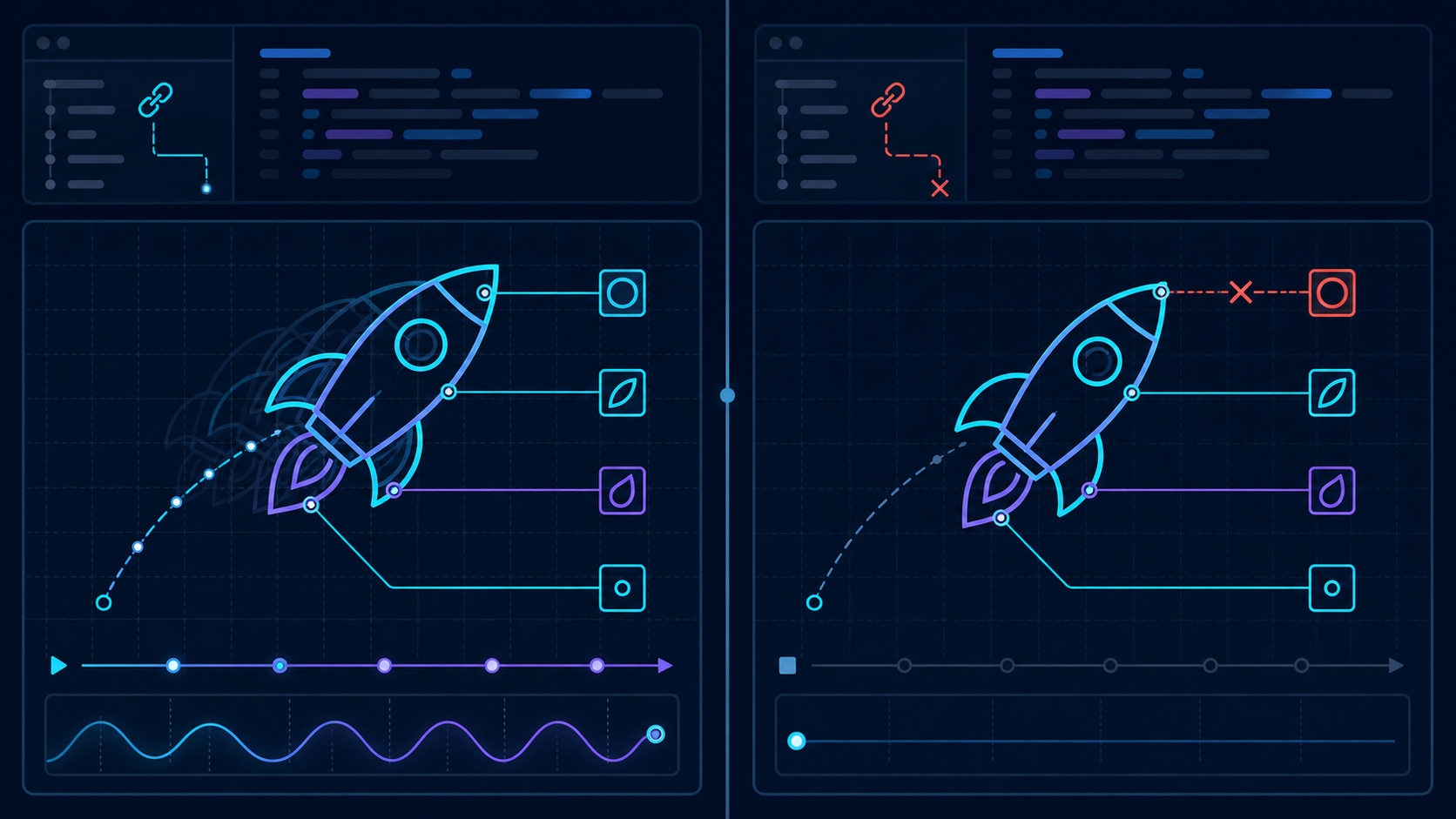
Why did my SVG animation stop after optimization?
An SVG animation usually stops after optimization because the optimizer changed a dependency that was invisible in the static artwork. A path may still render perfectly while its ID, class, transform, keyframe, motion path, or SMIL element no longer matches the code that moves it.
An SVG animation hook is any selector or reference that connects an element to motion. Common hooks include id, class, CSS selectors, href, url(#id), JavaScript selectors, SMIL timing references, and motion paths. They are functional code, even when they appear removable.
Consider this CSS animation:
<style>
  #spark { animation: pulse 1.2s ease-in-out infinite; }
  @keyframes pulse { 50% { transform: scale(1.15); } }
</style>
<path id="spark" d="..." transform-origin="24px 24px" />
If optimization renames spark to a, removes the ID because the path looks unused, or converts the CSS without preserving transform-origin, the static path survives but its animation does not.
The same rule applies to SMIL:
<path id="orbit" d="M8 32 C24 4 40 60 56 32" fill="none" />
<circle r="3">
  <animateMotion dur="2s" repeatCount="indefinite">
    <mpath href="#orbit" />
  </animateMotion>
</circle>
Renaming or removing orbit breaks the motion path. The circle remains visible, which can make the failure look like a browser bug.
Which optimizer settings break SVG animations?
The highest-risk settings rewrite structure: ID cleanup, class removal, unused-style removal, style conversion, path merging, transform collapsing, and unknown-element removal. Safe-looking changes can still break selectors, JavaScript, SMIL timing, or the geometry that motion depends on.
| Optimizer Change | Animation Risk | Safer Choice |
|---|---|---|
| Remove comments and editor metadata | Low | Usually enable |
| Collapse whitespace | Low | Usually enable |
| Reduce decimal precision | Medium | Start at 2-3 decimals |
| Rename or remove IDs | High | Preserve targeted IDs |
| Remove classes or unused CSS | High | Keep selectors used outside the SVG |
| Convert styles to attributes | Medium | Test keyframes and inheritance |
| Collapse transforms | High | Keep when animation targets transforms |
| Merge or convert paths | High | Disable for animated parts |
| Remove unknown elements | High | Preserve SMIL and custom hooks |
External dependencies are the trap. An optimizer sees only the SVG file; it may not see React code calling querySelector('#spark'), a GSAP timeline targeting .needle, or a page stylesheet animating #logo-mark. A selector that looks unused inside the file may be essential in the app.
For broader size reduction guidance, use the SVG path optimizer guide. If gradients disappeared as well, follow the broken SVG gradient repair guide.
How do I repair a frozen SVG animation?
Repair a frozen animation by diffing the original and optimized files, locating the first missing animation hook, and restoring it. Do not start by tweaking durations or rewriting keyframes: if the target cannot be resolved, timing changes will do nothing.
Follow this order:
- Save the broken optimized file separately.
- Open both files in a code editor.
- Search for
<style,@keyframes,<animate,<animateTransform,<animateMotion, and<mpath. - Compare every animation target
idandclass. - Check
href="#...",begin="id.event", and everyurl(#...)reference. - Restore removed elements or make renamed references match.
- Compare transforms and numeric path data if the animation moves incorrectly.
- Preview the file standalone and in its real embed context.
When an ID was shortened, both sides must match:
<!-- Broken: CSS still targets #spark -->
<style>#spark { animation: pulse 1s infinite; }</style>
<path id="a" d="..." />

<!-- Fixed -->
<style>#spark { animation: pulse 1s infinite; }</style>
<path id="spark" d="..." />
If JavaScript drives the motion, check the browser console too. null, “target not found,” and getTotalLength is not a function errors usually point directly to a renamed selector or converted element.
Why does the SVG animate inline but not as an image?
An SVG loaded through <img> is an isolated image document. Page-level CSS and JavaScript cannot select elements inside it. Inline SVG shares the page DOM, so external selectors and animation libraries can reach its paths, groups, and IDs.
Choose the embed method based on where the animation code lives:
| Animation Source | Inline SVG | <img> | <object> |
|---|---|---|---|
| CSS inside the SVG | Yes | Yes | Yes |
| SMIL inside the SVG | Yes | Yes | Yes |
| Page stylesheet targeting paths | Yes | No | No |
| Page JavaScript or GSAP timeline | Yes | No | Requires document access |
| Simple self-contained loop | Yes | Yes | Yes |
If optimization coincided with changing how the asset is embedded, test the old embed method before blaming the optimizer. The complete SVG animation checking guide explains how to detect CSS, SMIL, and JavaScript animation types.
How do I preserve CSS and JavaScript animation hooks?
Preserve CSS and JavaScript hooks by making their IDs and classes part of the optimization contract. List the selectors your app uses, exclude them from cleanup, and avoid path merging or shape conversion on targeted elements.
Use a tiny hook inventory before optimizing:
#logo-mark       CSS keyframes
.spinner-ring    React class toggle
#motion-path     animateMotion href
#needle          GSAP timeline target
#mask-reveal     CSS url(#mask-reveal)
Then check each name in the optimized output. For reusable inline SVG components, prefix IDs so two copies do not collide—for example, pricing-spinner-ring and header-spinner-ring. Update every matching selector and reference at the same time.
Do not remove accessibility behavior while preserving motion. Keep meaningful <title> and <desc> content, and provide a reduced-motion state:
@media (prefers-reduced-motion: reduce) {
  #spark { animation: none; }
}
The reduced-motion version should communicate the same state without continuous movement.
What is the safest workflow for optimizing animated SVGs?
The safest workflow is incremental: remove nonfunctional bloat first, test, then attempt one structural optimization at a time. Animated SVGs are small programs, so a visually correct static preview is not enough evidence that optimization succeeded.
Use this checklist:
- Keep an untouched original.
- Record all IDs and classes used by CSS or JavaScript.
- Preserve
<style>, keyframes, SMIL elements, and motion paths. - Keep
viewBox,href,url(#...), masks, clips, and filters. - Remove comments, editor metadata, and whitespace first.
- Reduce precision conservatively.
- Avoid merging animated paths or collapsing targeted transforms.
- Test start, loop, hover, click, and scroll states.
- Test the final inline,
<img>, React, or CMS embed. - Test with reduced motion enabled.
For source-only cleanup after the animation works, SVG Minify is the lower-risk next step. If the artwork itself needs changes, use the online SVG editor before optimizing again.
When should I stop optimizing an animated SVG?
Stop when the remaining savings are smaller than the behavioral risk. If metadata removal, whitespace minification, and conservative precision reduction already produce a practical file size, another aggressive pass is rarely worth breaking motion, accessibility, or maintainability.
A two-kilobyte saving is not a win if it creates a frozen loading icon or a logo animation that fails only in production. Measure the transferred size with gzip or Brotli, test the real page, and keep the simplest configuration that preserves every required state.
FAQ
Why did my SVG animation stop after optimization?
Optimization can rename or remove IDs, classes, style blocks, keyframes, SMIL elements, path references, or transform values that the animation still uses. Compare the original and optimized files, then restore the first missing selector or reference instead of rebuilding the artwork.
Which SVG optimizer settings can break animation?
ID cleanup, class removal, unused-style removal, style-to-attribute conversion, path merging, shape conversion, transform collapsing, and removal of unknown elements are the highest-risk settings for animated SVG files.
How do I preserve SVG animation while reducing file size?
Keep animation hooks intact, remove metadata and comments first, reduce numeric precision conservatively, minify whitespace, and test the exact embed method after every structural change.
Why does an SVG animate inline but not in an img tag?
Page-level CSS and JavaScript cannot reach inside an SVG loaded with an img tag. Inline the SVG for external selectors and scripts, or place the animation CSS inside the SVG file itself.
Can SVGO remove SVG animations?
SVGO can break animation when a plugin removes or rewrites a selector, element, ID, class, path, or transform used by the animation. Use a conservative configuration and explicitly preserve the hooks your CSS, JavaScript, or SMIL timeline targets.
Fix the animation before chasing more bytes
Return to the original file, restore the first broken hook, and optimize in smaller passes. Run the repaired asset through the SVG animation checker, then test it in the exact component or page where it will ship.
Create your own SVG graphics with AI
Describe what you need, get a production-ready vector in seconds. No design skills required.
About This Article
This article was written by SVG Genie Team based on hands-on testing with SVG Genie’s tools and years of experience in vector design and web graphics. All recommendations reflect real-world usage and are reviewed by the SVG Genie editorial team for accuracy.
About the Author
SVG Genie Team
SVG Design Expert & Technical Writer at SVG Genie
SVG Genie Team is a vector design specialist and technical writer at SVG Genie with years of hands-on experience in SVG tooling, AI-assisted design workflows, and web graphics optimization. Their work focuses on making professional vector design accessible to everyone.
More articles by SVG Genie Teamarrow_forward