An SVG icon looks balanced at 24 pixels, then its outline becomes cartoonishly heavy at 240 pixels—or nearly disappears when the asset shrinks. The fastest fix is to decide what the line should do: use normal strokes when line weight should scale with the artwork, and use vector-effect="non-scaling-stroke" when the line should remain visually constant.
Do not reach for a random stroke-width value first. Check the viewBox, CSS size, transforms, and whether an optimizer changed the file. That four-part check usually reveals the real cause in minutes.
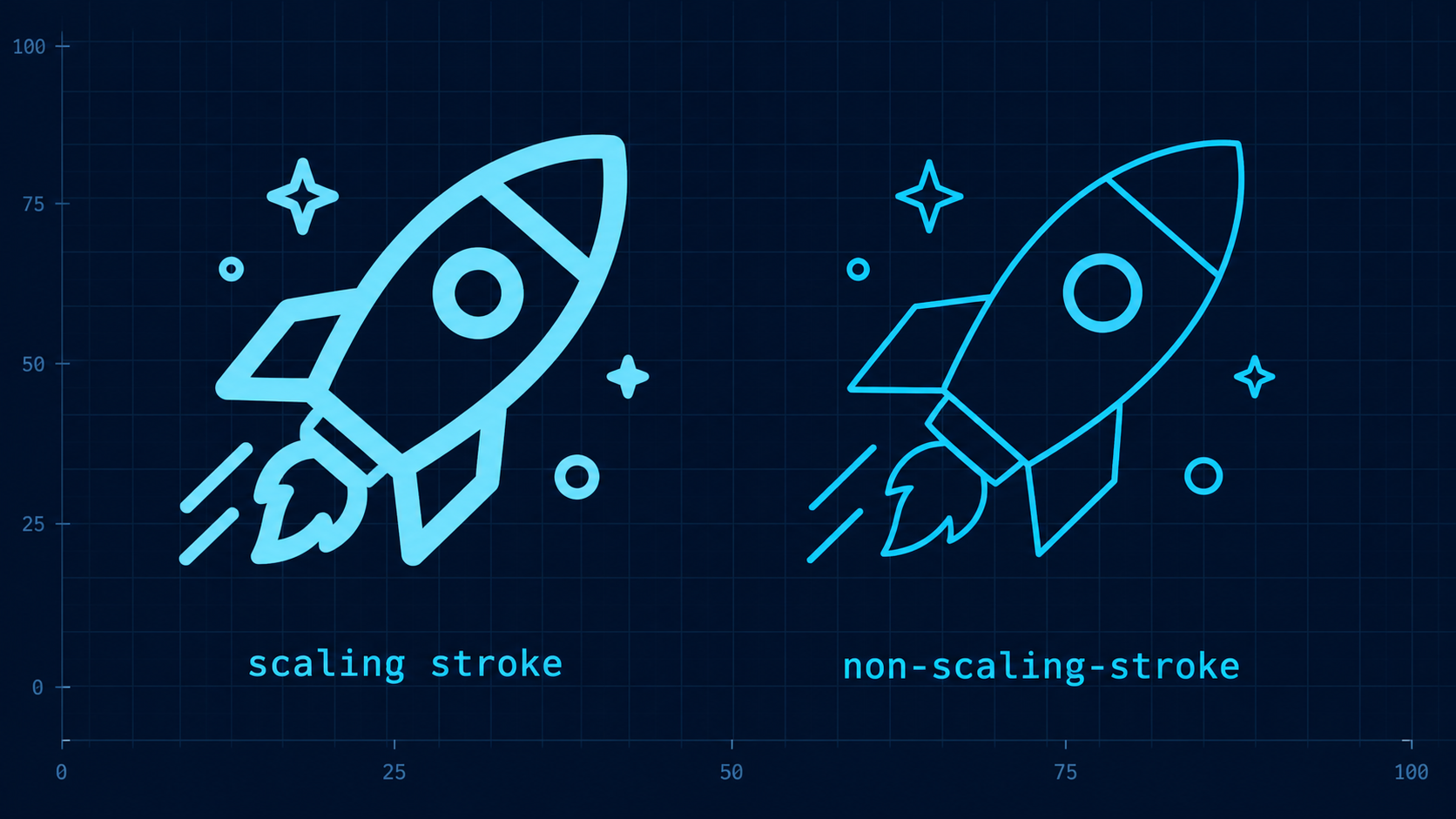
What is SVG stroke width?
SVG stroke width is the thickness of the line drawn around or along a vector shape. The stroke-width property is measured in the SVG's current user coordinate system by default, so its visible thickness can change when the element or coordinate system is scaled.
<svg viewBox="0 0 24 24" width="240" height="240">
  <circle cx="12" cy="12" r="8"
    fill="none" stroke="currentColor" stroke-width="2" />
</svg>
Here, the circle uses a 2-unit stroke inside a 24-unit coordinate system. Rendering the entire SVG at 240 pixels makes one user unit roughly 10 CSS pixels, so the line appears about 20 pixels thick. The browser is behaving correctly; the coordinate system is doing the scaling.
The MDN stroke-width reference describes the attribute and its percentage behavior, while the SVG 2 painting specification defines how strokes are rendered.
Why does SVG stroke width change when the image scales?
SVG stroke width changes because strokes participate in the same coordinate transformations as the path they decorate. Resizing through a consistent viewBox scales the whole drawing proportionally; applying transform="scale(...)" directly to a shape also scales its line unless a non-scaling vector effect is applied.
Use this diagnosis table before changing code:
| Symptom | Likely cause | Best first fix |
|---|---|---|
| Entire icon and line scale proportionally | Normal viewBox scaling | Keep it if this is a logo or illustration |
Line becomes too heavy after transform="scale(...)" | Transform scales the stroke | Add non-scaling-stroke or avoid the transform |
| Same icon has different weights at different UI sizes | One master asset used everywhere | Create optical size variants or use a non-scaling stroke |
| Stroke is clipped at the canvas edge | Path sits too close to the viewBox boundary | Expand or crop the viewBox correctly |
| Stroke changes only after optimization | Style, precision, or transform rewrite | Compare output and use conservative settings |
| Stroke looks blurry at one size | Line falls between device pixels | Adjust geometry or width for that rendered size |
If the line is cut off rather than merely too thick, use the cropped SVG and viewBox fix. If the entire graphic looks soft, follow the SVG blurry rendering checklist.
How do I stop an SVG stroke from scaling?
Add vector-effect="non-scaling-stroke" to each stroked element that needs a constant screen-space line width. The path geometry continues to resize, but the browser does not multiply its apparent stroke thickness by the element's scale transformation.
<svg viewBox="0 0 24 24" width="240" height="240">
  <circle cx="12" cy="12" r="8"
    fill="none"
    stroke="currentColor"
    stroke-width="2"
    vector-effect="non-scaling-stroke" />
</svg>
You can also apply it in CSS when the SVG is inline:
.map-boundary,
.chart-line {
  vector-effect: non-scaling-stroke;
  stroke-width: 2px;
}
non-scaling-stroke is especially useful for maps, technical diagrams, chart series, selection outlines, and UI annotations. MDN documents the vector-effect attribute, including non-scaling-stroke.
Keep the attribute in the SVG when the file must travel between pages or projects. Use CSS when the inline SVG belongs to a controlled component system. An external SVG loaded through <img> cannot be restyled by the parent page's normal CSS, so embedded presentation attributes are more portable.
When should SVG strokes scale normally?
Let strokes scale normally when they are an essential part of a logo, illustration, letterform, or icon silhouette. Proportional scaling preserves the relationship between the line and the shape. A constant 2-pixel outline may look right at 24 pixels but unnaturally thin on a 600-pixel brand mark.
Choose with this rule:
- Scale the stroke: logos, outlined lettering, illustrations, decorative icons, print artwork.
- Keep the stroke constant: maps, charts, floor plans, focus rings, editing handles, measurement overlays.
- Create separate optical sizes: UI icons used both at 16 pixels and 96 pixels, where neither automatic behavior looks ideal.
- Convert strokes to paths: final logo deliverables, cutting files, or handoffs where rendering must not depend on stroke support.
Converting a stroke to an outlined fill makes its appearance explicit, but it increases path data and makes future line-width edits harder. Keep an editable source before outlining. For a production logo package, the logo file format guide explains which master and export files to retain.
How do viewBox and transforms affect stroke width?
The viewBox maps internal SVG coordinates onto the rendered viewport, while transforms create additional coordinate-system changes inside the drawing. Both can affect the apparent stroke. A clean viewBox gives predictable proportional scaling; nested scale transforms make stroke behavior harder to reason about.
Compare these two patterns:
<!-- Predictable: one coordinate system scales into the viewport -->
<svg viewBox="0 0 24 24" width="48" height="48">...</svg>

<!-- Easy to misread: the group doubles geometry and stroke -->
<svg viewBox="0 0 24 24" width="48" height="48">
  <g transform="scale(2)">...</g>
</svg>
Before adding non-scaling-stroke, ask whether the transform is necessary. Removing a redundant nested transform often produces cleaner markup and more predictable rendering. The SVG viewBox guide covers coordinate mapping, aspect ratio, and responsive sizing in detail.
Why does an SVG stroke disappear after optimization?
An SVG stroke can disappear after optimization when a tool removes an apparently redundant style, rewrites a transform, rounds a very small width, merges selectors incorrectly, or deletes an ID or class used by CSS. The safe response is to compare source and output, identify the changed rendering dependency, and reduce optimization aggressiveness.
Run this checklist:
- Search the optimized file for
stroke,stroke-width, andvector-effect. - Check whether an inline
<style>block or class name was removed. - Look for a new transform on the path or a parent group.
- Confirm the
viewBoxdid not change or tighten around the path centerline. - Restore more decimal precision if a thin width became zero or geometry shifted.
- Test the SVG inline and through
<img>because page CSS affects them differently. - Compare on light, dark, and transparent backgrounds.
Use SVG Optimizer with conservative settings, then inspect the result in SVG Editor. The SVG cleanup checklist shows which attributes and references deserve protection before minification.
What is the fastest production-safe stroke workflow?
The fastest safe workflow is to define the desired scaling behavior, normalize the coordinate system, test at the smallest and largest production sizes, optimize a copy, and compare the result against the source. Treat visual equivalence as the gate—not the smallest byte count.
- Keep the editable source SVG.
- Confirm the root
viewBoxmatches the intended canvas. - Remove unnecessary nested scale transforms.
- Decide whether the stroke is structural or screen-space UI detail.
- Add
non-scaling-strokeonly where constant thickness is intentional. - Test at every real UI size and at 200% browser zoom.
- Check clipping, joins, caps, dashes, gradients, and hover states.
- Optimize a copy and compare it side by side.
- Verify the final file inline and in its actual loading method.
For a file that is already giving you trouble, open it in SVG Editor, inspect the viewBox and stroke attributes, then run the corrected copy through SVG Optimizer. That is usually faster than repeatedly guessing at CSS widths.
Frequently asked questions
How do I stop an SVG stroke from scaling?
Add vector-effect="non-scaling-stroke" to the stroked element. The shape will resize, but its rendered line stays at a consistent screen-space thickness. Test the final loading method because design tools and aggressive optimizers can remove unfamiliar attributes.
Why does my SVG stroke get thicker when resized?
SVG strokes normally use the current user coordinate system. Enlarging the SVG or applying a scale transform enlarges the geometry and the stroke together, so a line defined as two units wide becomes visually heavier.
Does vector-effect non-scaling-stroke work with CSS?
Yes. Set vector-effect: non-scaling-stroke in CSS for controlled inline SVGs, or use the SVG attribute for a more portable file. Parent-page CSS generally cannot reach inside an SVG loaded with <img>.
Should a logo use non-scaling-stroke?
Usually no. Logo strokes normally need to scale with the full mark. For a final portable logo, converting important strokes to outlined fills is often safer; retain the editable stroked master for future changes.
Why did my SVG stroke disappear after optimization?
The optimizer may have removed a style hook, rounded a tiny value, rewritten a transform, or changed the canvas. Compare the source and output, preserve stroke-related attributes, and rerun with conservative settings.
The right stroke is not simply thick or thin. It is the line that behaves predictably everywhere the SVG appears.
Create your own SVG graphics with AI
Describe what you need, get a production-ready vector in seconds. No design skills required.
About This Article
This article was written by SVG Genie Team based on hands-on testing with SVG Genie’s tools and years of experience in vector design and web graphics. All recommendations reflect real-world usage and are reviewed by the SVG Genie editorial team for accuracy.
About the Author
SVG Genie Team
SVG Design Expert & Technical Writer at SVG Genie
SVG Genie Team is a vector design specialist and technical writer at SVG Genie with years of hands-on experience in SVG tooling, AI-assisted design workflows, and web graphics optimization. Their work focuses on making professional vector design accessible to everyone.
More articles by SVG Genie Teamarrow_forward