Adding a label to an SVG takes seconds. Making sure it still looks right after download, upload, or handoff is the part that catches people out. The usual failure is not the text tool—it is a missing font, an unexpected line break, or a cutting app that does not understand live SVG text.
The fast rule is simple: keep text live while designing; convert a duplicate to paths only when exact appearance matters more than future editing. That gives you an editable master and a dependable production file.
| Final use | Best text format |
|---|---|
| Website infographic or accessible diagram | Live text |
| Logo, badge, or client handoff | Outlined paths plus an editable master |
| Cricut, laser cutter, vinyl, or embroidery workflow | Outlined paths |
| Template with wording that changes | Live text |
| Icon with no meaningful words | Paths are usually simplest |
How do I add text to an SVG online?
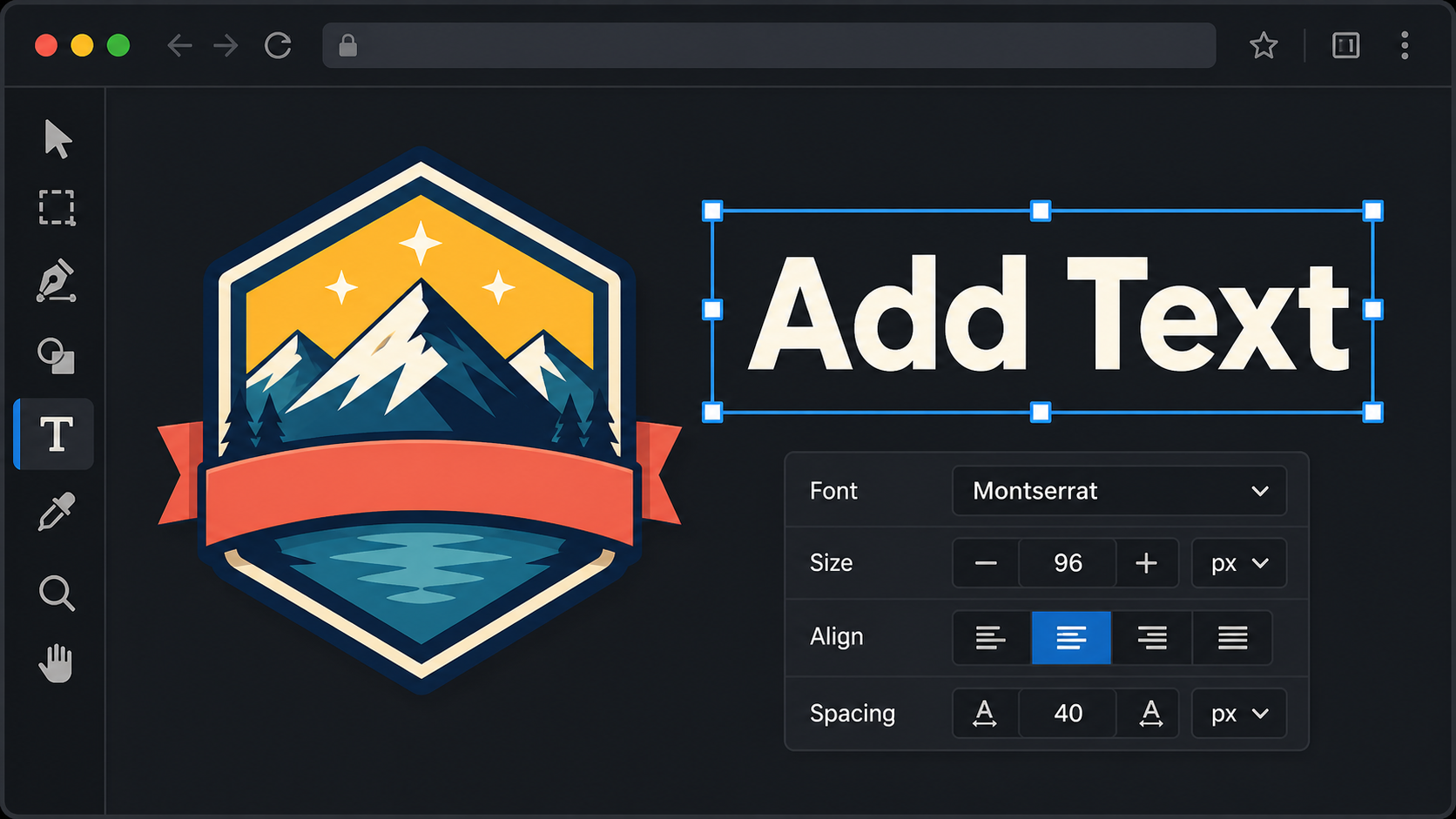
Open your file in an SVG editor, select the text tool, click where the label should begin, and type. Set the typeface, size, alignment, fill, and spacing before placing it precisely. Export a test file, reopen it outside the editor, and only then decide whether the text should remain editable or become paths.
Use this seven-step workflow:
- Save a copy of the original SVG.
- Open the copy in SVG Genie’s online SVG editor.
- Choose the text tool and click once on the canvas.
- Type the final wording rather than placeholder copy.
- Set the font family, weight, size, fill, alignment, and letter spacing.
- Position the text and check the composition at its real output size.
- Download, reopen, and test the SVG in its destination app.
Do not outline the text immediately. Live text is faster to correct, resize, spell-check, and align. Make the destructive conversion only after the wording and typography are approved.
If your source is still a JPG or PNG, first use Image to SVG, then add clean vector text in the editor. Tracing words from a screenshot usually produces lumpy letter shapes and too many anchor points; retyping them gives you cleaner typography and a smaller, easier-to-edit file.
What is live SVG text?
Live SVG text is wording stored as characters inside a <text> element rather than as letter-shaped paths. A viewer lays out those characters using the requested font. The words can remain searchable, selectable, accessible, and easy to change, but their appearance depends on the font being available and supported.
A simple label looks like this:
<svg viewBox="0 0 600 200" xmlns="http://www.w3.org/2000/svg">
  <text x="300" y="110"
        text-anchor="middle"
        font-family="Inter, Arial, sans-serif"
        font-size="48"
        font-weight="700"
        fill="#171717">
    Summer Sale
  </text>
</svg>
The x and y values position the baseline, not the top-left corner of the letters. text-anchor="middle" centers the text on the x-coordinate. The MDN reference for the SVG text element covers its core positioning and presentation attributes.
Why does the font change after I export the SVG?
The font changes because an SVG normally references a typeface; it does not automatically package the font file. When a browser, design app, or cutting program cannot find the requested family or weight, it uses a fallback. Different glyph widths then move the text, change line length, or break a carefully centered layout.
Choose one of these fixes:
- Use a broadly available system font when visual consistency is not strict.
- Provide sensible fallbacks, such as
Inter, Arial, sans-serif, for web graphics. - Load or embed the licensed web font when the SVG will run in a controlled website environment.
- Convert approved text to paths when the artwork must look identical everywhere.
Font embedding can increase file size and licensing rules may restrict redistribution. Do not paste a commercial font into an SVG merely because the editor allows it. If the file will be shared, verify that the font license permits embedding or distribution.
Always reopen the downloaded SVG in a private browser window or a second app. That quick test exposes font dependencies that the original editor—where the font is already loaded—can hide.
Should SVG text stay editable or become paths?
Keep text editable when people need to read, select, translate, or frequently change it. Convert text to paths when a logo, sign, or production file must preserve exact glyph shapes across unknown software. Neither format is universally better; the correct choice follows the file’s final job.
| Question | Keep live text | Convert to paths |
|---|---|---|
| Will the wording change? | Yes | No |
| Must users select or search the words? | Yes | No |
| Must screen readers access meaningful copy? | Yes | Avoid outlining meaningful copy |
| Is exact typography essential on unknown devices? | Riskier | Yes |
| Is the file going to a cutter or engraver? | Often unsupported | Usually safest |
| Do you still have the original font? | Required for faithful edits | Not required to render |
Outlining is effectively one-way in normal workflows. Once each letter becomes a path, changing “SALE” to “SAVE” means rebuilding letters, not editing a word. Keep design-editable.svg with live text and export design-outlined.svg for production.
Paths can also make a file heavier. A short heading may be fine, while paragraphs converted to thousands of path commands create needless markup. For long, meaningful copy on a website, keep semantic text in HTML whenever possible instead of baking it into the image.
How do I align and position SVG text correctly?
Set alignment first, position the text by its anchor and baseline, then check the visible letter shapes rather than trusting the bounding box alone. Capital letters, descenders, italics, and uneven words can make mathematically centered text look optically off. Finish with a small visual adjustment at the final display size.
Use this order:
- Choose left, center, or right alignment.
- Set the font, weight, and final wording.
- Adjust font size before manually resizing the text box.
- Use alignment guides to place the text relative to the artwork.
- Adjust line height and letter spacing only when necessary.
- Zoom back out and judge the full composition.
If the complete design looks tiny or sits inside unexpected whitespace, the problem may be the canvas rather than the text. Follow the SVG cropping guide to tighten the viewBox without clipping strokes or effects. If the text and artwork distort together, use the resize SVG without distortion guide.
How can I make text follow a curved SVG path?
Attach a <textPath> to a referenced curve, then adjust its start offset and alignment. The curve controls the baseline while the text remains editable. This works well for badges and seals, but destination-app support varies, so test the exported file and outline a duplicate when sending it to production software.
The markup pattern is:
<svg viewBox="0 0 500 250" xmlns="http://www.w3.org/2000/svg">
  <defs>
    <path id="label-curve" d="M 80 170 Q 250 30 420 170" />
  </defs>
  <text font-family="Arial, sans-serif" font-size="30" text-anchor="middle">
    <textPath href="#label-curve" startOffset="50%">
      Made with care
    </textPath>
  </text>
</svg>
If the wording appears upside down, reverse the path direction. If it starts in the wrong place, change startOffset. If letters collide on a tight bend, flatten the curve or reduce the font size rather than forcing extreme letter spacing. MDN’s textPath reference explains the link between the text and its path.
Why is my SVG text missing, clipped, or misplaced?
Missing SVG text usually points to an unavailable font, unsupported text feature, fill matching the background, clipping path, or an overly tight viewBox. Misplaced text commonly comes from baseline assumptions, font substitution, transforms, or percentage coordinates behaving differently in the destination viewer.
Run this checklist:
- Confirm the text fill contrasts with the background.
- Switch temporarily to Arial or another common font.
- Check that the text is not behind another element.
- Disable masks and clip paths one at a time.
- Expand the
viewBoxto see whether the label sits outside the canvas. - Inspect parent groups for transforms, opacity, or
display="none". - Replace unusual text features before blaming the entire file.
- Test the SVG in a browser and in its final destination app.
When a browser shows nothing at all, use the broader SVG not showing troubleshooting guide. For precise markup changes, the online SVG code editing guide explains how to edit with a live preview and avoid broken IDs or references.
What should I check before downloading an SVG with text?
Before export, confirm the wording, font rights, alignment, contrast, accessibility, canvas bounds, and destination compatibility. Keep an editable master, then create a production copy suited to the final app. A 60-second reopen test prevents most font and layout failures.
- Spelling, capitalization, dates, and prices are final.
- The font weight used actually exists.
- The font license permits the intended use and embedding method.
- Text stays readable at the smallest real display size.
- Contrast works on the intended background.
- Meaningful web text remains accessible.
- The
viewBoxincludes every letter, accent, and shadow. - The exported file reopens with the same layout.
- An editable copy exists before any text is outlined.
Once the file passes, use the SVG optimizer conservatively and compare the result with the working master. Optimization should remove waste, not change text layout or delete font-related definitions.
Frequently asked questions
How do I add text to an SVG online?
Open the SVG in a browser editor, choose the text tool, click the canvas, type your copy, and set the font, size, alignment, fill, and spacing. Position the text, test the file at its final size, then keep live text for the web or convert a duplicate to paths when exact appearance matters more than editability.
Why does SVG text change font after download?
SVG text can reference a font rather than store its letter shapes. If the viewer does not have that font or cannot load the web font, it substitutes another typeface. Use a common font, embed a properly licensed font, or convert text to paths for a fixed visual result.
Should I convert SVG text to paths?
Convert text to paths for logos, signs, cutting machines, and files sent to people who may not have the font. Keep text live for accessible web graphics, templates, and files that need frequent copy changes. Save an editable master before outlining anything.
Can SVG text stay editable?
Yes. Text stored in an SVG <text> element remains selectable and editable in compatible software. It only becomes shape geometry when you convert or outline it to paths. Keeping an editable master protects you from having to recreate wording later.
How do I put text on a curved path in SVG?
Create or select a path, then attach a textPath element to that path in a compatible editor. Adjust the path direction, start offset, alignment, and letter spacing. Convert a copy to outlines before production if the destination app does not reliably support text on paths.
Ready to label a logo, badge, diagram, or converted image? Open the file in SVG Genie’s SVG editor, keep the master editable, and export the version your final workflow actually needs.
Create your own SVG graphics with AI
Describe what you need, get a production-ready vector in seconds. No design skills required.
About This Article
This article was written by SVG Genie Team based on hands-on testing with SVG Genie’s tools and years of experience in vector design and web graphics. All recommendations reflect real-world usage and are reviewed by the SVG Genie editorial team for accuracy.
About the Author
SVG Genie Team
SVG Design Expert & Technical Writer at SVG Genie
SVG Genie Team is a vector design specialist and technical writer at SVG Genie with years of hands-on experience in SVG tooling, AI-assisted design workflows, and web graphics optimization. Their work focuses on making professional vector design accessible to everyone.
More articles by SVG Genie Teamarrow_forward