You opened an SVG file and found a wall of markup. The image is almost right, but the website version is cropped. The color edit worked in a preview, then failed in React. A gradient disappeared after cleanup. A screen reader announces "graphic" with no useful label. Or worse, one deleted id made half the logo vanish.
The fast rule is:
Edit SVG code online like production code, not like plain text. Change one thing, preview the result, preserve viewBox and referenced IDs, then test the SVG inside the real page before replacing the file.
SVG is forgiving until it is not. A safe one-line change can fix a broken icon in seconds. A careless cleanup can delete the definition that a visible shape depends on.
What is an SVG code editor?
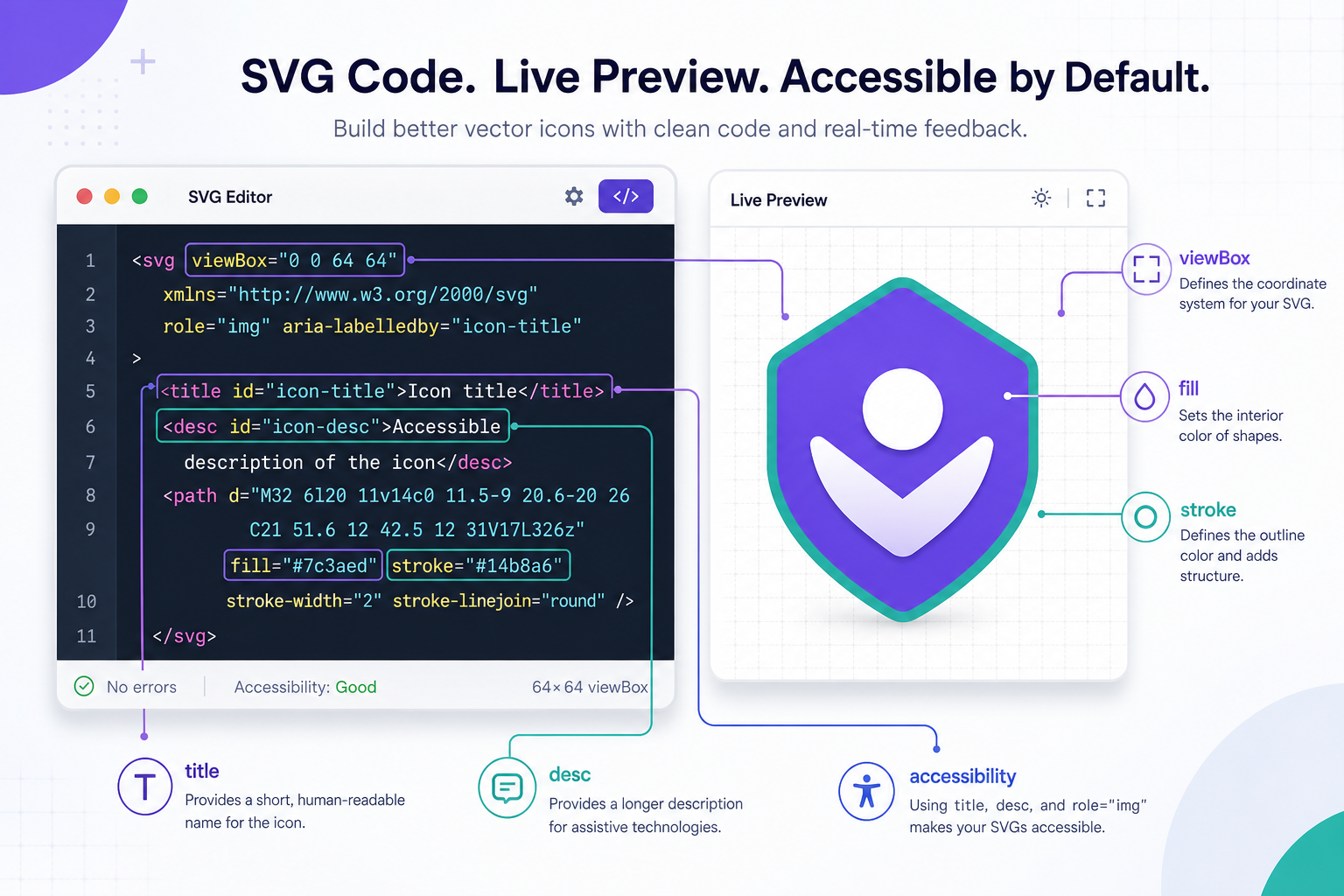
An SVG code editor is a tool for inspecting and changing the XML markup inside an SVG file. Instead of only dragging shapes visually, you edit elements and attributes such as viewBox, path, fill, stroke, title, desc, id, clipPath, mask, and gradient definitions.
SVG code is the markup that tells the browser how to draw, scale, label, style, and reference a vector graphic. The browser reads the root <svg> element, then renders child elements such as <path>, <circle>, <rect>, <text>, <g>, and <defs>.
Useful references when you are checking unfamiliar markup:
- MDN: SVG element reference
- MDN: SVG attributes
- W3C SVG 2 specification
- WAI image accessibility guidance
Use code editing when the problem is structural. Use visual editing when the problem is visible.
| You need to change | Best first tool | Why |
|---|---|---|
| Wrong fill or stroke | Visual editor or code editor | Simple attributes can be changed either way |
| Cropped or stretched SVG | Code editor | The viewBox, width, height, and fit rules matter |
| Missing screen reader label | Code editor | Accessibility is stored in attributes and text nodes |
| Broken gradient or mask | Code editor | References depend on IDs inside <defs> |
| Jagged path shape | Visual path editor | You need to see and adjust geometry |
| Huge file after export | Optimizer, then code review | Minification should not remove needed references |
| React component warning | Code editor | Attribute names and duplicated IDs may need cleanup |
If you want the visual side first, open the file in SVG Genie's SVG editor, inspect the elements, make color or stroke edits, then use the code checklist below before shipping the file.
If you are deciding whether the job belongs in a visual editor or a code editor, start with the SVG file editor online guide. It gives the quick split between color, path, viewBox, accessibility, and website-embed fixes.
How do I edit SVG code online without breaking the image?
The safest way to edit SVG code online is to work on a copy, keep a live preview open, and change one structural area at a time. Start with the root <svg> tag, then move through accessibility, styling, references, paths, and final cleanup.
Use this 10-minute workflow:
- Save a copy of the original SVG.
- Open the copy in an SVG code editor with preview.
- Confirm the root
<svg>has a validviewBox. - Check whether fixed
widthandheightare intentional. - Add or fix
role,aria-label,title, anddescif the SVG conveys meaning. - Change fills and strokes only on the shapes that need it.
- Search for
url(#before renaming or deleting anyid. - Preserve gradients, masks, clip paths, filters, symbols, and animation hooks.
- Preview the image after each meaningful change.
- Test the final SVG in the real page, component, CMS, email, or app.
This is the common safe pattern for a responsive inline SVG:
<svg
  viewBox="0 0 24 24"
  role="img"
  aria-labelledby="icon-title icon-desc"
  xmlns="http://www.w3.org/2000/svg"
>
  <title id="icon-title">Upload complete</title>
  <desc id="icon-desc">A check mark inside a cloud upload icon.</desc>
  <path d="M..." fill="currentColor" />
</svg>
The important part is not the exact icon. It is the order of decisions: scalable coordinate system, accessible name, then visible shape.
For deeper coordinate fixes, use the SVG viewBox guide. For shape-level edits, use the SVG path editor workflow. For font fallback, alignment, and outlining decisions, use the guide to adding text to an SVG.
What should I check before changing SVG markup?
Before changing SVG markup, check which parts are decorative, which parts are referenced, and which parts are controlled by the website outside the SVG. Many SVG bugs happen because a code editor cannot see the CSS, JavaScript, sanitizer, or React component that will consume the file later.
Use this preflight table:
| Check | What to look for | Why it matters |
|---|---|---|
Root viewBox | Four numbers such as 0 0 24 24 | Controls scaling and cropping |
| Fixed size | width, height, px, %, em | May block responsive layout or preserve intentional size |
| Meaning | Informative, decorative, linked, or button icon | Decides accessibility treatment |
| IDs | id="..." and url(#...) references | Gradients, masks, filters, and clip paths depend on them |
| CSS hooks | class, style, data-*, currentColor | The page may style the SVG externally |
| Scripts/events | script, onload, onclick, external links | Security-sensitive in uploads and CMS workflows |
| Text | <text>, outlined paths, font references | Text may not be editable if it was converted to paths |
| Export junk | Editor metadata, comments, hidden layers | Safe to remove only after previewing |
The quickest failure-mode search is:
viewBox
url(#
id=
clipPath
mask
filter
linearGradient
radialGradient
title
desc
script
onload
If those strings appear, slow down before deleting. They usually mark the difference between a harmless cleanup and a broken SVG.
How do I fix viewBox, width, and height in SVG code?
Fix viewBox, width, and height by deciding whether the SVG needs a scalable internal coordinate system, a fixed rendered size, or both. The viewBox should describe the drawing area. The rendered size should usually be controlled by CSS or the surrounding component.
For most website icons and logos, this is better:
<svg viewBox="0 0 120 40" width="100%" height="auto" role="img" aria-label="Brand name">
  ...
</svg>
Than this:
<svg width="120px" height="40px">
  ...
</svg>
The second version can render, but without a viewBox the browser does not have a scalable coordinate system. If the page changes the display size, the graphic may crop, stretch, or refuse to scale cleanly.
Use this decision rule:
| Symptom | Code to inspect | Likely fix |
|---|---|---|
| SVG is cropped | viewBox too small | Expand the visible coordinate area |
| SVG has extra padding | viewBox too large | Crop the coordinate area conservatively |
| SVG stretches in a slot | aspect ratio mismatch | Match the container or set preserveAspectRatio |
| SVG will not resize | missing viewBox or fixed pixels | Add viewBox; move sizing to CSS |
| Stroke is cut off | content extends beyond viewBox | Add space for stroke, shadow, or filter |
If the visible issue is specifically empty space around the image, follow the crop SVG online guide. If the edge of an icon disappears in a button or nav bar, use the SVG icon cut-off fix guide.
How do I safely change SVG colors in code?
Change SVG colors in code by editing fill, stroke, CSS variables, or currentColor intentionally. Do not replace every color string globally unless all shapes should become the same color. Gradients, masks, opacity, and nested groups can make a broad find-and-replace produce weird results.
Common color patterns:
<!-- Fixed color -->
<path fill="#6D28D9" d="..." />

<!-- Theme-controlled icon -->
<path fill="currentColor" d="..." />

<!-- Stroke icon -->
<path fill="none" stroke="currentColor" stroke-width="2" d="..." />

<!-- CSS variable -->
<path fill="var(--brand-accent)" d="..." />
Use currentColor when the SVG should inherit the text color from a button, link, nav item, or React component. Use fixed hex colors when the brand mark must stay exact. Use CSS variables when the same SVG needs theme-aware colors without changing the file again.
Be careful with gradients. If a Figma export uses generated IDs such as paint0_linear, the Figma SVG gradient fix guide shows how to preserve defs, prefix duplicate IDs, and repair missing url(#...) references before minification:
<path fill="url(#paint0_linear)" d="..." />

<defs>
  <linearGradient id="paint0_linear" x1="0" y1="0" x2="24" y2="24">
    <stop offset="0%" stop-color="#7C3AED" />
    <stop offset="100%" stop-color="#06B6D4" />
  </linearGradient>
</defs>
If you delete or rename paint0_linear, the path still exists but its fill can disappear or fall back unexpectedly. Search for url(#paint0_linear) before touching the definition.
For a non-code workflow, use the change SVG color online guide.
Which SVG code is safe to remove?
SVG code is safe to remove only when it is not visible, not referenced, not needed for accessibility, and not used by the page. Comments, editor metadata, unused namespace declarations, empty groups, and redundant precision are often removable. Referenced definitions and labels are not.
Here is the practical cleanup split:
| Usually safe to remove after preview | Do not remove blindly |
|---|---|
| XML comments | viewBox |
| Editor metadata | title and desc on meaningful graphics |
Empty <g> wrappers | IDs used by url(#...), CSS, or JS |
| Duplicate whitespace | <defs> with gradients, masks, filters, symbols |
| Excess decimal precision | clipPath, mask, filter, marker |
| Hidden editor layers if truly unused | Paths used for animation or morphing |
| Inline styles that duplicate attributes | xmlns on standalone SVG files |
Use an optimizer for repetitive cleanup, but preview afterward. Minification is not a design decision. It can reduce bytes, but it cannot tell whether a deleted id was part of your app's CSS.
The SVG minifier guide explains the safe optimization pass after the image looks right.
How do I make edited SVG code accessible?
Make edited SVG code accessible by deciding whether the SVG is decorative or informative. Decorative SVGs should be hidden from assistive technology. Informative SVGs need an accessible name, and complex graphics may need a longer description.
Decorative icon beside visible text:
<button>
  <svg aria-hidden="true" viewBox="0 0 24 24">
    <path d="..." />
  </svg>
  Download SVG
</button>
Informative standalone SVG:
<svg viewBox="0 0 120 40" role="img" aria-labelledby="logo-title logo-desc">
  <title id="logo-title">Acme Studio logo</title>
  <desc id="logo-desc">Purple wordmark with a circular spark icon.</desc>
  <path d="..." />
</svg>
Icon-only button:
<button aria-label="Delete file">
  <svg aria-hidden="true" viewBox="0 0 24 24">
    <path d="..." />
  </svg>
</button>
The accessible name belongs where the action lives. If the button is the thing users interact with, label the button and hide the decorative SVG. If the SVG itself is meaningful content, label the SVG.
For more patterns, use the SVG accessibility guide.
Why does edited SVG code break in React, Next.js, or a CMS?
Edited SVG code can break in React, Next.js, or a CMS because the file is no longer being treated as a plain standalone image. Frameworks and content systems may transform attribute names, sanitize markup, scope CSS, rewrite IDs, block scripts, or remove elements they consider unsafe.
Common framework fixes:
| Problem | Why it happens | Fix |
|---|---|---|
React warning for stroke-width | JSX expects camelCase | Use strokeWidth inside JSX components |
| Duplicate gradient IDs | Same SVG appears multiple times | Prefix IDs or use unique component IDs |
| Color ignores SVG file | CSS overrides fill or color | Inspect inherited styles and currentColor |
| CMS strips markup | Sanitizer removes tags or attributes | Use approved SVG upload/render path |
| SVG works as file but not inline | CSS scope or missing namespace changes behavior | Test inline and <img> versions separately |
| Script removed or blocked | SVG scripts are security-sensitive | Avoid scripts in uploaded SVGs |
This is also why security matters. SVG is markup, and uploaded SVGs can contain active or risky content depending on how they are delivered. If you accept SVG uploads from users, read the SVG upload security checklist before allowing inline rendering.
What is the best workflow for code-editing SVGs for production?
The best production workflow is visual check, code preflight, targeted edit, accessibility pass, optimization, and page-level test. Do not treat the SVG as finished just because it renders in one online preview.
Use this final checklist:
- Original SVG is saved separately.
- The edited SVG has a valid
viewBox. - Fixed
widthandheightare intentional. - The SVG has the right accessibility treatment.
- Color changes do not flatten gradients or theme hooks accidentally.
-
url(#...)references still point to existing IDs. - Masks, clip paths, filters, symbols, and markers still render.
- No unwanted scripts, event handlers, or external references remain.
- Optimized output visually matches the edited preview.
- The final file is tested where it will actually be used.
For a fast browser workflow, use SVG Editor to inspect and adjust the file, SVG Optimizer to clean the finished markup, and Image to SVG when the asset still needs to be converted from a raster source first.
FAQ
Can I edit SVG code online without breaking the image?
Yes. Edit a copy, change one SVG attribute or element at a time, preserve the viewBox and referenced IDs, then preview the file after every meaningful change. Most safe code edits involve fill, stroke, width, height, title, desc, aria labels, and minor cleanup.
What SVG code should I avoid deleting?
Do not delete the viewBox, IDs referenced by url(#...), gradient or mask definitions, clip paths, title/desc accessibility text, or paths used by animation and CSS unless you know they are unused. Removing referenced code can make shapes disappear or render with the wrong color.
What is the fastest way to fix SVG code for a website?
Start with the root svg tag, confirm viewBox is present, remove fixed width and height only when the SVG should be responsive, add an accessible name if the graphic is meaningful, then clean fills, strokes, IDs, and unused metadata after the image still previews correctly.
Should I use a visual SVG editor or a code editor?
Use a visual SVG editor for shape, color, stroke, and layout changes. Use an SVG code editor for viewBox, accessibility labels, IDs, CSS hooks, gradients, masks, React cleanup, and embed fixes. Many practical SVG repairs need both.
Why does my edited SVG look fine in the editor but break on my site?
The website may apply CSS, sanitize markup, rewrite IDs, crop the viewBox, or block scripts and external references. Test the edited SVG in the exact page, component, email, CMS, or app where it will be used before replacing the production file.
Bottom line
Editing SVG code online is fastest when you respect the file's structure. Start with viewBox, preserve referenced IDs, make accessibility intentional, change colors carefully, and preview inside the real destination.
If the problem is visual, open the file in SVG Genie's SVG editor. If the problem is code quality, run a conservative cleanup in SVG Optimizer. If the file came from a messy raster conversion, go back to Image to SVG and fix the source before editing markup by hand.
Create your own SVG graphics with AI
Describe what you need, get a production-ready vector in seconds. No design skills required.
About This Article
This article was written by SVG Genie Team based on hands-on testing with SVG Genie’s tools and years of experience in vector design and web graphics. All recommendations reflect real-world usage and are reviewed by the SVG Genie editorial team for accuracy.
About the Author
SVG Genie Team
SVG Design Expert & Technical Writer at SVG Genie
SVG Genie Team is a vector design specialist and technical writer at SVG Genie with years of hands-on experience in SVG tooling, AI-assisted design workflows, and web graphics optimization. Their work focuses on making professional vector design accessible to everyone.
More articles by SVG Genie Teamarrow_forward