Rotating an SVG looks like a one-click job—until a corner disappears, the logo shifts off-center, or the exported file gains a giant empty canvas. The artwork is still vector; the problem is usually that its original canvas no longer contains its rotated bounds.
The fastest safe method is to rotate the selected artwork around its center, then fit the SVG canvas to the rotated result before exporting. For a 90-degree turn, swap the canvas proportions when needed. For a custom angle, always check every corner and leave room for strokes or effects.
| Your goal | Fastest safe choice |
|---|---|
| Permanently turn an uploaded asset | Rotate it in an SVG editor and export |
| Turn an icon only on one webpage | Use a CSS transform |
| Rotate 90°, 180°, or 270° | Use a preset, then refit the canvas |
| Rotate to 30° or 45° | Rotate, fit canvas, and inspect every corner |
| Fix a result with clipped edges | Expand the viewBox or fit canvas to artwork |
How do I rotate an SVG online?
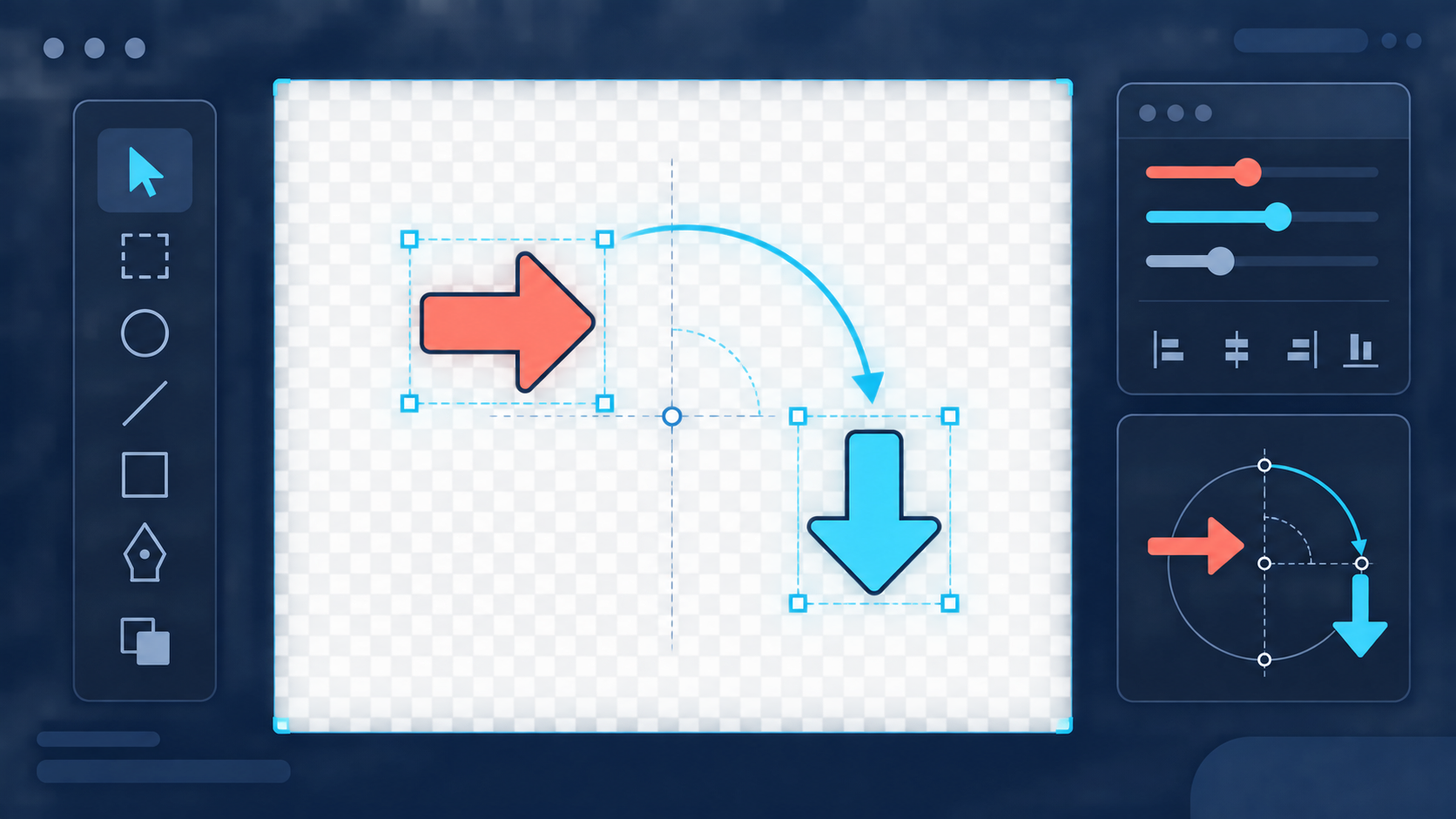
Open the file in a visual SVG editor, select the artwork, choose the angle, and rotate around the selection's center. Then fit the canvas to the rotated artwork, add a small safety margin, preview the result, and export a copy. This preserves vector quality while preventing clipped corners.
Use this five-minute workflow:
- Duplicate the original SVG so you can compare results.
- Open the copy in SVG Genie's SVG editor.
- Select the complete artwork, not one path inside a grouped logo.
- Choose a 90-degree preset or enter the required custom angle.
- Keep the rotation origin at the center unless the design needs a specific pivot.
- Fit the canvas or
viewBoxto the rotated result. - Add space for thick strokes, markers, shadows, or glows.
- Preview on light and dark backgrounds, then export the SVG.
Do not judge the result only by the editor preview. Reopen the exported file in a browser or SVG viewer, because the saved viewBox determines what another app can display.
Why does an SVG get cropped after rotation?
An SVG gets cropped when the rotated artwork extends beyond the rectangle defined by its viewBox. The original width and height may contain an upright shape perfectly, but a diagonal version often needs more room. Strokes, shadows, filters, and line markers can extend still farther.
Imagine a square that exactly fills a 100 × 100 canvas. After a 45-degree rotation, its corners form a wider diamond. The shape needs about 141.4 units in both directions because the diagonal of a 100-unit square is 100 × √2. If the canvas remains 100 × 100, all four corners can be cut off.
The same failure can happen when:
- the transform rotates around
0 0instead of the artwork's center; - only one element in a group is selected;
- the editor preserves the old canvas after rotating;
- a thick stroke paints outside the path's geometric boundary;
- a filter region clips a shadow even though the path fits; or
- a parent clip path intentionally hides the rotated area.
If empty space or clipping remains after the turn, follow the crop SVG without cutting off strokes guide to reset the visible canvas safely.
What does “rotate SVG” mean?
An SVG rotation is a geometric transform that turns vector elements around a chosen point by an angle measured in degrees. It changes the rendered orientation without converting paths into pixels, so the artwork remains scalable and editable.
In SVG markup, the basic syntax is:
<g transform="rotate(90 50 50)">
  <!-- artwork -->
</g>
Here, 90 is the angle and 50 50 is the pivot point. The optional pivot matters: without cx cy, rotation occurs around the SVG coordinate system's origin, normally the upper-left point at 0 0. That can send the artwork outside the visible canvas.
MDN's SVG transform reference documents the rotate() function and transform order. If the canvas coordinates are unfamiliar, the SVG viewBox guide explains how the visible coordinate window works.
How should I rotate an SVG by 90, 180, or 270 degrees?
Use an editor preset and rotate the entire selection around its center. A 180-degree turn normally fits the same rectangular bounds. A 90- or 270-degree turn swaps the artwork's orientation, so a non-square canvas may need its width and height—or corresponding viewBox dimensions—swapped.
| Angle | What changes | Common mistake |
|---|---|---|
| 90° | Landscape becomes portrait, or vice versa | Keeping the old rectangular canvas |
| 180° | Overall bounds usually stay the same | Rotating around the upper-left origin |
| 270° | Equivalent to 90° counterclockwise | Turning the correct direction but exporting an old canvas |
| 360° | Visual orientation returns to the start | Leaving redundant transforms in production markup |
For right-angle rotations, use the preset instead of dragging by eye. It avoids tiny decimal angles such as 89.87°, which can make edges look soft at small sizes and complicate later editing.
How do I rotate an SVG to a custom angle without clipping it?
Enter the exact angle, rotate around the selection center, and refit the canvas after the transform. Angles such as 30 or 45 degrees usually enlarge the axis-aligned bounding box even though the artwork itself has not grown. Inspect all sides before downloading.
Use this quick check:
- The full group is selected.
- The pivot is centered or deliberately positioned.
- No corner touches the artboard edge.
- At least half the widest stroke fits beyond each path boundary.
- Shadows and glows fade naturally instead of ending abruptly.
- The exported file reopens with the same orientation.
- The design remains centered at its real display size.
If the rotated graphic looks stretched rather than clipped, the rotation is probably not the culprit. Check the aspect ratio and use the resize SVG without distortion guide.
Need the design to face the opposite direction rather than turn by an angle? Use the flip SVG online guide to mirror it without reversing text or moving the artwork outside its canvas.
Should I edit the SVG or rotate it with CSS?
Edit and export the SVG when the new orientation should travel with the file. Use CSS when rotation belongs to one interface state, animation, or layout. CSS is easier to reverse, but it does not permanently change the downloaded asset's internal orientation.
For a website-only turn:
.rotated-icon {
  transform: rotate(90deg);
  transform-origin: center;
}
The CSS Transforms specification defines transforms independently of the source file; MDN's transform guide shows browser syntax and behavior.
Choose based on the destination:
| Destination | Better method | Why |
|---|---|---|
| Website button state | CSS | Keeps one reusable source asset |
| Downloadable logo file | Edit the SVG | Orientation stays with the file |
| Print or cutting workflow | Edit and export | Receiving software gets final geometry |
| Animated chevron | CSS | State can change without duplicate files |
| Asset library replacement | Edit the SVG | Every consumer receives the same version |
Why does the rotated SVG move off-center?
The SVG moves when its rotation pivot differs from the artwork's visual center or when the canvas remains aligned to the old bounds. Group all related elements, rotate the group around its center, and fit or recenter the canvas afterward. Do not assume the canvas center equals the artwork center.
This is especially visible in logos with asymmetric whitespace. A mathematical center may be correct while the result still looks optically unbalanced. First make the canvas technically correct, then adjust the artwork by a small amount if visual weight demands it.
Avoid repeatedly rotating an already transformed group. Nested transforms are valid, but they make the pivot harder to understand. When possible, apply one deliberate rotation, verify the result, and use the SVG optimizer only after the design is final.
What should I check before exporting a rotated SVG?
Confirm that the full design is visible, centered, undistorted, and still editable. Test the exported copy—not only the editor state—in the browser, app, print tool, or cutting software where it will actually be used.
- The desired angle is exact.
- Every intended path, text element, and group rotated together.
- No corners, strokes, markers, shadows, or filters are clipped.
- The
viewBoxcontains the new bounds with a sensible margin. - Width and height preserve the intended aspect ratio.
- Gradients, masks, clip paths, and referenced IDs still work.
- Text remains selectable or has been converted intentionally.
- The file renders correctly at both small and large sizes.
FAQ
How do I rotate an SVG online?
Open the SVG in a visual editor, select the artwork, choose a rotation angle, rotate around the selection's center, fit the canvas to the rotated result, and export a copy. Preview the exported file so corners, strokes, shadows, and masks are not clipped.
Why does my SVG get cropped when I rotate it?
A rotated shape can extend beyond the original viewBox, especially at angles such as 30 or 45 degrees. Expand or refit the SVG canvas after rotating, then leave a small safety margin for strokes and effects.
Can I rotate an SVG 90 degrees without changing its quality?
Yes. Rotation transforms vector coordinates and does not rasterize the artwork. A 90-degree rotation remains sharp at any size as long as the export stays SVG and the new canvas contains the full result.
What is the SVG rotate transform syntax?
Use transform="rotate(angle cx cy)", where the angle is measured in degrees and cx cy define the pivot. For example, transform="rotate(90 50 50)" rotates an element 90 degrees around the point 50,50.
Should I rotate the SVG with CSS or edit the file?
Use CSS when rotation is a presentation effect on a website. Edit the SVG when every use of the asset should have the new orientation, or when it must be downloaded, printed, uploaded, or shared already rotated.
Rotate once, then fix the canvas
The dependable workflow is simple: select the full artwork, rotate around the right pivot, fit the canvas to the result, and test the exported copy. Open your file in the SVG editor, use an exact angle, and give the finished vector enough room to breathe.
Create your own SVG graphics with AI
Describe what you need, get a production-ready vector in seconds. No design skills required.
About This Article
This article was written by SVG Genie Team based on hands-on testing with SVG Genie’s tools and years of experience in vector design and web graphics. All recommendations reflect real-world usage and are reviewed by the SVG Genie editorial team for accuracy.
About the Author
SVG Genie Team
SVG Design Expert & Technical Writer at SVG Genie
SVG Genie Team is a vector design specialist and technical writer at SVG Genie with years of hands-on experience in SVG tooling, AI-assisted design workflows, and web graphics optimization. Their work focuses on making professional vector design accessible to everyone.
More articles by SVG Genie Teamarrow_forward