Mirroring a vector should take one click. The annoying part is what can happen next: the artwork disappears, a directional logo faces the wrong way, or perfectly readable text comes back reversed.
The fastest safe method is to select only the artwork that should change, flip it around its center, and test the exported file inside its original canvas. Leave words, numbers, and asymmetric brand marks unselected unless they are meant to be mirrored too.
| Your goal | Best choice |
|---|---|
| Make an icon face the opposite direction | Flip horizontally |
| Turn a top-facing shape downward | Flip vertically |
| Mirror artwork but keep words readable | Flip the graphic group only |
| Reverse an icon only in a webpage layout | Use CSS |
| Create a permanently mirrored download | Edit and export the SVG |
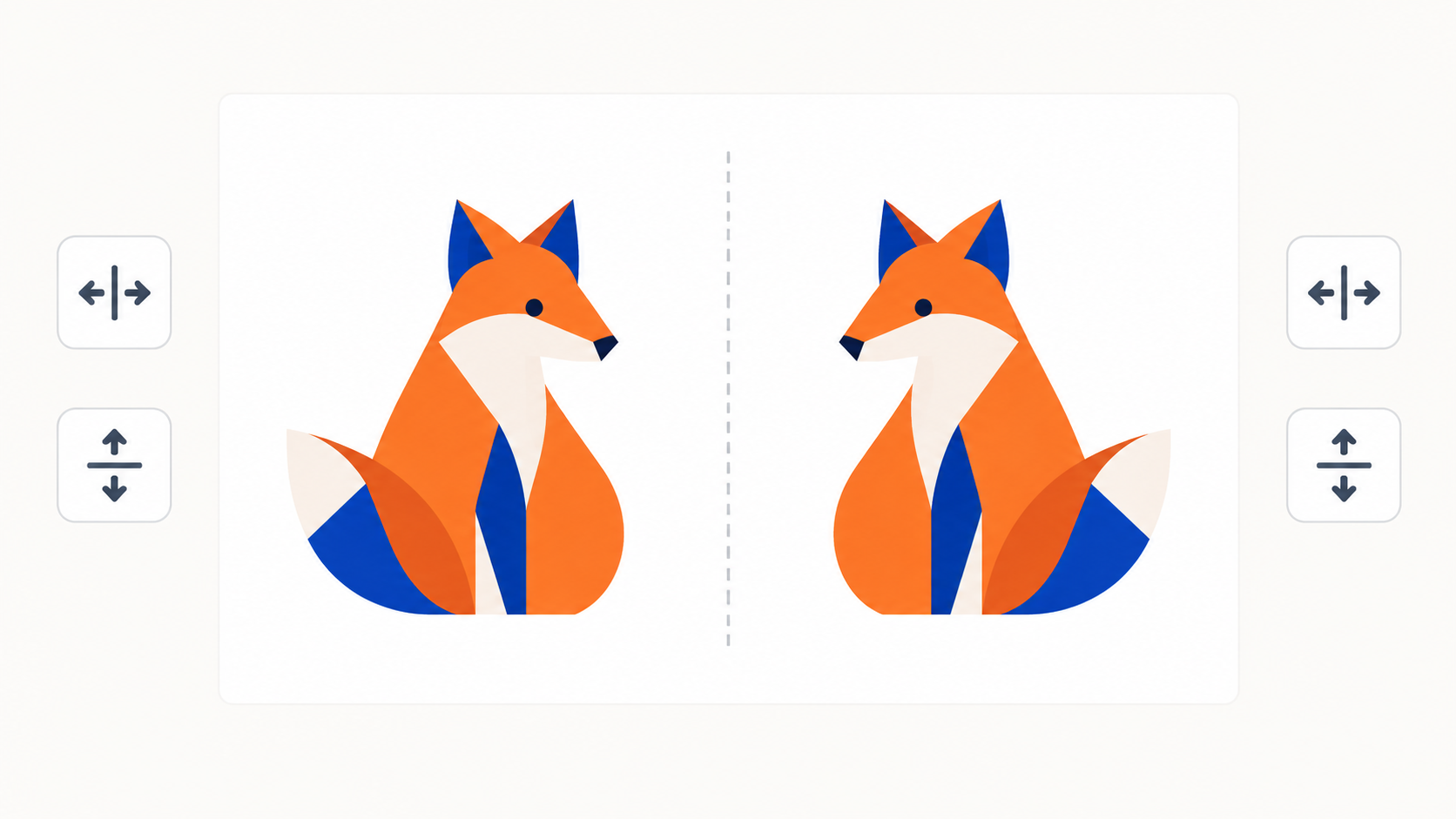
How do I flip an SVG online?
Open a copy of the file in an SVG editor, select the full graphic or group you want to mirror, and choose horizontal or vertical flip. Keep the transform centered on the selection, verify that the result remains inside the canvas, then export and reopen the downloaded SVG.
Use this quick workflow:
- Duplicate the original SVG so you have an unchanged backup.
- Open the copy in SVG Genie's online editor.
- Select the complete graphic, not a single path inside it.
- Exclude text, numbers, and logos that must remain readable.
- Choose Flip horizontal or Flip vertical.
- Recenter the result or fit the canvas if its position changes.
- Preview the SVG at its real display size.
- Download it and reopen the exported file in a browser.
If you actually need to turn the asset by 90 or 180 degrees, use the SVG rotation workflow. A flip mirrors coordinates; a rotation turns them. They solve different problems.
What does flipping an SVG mean?
An SVG flip is a reflection transform that mirrors vector coordinates across a horizontal or vertical axis. A horizontal flip reverses left and right; a vertical flip reverses top and bottom. The paths stay vector-based, so the operation does not introduce pixels or reduce resolution.
A horizontal reflection commonly uses a negative x scale:
<g transform="translate(200 0) scale(-1 1)">
  <!-- artwork inside a 200-unit-wide viewBox -->
</g>
The scale(-1 1) mirrors x-coordinates. The translation moves the mirrored group back into a canvas that is 200 units wide. Without it, positive x-coordinates become negative and the artwork can vanish beyond the left edge.
For a vertical flip in a 120-unit-tall canvas:
<g transform="translate(0 120) scale(1 -1)">
  <!-- artwork -->
</g>
MDN's SVG transform reference documents translate() and scale(). Transform order matters because SVG applies these operations through coordinate-system changes, not as unrelated visual effects.
Should I flip the SVG horizontally or vertically?
Flip horizontally when an object needs to face the opposite direction, such as an arrow, animal, vehicle, or profile. Flip vertically when the design needs to point up instead of down, or when creating a reflection across a horizontal line. Check directional meaning before either change.
| Flip | What changes | Typical use | Watch for |
|---|---|---|---|
| Horizontal | Left becomes right | Arrows, characters, facing direction | Reversed text and symbols |
| Vertical | Top becomes bottom | Chevrons, decorative reflections | Upside-down text and shadows |
| Both | Equivalent to a 180° turn around the same center | Symmetric motifs | Off-center transform origins |
Do not mirror safety symbols, traffic signs, flags, letters, numbers, hand gestures, or branded marks without checking their meaning. A technically valid reflection can still communicate the wrong instruction.
How do I flip an SVG without reversing text?
Separate the text from the artwork, select only the graphic group, and apply the flip to that group. Live <text> elements are easy to exclude. Outlined text is made of paths, so you may need to ungroup the design and identify the letter shapes before mirroring anything.
Use this decision rule:
- Editable text element: keep it outside the transformed group.
- Text converted to paths: ungroup and exclude the letter paths.
- Text embedded in a bitmap: edit the source image or rebuild the text separately.
- Decorative lettering meant to mirror: flip it only after confirming readability is irrelevant.
If the wording itself needs an update, follow the edit SVG text online guide. If a font must render consistently across devices, the text-to-path guide explains when outlining is appropriate.
Why does an SVG disappear or move after a flip?
The SVG usually disappears because negative scaling reflects its coordinates outside the current viewBox. It can also move when the editor flips around the canvas origin rather than the artwork's center. Pair the negative scale with the correct translation, or use a centered visual-editor command.
Check these causes in order:
- Negative coordinates:
scale(-1 1)sends positive x-values left of zero. - Wrong transform origin: the file flips around
0 0, not its visible center. - Nested transforms: a parent group already scales, rotates, or translates the artwork.
- Tight viewBox: strokes, filters, or shadows extend beyond the geometric bounds.
- Partial selection: one path flips while the rest of the logo stays in place.
- Mask or clip path: the artwork moves but its clipping region does not.
If the result is visible but cropped, repair the canvas with the SVG viewBox guide. Keep a small margin for thick strokes and filter effects.
Should I flip the source SVG or use CSS?
Edit the source SVG when the mirrored orientation must stay with the downloaded asset, print file, cutting file, or shared logo. Use CSS when only one interface instance needs to face the other direction, such as a back arrow in a right-to-left layout.
For a webpage-only horizontal flip:
.mirrored-icon {
  transform: scaleX(-1);
  transform-origin: center;
}
CSS preserves one reusable source file and is easy to reverse. Editing the SVG creates a portable asset whose orientation does not depend on page styles. MDN documents scaleX() and notes that a negative scale produces an axial reflection.
What should I check before exporting a mirrored SVG?
Confirm that the correct elements were flipped, readable content still reads normally, and the entire design remains inside the canvas. Test the exported file rather than trusting only the editor preview, because the saved transform and viewBox determine what other software receives.
- The asset faces the intended direction.
- Text, numbers, symbols, and brand marks remain correct.
- Every intended path moved together as one group.
- Nothing disappeared into negative coordinates.
- Strokes, shadows, masks, and gradients are not clipped.
- The artwork is centered inside a sensible
viewBox. - The file remains SVG rather than a raster screenshot.
- The exported copy works in its final browser, app, print, or cutting workflow.
FAQ
How do I flip an SVG online?
Open the file in an SVG editor, select the complete artwork, choose horizontal or vertical flip, and flip around the selection center. Refit or recenter the canvas if the artwork moves, then preview the exported SVG before replacing the original.
How do I mirror an SVG horizontally?
Use a horizontal flip control in an SVG editor. In code, translate the artwork by the canvas width and apply scale(-1 1). Translation keeps the mirrored result inside the original viewBox instead of moving it into negative coordinates.
Why did my SVG disappear after I flipped it?
A negative scale can move the artwork outside the visible viewBox. Translate it back by the canvas width for a horizontal flip or canvas height for a vertical flip, or use an editor that flips around the selection center.
Can I flip an SVG without reversing the text?
Yes. Select only the graphic elements that should be mirrored and leave the text outside the flipped group. If the text is already converted to paths, ungroup it and exclude those letter paths before flipping.
Does flipping an SVG reduce its quality?
No. A flip is a geometric vector transform, so paths remain sharp at every size. Quality changes only if the workflow rasterizes the file, clips content, or alters strokes, masks, gradients, or text unexpectedly.
Mirror the artwork, not the mistakes
The clean workflow is simple: select deliberately, flip around the center, keep the result inside the canvas, and inspect the exported copy. Open the file in the SVG editor, mirror only what should change, and keep readable or directional elements intact.
Create your own SVG graphics with AI
Describe what you need, get a production-ready vector in seconds. No design skills required.
About This Article
This article was written by SVG Genie Team based on hands-on testing with SVG Genie’s tools and years of experience in vector design and web graphics. All recommendations reflect real-world usage and are reviewed by the SVG Genie editorial team for accuracy.
About the Author
SVG Genie Team
SVG Design Expert & Technical Writer at SVG Genie
SVG Genie Team is a vector design specialist and technical writer at SVG Genie with years of hands-on experience in SVG tooling, AI-assisted design workflows, and web graphics optimization. Their work focuses on making professional vector design accessible to everyone.
More articles by SVG Genie Teamarrow_forward