You have the SVG file ready. The annoying part is deciding how to put it on the page.
If you use <img>, the file is clean, cacheable, and simple, but CSS hover colors will not reach inside it. If you paste the SVG inline, you get perfect styling control, but you also put every path, ID, and possible security mistake directly into your document.
The fast rule:
Use inline SVG for trusted UI graphics that need CSS, animation, or JavaScript control. Use an <img> tag for static logos, illustrations, user-upload previews, and SVG files that should be cached or isolated.
That one decision prevents most of the broken-color, duplicate-ID, bloated-DOM, and unsafe-upload bugs that show up later.
Should I use inline SVG or an img tag?
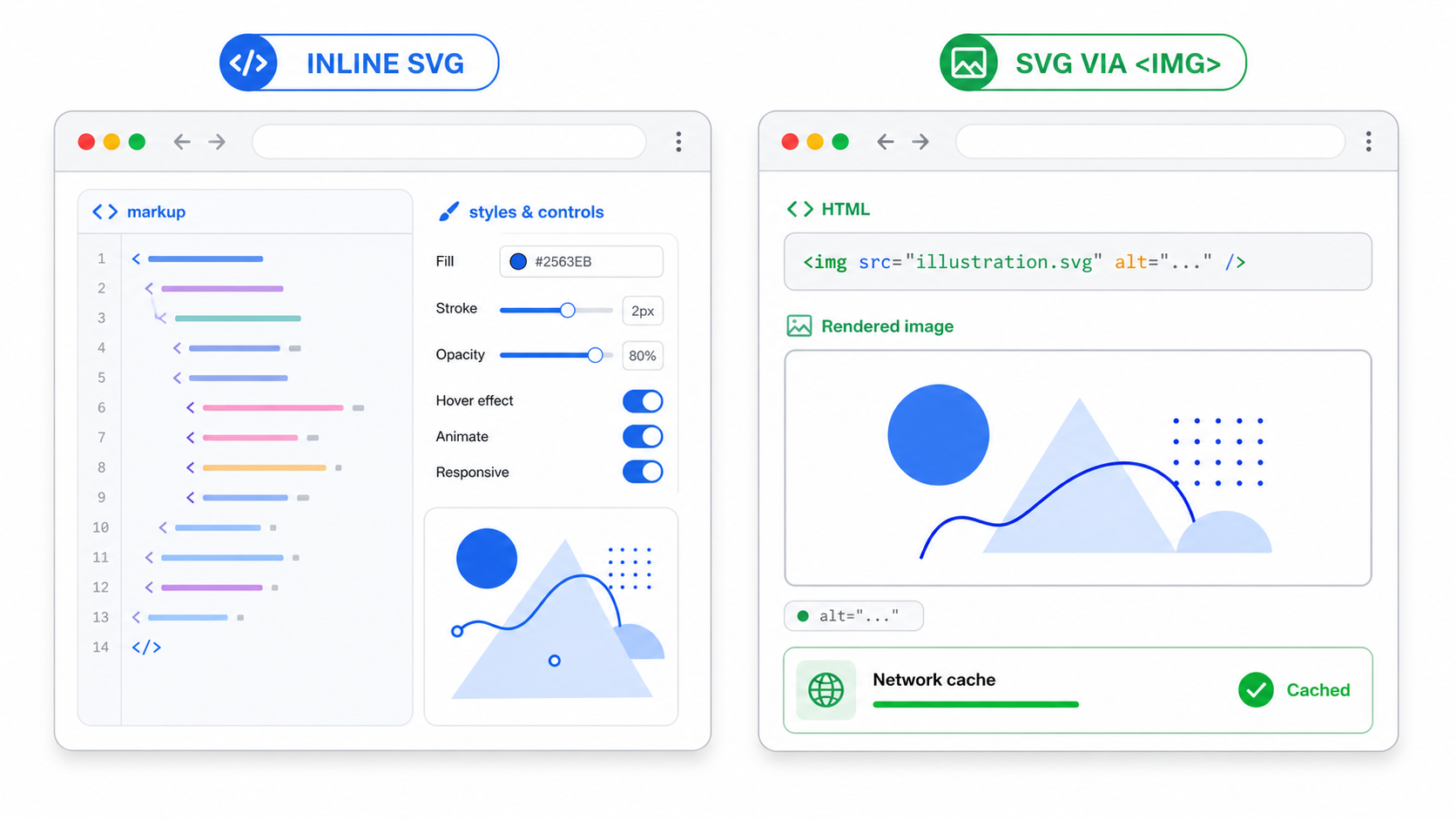
Use inline SVG when the SVG is part of your interface and needs to behave like markup. Use an <img> tag when the SVG is content or a static asset. The difference is control versus isolation: inline SVG gives the page direct control, while <img> keeps the SVG as an external image.
Inline SVG is SVG markup placed directly inside the HTML document instead of loaded from a separate file. Because it becomes part of the page DOM, CSS and JavaScript can target the SVG's internal elements.
Use this decision table before touching code:
| Situation | Use inline SVG | Use <img> |
|---|---|---|
| Icon should inherit text color | Yes | No |
| Icon changes on hover or active state | Yes | No |
| SVG needs JavaScript interaction | Yes | No |
| Static logo in header or footer | Sometimes | Yes |
| Blog illustration or product diagram | No | Yes |
| User-uploaded SVG preview | No | Yes |
| Large artwork reused across pages | No | Yes |
| Trusted React icon component | Yes | Sometimes |
| Unknown third-party SVG | No | Yes, after validation |
If you only remember one thing, remember this: inline SVG is more powerful, so it needs more trust. The <img> tag is less flexible, so it is a better default for simple display.
For the wider comparison that includes <object>, <iframe>, <embed>, and CSS backgrounds, use the complete SVG as image guide.
Why does CSS not change an SVG loaded with img?
CSS does not change an SVG loaded with <img> because the parent page cannot select elements inside the external SVG document. The browser treats the file like an image resource, not like editable page markup. Inline SVG is different because the paths and groups live directly in the page DOM.
This works with inline SVG:
<button class="icon-button">
  <svg viewBox="0 0 24 24" aria-hidden="true">
    <path d="M5 12h14" stroke="currentColor" stroke-width="2" />
  </svg>
  Export
</button>
.icon-button {
  color: #334155;
}

.icon-button:hover {
  color: #0f766e;
}
The SVG stroke follows currentColor, so hover, dark mode, disabled state, and theme variables all work.
This does not work:
<img class="export-icon" src="/icons/export.svg" alt="" />
.export-icon path {
  stroke: #0f766e;
}
There is no path in the parent document to select. If you need to recolor a file that is already used as an image, either edit the SVG itself with SVG Color Changer, open it in SVG Editor, or switch that specific icon to inline SVG.
When is inline SVG the better choice?
Inline SVG is better when the graphic is trusted, small, and stateful. It is the right fit for design-system icons, animated interface details, charts that respond to user input, and SVGs that need currentColor, CSS variables, or JavaScript event handling.
Use inline SVG for:
- Navigation icons that inherit text color.
- Button icons with hover, active, disabled, or loading states.
- Animated icons controlled by CSS or JavaScript.
- Small data visualizations where parts need tooltips or clicks.
- React, Vue, or Svelte components from trusted source control.
- SVGs that need per-path accessibility or labels.
The best inline SVGs are boring and intentional:
<svg viewBox="0 0 24 24" width="20" height="20" aria-hidden="true">
  <path
    d="M20 6 9 17l-5-5"
    fill="none"
    stroke="currentColor"
    stroke-width="2"
    stroke-linecap="round"
    stroke-linejoin="round"
  />
</svg>
Before you inline a file exported from Figma, Illustrator, or an AI tool, clean it. Remove editor metadata, check the viewBox, preserve required IDs, and test the result. The SVG file editor guide explains what is safe to change, and the SVG metadata cleanup guide covers the cleanup pass.
When is an img tag the better choice?
An <img> tag is better when the SVG should behave like a normal image: load from a URL, cache across pages, support alt, stay outside the DOM, and avoid parent-page CSS or JavaScript reaching into it. It is the safest default for static display.
Use <img> for:
- Static logos that do not need theme-aware recoloring.
- Blog diagrams, screenshots, and illustrations.
- Large SVG artwork reused across several pages.
- Customer-uploaded logo previews after validation.
- SVG files served from a CMS or asset pipeline.
- Any graphic where caching matters more than per-path styling.
Use the standard HTML image pattern:
<img
  src="/logos/acme-logo.svg"
  alt="Acme"
  width="160"
  height="48"
  loading="lazy"
  decoding="async"
/>
The alt attribute is not optional for meaningful images. The WHATWG HTML standard defines img as embedded image content, and MDN's img element reference documents how alt, dimensions, lazy loading, and decoding affect behavior.
If the asset is decorative, use an empty alt="". Do not write alt="decorative icon" because screen readers may announce that noise.
Is inline SVG faster than img?
Inline SVG can be faster for tiny above-the-fold icons because the browser parses the SVG with the HTML and does not need a separate request. An <img> tag is usually faster over a full session for larger or repeated SVGs because the browser can cache the file once and reuse it across pages.
Use this practical performance rule:
| Asset | Better default | Why |
|---|---|---|
| 1 KB icon used in a button | Inline SVG | No request, easy state styling |
| 6 KB logo used on one landing page | Either | Choose based on styling and cache needs |
| 40 KB illustration used in several posts | <img> | Cacheable and keeps DOM smaller |
| 100 icons in a design system | Inline components or sprite | Better styling and component reuse |
| User-uploaded logo gallery | <img> | Avoids huge inline markup and DOM risk |
Inline SVG is not automatically "optimized." A messy traced logo with thousands of path points can make the HTML heavy, slow hydration, and complicate debugging. If the file came from a raster conversion, run it through Image to SVG, inspect it in SVG Editor, and optimize only after the visual result is correct.
For file-size cleanup, use SVG Optimizer or the SVG minifier guide.
Which option is safer for uploaded SVG files?
For uploaded SVG files, an <img> preview is safer than inline SVG because it avoids inserting user-controlled markup into the application DOM. It is not a complete security solution. You still need validation, sanitization, response headers, and clear rules about whether uploaded SVGs can ever execute scripts or load external resources.
The dangerous shortcut looks like this:
// Do not do this with user, CMS, or third-party SVG markup.
<div dangerouslySetInnerHTML={{ __html: uploadedSvg }} />
The safer public preview looks like this:
<img src={sanitizedSvgUrl} alt={`${customerName} logo preview`} width={160} height={80} />
That keeps the preview in image mode instead of turning the SVG into live application markup. For higher-risk products, generate a PNG or WebP preview and offer the original SVG only as a download.
SVG can include scripting and external references depending on rendering context. MDN's SVG script element reference is a useful reminder that SVG is not just pixels. If your product accepts user uploads, start with the SVG upload security checklist, then apply the SVG XSS sanitization guide.
How should I handle accessibility?
Use alt text for meaningful SVGs loaded with <img>. For inline SVG, use a <title>, aria-label, or aria-labelledby when the SVG communicates meaning, and use aria-hidden="true" when the SVG is decorative. The accessible pattern depends on the embed method.
| Method | Meaningful graphic | Decorative graphic |
|---|---|---|
<img> | alt="Download report" | alt="" |
| Inline SVG | role="img" plus label/title | aria-hidden="true" |
| CSS background | Put meaning in nearby HTML | Treat as decorative |
Meaningful <img> example:
<img src="/icons/warning.svg" alt="Payment failed" width="24" height="24" />
Decorative inline SVG inside a labeled button:
<button>
  <svg viewBox="0 0 24 24" aria-hidden="true">
    <path d="M5 12h14" stroke="currentColor" />
  </svg>
  Continue
</button>
Standalone meaningful inline SVG:
<svg viewBox="0 0 24 24" role="img" aria-labelledby="warning-title">
  <title id="warning-title">Payment failed</title>
  <path d="..." />
</svg>
The W3C WAI image accessibility tutorial is the best reference when deciding whether a graphic needs alternative text or should be ignored by assistive technology.
What breaks when you choose the wrong method?
The wrong SVG embed method usually breaks in predictable ways: CSS does not apply, icons bloat the DOM, accessibility labels disappear, gradients collide, security review fails, or the file behaves differently in production than it did in the editor.
Use this troubleshooting table:
| Symptom | Likely cause | Fix |
|---|---|---|
| Hover color does not change | SVG is loaded with <img> | Inline it or edit the file color |
| Dark mode icon stays black | Hardcoded fill or external image | Use currentColor inline or create variants |
| Page HTML becomes huge | Large SVG pasted inline | Use <img> and optimize the file |
| Gradient turns black in React | Duplicate or broken IDs | Prefix IDs and preserve defs |
| Uploaded logo raises security concerns | User SVG inserted inline | Sanitize and render as image preview |
| Screen reader says "image" with no context | Missing alt or inline label | Add alt, title, or aria-label |
| SVG crops in both methods | Bad viewBox | Fix the coordinate box before embedding |
If the problem is color, use the change SVG color guide. If the problem is cropping, use the SVG icon cut-off fix. If the problem is React import behavior, use the safe SVG icons in React guide.
What is the fastest decision rule?
The fastest decision rule is: start with <img> unless you need CSS or JavaScript control inside the SVG. Move to inline SVG only for trusted, small, interface-level graphics where that extra control is worth the DOM and security tradeoff.
Use this checklist:
- Does parent CSS need to change
fill,stroke, orcolor? Use inline SVG. - Does JavaScript need to select internal SVG elements? Use inline SVG.
- Is the SVG user-provided, CMS-provided, or third-party? Avoid inline SVG.
- Is the SVG large or reused across many pages? Prefer
<img>. - Is the graphic meaningful content? Use
<img>withaltor inline SVG with a proper label. - Is the graphic decorative only? Use empty
alt,aria-hidden, or CSS background depending on method. - Does the file have messy paths, metadata, or broken sizing? Fix the SVG before choosing the embed method.
For a clean production workflow, create or convert the SVG with SVG Genie, edit it in SVG Editor, optimize it with SVG Optimizer, then choose inline SVG or <img> based on the final job.
FAQ
Should I use inline SVG or an img tag?
Use inline SVG when the graphic needs CSS-controlled color, animation, JavaScript access, or component-level accessibility. Use an <img> tag when the SVG is static, cacheable, user-provided, or large enough that repeating the markup would bloat the page.
Why does CSS not change an SVG loaded with img?
CSS from the parent page cannot reach inside an SVG loaded through an <img> tag because the browser treats it as an external image document. Inline SVG is part of the page DOM, so parent CSS can target its paths, fills, strokes, and variables.
Is inline SVG faster than img?
Inline SVG can render faster for tiny above-the-fold icons because there is no separate request. An <img> tag is usually better for larger or repeated assets because the SVG file can be cached across pages.
Is img safer than inline SVG for uploaded SVG files?
Yes, <img> is usually safer for previews because it keeps the SVG out of the application DOM. You should still validate and sanitize uploads, but avoid injecting user-controlled SVG as inline markup.
Can inline SVG have alt text?
Inline SVG does not use the <img> alt attribute. Give meaningful inline SVGs a <title>, aria-label, or aria-labelledby, and mark decorative inline SVGs with aria-hidden.
Bottom line
Inline SVG is for trusted interface graphics that need control. The <img> tag is for static, cacheable, isolated SVG files.
When the choice is unclear, start with <img>. If you later need CSS-controlled color, animation, or internal interaction, switch that specific asset to inline SVG after cleaning it. That keeps simple images simple and gives your interactive SVGs the control they actually need.
Create your own SVG graphics with AI
Describe what you need, get a production-ready vector in seconds. No design skills required.
About This Article
This article was written by SVG Genie Team based on hands-on testing with SVG Genie’s tools and years of experience in vector design and web graphics. All recommendations reflect real-world usage and are reviewed by the SVG Genie editorial team for accuracy.
About the Author
SVG Genie Team
SVG Design Expert & Technical Writer at SVG Genie
SVG Genie Team is a vector design specialist and technical writer at SVG Genie with years of hands-on experience in SVG tooling, AI-assisted design workflows, and web graphics optimization. Their work focuses on making professional vector design accessible to everyone.
More articles by SVG Genie Teamarrow_forward