AI can give you a decent SVG in seconds. The annoying part starts after download: the logo has a white box, the icon has too many fragments, the text is fake, the file is huge, or one color change turns into a hunt through 400 tiny paths.
The fast rule is:
Edit AI-generated SVG files only after you know what kind of SVG you have. If it contains real paths and shapes, fix the visible problems in an SVG editor. If it contains an embedded raster image, regenerate a simpler vector or run the original image through Image to SVG before cleanup.
That one check saves the most time. Do not polish a file that should have been regenerated.
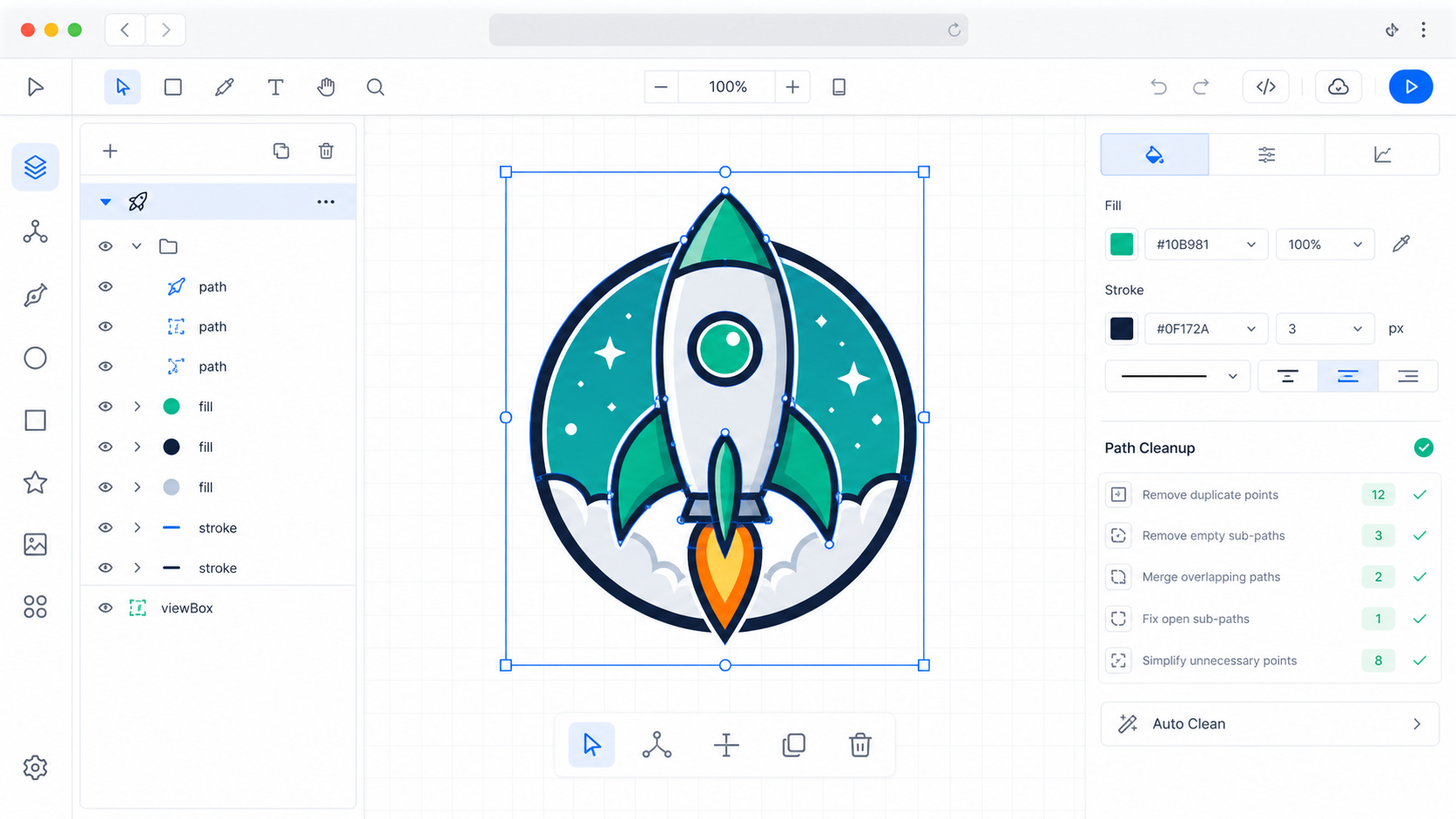
What is an AI-generated SVG file?
An AI-generated SVG file is a vector graphic created by an AI design or image tool and saved as Scalable Vector Graphics. A useful AI SVG contains real editable markup such as paths, shapes, fills, strokes, groups, definitions, and a viewBox, not just a raster preview hidden inside an SVG wrapper.
An editable SVG is a vector file made from XML-based drawing instructions rather than fixed pixels. MDN's SVG documentation describes SVG as a format for two-dimensional vector graphics, and the W3C SVG 2 specification defines the geometry, painting, text, and coordinate systems behind those files.
For AI output, the difference is practical:
| File type | What you can edit | What usually goes wrong |
|---|---|---|
| Real AI SVG | Paths, shapes, colors, strokes, viewBox, groups | Too many paths, messy IDs, weak accessibility |
| Traced AI image | Vector fragments inferred from pixels | Jagged edges, color speckles, huge files |
| Fake SVG wrapper | One embedded PNG or JPG | Not truly scalable or editable |
| Prompted logo concept | Design direction before cleanup | Fake text, shadows, background boxes |
If your goal is a clean logo, icon, app graphic, sticker, Cricut file, or website illustration, you want the first row.
How do you tell if an AI-generated SVG is editable?
You can tell if an AI-generated SVG is editable by opening it in a browser SVG editor or text editor and checking whether it contains real vector elements. Look for <path>, <rect>, <circle>, <polygon>, <g>, fill, stroke, and viewBox. Be suspicious if the file mostly contains <image href="data:image/...">.
Use this 60-second test before making edits:
- Download the SVG.
- Open a copy in SVG Editor.
- Try selecting individual shapes or layers.
- Search the source for
<image. - Confirm the root
<svg>has aviewBox. - Change one obvious fill color.
- Zoom down to the final size: favicon, button icon, header logo, or product graphic.
This is good:
<svg viewBox="0 0 120 120" xmlns="http://www.w3.org/2000/svg">
  <path fill="#0EA5E9" d="M..." />
  <circle cx="60" cy="60" r="24" fill="#111827" />
</svg>
This is a red flag:
<svg viewBox="0 0 120 120" xmlns="http://www.w3.org/2000/svg">
  <image href="data:image/png;base64,..." width="120" height="120" />
</svg>
The second file may open in a browser, but it behaves like a PNG. You cannot reliably recolor paths, clean geometry, or create a proper SVG master from that markup alone.
What should you fix first in an AI SVG?
Fix the failure that blocks use first: fake raster export, background boxes, bad viewBox, wrong colors, noisy paths, broken text, missing labels, then file size. Do not start by minifying. Optimization should happen after the design looks right and survives the destination test.
Use this repair order:
| Symptom | First move | Best next tool |
|---|---|---|
| File contains one embedded image | Regenerate simpler SVG or convert source image | Image to SVG |
| White or colored box behind artwork | Delete background shape or reconvert from transparent source | Transparent PNG to SVG |
| Icon is cropped | Repair viewBox or add safe margin | SVG icon cut-off fix |
| Wrong brand color | Change selected fills and strokes | Change SVG color |
| Hundreds of tiny edge fragments | Remove noise, simplify paths, then optimize | SVG path optimizer |
| Fake AI text | Rebuild text with real type or outline cleanly | Edit SVG text |
| Website render breaks | Inspect markup, IDs, CSS, and accessibility | Edit SVG code |
If the silhouette is wrong, regenerate. If the silhouette is right and the file has a few fixable defects, edit.
How do you edit AI-generated SVG colors safely?
Edit AI-generated SVG colors by selecting visible shapes first, then changing fill and stroke values deliberately. Avoid global find-and-replace unless the entire graphic should become one color. AI exports often include near-duplicate colors around edges, highlights, and fake shadows.
Use this quick color workflow:
- Open the SVG in a visual editor.
- Select the main shape, not the whole file.
- Change the primary
fillorstroke. - Check whether similar colors remain around the edges.
- Replace clusters of near-duplicate colors only when they are supposed to match.
- Test on light, dark, and transparent backgrounds.
- Save a one-color version if the file is a logo or icon.
For web icons, consider currentColor:
<path fill="currentColor" d="M..." />
That lets the SVG inherit the text color from a button, link, nav item, or React component. Use fixed hex values when the artwork is a brand mark and the colors must stay exact.
How do you remove AI-generated SVG backgrounds?
Remove AI-generated SVG backgrounds by identifying whether the background is one clean shape or many traced fragments. If it is one rectangle, select and delete it. If it is a field of speckles, halos, or near-white fragments, fix the source image or regenerate with a transparent-background prompt.
Use this decision table:
| Background problem | What to do | Why |
|---|---|---|
| One large rectangle | Delete it in the SVG editor | Fast and low risk |
| White halo around logo | Clean the raster source or regenerate | The halo may be many paths |
| Checkerboard got traced | Reconvert from real transparency | The checkerboard is now artwork |
| Background is part of badge | Keep it intentionally | It may define the design |
| Background covers main art | Move it behind or delete carefully | SVG draw order matters |
AI image tools often show a transparent preview but export a flat image with a background. If transparency matters, confirm it in the actual SVG and on a dark canvas before approving the asset.
When should you edit paths by hand?
Edit paths by hand only when the AI SVG is close and the defect is local: one bump in a curve, one stray fragment, one awkward corner, or one shape that needs to align. If the whole file has noisy geometry, regenerate or simplify first. Manual path repair is slow when the underlying concept is wrong.
Path editing is the process of changing SVG geometry by moving nodes, handles, curves, and shape outlines. It is useful for small corrections, but it is not a magic cleanup step for every messy AI file.
Good path-editing candidates:
- a logo mark with one uneven curve
- an icon with a stray dot
- a sticker outline with one lumpy edge
- a shape that needs a cleaner corner
- a converted mark with a removable background fragment
Bad path-editing candidates:
- fake AI lettering across a full wordmark
- hundreds of tiny traced color regions
- a photographic AI image converted to SVG
- a mascot with fur, gradients, and texture
- a logo concept that fails at small size
For shape-level cleanup, use the edit SVG paths online guide. For conversion defects, diagnose with fix bad image-to-SVG conversion before touching nodes.
How do you make an AI SVG ready for a website?
Make an AI SVG website-ready by checking its viewBox, sizing, accessibility, IDs, styling, security, and final render path. A file can look good in an editor and still fail as an inline React component, an <img> file, a CMS upload, or a CSS background.
Use this export checklist:
- The file has a valid
viewBox. - The artwork is not cropped at the edges.
- The SVG works at the final displayed size.
- Important colors are intentional and documented.
- Meaningful icons or logos have accessible text or surrounding labels.
- Decorative artwork does not create noisy screen reader output.
- Gradients, masks, filters, and clip paths still have matching IDs.
- The SVG has no unexpected scripts, event handlers, or external references.
- The file renders correctly as inline SVG,
<img>, or CSS background, whichever you will use. - Optimization is done only after visual checks pass.
WAI's image accessibility tutorial is useful for deciding whether the graphic needs a text alternative. A decorative flourish can usually be hidden. A logo, status icon, chart, or clickable icon needs a meaningful accessible name from the SVG or nearby interface text.
If user-uploaded SVG files are involved, treat them as code, not harmless images. The SVG upload security checklist covers sanitization and safe preview patterns.
Should you regenerate, edit, or optimize?
Regenerate when the AI design is structurally wrong. Edit when the file is close and the visible defects are isolated. Optimize when the final artwork is already correct. Doing these out of order creates wasted work: smaller broken SVGs, cleaner bad concepts, or manual repairs that a better prompt could have avoided.
Use this decision rule:
| Situation | Best move |
|---|---|
| The idea is wrong | Regenerate |
| The logo has fake unreadable text | Regenerate or rebuild text |
| The file is a PNG inside SVG | Regenerate or convert the original raster |
| The mark is good but colors are off | Edit |
| There is one background rectangle | Edit |
| Paths are mostly clean but verbose | Optimize |
| The file is huge because it is photographic | Keep raster or simplify the artwork |
The easiest SVG Genie loop is:
- Generate or convert the starting artwork with SVG Genie or Image to SVG.
- Open the result in SVG Editor.
- Fix color, background, path, and spacing issues.
- Check markup with the SVG code editing checklist.
- Run SVG Optimizer after the visual result is approved.
FAQ
Can you edit an AI-generated SVG file online?
Yes. If the AI tool exported real SVG paths, shapes, fills, strokes, groups, and a viewBox, you can edit the file in an online SVG editor. If the file only contains an embedded PNG or JPG, convert or regenerate it first.
Why is my AI-generated SVG hard to edit?
AI-generated SVG files are hard to edit when the prompt created too much detail, the export traced a raster preview, or the file contains hundreds of tiny color fragments. Simplify the concept, remove backgrounds, edit only visible issues, then optimize last.
What should I check before editing an AI SVG?
Check for a valid viewBox, real vector elements, transparent background, editable fills and strokes, preserved gradients or masks, accessible labels, and whether any image tag is hiding raster data inside the SVG wrapper.
Should I regenerate or manually edit a messy AI SVG?
Regenerate when the silhouette, text, or style is wrong. Edit manually when the SVG is close and only needs color, spacing, background, path cleanup, labels, or export fixes. Rebuilding a bad concept path by path is usually wasted effort.
What is the safest workflow after editing an AI SVG?
Work on a copy, make one edit at a time, preview at the final size, test on light and dark backgrounds, check the SVG inside the real website or app, and run optimization only after the edited image still looks correct.
Bottom line
AI-generated SVG files are worth editing when they are already real vectors. Inspect the file first, fix the blocker, test the export, then optimize. If the SVG is really a raster image in disguise or the concept falls apart at small sizes, regenerate a simpler version instead of forcing a bad file through cleanup.
Start with SVG Editor when the SVG is close. Start again with SVG Genie or Image to SVG when the file itself is the problem.
Create your own SVG graphics with AI
Describe what you need, get a production-ready vector in seconds. No design skills required.
About This Article
This article was written by SVG Genie Team based on hands-on testing with SVG Genie’s tools and years of experience in vector design and web graphics. All recommendations reflect real-world usage and are reviewed by the SVG Genie editorial team for accuracy.
About the Author
SVG Genie Team
SVG Design Expert & Technical Writer at SVG Genie
SVG Genie Team is a vector design specialist and technical writer at SVG Genie with years of hands-on experience in SVG tooling, AI-assisted design workflows, and web graphics optimization. Their work focuses on making professional vector design accessible to everyone.
More articles by SVG Genie Teamarrow_forward