Long coordinate strings make SVG files heavier, but deleting decimals blindly can turn a smooth logo into a lumpy one. The practical answer is simple: start at 2 decimal places for ordinary web icons and logos, use 3 for small or detailed artwork, and compare the result against the original before shipping.
That setting cuts noise such as 12.345678 to 12.35 without forcing every shape onto a coarse grid. If the result changes at the size people will actually see, raise the precision by one place. If it does not change, keep the smaller file.
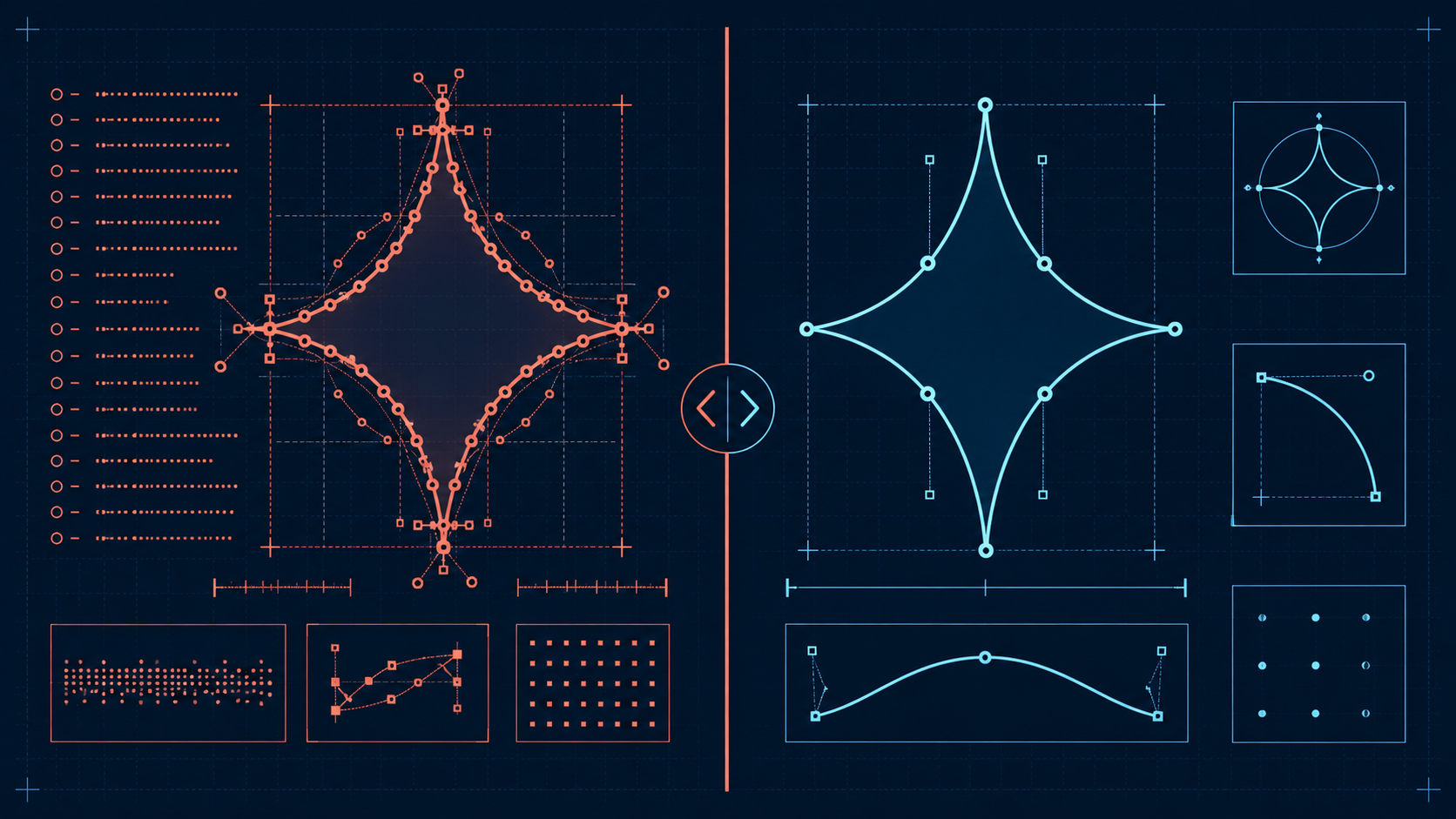
What is SVG decimal precision?
SVG decimal precision is the number of digits retained after the decimal point in coordinates, path commands, transforms, and dimensions. Lower precision produces shorter markup; higher precision represents geometry more exactly. Precision changes should preserve the rendered image, not merely produce a smaller number in a file-size report.
For example:
<!-- Six decimal places -->
<path d="M12.345678 4.987654 C18.123456 2.456789 22.654321 8.123456 20.987654 14.345678"/>

<!-- Two decimal places -->
<path d="M12.35 4.99 C18.12 2.46 22.65 8.12 20.99 14.35"/>
The second path is shorter. Each point can move by as much as 0.005 user units, however, so the visible effect depends on the SVG's coordinate system and rendered size. The viewBox defines that coordinate system, while the path's d attribute supplies the commands and coordinates described by the SVG paths specification.
If you want a conservative automated pass, use SVG Optimizer. For broader cleanup beyond numbers, follow the SVG cleanup checklist.
How many decimal places should an SVG use?
Use 2 decimal places for most web icons, logos, and illustrations. Use 3 for artwork rendered very small, scaled very large, or built from detailed curves. Keep 4 or more only for geometry-sensitive diagrams, precision cutting, or animation where testing proves that fewer digits cause an error.
| SVG use case | Starting precision | Why |
|---|---|---|
| Simple 24px UI icon | 2 decimals | Usually preserves curves while removing export noise |
| Brand logo | 2-3 decimals | Protects lettering, counters, and smooth curves |
| Detailed illustration | 3 decimals | Limits accumulated movement across many points |
| Large background graphic | 2 decimals | Small coordinate shifts are rarely visible |
| Mask, clip path, or tiled pattern | 3 decimals | Seams and edge alignment expose small errors |
| Motion path or path morph | Preserve/test carefully | Path structure and coordinates affect animation |
| CNC, laser, or plotter file | 3-5 decimals as required | Physical output has different tolerances than screens |
This is a starting rule, not a law. A viewBox="0 0 24 24" icon and a viewBox="0 0 24000 24000" illustration use very different coordinate scales. Two decimal places on the first grid are extremely fine; on the second, decimals may add no useful visual information at all.
How do I choose precision without guessing?
Choose precision with a visual threshold test: create versions at 3, 2, and 1 decimal place, render each at the smallest production size and at high zoom, then keep the lowest precision that remains visually and functionally identical. Test the actual page when CSS, gradients, masks, or animation are involved.
Use this five-minute workflow:
- Save the original SVG as the reference.
- Record its uncompressed file size.
- Optimize a copy at 3 decimals.
- Create additional copies at 2 and 1 decimal place.
- Compare every copy at its smallest intended display size.
- Zoom to 400-800% to inspect curves, corners, holes, and seams.
- Test hover states, gradients, clipping, masks, and animation in the real page.
- Choose the lowest setting that has no visible or functional difference.
For most assets, the decision ends at 2 decimals. If the 1-decimal version saves only a few extra bytes, taking on more distortion risk is a bad trade. Run the final output through SVG Minify to remove whitespace and redundant markup after the geometry is correct.
Why does low SVG precision distort curves?
Low precision distorts curves because rounding moves control points and endpoints onto a coarser coordinate grid. A single movement may be tiny, but connected Bézier segments can reveal flat spots, uneven tangents, shifted corners, or gaps. Small icons magnify the problem because each coordinate controls a larger share of the visible shape.
Watch these areas first:
- Circular shapes and smooth Bézier curves
- Letterforms, especially small counters inside
a,e,o, andp - Thin strokes that must align to the pixel grid
- Adjacent filled shapes that can develop hairline seams
- Masks and clip paths sitting exactly on artwork edges
- Repeating patterns where a small error accumulates
- Motion paths where timing or alignment depends on exact geometry
If curves change, increase precision before trying more aggressive path simplification. The SVG path optimizer guide explains the difference between shortening numbers and actually changing path structure.
How much file size can decimal rounding save?
Decimal rounding saves bytes in proportion to the number of numeric values. A simple icon with a few coordinates may shrink only slightly, while an exported illustration or traced image with thousands of points can lose many kilobytes. Metadata removal, path cleanup, minification, and HTTP compression often produce larger additional savings.
Consider a path containing 1,000 coordinates. Shortening each value by four characters removes roughly 4,000 source characters before gzip or Brotli. A ten-coordinate icon will not see the same payoff. This is why precision matters most in path-heavy files.
Do not judge only the raw .svg size. SVG is XML text and compresses well in transit, so check whether the server sends Content-Encoding: br or gzip. The SVG compression guide covers source optimization and network compression as separate layers.
Which SVG numbers should not be rounded aggressively?
Do not aggressively round viewBox values, transformation matrices, filter parameters, mask boundaries, pattern dimensions, or animation values without testing. These numbers can control framing, alignment, effects, and motion rather than merely describing a visible curve. Saving a handful of characters is not worth a cropped or broken asset.
Use extra care with:
| Attribute or value | Failure mode after rounding |
|---|---|
viewBox | Shifted framing or clipped edge artwork |
transform="matrix(...)" | Position, rotation, or scale drift |
| Gradient coordinates | Color transition moves or changes angle |
| Filter region and parameters | Shadow or blur gets clipped |
| Pattern width/height | Visible seams or pattern drift |
| Stroke dash values | Dash rhythm or animation timing changes |
| Path morph coordinates | Shapes jump or interpolate incorrectly |
Also preserve IDs, classes, accessibility text, and referenced definitions. Decimal precision is only one optimization setting; it should not become permission to remove behavioral markup. If an optimizer breaks gradients or referenced definitions, use the gradient repair checklist.
What is the safest SVG precision workflow for production?
The safest production workflow is to finish design edits first, optimize a copy at 2-3 decimals, compare it with the original, test behavior in context, then minify and deploy with transfer compression. Keep the original source file so future edits do not begin from destructively rounded geometry.
Production checklist:
- Keep an editable original outside the optimized output.
- Keep the original
viewBoxunless the canvas intentionally changes. - Start at 2 decimals; use 3 for delicate geometry.
- Compare at the smallest real display size.
- Inspect curves and seams at high zoom.
- Test gradients, masks, filters, CSS, JavaScript, and animation.
- Verify
title,desc,role, andaria-*behavior where needed. - Minify only after visual verification.
- Confirm gzip or Brotli delivery on the live site.
For a file you have now, the easiest path is to upload it to SVG Optimizer, begin with conservative settings, and inspect the output in SVG Editor. If the SVG came from a bitmap trace, clean the paths before chasing decimal savings with Image to SVG.
Frequently asked questions
How many decimal places should an SVG use?
Use 2 decimal places for most web icons and simple logos, and 3 for tiny icons, detailed curves, or graphics that scale very large. Use 4 or more only when testing shows that lower precision creates a visible or functional error.
Does reducing SVG precision make the file smaller?
Yes. Rounding long coordinates shortens path data, transforms, and other numeric attributes. The saving is modest for a simple icon but can be substantial in an SVG with hundreds or thousands of coordinates.
Can rounding SVG coordinates change the image?
Yes. Every rounded coordinate can move slightly. Conservative rounding is usually invisible, but overly low precision can flatten curves, shift thin strokes, open seams, or distort small and geometry-sensitive artwork.
Is 1 decimal place enough for SVG?
One decimal place can work for large, simple shapes on a modest coordinate grid, but it is risky as a universal setting. Test at the smallest rendered size and at high zoom before using it for logos, icons, masks, or animation paths.
Should viewBox values be rounded too?
Usually keep the original viewBox unless you deliberately change the canvas. Rounding its origin or dimensions can shift scaling or crop edge artwork, while saving almost no bytes because the viewBox contains only four numbers.
The goal is not the fewest possible digits. It is the smallest SVG that still looks and behaves exactly right.
If optimization changes line weight rather than curve geometry, follow the SVG stroke width scaling guide to check transforms, viewBox, and non-scaling-stroke before altering coordinates again.
Create your own SVG graphics with AI
Describe what you need, get a production-ready vector in seconds. No design skills required.
About This Article
This article was written by SVG Genie Team based on hands-on testing with SVG Genie’s tools and years of experience in vector design and web graphics. All recommendations reflect real-world usage and are reviewed by the SVG Genie editorial team for accuracy.
About the Author
SVG Genie Team
SVG Design Expert & Technical Writer at SVG Genie
SVG Genie Team is a vector design specialist and technical writer at SVG Genie with years of hands-on experience in SVG tooling, AI-assisted design workflows, and web graphics optimization. Their work focuses on making professional vector design accessible to everyone.
More articles by SVG Genie Teamarrow_forward