A QR code can look perfect on screen and still fail the moment it is printed small, placed on packaging, or scanned under weak light. The usual culprit is not SVG itself. It is a trace that rounded squares, merged gaps, or cropped the blank border the scanner needs.
The fast rule: regenerate the QR code as SVG when you know its destination; vectorize the image only when the raster file is your only usable source. If you must trace it, use a large, straight, high-contrast image and disable artistic smoothing.
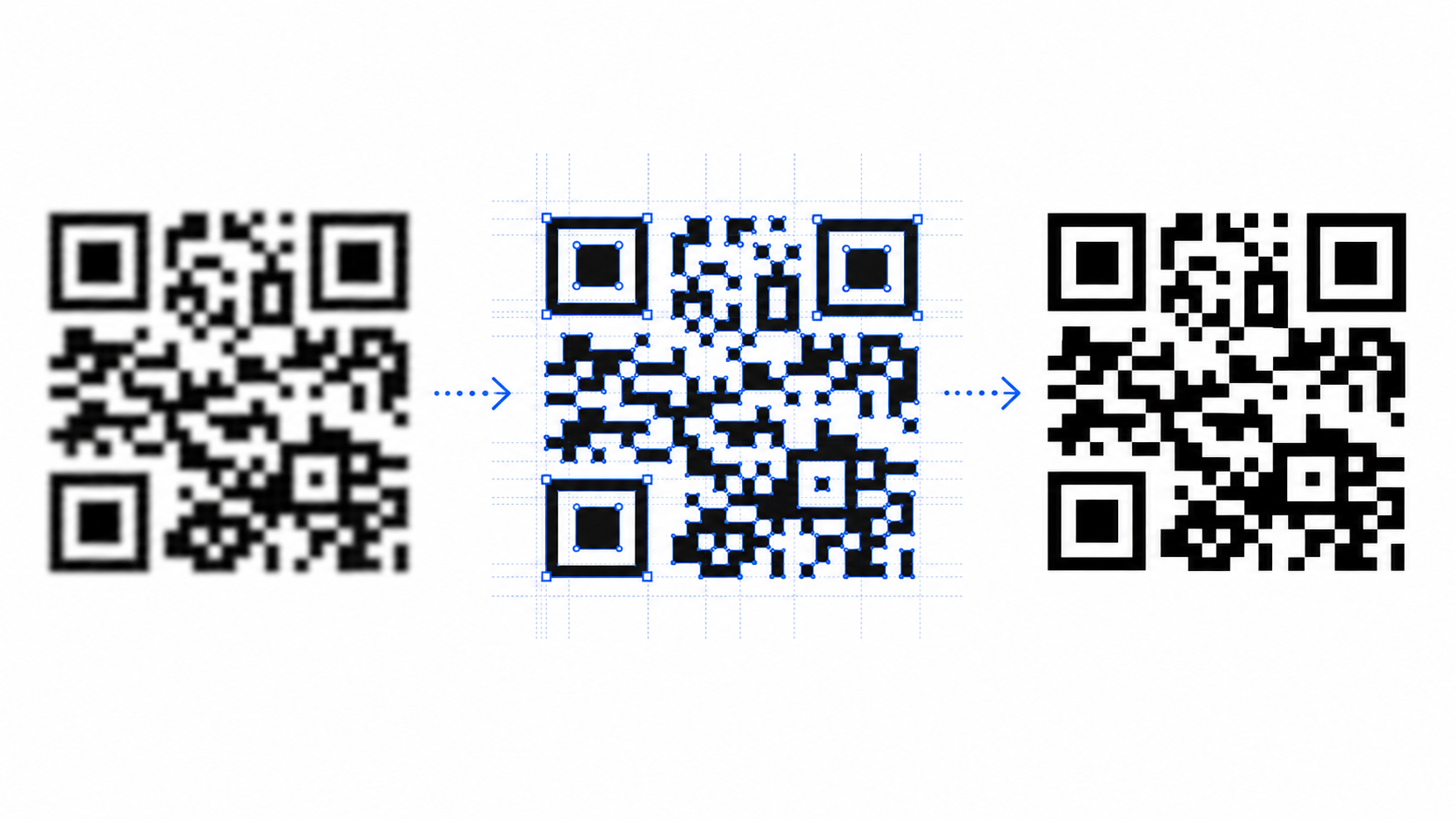
Can you convert a QR code image to SVG?
Yes. A clean PNG, JPG, screenshot, or scan of a QR code can become SVG, but the conversion must preserve the code's exact square grid. The three large finder patterns, every smaller module, and the blank quiet zone must survive without rounded corners, merged shapes, or missing gaps.
QR code vectorization is the process of rebuilding a pixel-based QR image as scalable geometric shapes while preserving the encoded module pattern. SVG is well suited to that geometry because it describes shapes rather than pixels; MDN's SVG guide explains how vector graphics scale without relying on a fixed pixel grid.
For a clean source, open Image to SVG, convert once, and inspect the result in SVG Editor before using it in print or production.
Should you trace the QR code or regenerate it?
Regenerate the code when you know the URL, Wi-Fi credentials, contact details, or other encoded value. Trace it only when you cannot recover that source data. Regeneration creates a mathematically clean QR grid; tracing has to infer the grid from pixels and can preserve defects that were never part of the code.
| Situation | Best choice | Why |
|---|---|---|
| You know the destination URL or payload | Regenerate as SVG | Cleanest geometry and smallest file |
| You can scan the code and recover the payload | Scan, verify, then regenerate | Avoids tracing artifacts |
| The raster image is the only surviving source | Vectorize carefully | Recovers a scalable version when regeneration is impossible |
| The code is blurred, angled, torn, or partly hidden | Find another source | Tracing cannot reliably invent missing modules |
| The QR contains a logo or custom styling | Regenerate if possible | Error correction does not make arbitrary edits safe |
Before tracing, scan the raster code and save the decoded value. That gives you a truth source for the final test. If the source already fails to scan, vectorization is restoration work, not a simple format conversion.
How do you prepare a QR code image for vectorization?
Prepare it by recovering a flat, square, high-contrast grid. Use the largest original image, crop outside the quiet zone rather than through it, remove shadows and compression noise, and correct perspective before conversion. Do not sharpen so aggressively that separate modules begin touching.
Use this preflight checklist:
- Scan the original and record the exact decoded destination.
- Start with the original PNG or export, not a social-media screenshot.
- Keep the QR code square and correct camera perspective.
- Preserve the full blank border on all four sides.
- Convert gray modules to solid dark shapes on a light background.
- Remove paper texture, glare, shadows, and JPG blocks.
- Avoid blur, anti-aliasing, rounded corners, and artistic filters.
The prepare an image for SVG conversion guide covers background cleanup, contrast, cropping, and noise reduction in more detail. If all you have is a screen capture, use the screenshot-to-SVG workflow to avoid tracing browser chrome or scaled pixels.
How do you convert the QR code image to SVG?
Convert the cleaned image with a high-contrast trace, preserve hard square edges, and inspect the vector at high zoom. The correct result should look like the original module grid, not a smoothed illustration. Test scanning before optimizing paths or adding brand styling.
- Save the decoded value from the original code.
- Crop the image while keeping its complete quiet zone.
- Correct rotation and perspective so the code is square.
- Make the background clean white and the modules solid dark.
- Upload the file to Image to SVG.
- Choose the simplest high-contrast result; avoid smoothing details.
- Open the SVG in SVG Editor and inspect every edge.
- Scan-test it on screen, then at the smallest intended print size.
- Run SVG Optimizer only after the code passes.
Do not judge the conversion only at 100% zoom. Inspect where modules nearly touch, where tiny gaps should remain open, and around all three finder patterns. Those are common places for a trace to change the encoded structure.
Why does a vectorized QR code stop scanning?
A traced QR code stops scanning when conversion changes its functional geometry. Smoothing can round modules, noise removal can erase small squares, path merging can close gaps, and tight cropping can remove the quiet zone. Printing can introduce another failure by making the code too small or reducing contrast.
| Failure | What likely changed | Fast fix |
|---|---|---|
| Scans large but not small | Fine gaps collapse at output size | Increase physical size and simplify styling |
| One app scans, another does not | Code has weak tolerance | Restore the original grid and test multiple scanners |
| Finder patterns look soft | Smoothing rounded their edges | Retrace with hard edges and no smoothing |
| Black shapes bleed together | Threshold or print gain joined modules | Increase separation; avoid dark ink spread |
| Code works before cropping | Quiet zone was removed | Restore blank space around all sides |
| Destination is wrong | Source image encoded something else | Compare against the saved decoded value |
DENSO WAVE's QR Code guidance explains that a quiet zone is required around the symbol and specifies four modules for QR Code. Keep that border visually empty: nearby text, frames, patterns, or logos can interfere even when they are not technically inside the SVG path.
If the trace is jagged, bloated, or fragmented, follow the bad image-to-SVG troubleshooting guide before randomly changing settings.
How should you test an SVG QR code before publishing?
Test the actual SVG in the conditions where people will use it. Decode it with at least two scanner apps, verify the exact destination, resize it to the smallest planned output, and print a real sample when the code will appear on paper, labels, signs, or packaging.
Run this release test:
- Open the raw SVG in a browser and scan it.
- Confirm the decoded text exactly matches the saved source value.
- Test on both a recent iPhone and Android device when possible.
- Test at normal brightness and from a slight angle.
- Export or print at the final physical size and scan again.
- Check that no crop, frame, label, or background enters the quiet zone.
- Keep strong contrast between modules and background.
SVG makes the artwork scalable; it does not guarantee scan reliability. The final size, print surface, viewing distance, lighting, and surrounding design still matter.
Can you recolor or style the SVG QR code?
You can style it conservatively after the plain version passes. Keep the modules much darker than the background, preserve the finder patterns and quiet zone, and retest after every visual change. A code that looks more branded but scans less reliably is a worse asset.
The safest sequence is:
- Make a plain black-on-white SVG pass every scan test.
- Save that working version as the master.
- Apply one styling change at a time.
- Retest on screen and in the final output medium.
Avoid gradients with weak sections, transparent backgrounds over busy images, outlines instead of filled modules, decorative elements inside the quiet zone, and aggressive logo overlays. Error correction can help a QR code tolerate some damage, but it is not permission to redesign the grid blindly.
FAQ
Can you convert a QR code image to SVG?
Yes. A clean, high-contrast QR code can be converted from PNG or JPG to SVG. Preserve the square modules, three finder patterns, and blank quiet zone, then scan-test the exported SVG at its smallest intended size before using it.
Why does my vectorized QR code not scan?
A vectorized QR code may fail when tracing rounds module corners, joins separate squares, fills intentional gaps, crops the quiet zone, or captures compression noise. Start from a larger image, use hard edges, avoid smoothing, and test the result with more than one scanner.
Should I trace a QR code or regenerate it as SVG?
Regenerate it as SVG when you know the exact destination URL or encoded data. Trace only when the original data is unavailable and the raster image is the sole source. Regeneration produces cleaner geometry and usually a smaller file.
How much blank space should an SVG QR code have?
Keep a quiet zone of four modules on every side for a standard QR Code, following the QR Code specification guidance summarized by DENSO WAVE. Do not crop that margin merely to make the artwork fill its canvas.
Convert and verify your QR code
Start with the largest, cleanest QR image you have, confirm its destination, then use Image to SVG to create a scalable version. Inspect the paths in SVG Editor, keep the blank border intact, and do not ship it until the smallest real-world version scans reliably.
Create your own SVG graphics with AI
Describe what you need, get a production-ready vector in seconds. No design skills required.
About This Article
This article was written by SVG Genie Team based on hands-on testing with SVG Genie’s tools and years of experience in vector design and web graphics. All recommendations reflect real-world usage and are reviewed by the SVG Genie editorial team for accuracy.
About the Author
SVG Genie Team
SVG Design Expert & Technical Writer at SVG Genie
SVG Genie Team is a vector design specialist and technical writer at SVG Genie with years of hands-on experience in SVG tooling, AI-assisted design workflows, and web graphics optimization. Their work focuses on making professional vector design accessible to everyone.
More articles by SVG Genie Teamarrow_forward