A WebP logo can look perfectly sharp in a browser and still produce an ugly SVG: lumpy curves, dozens of near-identical colors, or thousands of tiny paths. The converter is not recovering the original vector. It is tracing the pixels stored in the WebP, including any compression artifacts.
Use this fast rule: convert WebP to SVG when the image is really made of shapes—logos, icons, badges, line art, silhouettes, or flat illustrations. Keep photographs and texture-heavy artwork as WebP.
Can you convert WebP to SVG?
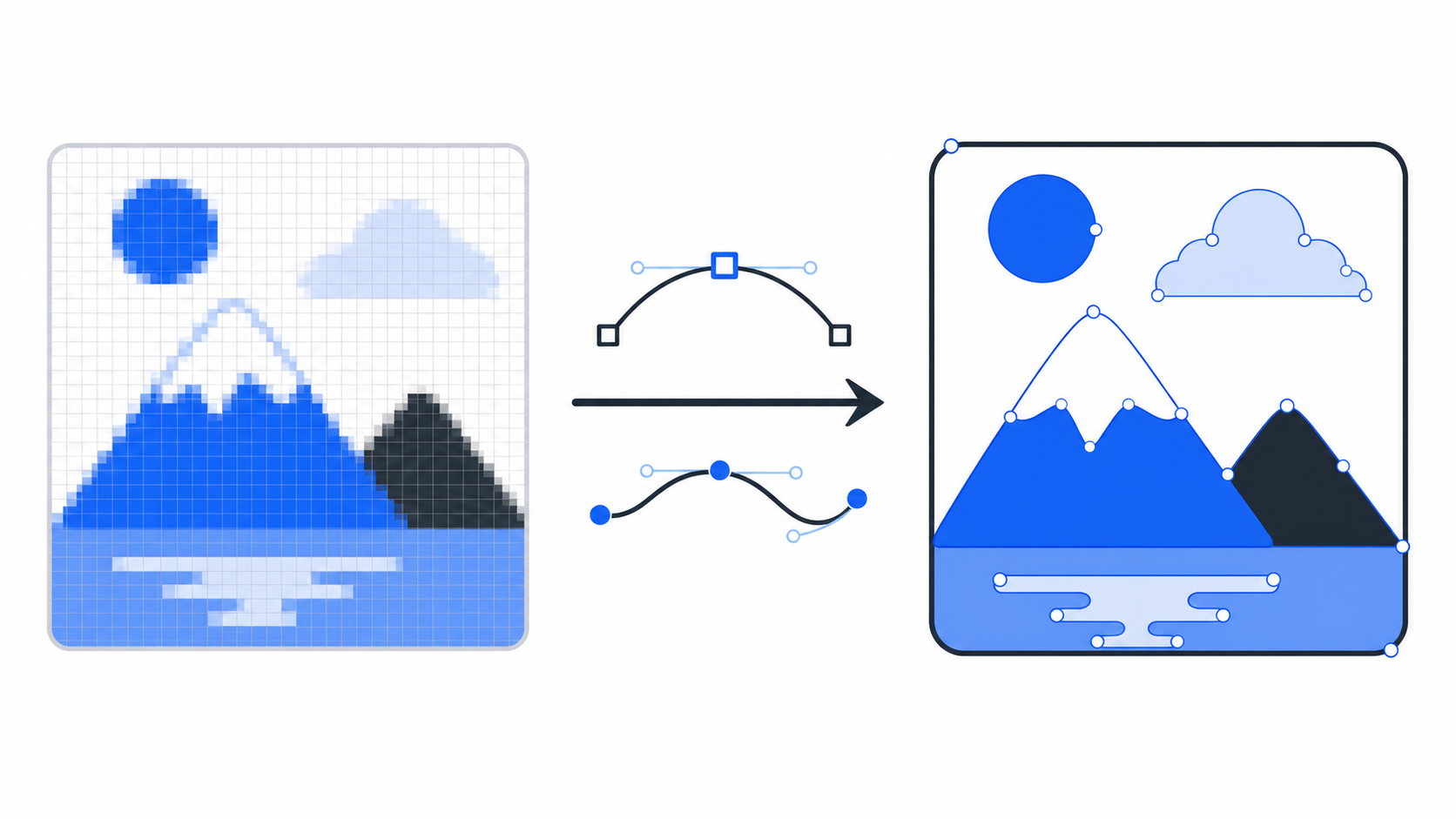
Yes. You can convert WebP to SVG by tracing the raster image and rebuilding its visible regions as vector paths. The conversion works best for simple graphics with clear edges, limited colors, and enough source resolution. Detailed photographs, soft gradients, and textured artwork rarely become useful vectors.
WebP-to-SVG conversion is raster-to-vector tracing: a tool interprets WebP pixels and creates scalable SVG geometry from their boundaries. Google's WebP documentation describes WebP as a raster image format with lossy and lossless compression, while MDN describes SVG as an XML-based vector format.
That distinction matters. Renaming .webp to .svg does nothing, and wrapping a WebP image inside an SVG container does not make the pixels editable vector paths. A real conversion reconstructs shapes.
For a simple logo, icon, or illustration, upload the file to Image to SVG. For a complex photo, keep WebP unless you deliberately want a simplified stencil, engraving, or posterized illustration.
When should you use a WebP to SVG converter?
Use a WebP-to-SVG converter when the source contains distinct shapes that need to scale, recolor, animate, edit, print, or cut cleanly. Do not convert just to change the file extension. The output is worthwhile only when vector geometry is more useful than the original pixels.
| WebP source | Convert to SVG? | Best decision |
|---|---|---|
| Flat-color logo | Yes | Trace, inspect lettering, then optimize |
| Simple app or website icon | Yes | Convert with a limited color palette |
| Badge, stamp, or silhouette | Yes | Use one-color or few-color tracing |
| Line drawing | Usually | Clean background noise before tracing |
| Product photograph | No | Keep WebP for realistic detail |
| Gradient-heavy illustration | Maybe | Recreate or simplify if editability matters |
| Tiny social-media image | Risky | Find a larger source before converting |
| Text-heavy banner | Usually no | Rebuild text and shapes in a vector editor |
The fastest test is to zoom in. If the image can be described as a few intentional fills and outlines, vectorization is promising. If its appearance depends on thousands of color and texture changes, WebP is doing the right job already.
How do lossy and lossless WebP affect SVG output?
Lossless WebP usually provides cleaner edges for tracing because it preserves the original pixel values. Lossy WebP can introduce blockiness, ringing, blurred boundaries, and new colors near edges. A vectorizer may interpret those artifacts as real details and produce extra paths.
WebP can store both kinds of raster data:
- Lossless WebP is the better starting point for logos, screenshots, icons, and flat graphics.
- Lossy WebP is efficient for photos but may soften or contaminate shape edges.
- Transparent WebP can preserve a clean background, but semi-transparent edge halos may still become unwanted paths.
- Animated WebP needs special handling because a normal vector conversion will not automatically recreate its full frame animation as SVG animation.
You may not know how the file was encoded. Look for symptoms instead: fuzzy color halos, block patterns, speckles, or edges that change color when enlarged. If those are visible, clean the raster source before conversion.
How do you prepare a WebP before converting it to SVG?
Prepare the WebP by isolating the intended artwork and removing details that should not become vector geometry. A few minutes of raster cleanup can save far more time than deleting hundreds of accidental SVG paths after conversion.
Use this checklist:
- Find the largest available copy of the image.
- Crop tightly around the logo, icon, or artwork.
- Remove shadows, backgrounds, and borders that are not part of the design.
- Increase contrast when foreground and background edges are unclear.
- Reduce colors if the final SVG should be flat.
- Remove compression speckles and edge halos.
- Recreate small text separately when exact typography matters.
- Decide whether transparency should remain transparent or become a filled shape.
If the file needs substantial cleanup, follow the broader prepare image for SVG conversion guide. For one-color artwork, the black-and-white image to SVG workflow gives you a more precise threshold checklist.
How do you convert WebP to SVG online?
The simplest workflow is to upload the clean WebP, choose a restrained trace, download the SVG, and inspect it before production use. Start with fewer colors and moderate smoothing; adding detail is easier than untangling thousands of paths created from noise.
- Crop and clean the WebP source.
- Open SVG Genie's Image to SVG converter.
- Upload the WebP file.
- Choose settings that match the artwork: one color for silhouettes, a limited palette for flat logos, or more detail only for intentional illustration.
- Convert and download the SVG.
- Open the result in SVG Editor.
- Check curves, holes, background shapes, colors, and canvas bounds.
- Test it at small and large display sizes.
- Optimize the file only after the artwork looks correct.
If the first result is poor, do not keep clicking convert with random settings. Diagnose the source. The bad image-to-SVG conversion guide separates source problems, trace-setting problems, and SVG cleanup problems.
Why does WebP-to-SVG conversion look bad?
WebP-to-SVG conversion looks bad when the tracer receives ambiguous pixels. Low resolution, lossy compression, semi-transparent edges, gradients, shadows, tiny text, and photographic texture all force the tool to guess where one intended shape ends and another begins.
| Output problem | Likely cause | Fastest fix |
|---|---|---|
| Lumpy or stair-stepped curves | Source is too small | Find a larger WebP or original asset |
| Many tiny colored fragments | Lossy compression or texture | Denoise and reduce colors before tracing |
| White or colored rectangle | Background was traced | Remove it before conversion or in the editor |
| Filled letter holes | Soft or tiny typography | Rebuild the text with the correct font |
| Missing thin strokes | Smoothing or threshold is too strong | Increase contrast and preserve fine lines |
| Huge SVG file | Too many paths and colors | Simplify the source, retrace, then optimize |
| Dark or light edge halo | Semi-transparent pixels | Clean alpha edges before converting |
A bloated trace is not a successful conversion merely because it opens in a browser. A good result should preserve the intended shape, remain practical to edit, and avoid path complexity that brings no visible benefit.
Can an animated WebP become an animated SVG?
Not through ordinary image tracing. An animated WebP contains raster frames, while animated SVG uses vector elements plus CSS, SMIL, or JavaScript animation. Converting one frame to paths does not recover the motion, timing, easing, or object structure of the original animation.
Choose based on the job:
- Keep animated WebP when the motion is photographic or texture-heavy.
- Rebuild as animated SVG when the artwork uses a few geometric shapes and must scale sharply.
- Convert a representative frame only when you need a static SVG poster image.
- Recreate motion manually when individual vector parts must animate independently.
For website use, also compare browser support, accessibility, file size, and whether the animation is decorative. A vector rebuild can be excellent for a simple loader or icon, but wasteful for a full-color clip.
Is SVG always better than WebP?
No. SVG is better for scalable geometry; WebP is better for compressed raster imagery. A clean logo may become smaller and more flexible as SVG, while a photograph converted into paths can become vastly larger and visually worse.
Choose SVG when you need:
- resolution-independent logos or icons
- editable paths and colors
- CSS styling or simple vector animation
- crisp output across screen and print sizes
- geometry for cutting, engraving, or design workflows
Choose WebP when you need:
- realistic photography
- complex texture, lighting, or soft gradients
- efficient delivery of raster artwork
- animation that already exists as raster frames
- a faithful pixel image rather than editable shapes
The broader SVG versus PNG versus JPG guide explains the same decision across common formats. The principle stays simple: use vectors for shapes and raster formats for pixels.
FAQ
Can you convert WebP to SVG?
Yes. You can convert WebP to SVG when the WebP contains a logo, icon, badge, silhouette, line drawing, or other shape-based artwork. Photographs can be placed inside SVG files, but tracing a detailed photo usually creates an oversized, difficult-to-edit vector.
Does converting WebP to SVG improve image quality?
Not automatically. Conversion can rebuild simple artwork as scalable paths, but it cannot restore detail already lost through low resolution or lossy WebP compression. A clean, large source produces a better SVG than a small or artifact-heavy WebP.
Why is my converted SVG file so large?
A converted SVG becomes large when the tracer treats gradients, shadows, texture, compression blocks, and edge noise as separate vector shapes. Clean the WebP, reduce unnecessary colors, and convert only shape-based artwork rather than detailed photography.
Should I convert a WebP logo to SVG?
Usually yes, if the WebP logo is large, sharp, and made from flat colors. Crop it tightly, remove unwanted background, convert it, then inspect curves, lettering, negative space, and the viewBox before treating the SVG as a master logo file.
Can I convert animated WebP to animated SVG?
Not automatically. A normal converter can trace a static frame, but SVG animation must be rebuilt with vector elements and animation instructions. Keep animated WebP for complex raster motion; recreate simple geometric motion as SVG when scalability matters.
Convert the artwork, not just the extension
A WebP-to-SVG converter is the right tool when your image contains clean, intentional shapes. Start with the largest source, remove compression noise and unwanted background, use a restrained trace, then inspect the SVG before optimizing it.
Ready to convert a logo, icon, or flat illustration? Open Image to SVG, upload the cleaned WebP, and test the result at both icon size and large display size before you ship it.
Create your own SVG graphics with AI
Describe what you need, get a production-ready vector in seconds. No design skills required.
About This Article
This article was written by SVG Genie Team based on hands-on testing with SVG Genie’s tools and years of experience in vector design and web graphics. All recommendations reflect real-world usage and are reviewed by the SVG Genie editorial team for accuracy.
About the Author
SVG Genie Team
SVG Design Expert & Technical Writer at SVG Genie
SVG Genie Team is a vector design specialist and technical writer at SVG Genie with years of hands-on experience in SVG tooling, AI-assisted design workflows, and web graphics optimization. Their work focuses on making professional vector design accessible to everyone.
More articles by SVG Genie Teamarrow_forward