You have an SVG file, but the thumbnail is blank, the browser preview is cropped, or you cannot tell whether the file contains clean vector paths or a pile of embedded data. Installing a full design suite is overkill when you only need an answer now.
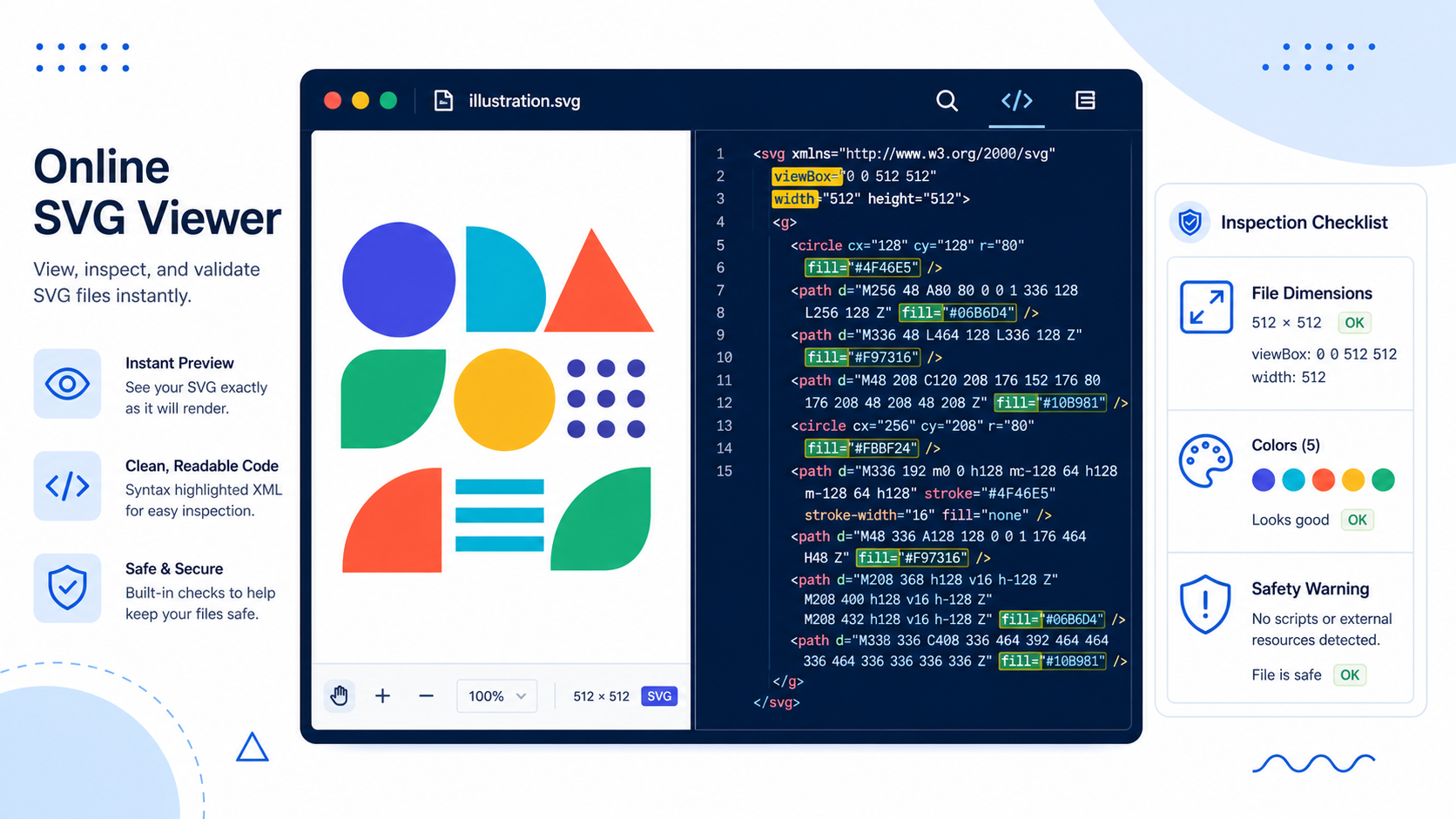
An SVG viewer online should help you do three things quickly: render the artwork, inspect its structure, and identify the next action. Preview the image, check the viewBox, dimensions, paths, colors, groups, and source, then choose whether to use it, edit it, optimize it, or recreate it.
Use this 30-second decision rule:
| What you need | Best next step |
|---|---|
| Confirm what the file looks like | Preview it in an SVG viewer |
| Diagnose cropping or blank space | Inspect viewBox, width, height, and bounds |
| Change colors, paths, or canvas size | Open it in an SVG editor |
| Reduce a large file without changing artwork | Use an SVG optimizer |
| Replace a messy traced or embedded image | Recreate it with Image to SVG |
What is an SVG viewer?
An SVG viewer is a tool that renders Scalable Vector Graphics and exposes useful file details without requiring a full desktop vector application. A good viewer shows the visible artwork while helping you inspect the canvas, viewBox, dimensions, paths, fills, strokes, groups, and source markup.
An SVG viewer is a visual inspection tool for XML-based vector files. Unlike a PNG or JPG viewer, it can reveal why an image scales, crops, inherits color, or fails to display because SVG stores shapes and presentation rules as markup rather than a fixed grid of pixels.
Viewers range from simple preview pages to code-aware tools. The simplest ones render the file. Better ones also provide:
- A transparent or contrasting preview background
- Zoom and pan controls
- File size and canvas dimensions
- Raw or formatted SVG markup
- Element, path, color, and group inspection
- Basic optimization or export options
- Warnings for malformed markup or external dependencies
If you need to move nodes or reshape curves, you have moved beyond viewing. Use an editor instead.
How do I view an SVG file online?
Open a trusted SVG viewer or editor, upload the SVG or paste reviewed markup, and compare the rendered preview with the file details. Check the viewBox, width, height, colors, path count, file size, and source before you download, embed, or publish the result.
Follow this workflow:
- Keep an untouched copy of the original SVG.
- If the source is unknown, open it as text before uploading or rendering it.
- Load the reviewed file into the viewer.
- Switch between light, dark, and transparent backgrounds.
- Zoom into thin strokes, corners, and small gaps.
- Inspect the root
<svg>element and itsviewBox. - Check whether the artwork uses paths, text, embedded raster images, filters, masks, or external references.
- Decide whether the file is ready, needs editing, needs optimization, or should be recreated.
For a trusted design asset, this takes less than a minute. For an unknown download, use the safe SVG opening workflow before putting the file into any browser-based tool.
What should I inspect in an SVG viewer?
Inspect the visible artwork and the code that controls its canvas, shapes, and dependencies. The highest-value checks are the viewBox, explicit dimensions, path bounds, fills and strokes, embedded images, fonts, IDs, masks, clips, filters, and external URLs.
Use this checklist:
- The artwork is fully inside the visible canvas.
-
viewBoxcontains four valid numbers:min-x min-y width height. - Width and height match the intended use or can scale responsively.
- Fills and strokes remain visible on light and dark backgrounds.
- Text is outlined or uses an available font when portability matters.
- Logos and icons contain real vector paths, not only an embedded bitmap.
- IDs referenced by
url(#...)orhref="#..."still exist. - Masks, clipping paths, gradients, and filters render correctly.
- There are no unexpected remote images, fonts, styles, or links.
- The file size makes sense for the visible complexity.
A simple icon with thousands of nodes or a multi-megabyte file is a warning that the vector was poorly traced, contains hidden objects, or embeds raster data. It may still render, but it will be harder to edit and heavier to ship.
Why does an SVG look blank or cropped in a viewer?
A blank or cropped SVG usually has a canvas problem, invisible styling, malformed markup, or a broken dependency. Check the viewBox first, then dimensions, object bounds, fills, strokes, references, and external assets. The preview symptom narrows the cause quickly.
| Symptom | Likely cause | First fix |
|---|---|---|
| Completely blank | Invalid viewBox, zero size, invisible fill, or malformed XML | Inspect root <svg> and visible styles |
| Only one corner appears | Artwork lies outside the viewBox | Fit the canvas to the artwork bounds |
| Edges are cut off | Tight viewBox, thick stroke, mask, or overflow rule | Add canvas padding and inspect clips |
| Black shapes instead of brand colors | Missing stylesheet or failed CSS variables | Convert essential styles to explicit fills |
| Text is missing or different | Font is unavailable or text depends on external CSS | Outline text or bundle a permitted font |
| Some effects disappear | Broken gradient, mask, clip, or filter ID | Restore matching IDs and references |
| Works locally, fails online | Bad URL, MIME type, CSP, or external dependency | Inspect the network response and embed method |
The root element might look like this:
<svg xmlns="http://www.w3.org/2000/svg" viewBox="0 0 240 120">
  <path fill="#4f46e5" d="..." />
</svg>
If the artwork uses coordinates around 1000,1000 but the viewBox only exposes 0 0 240 120, the shapes sit outside the visible canvas. If the file renders but is clipped at an edge, follow the SVG icon cut-off guide. For broader rendering failures, use the SVG not showing in browser checklist.
Can an SVG viewer tell whether a file is truly vector?
Yes. Inspect the source or element list for vector primitives such as <path>, <rect>, <circle>, <polygon>, and <line>. A file that only contains an <image> element may simply wrap a PNG or JPG inside an SVG container and will not gain true resolution-independent detail.
Compare these two files:
<!-- True vector geometry -->
<svg viewBox="0 0 100 100">
  <circle cx="50" cy="50" r="40" fill="#06b6d4" />
</svg>
<!-- Raster image wrapped in SVG -->
<svg viewBox="0 0 100 100">
  <image href="data:image/png;base64,..." width="100" height="100" />
</svg>
The second file can scale as a container, but its pixels do not become clean curves. If a logo is bitmap-only, recreate or trace it with Image to SVG, then inspect the paths and simplify extra nodes in the online SVG editor.
Is an online SVG viewer safe for unknown files?
Do not assume an online viewer makes every SVG safe. SVG is XML markup and can include scripts, event attributes, embedded HTML, remote references, links, and other active features. Inspect unknown files as text first, avoid confidential uploads, and use tools with clear privacy and sanitization behavior.
Before rendering an unknown file, search its text for:
<script>and event attributes such asonloadoronclick<foreignObject>and embedded HTMLjavascript:URLs- Remote
http://orhttps://references - External images, fonts, stylesheets, or filters
DOCTYPEand entity declarations- Obfuscated or unexpectedly huge markup
This is triage, not a substitute for an SVG sanitizer. If the file will be accepted from users or published on a site, follow the SVG sanitization guide and apply a strict allowlist on the server.
When should I use a viewer, editor, optimizer, or converter?
Use a viewer to understand the file, an editor to change geometry or appearance, an optimizer to reduce clean markup, and a converter to rebuild artwork from another format. Starting with the wrong tool wastes time and can make a repair harder.
| Tool | Use it when | Do not expect it to |
|---|---|---|
| SVG viewer | You need preview and diagnosis | Repair complex geometry automatically |
| SVG editor | You need to change paths, colors, or canvas | Guarantee small production-ready markup |
| SVG optimizer | The artwork is correct but the source is bloated | Fix a bad trace or missing design details |
| Image-to-SVG converter | Your source is PNG, JPG, or WebP | Recover detail that does not exist in the source |
The easiest workflow is viewer first, editor second only if needed, and optimizer last. Optimizing before you confirm the artwork can preserve the wrong canvas, flatten useful structure, or remove hooks the file still needs.
What is the fastest SVG inspection workflow?
Preview the SVG on contrasting backgrounds, confirm the viewBox and dimensions, inspect whether it contains real paths, check colors and dependencies, and zoom into edges. If those checks pass, optimize a copy and compare it with the original before using it in production.
Your final pass should answer six questions:
- Does every part of the artwork render?
- Does it scale without cropping or distortion?
- Is it built from appropriate vector geometry?
- Are colors, text, gradients, masks, and clips portable?
- Does it contain any unexpected active or remote content?
- Is the file size reasonable after safe optimization?
If you cannot answer one of them, do not ship the file yet. Open it in SVG Genie’s editor, make the smallest necessary repair, and inspect it again.
FAQ
What is an SVG viewer?
An SVG viewer is a tool that renders an SVG file and lets you inspect details such as its canvas, viewBox, dimensions, paths, fills, strokes, groups, and source code without requiring a full desktop design app.
How can I view an SVG file online?
Open an SVG viewer or editor, upload the file or paste reviewed SVG markup, check the rendered preview, and inspect the viewBox, dimensions, colors, paths, and file size before downloading or publishing it.
Can an online SVG viewer edit the file?
Some viewers are preview-only, while an SVG editor can change paths, colors, dimensions, and code. Use a viewer for diagnosis and an editor when the artwork actually needs modification.
Why does my SVG look blank in a viewer?
A blank SVG commonly has a missing or incorrect viewBox, artwork outside the visible canvas, transparent or background-matching fills, zero dimensions, broken references, malformed XML, or unsupported external assets.
Is it safe to upload an SVG to an online viewer?
Only upload files you are permitted to share, and inspect unknown SVGs as text before rendering them. Avoid uploading confidential artwork, and do not assume every viewer sanitizes scripts, event handlers, embedded HTML, or remote references.
Preview first, then make the smallest fix
Do not open a heavyweight design app or run aggressive optimization before you understand the file. Preview it, inspect the canvas and markup, then make one focused change. Use the SVG editor to repair the asset or Image to SVG when the file needs a clean rebuild rather than another patch.
Create your own SVG graphics with AI
Describe what you need, get a production-ready vector in seconds. No design skills required.
About This Article
This article was written by SVG Genie Team based on hands-on testing with SVG Genie’s tools and years of experience in vector design and web graphics. All recommendations reflect real-world usage and are reviewed by the SVG Genie editorial team for accuracy.
About the Author
SVG Genie Team
SVG Design Expert & Technical Writer at SVG Genie
SVG Genie Team is a vector design specialist and technical writer at SVG Genie with years of hands-on experience in SVG tooling, AI-assisted design workflows, and web graphics optimization. Their work focuses on making professional vector design accessible to everyone.
More articles by SVG Genie Teamarrow_forward