Pixel art can be tiny and still become a surprisingly awful vector: softened edges, rounded corners, invented colors, visible seams, or an SVG with one noisy path for every anti-aliased pixel.
The fast rule is simple: preserve the grid, not the appearance of a smoothed preview. Start from the original-size sprite, never blur or interpolate it, convert its flat colors into grid-aligned shapes, and scale only after the SVG is correct.
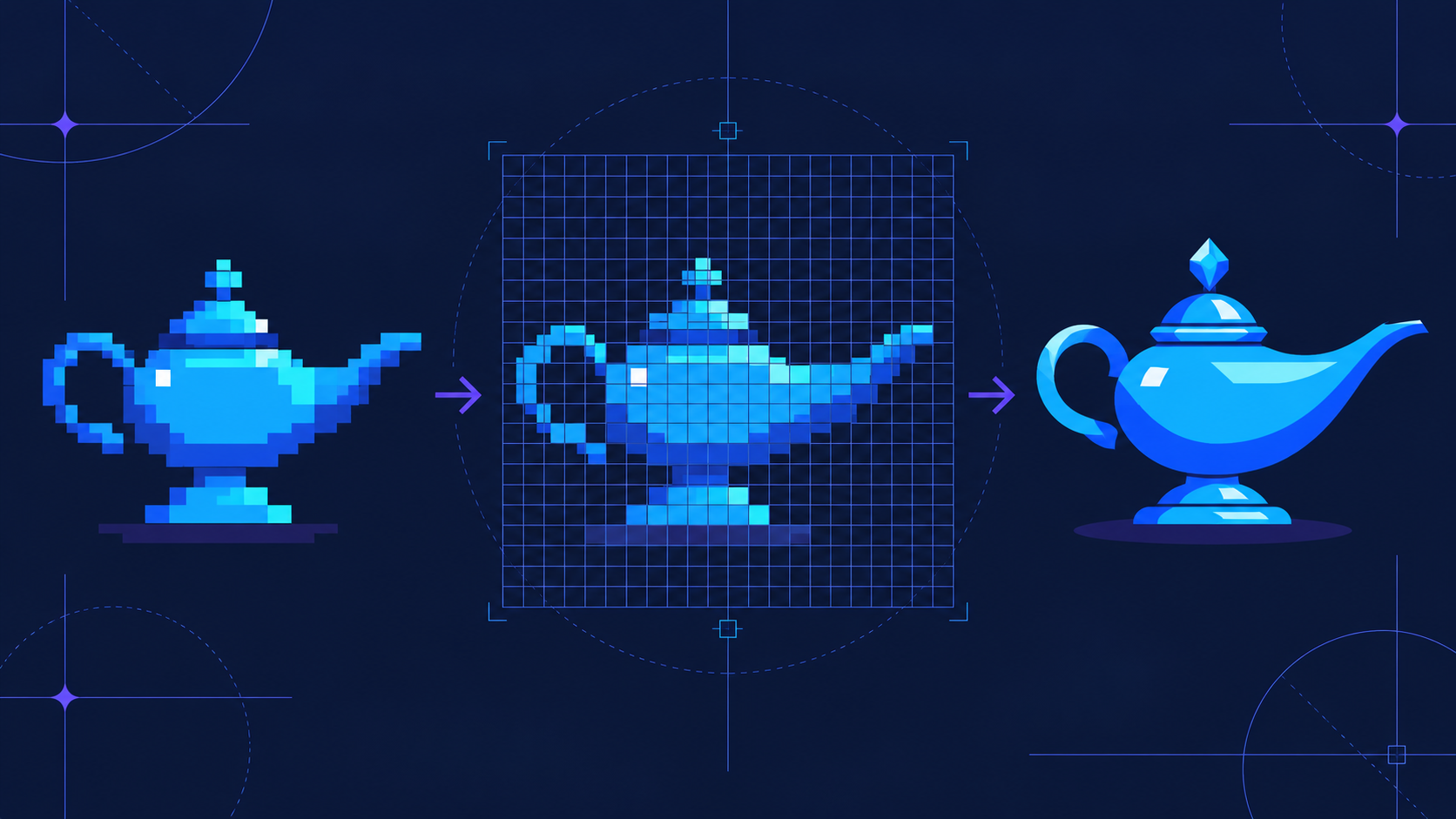
What does pixel art to SVG conversion mean?
Pixel art to SVG conversion rebuilds a raster sprite, icon, or illustration as vector geometry while preserving its square grid. Each colored cell—or a merged region of adjacent cells—becomes a rectangle or path with hard horizontal and vertical boundaries.
Pixel art to SVG is a grid-preserving raster-to-vector process. Unlike normal tracing, it should not smooth stair-step edges into curves. MDN describes SVG as a vector format for two-dimensional graphics, while the W3C SVG 2 specification defines the shapes and rendering model used to reproduce that grid.
If you have the original PNG, start with Image to SVG. If the source has already been enlarged or softened, recover the original pixel grid before converting.
When should you turn pixel art into SVG?
Convert pixel art to SVG when you need editable colors, scalable web graphics, CSS animation, reusable symbols, or clean export at several display sizes. Keep PNG when your software expects a texture, the art uses many noisy colors, or a spritesheet is already efficient.
| Job | Best format | Why |
|---|---|---|
| Website mascot or decorative icon | SVG | Scales cleanly and can be styled or animated |
| Small game sprite in a texture atlas | PNG | Most engines already optimize raster textures |
| App icon with a limited pixel palette | SVG, then export PNG sizes | One editable source can generate multiple outputs |
| Large spritesheet with hundreds of frames | PNG | SVG markup and DOM complexity can become expensive |
| Pixel logo that needs recoloring | SVG | Flat fills are easy to change consistently |
| Artwork with dithering and hundreds of tiny regions | PNG | Vector output may be larger and harder to edit |
Do not vectorize only to make the file “higher quality.” Pixel art already has intentional resolution. The conversion is useful when vector behavior solves a real delivery or editing problem.
How do you convert pixel art to SVG without blur?
Use the original-size image, keep nearest-neighbor sampling, preserve the exact palette, and align every vector boundary to whole grid units. The SVG should match the source at 1× before you test larger sizes.
Follow this workflow:
- Find the original sprite instead of a screenshot or enlarged preview.
- Crop to the exact pixel bounds and keep transparency intact.
- Remove accidental semi-transparent edge pixels.
- Confirm the palette contains only intentional colors.
- Convert with Image to SVG using minimal smoothing.
- Open the output in SVG Editor and inspect it on a visible grid.
- Snap any fractional coordinates back to whole grid units.
- Merge adjacent same-color cells only when the silhouette stays identical.
- Test the result at 1×, 2×, 4×, and a non-integer browser size.
The 1× comparison is the truth test. If the converted SVG changes a corner, gap, outline thickness, or palette value, fix that before optimizing.
Which settings preserve crisp pixel edges?
The safest settings disable smoothing, keep the original color count, preserve transparency, and simplify only along straight grid boundaries. Conventional tracing defaults are often wrong because they assume jagged edges are defects.
| Setting | Use for pixel art | Avoid |
|---|---|---|
| Smoothing | Off or minimum | Rounded corners and curved stair steps |
| Color count | Exact intentional palette | Automatic gradients or extra edge colors |
| Noise removal | Zero or very low | Deleting isolated pixels that belong to the design |
| Corner detection | Strong | Treating square corners as soft curves |
| Transparency | Preserve exact alpha | White background rectangles |
| Path simplification | Grid-safe only | Moving points away from integer coordinates |
For a PNG source, the broader PNG to vector guide explains palette and background cleanup. Pixel art needs one important reversal: an isolated pixel may be intentional, so aggressive noise removal can damage the artwork.
Why does pixel art become blurry in SVG?
Blurry SVG pixel art usually comes from interpolation or fractional placement, not from SVG itself. A perfect grid can still look soft when the browser maps its edges between physical screen pixels.
Check these failure modes:
- The source was enlarged smoothly: return to the original or resize with nearest-neighbor sampling.
- Shapes use decimal coordinates: align
x,y, width, and height values to the source grid. - The SVG displays at an awkward size: prefer whole-number scale factors when exact pixel crispness matters.
- The browser smooths the image: test
shape-rendering="crispEdges"for vector shapes orimage-rendering: pixelatedfor embedded raster content. - Semi-transparent edge pixels were traced: remove unintended alpha values before conversion.
- A viewBox crops half a cell: make its bounds match the complete grid.
crispEdges is a rendering hint, not a cleanup tool. It cannot repair a sprite that was already blurred, traced into curves, or positioned on a broken grid.
Should every source pixel become a rectangle?
One rectangle per visible pixel gives a faithful result and is easy to understand, but it can create needlessly large files. A better SVG merges adjacent cells of the same color into larger rectangles or compound paths without changing the silhouette.
Choose the structure by job:
- Use separate rectangles when the sprite is small and individual cells must be animated.
- Merge horizontal runs when you want simple, predictable markup.
- Merge same-color regions when file size matters more than per-pixel editing.
- Keep palette groups separate when CSS needs to recolor outlines, shadows, and highlights.
Never simplify diagonals into smooth curves. In pixel art, the staircase is the shape. After merging, compare the SVG against the original with a difference view or place both versions on top of each other at 1×.
How do you optimize pixel-art SVG without changing it?
Optimize structure only after the visual result is exact. Remove redundant metadata, combine safe same-color regions, shorten markup, and keep the original integer grid and palette untouched.
Use this checklist:
- The SVG matches the original at 1×.
- All intended transparent cells remain transparent.
- No extra colors appeared around edges.
- Every grid boundary sits on an integer coordinate.
- Same-color regions are merged only when safe.
- IDs and groups needed for animation remain intact.
- The file still looks correct at whole-number scale factors.
- The optimized file is checked again before shipping.
If optimization changes the artwork, restore the clean version and use the focused SVG path optimizer guide. Visual fidelity matters more than shaving a few extra bytes.
What is the easiest path for most users?
For a small sprite, icon, or pixel logo, use the original PNG, convert with smoothing minimized, compare at 1×, then fix and merge shapes in an editor. This gives you a useful SVG without manually drawing hundreds of cells.
Use Image to SVG for the first pass, then open the result in SVG Editor. Preserve the pixel grid during cleanup; do not “improve” deliberate stair-step edges into curves.
FAQ
Can pixel art be converted to SVG?
Yes. Pixel art converts cleanly to SVG when each visible pixel or same-color region becomes an axis-aligned vector rectangle or path. Use nearest-neighbor scaling, preserve the limited palette, and disable smoothing so the result keeps hard square edges.
Why does my pixel art look blurry after SVG conversion?
Pixel art looks blurry when the source was resized with interpolation, placed on fractional coordinates, or rendered with smoothing. Scale by whole-number multiples, align shapes to the SVG grid, and use shape-rendering="crispEdges" or pixelated rendering where appropriate.
Should every pixel become a separate SVG rectangle?
Not always. One rectangle per pixel is accurate but can create bloated markup. Merge adjacent pixels of the same color into larger rectangles or combined paths while keeping all boundaries aligned to the original grid.
Is SVG better than PNG for pixel art?
SVG is better when you need editable colors, browser animation, reusable symbols, or crisp scaling at arbitrary sizes. PNG is often better for large spritesheets, texture-heavy art, and game engines that expect raster textures.
Next step
Upload the original-size sprite to Image to SVG, preserve its palette, and inspect the result at 1× before scaling it. If a converter rounds corners or invents edge colors, stop and correct those settings instead of cleaning hundreds of wrong paths later.
Create your own SVG graphics with AI
Describe what you need, get a production-ready vector in seconds. No design skills required.
About This Article
This article was written by SVG Genie Team based on hands-on testing with SVG Genie’s tools and years of experience in vector design and web graphics. All recommendations reflect real-world usage and are reviewed by the SVG Genie editorial team for accuracy.
About the Author
SVG Genie Team
SVG Design Expert & Technical Writer at SVG Genie
SVG Genie Team is a vector design specialist and technical writer at SVG Genie with years of hands-on experience in SVG tooling, AI-assisted design workflows, and web graphics optimization. Their work focuses on making professional vector design accessible to everyone.
More articles by SVG Genie Teamarrow_forward