A logo looks correct in the browser, but the cutting machine drops its thin lines. A printer opens the file and the stroke widths change. A client imports the icon into another app and rounded ends become square. In these cases, converting SVG strokes to outlines can lock the visible shape into filled paths.
The fast rule is: keep strokes editable for the web; convert them to outlines only when the next tool cannot reproduce them reliably. Before converting, duplicate the file, expand transforms, and check the outlined result at corners, endpoints, and the edge of the viewBox.
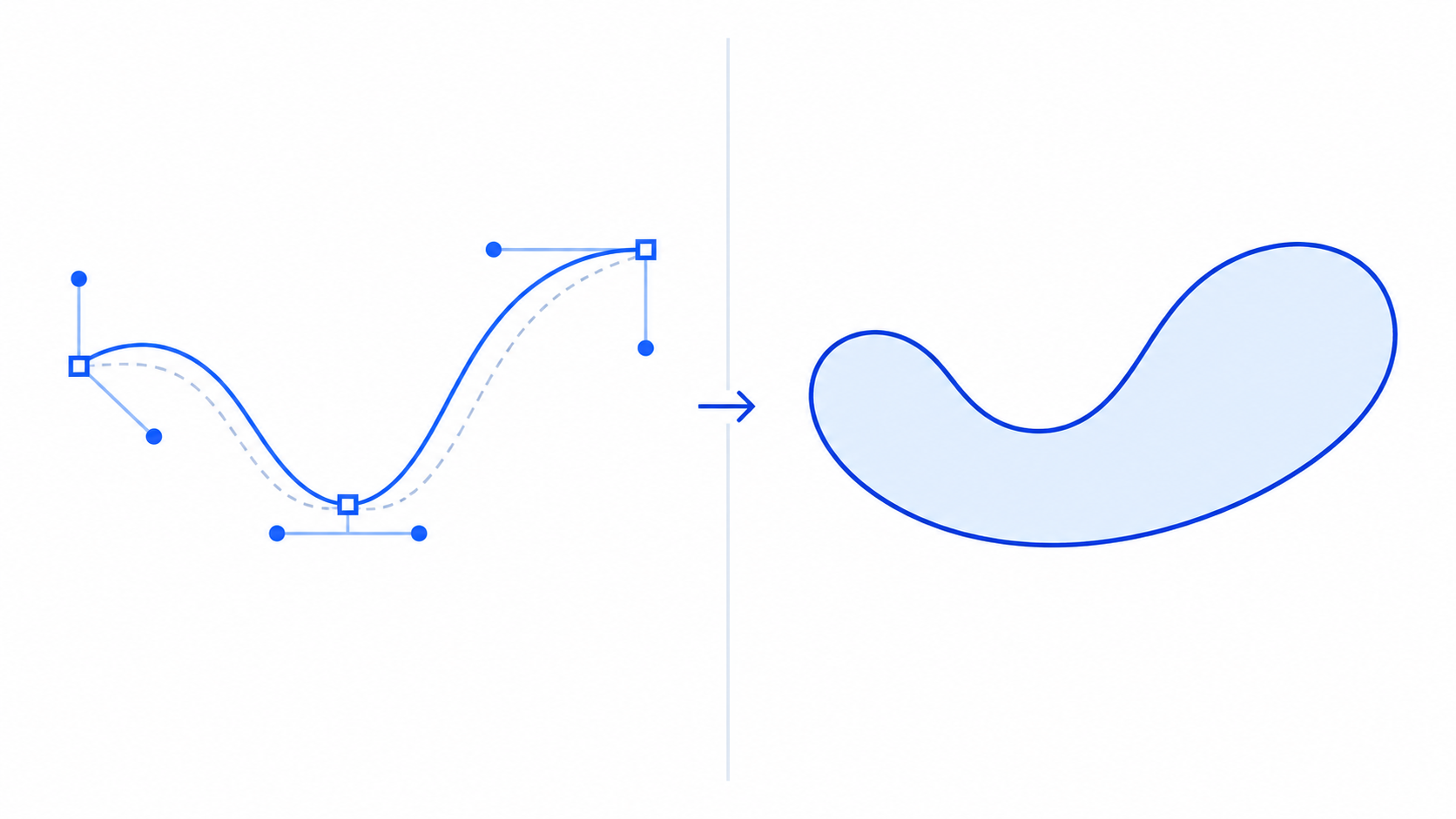
What does converting an SVG to outlines mean?
Converting an SVG stroke to an outline means replacing the stroke's centerline and width with the filled boundary of its visible shape. The result usually looks the same, but it is now a closed path rather than an editable line with stroke, stroke-width, linecap, and linejoin properties.
An outlined SVG stroke is a filled path whose outer boundary matches the visible area of the original stroke. It is not a raster image and it does not lose vector scalability.
For example, a simple line may begin like this:
<path d="M20 40 L180 40" fill="none" stroke="#2563eb" stroke-width="12" stroke-linecap="round" />
After outlining, the editor replaces that centerline with a closed filled shape. The exact path data depends on the editor, caps, joins, transforms, and curve geometry.
The MDN stroke reference explains how SVG paints a stroke. The SVG 2 painting specification defines stroke width, caps, joins, and related behavior.
How do I convert an SVG stroke to an outline?
Open a copy of the SVG in a vector editor, select the stroked objects, expand any transforms, and apply the editor's stroke-to-path or outline-stroke command. Then compare the output with the original before exporting. The command name varies, but the operation is the same.
Use this checklist:
- Duplicate the original SVG so the live strokes remain editable.
- Open the copy in SVG Genie's SVG editor or a desktop vector editor.
- Confirm the
viewBoxand canvas bounds. - Expand transforms if the editor provides that option.
- Select only the strokes that must become paths.
- Run Stroke to Path, Outline Stroke, or Expand Appearance.
- Inspect rounded caps, sharp joins, dashed segments, and overlaps.
- Resize the result and compare it with the original.
- Export as SVG and run a conservative cleanup only after visual approval.
If the original came from a raster image, first use Image to SVG, then clean its paths. Automatic tracing usually creates filled shapes already, so there may be no live stroke to outline.
When should I outline SVG strokes?
Outline strokes when appearance must survive a tool or production process that handles SVG stroke properties inconsistently. Common examples include laser cutting, vinyl cutting, embroidery conversion, print handoff, boolean operations, and exchanging assets with software that changes caps, joins, or transformed stroke widths.
| Use case | Keep live strokes | Convert to outlines |
|---|---|---|
| Responsive website icon | Yes | Usually no |
| CSS color or width animation | Yes | No |
| Logo sent to an unknown print workflow | Keep master | Send outlined copy |
| Laser or vinyl cutting | Only if software supports it | Often yes |
| Boolean shape operations | Optional | Often helpful |
| Repeated design edits | Yes | Only for final export |
Outlining is a compatibility step, not a universal cleanup step. It can increase node count and file size, so it is rarely useful for an ordinary web SVG. For browser assets, use the SVG path editing workflow to fix visible geometry while preserving the simplest editable structure.
Why does the SVG change after outlining the stroke?
An SVG can change after outlining because the original stroke depends on transforms, vector-effect, line caps, line joins, dash patterns, or clipping. Converting too early can bake those conditions into unexpected geometry. Expand transforms first and compare the same viewport, scale, and background.
Check these failure modes:
- The outline looks thicker: a scale transform may have affected the stroke differently from the path.
- Sharp corners grow spikes: a high miter limit can produce long pointed joins.
- Rounded ends become flat: the editor may not have preserved
stroke-linecap="round". - Dashes merge or shift: dash spacing becomes many separate filled shapes.
- The edge is clipped: the visible stroke extended outside the original
viewBox. - A non-scaling stroke changes size:
vector-effect="non-scaling-stroke"behaves differently from normal geometry.
If the output is clipped, do not merely increase width and height. Adjust the viewBox so the outlined geometry fits. The SVG viewBox guide shows how to change the coordinate boundary without stretching the artwork.
Should I outline SVG text?
Outline SVG text when the exact letterforms must survive without the font file, especially for print, fabrication, or a final logo handoff. Keep text live when accessibility, searchability, localization, file size, or future copy changes matter more than locking the appearance.
Text outlining solves a different problem from stroke outlining. A font can be unavailable on another machine, causing substitution or layout changes. Converting letters to paths freezes their shapes, but screen readers no longer receive meaningful text unless you supply an accessible label.
Use this decision rule:
- Keep headings, labels, diagrams, and localized copy as text.
- Outline a final wordmark when font fidelity is essential.
- Keep an editable master before converting.
- Add an accessible name when outlined text conveys information on the web.
For Figma-specific exports, follow the Figma SVG outline text guide to avoid missing fonts without destroying the editable source.
How do I keep outlined SVG paths clean?
Keep outlined paths clean by converting only final strokes, preserving the original master, removing redundant overlaps, and optimizing conservatively. Do not apply aggressive simplification immediately: it can flatten rounded ends, deform corners, or create visible asymmetry in logos and icons.
After conversion:
- Check the shape at 16px, 24px, 64px, and a large preview size.
- Look for accidental holes and overlapping filled regions.
- Preserve IDs used by gradients, masks, CSS, or JavaScript.
- Confirm that the outline stays inside the
viewBox. - Remove only nodes that do not change the silhouette.
- Compare the optimized file with the approved outline.
If the file becomes unexpectedly large, use the SVG optimization guide after the outline is visually correct. Optimizing first can make the later stroke-to-path conversion harder to inspect.
What is the easiest safe workflow?
The safest workflow is to maintain two files: an editable master with live strokes and a production copy with outlined paths. Name them clearly, test the production copy in its destination tool, and never overwrite the master. This gives you reliable output without sacrificing future edits.
For a quick browser workflow, inspect and clean the source in SVG Editor, save the editable version, create the outlined export in a tool that supports stroke-to-path conversion, and reopen the result to verify its geometry. If you need to correct a curve afterward, edit only the affected nodes rather than simplifying the entire file.
FAQ
How do I convert an SVG stroke to an outline?
Open the SVG in a vector editor, select the stroked object, use the stroke-to-path or outline-stroke command, then inspect the result at corners and endpoints. Save a copy before outlining because the new object is a filled path and no longer has an editable stroke width.
Does outlining an SVG improve quality?
No. Both strokes and outlined paths are vectors and can scale cleanly. Outlining improves portability when a production tool does not interpret strokes reliably, but it usually increases path complexity and makes later width edits harder.
Why does an outlined SVG look thicker?
The source may use a transform, a non-scaling stroke, or unusual line joins. Expand transforms first, check vector-effect attributes, and compare the original and outlined versions at the same viewBox and dimensions.
Should SVG text be outlined too?
Outline text only when its exact appearance matters more than editability and accessibility. Live text is smaller, searchable, and easier to change, while outlined text avoids missing-font substitutions in print or fabrication workflows.
Can browsers display SVG strokes without outlining them?
Yes. Modern browsers support SVG strokes directly. Keep strokes live for normal web graphics unless a downstream tool, animation, fabrication process, or file handoff specifically requires filled paths.
Create your own SVG graphics with AI
Describe what you need, get a production-ready vector in seconds. No design skills required.
About This Article
This article was written by SVG Genie Team based on hands-on testing with SVG Genie’s tools and years of experience in vector design and web graphics. All recommendations reflect real-world usage and are reviewed by the SVG Genie editorial team for accuracy.
About the Author
SVG Genie Team
SVG Design Expert & Technical Writer at SVG Genie
SVG Genie Team is a vector design specialist and technical writer at SVG Genie with years of hands-on experience in SVG tooling, AI-assisted design workflows, and web graphics optimization. Their work focuses on making professional vector design accessible to everyone.
More articles by SVG Genie Teamarrow_forward