You need one logo in a different color, not an account, a tutorial series, and a heavyweight design app. The fastest route is a free SVG editor without signup: open the file, select the element, change the visual property, preview it, and download the edited SVG.
Use this decision rule first: if you only need to change fill, stroke, stroke width, or opacity, use a lightweight browser editor. If you need to draw new shapes, reshape paths, or rebuild text, use a full vector design tool.
What is a no-signup SVG editor?
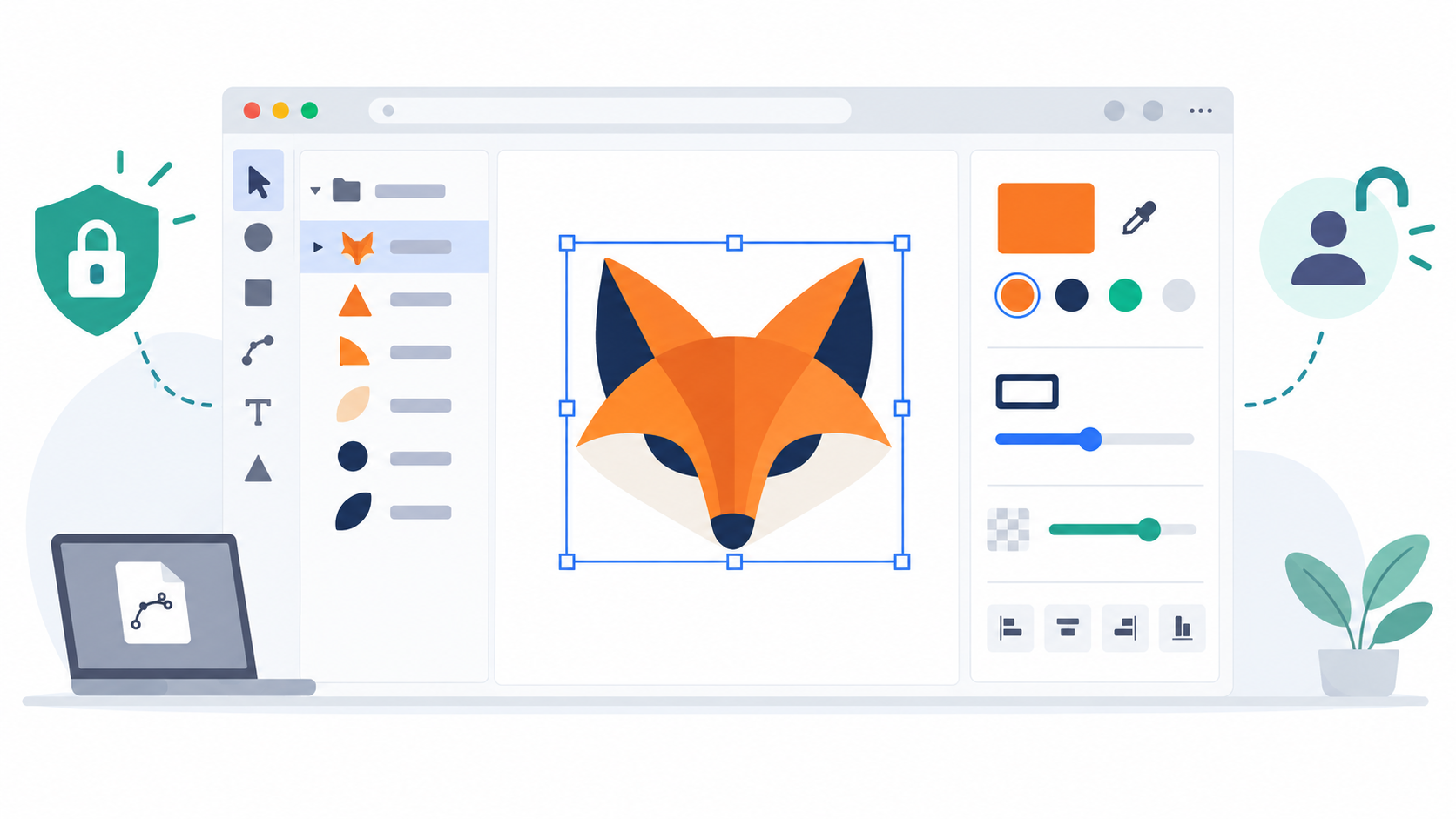
A no-signup SVG editor is a browser tool that lets you open and modify an SVG file without creating an account. It is designed for quick edits to existing vector artwork, such as recoloring a logo, changing an icon outline, reducing opacity, or checking individual elements before export.
An SVG editor is software that reads the shapes and properties stored in Scalable Vector Graphics markup and lets you modify them visually or in code. Because SVG is a text-based vector format, a color change can be as small as updating a fill value while the curves remain sharp at every size. The W3C SVG 2 specification defines the format, and MDN's SVG tutorial is a practical introduction to its elements and attributes.
SVG Genie's free SVG editor is built for this quick-edit job. You can inspect the elements already in a file and change common visual properties without installing software.
How do I edit an SVG online without signing up?
Open a copy of the SVG in a browser editor, select the shape you want to change, update one property at a time, and download the result. Keep the original file until you have tested the edited version at its real display size.
Use this five-minute workflow:
- Duplicate the original SVG so you always have a rollback copy.
- Open the copy in the SVG editor.
- Select an element in the preview or element list.
- Change its fill, stroke, stroke width, or opacity.
- Repeat only for the elements that need editing.
- Preview the artwork on both light and dark backgrounds.
- Download the edited SVG.
- Open the downloaded file in a second browser tab and test it where it will be used.
Avoid changing several properties at once. A one-property-at-a-time approach makes mistakes obvious: if the logo suddenly looks hollow, you changed the fill; if its edges disappeared, you changed the stroke; if the whole mark faded, you changed opacity.
For a directional icon or illustration, the flip SVG online workflow shows how to mirror the graphic while keeping text readable and the result inside its viewBox.
Which SVG edits are safe in a lightweight browser editor?
Lightweight editors are safest for property changes that preserve the file's existing geometry. Recoloring, outline adjustments, and opacity changes are low-effort. Text replacement and path reshaping are more complex because they can alter layout or geometry.
| Editing job | Lightweight editor? | What to check before export |
|---|---|---|
| Change a solid fill color | Yes | Gradients and CSS overrides |
| Change an outline color | Yes | Whether the element actually has a stroke |
| Increase stroke width | Yes | Rounded corners and clipping at the canvas edge |
| Reduce opacity | Yes | Overlapping elements and background contrast |
| Recolor a multi-part logo | Yes | Hidden groups and consistent brand colors |
| Replace live text | Sometimes | Font availability, line length, and alignment |
| Move or redraw path nodes | Use a full editor | Curves, joins, and excess nodes |
| Create new illustration geometry | Use a full editor | Layers, boolean operations, and export cleanup |
If the task involves words, read the SVG text editing guide first. If the curve itself is rough or overloaded with nodes, use the online SVG path editing workflow instead.
Why is an SVG element not changing color?
An SVG element may ignore a color edit because its visible appearance comes from stroke, currentColor, a gradient, inherited CSS, a parent group, or an embedded image rather than a simple fill. Identify the rendering source before repeatedly changing the color picker.
Check these causes in order:
- Fill versus stroke: An outlined icon can have
fill="none"and get all its visible color fromstroke. - CSS inheritance: A file using
currentColormay take its color from the surrounding webpage rather than a fixed SVG value. - Gradient references: A value such as
fill="url(#paint0)"points to a gradient definition, not a solid color. - Grouped styling: A parent
<g>element can supply styles to several child paths. - Inline styles: A
styledeclaration may override the presentation attribute you changed. - Raster content: An
<image>inside the SVG is still a bitmap and cannot be recolored like a vector path.
The browser's final styling rules can be more important than the value visible on one shape. MDN's guide to the SVG fill attribute explains how it applies to shapes and animation, while the stroke attribute reference covers outlines.
For theme-ready icons that deliberately inherit webpage color, use the SVG currentColor guide. For a straightforward fixed-color asset, replace the inherited color with an explicit fill only after confirming that dark mode is not supposed to control it.
How do I keep an SVG from breaking after an edit?
Preserve the viewBox, groups, transforms, IDs, masks, clip paths, gradients, and accessibility elements unless you understand their role. Most broken exports are caused by deleting referenced structure or cropping the canvas, not by changing one color.
Run this pre-download checklist:
- Keep the original
viewBoxunless the canvas itself is wrong. - Make sure thicker strokes are not clipped at an edge.
- Preserve IDs referenced by
url(#...), masks, gradients, filters, or clip paths. - Keep transforms on rotated, scaled, or positioned groups.
- Retain meaningful
<title>and<desc>elements. - Preview at the intended small size, not only at 500% zoom.
- Test the downloaded file, not just the editor preview.
- Keep the source copy until the new asset works in production.
The viewBox maps the SVG's internal coordinate system to the visible viewport. If an edit appears cropped, the MDN viewBox reference explains the underlying behavior, and our SVG viewBox guide gives practical fixes.
Is a no-signup SVG editor private?
No signup does not automatically mean private. A tool can skip account creation and still upload files to a server. Check whether the tool explicitly says processing happens locally in your browser, especially before opening unreleased logos, client artwork, or internal product assets.
Use this privacy check:
- Read the tool's upload or privacy explanation.
- Look for an explicit statement that files stay on the device.
- Avoid sensitive assets when the processing location is unclear.
- Remove hidden metadata before external distribution when necessary.
- Never assume a padlock icon alone describes file handling.
SVG Genie processes editor files client-side, so the quick edit can stay in the browser. For files received from unknown sources, privacy is only one concern: active content and unsafe links can also be embedded in SVG markup. Follow the safe SVG opening checklist before previewing an untrusted file.
When should I use a full vector editor instead?
Use a full vector editor when the job changes the artwork's structure rather than its existing visual properties. New paths, precise node work, boolean operations, advanced typography, complex gradients, and print preparation all need tools beyond a quick property editor.
Choose the lightest tool that can finish the job:
- Quick browser editor: recolor, restyle strokes, change opacity, inspect elements.
- Code editor: repair IDs,
viewBox, accessibility labels, CSS, or framework markup. - Full vector editor: draw and reshape paths, create typography, merge shapes, build illustrations.
- Raster-to-vector converter: turn a PNG or JPG logo into editable vector shapes before polishing.
If your starting asset is a bitmap, convert it with Image to SVG before editing its vector elements. If you are comparing tools for a larger job, the best SVG editors online guide covers lightweight and full-featured options.
What is the fastest workflow for common SVG edits?
The fastest workflow is to match the symptom to the property: use fill for solid interiors, stroke for outlines, stroke width for line weight, and opacity for transparency. Test the result immediately after each change and stop when the specific problem is solved.
If lowering transparency fades the entire logo instead of only its canvas, follow the SVG background opacity guide to separate the background rectangle from the foreground artwork.
| If you want to... | Change this first | Then verify... |
|---|---|---|
| Recolor a solid logo | fill | Every component uses the intended color |
| Recolor a line icon | stroke | fill remains none where appropriate |
| Make lines bolder | stroke-width | Edges and tight corners are not clipped |
| Make an element subtle | opacity | Contrast remains usable on the target background |
| Use one icon in light and dark themes | currentColor or CSS | Both themes and hover states |
| Fix a blurry or clipped result | viewBox and dimensions | Aspect ratio at the final size |
Do not optimize the file before the design is approved. Optimization can simplify paths, remove metadata, or rewrite definitions, which makes debugging harder. Make the visible change first; then use the SVG optimization guide on a separate production copy.
FAQ
Can I edit an SVG online without signing up?
Yes. A no-signup SVG editor can open an existing SVG in your browser, let you change supported properties such as fill, stroke, stroke width, and opacity, then download the edited file. You only need a full vector design app when you must draw new paths or substantially rebuild the artwork.
What can I change in a simple SVG editor?
A simple SVG editor is best for changing colors, outlines, stroke width, opacity, and other existing element properties. Some tools also support text or path editing, but those jobs need extra care because text may be outlined and paths may contain many nodes.
Will editing an SVG reduce its quality?
No. Changing SVG properties does not introduce pixelation because the artwork remains vector-based. Quality problems usually come from replacing vector shapes with a raster image, clipping the viewBox, or accidentally removing masks, gradients, or referenced IDs.
Why is part of my SVG not changing color?
The element may use a stroke instead of a fill, inherit currentColor from CSS, reference a gradient, sit inside a group, or be embedded as a raster image. Inspect the element tree and test fill and stroke separately before editing the code.
Is a browser SVG editor enough for logo edits?
It is enough for quick logo changes such as recoloring, adjusting outline thickness, or changing opacity. Use a full vector editor when you need new lettering, custom path drawing, boolean operations, or a major layout change.
Open your file in the free SVG editor, make the smallest edit that solves the problem, and export a tested copy without creating an account.
Create your own SVG graphics with AI
Describe what you need, get a production-ready vector in seconds. No design skills required.
About This Article
This article was written by SVG Genie Team based on hands-on testing with SVG Genie’s tools and years of experience in vector design and web graphics. All recommendations reflect real-world usage and are reviewed by the SVG Genie editorial team for accuracy.
About the Author
SVG Genie Team
SVG Design Expert & Technical Writer at SVG Genie
SVG Genie Team is a vector design specialist and technical writer at SVG Genie with years of hands-on experience in SVG tooling, AI-assisted design workflows, and web graphics optimization. Their work focuses on making professional vector design accessible to everyone.
More articles by SVG Genie Teamarrow_forward